

Skip to tool
KeyboardTester.click
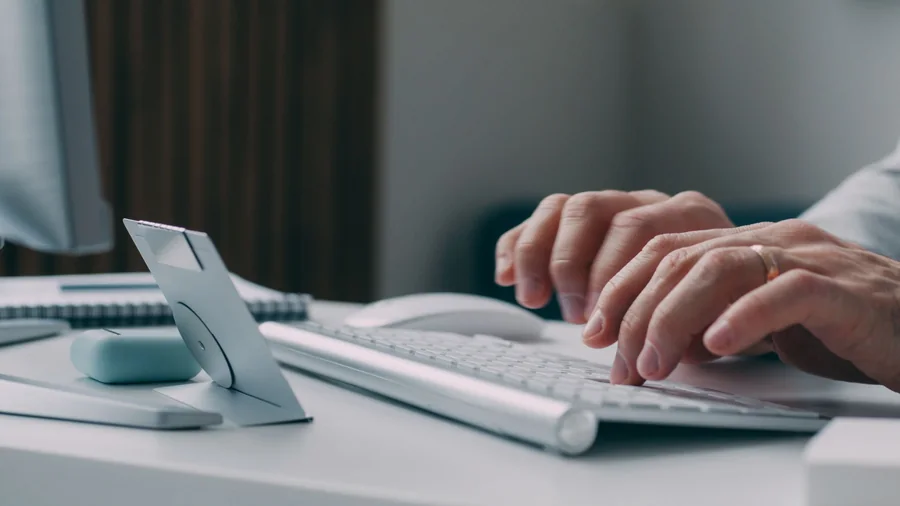
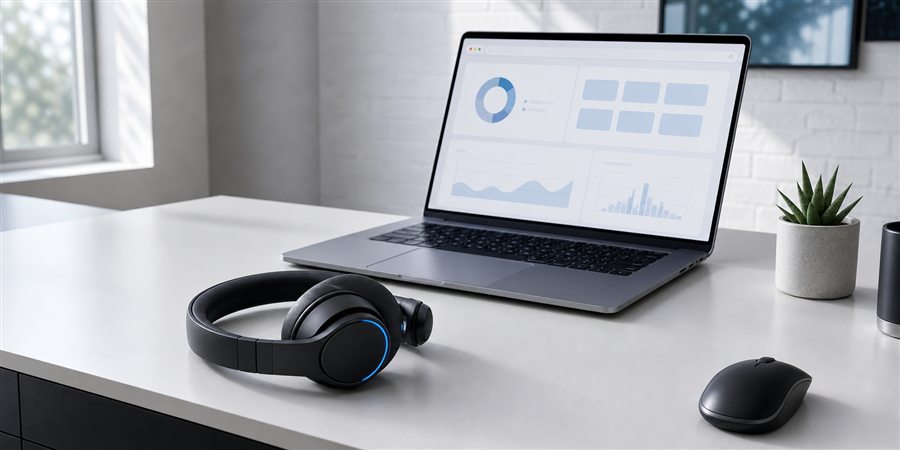
Modern laptop and headphones workspace for browser diagnostics

KeyboardTester.click

Keyboard Tester Free Online Key Test

Press any key to run a free online keyboard test for full-size, TKL, 75%, 70%, 65%, and 60% keyboards. Check key input, spot stuck or repeating keys, and verify ghosting or shortcuts with no download.

Download from Microsoft Store Download from Microsoft Store
Key History
📱 Mobile Keyboard Tester
Q
W
E
R
T
Y
U
I
O
P
A
S
D
F
G
H
J
K
L
Z
X
C
V
B
N
M
1
2
3
4
5
6
7
8
9
0
Space
.
,
@
!
?
Characters Typed 0
Unique Keys 0/42
Tip: Use your device's keyboard (appears when you tap the input field above). Each key you press will light up on the visual keyboard!
Caps
Num
Scroll
Trusted by 16,665 people
Rate: 4.8 (101 ratings)

Explore Keyboard tools & stories

10 tools · 2 Web Stories

View all
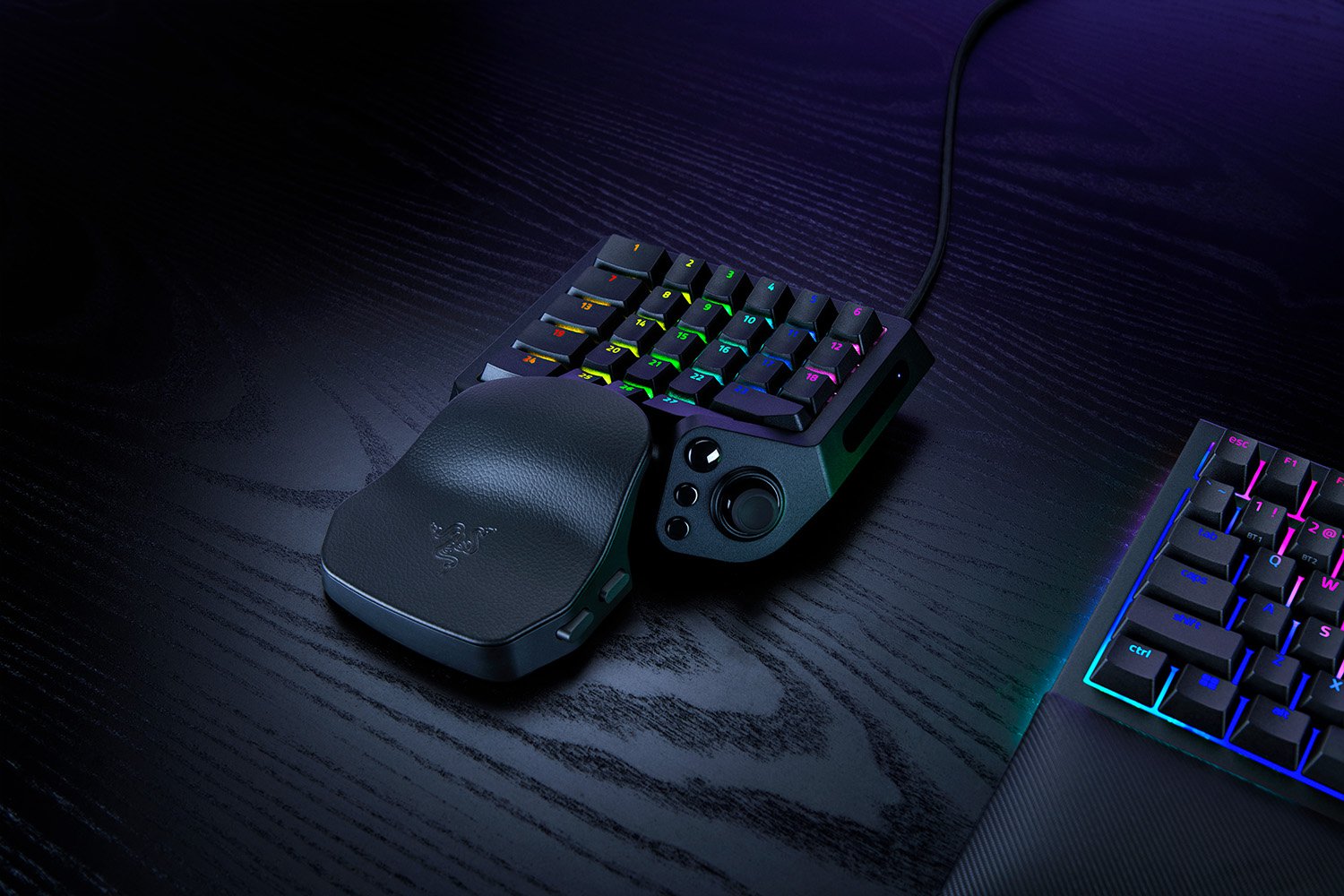
A man in an orange hoodie holding a generic keyboard; illustrative stock, not a Tartarus device or an endorsement 01 / 10 Keep or upgrade Tartarus V2 Pro: upgrade or keep? Keep a working Pro if its bindings fit. Illustrative stock photos; none shows a Tartarus.
Open full story Read full guide Card 1 of 10 in Tartarus V2 Pro: Upgrade or Keep?
A man in an orange hoodie holding a generic mechanical keyboard in a gaming venue; illustrative stock, not a Wooting product 01 / 10 US buyer Wooting 80HE+: check before buying Parts or a full board? Avoid the case-fit trap. Stock photos illustrate this source-based guide.
Open full story Read full guide Card 1 of 10 in Wooting 80HE+: Buy or Keep?

Web Story

Opening story…

Keyboard testing guide

Keyboard tester standard

How to run a reliable keyboard test online

Use this keyboard tester online when you need a clean key test, keyboard checker, 60 percent keyboard tester, 75 percent keyboard test, or laptop keyboard test before changing hardware. Work through the steps in order: confirm the OS labels, choose the closest keyboard size, test every key once, compare the key history, then use deeper checks for stuck keys, keyboard ghosting, N-key rollover, or input latency. If your keys use non-English legends, open the language keyboard tester hub before judging symbol mismatches.

01 Choose OS, layout, and keyboard size Select Windows or Mac labels, then choose the closest size: full-size, TKL/80%, 75%, 70%, 65%, or 60%. QWERTY, AZERTY, Dvorak, Colemak, compact, and laptop keyboards can send different symbols, so layout first prevents false failures; for Arabic, Korean, Russian, Japanese, and other native labels, use the localized keyboard layout testers.
02 Understand what the Layout selector changes Choose the native layout or the closest QWERTY, QWERTZ, AZERTY, Dvorak, or Colemak option shown. This changes the visual key map, not your operating-system input language. If a typed symbol differs, check the active OS language or input method; Fn, power, and some media keys may not reach the browser.
03 Focus the tester and press each key once Click inside the tester, press one physical key at a time, and let it release. A healthy key highlights once, appears in key history, and does not stay active after your finger lifts.
04 Compare highlight with key history Use the visual highlight and history together. If the screen shows a different letter, check OS language settings, browser focus, and shortcut conflicts before assuming the switch is broken.
05 Retest problem keys slowly Repeat any missed, repeating, or sticky key three to five times. Key chatter usually appears as rapid duplicate entries from one press; a stuck key stays highlighted or fires without a fresh press.
06 Check real shortcut combinations Hold the shortcuts you actually use: WASD with Shift, Ctrl, Space, number keys, and arrows. Missed highlights in combinations can point to keyboard ghosting, blocked matrix paths, or rollover limits.
07 Use Advanced Options and Pro Test Open Advanced Options when a basic key press test is not enough. Pro Test adds heatmap, statistics, ghost-click monitoring, latency checks, guided all-key testing, and exportable evidence for repairs or comparisons.
08 Read Statistics Statistics shows session time, total key events, tested-key coverage, and the most and least pressed keys so you can confirm what was actually checked.
09 Use the Heatmap Heatmap colors keys by press frequency so repeated, overactive, or heavily used keys stand out from the rest of the board.
10 Control keypress Sound Sound turns the page’s keypress confirmation audio on or off. It confirms browser input only and does not test the physical sound of the switch.
11 Run Test All Keys Test All Keys starts a guided coverage check for the selected full-size, TKL/80%, 75%, 70%, 65%, or 60% keyboard and shows which testable keys remain.
12 Export the session Export downloads a local report containing the current settings, coverage, counts, key history, and available Advanced Options results for repair, warranty, or comparison evidence.
13 Monitor with Ghost Click Ghost Click watches for unintended key events while your hands are off the keyboard. Activity may point to a stuck switch, debris, liquid damage, or electrical noise.
14 Compare Latency Latency summarizes browser event timing. Compare results on the same device and browser; do not treat the number as laboratory-grade, end-to-end hardware latency.
15 Confirm with related diagnostics If keys pass here but feel delayed, test input latency and follow the guide to fix keyboard delay and input lag. If one key repeats, use stuck-key testing. If shortcuts fail, compare with the keyboard ghosting and N-key rollover pages before replacing the keyboard.

Comparing a new Hall Effect keyboard? Read our Wooting 80HE+ buying and case-compatibility guide before choosing a complete board or replacement Module, then use this tester to check key registration after delivery.

Quick answers
Common questions before you start

How do I test every key on my keyboard online?

Click inside the keyboard tester, then press each physical key once. The matching key should light up and appear in the key history. Test letters, numbers, modifiers, arrows, numpad, and shortcuts separately so you can see missed keys, wrong symbols, or repeated input clearly.

Do I need to download a keyboard tester app?

No. This is a browser keyboard tester, so it runs on the page without an app, extension, or account. Use it on Windows, Mac, Chromebook, Linux, laptop, USB, Bluetooth, and compact keyboards as long as the browser can receive normal keyboard events.

Is this keyboard tester open source?

Yes. KeyboardTester.click is open source under the MIT License and the full source code is public on GitHub. You can read how every test works, report issues, or reuse the code within the license terms. The domain name, logo, and some third-party assets keep their own separate rights.

Is there a Microsoft Store app or Android APK?

Yes. The free KeyboardTester.click Windows app is on the Microsoft Store, and the download page also lists installer and portable Windows builds. Android users can install the KBT Measure Suite APK, a beta companion app for phone sensor and measurement tests like the ruler, level, vibration, and touch screen checks.

Why is my keyboard not typing or not registering keys?

If keys fail here and in other apps, check the cable, Bluetooth battery, USB port, OS keyboard layout, and physical switch or membrane. If keys work here but not in one app or game, the problem is usually app focus, shortcut capture, permissions, or an in-game binding.

How can I check for stuck keys, repeated keys, or keyboard chatter?

Press the problem key slowly and watch whether it records once, repeats rapidly, or stays highlighted after release. A chatter pattern usually means one press creates multiple history entries. Use the stuck key test when you need a focused repeat-input check.

Can this keyboard tester detect ghosting and N-key rollover?

Yes. It can reveal common ghosting and rollover limits by showing which held keys register together. Hold gaming combos like WASD with Shift and Space, then compare the highlights. For deeper combination checks, use the keyboard ghosting test.

Can I use this as a 60%, 65%, 70%, 75%, or TKL keyboard tester?

Yes. Use the Keyboard size selector above the visual board and choose 60%, 65%, 70%, 75%, TKL/80%, or full-size before testing. Compact keyboards often put arrows, function keys, Delete, Home, End, Page Up, or Page Down behind Fn layers, so test the key combinations that send those outputs. The Fn key itself may not appear because most keyboard firmware handles it before the browser receives a key event.

Does it work with laptop, Windows, Mac, Chromebook, Bluetooth, and compact keyboards?

Yes. The test works with most desktop, laptop, wired, wireless, Bluetooth, Windows, Mac, Chromebook, and compact keyboards. Browser and OS shortcuts may still intercept some keys, and Fn-layer or media keys may not expose standard key events to any website.

Are my keystrokes recorded or uploaded?

No. The key test runs in your browser and displays the result on the page. The tool does not need a login, download, or server upload for normal key testing. Avoid typing passwords or private text into any keyboard tester, including this one.

Keyboard guides and reviews

View all
More Keyboard guides

Windows app

KeyboardTester.click is available from Microsoft Store

Install the official Windows app shortcut, or keep using the same free testing tools in your browser.

Download from Microsoft Store Download from Microsoft Store

More tools to try