OLED Burn-In Test: Image Retention vs Permanent Burn-In (and How to Recover It)
You close a game or quit a long session and notice it: a faint ghost of the HUD, the taskbar, or a channel logo still hovering on your OLED. Cue the panic. Is the panel ruined? Is this the dreaded burn-in everyone warned you about? Will it fade, or is it stuck forever? The forums are full of scary photos and conflicting advice, but almost nobody gives you a way to actually test which one you have.
This guide does. You will learn how to run a free OLED burn-in test, how to tell temporary image retention apart from permanent burn-in, the one recovery step worth trying before you panic, and a clear decision tree for when it is genuinely time to RMA. No invented hour thresholds, no doom — just a reproducible workflow that ends with a verdict you can trust.
The fast answer: Image retention is temporary and fades; burn-in is permanent and does not. To tell which you have, show a faint even shade like 50% gray, note the ghost, then run varied content or a scrolling refresher for 10–60 minutes. If the ghost fades, it was retention — no damage. If it stays in exactly the same spot, it is burn-in. A browser test can reveal visible wear and run a pixel-refresher, but it cannot certify permanent damage on its own, so route the final call and any warranty claim to the manufacturer. Start with the burn-in test in fullscreen.
Run KBT's OLED Burn-In Test (What to Look For)
The test is simple, and the right patterns make the difference between a real diagnosis and a false alarm. Open the OLED burn-in test, press Fullscreen so no browser chrome interferes, and work through three things it gives you.
- Solid colors (reveal retention and uneven wear). Cycle through white, black, red, green, and blue, then linger on a mid gray. Solid fields are where a ghosted shape — a taskbar bar, a game HUD, a logo — jumps out, and where a worn patch shows up dimmer or color-shifted against the rest of the panel. Mid gray around 50% is the most revealing for faint ghosts.
- Checkerboard (expose stuck or dead subpixels). The fine checkerboard alternates pixels so a stuck-on or dead subpixel breaks the pattern. That is a different defect from burn-in — if you find isolated bright or black dots, follow up with a focused dead pixel test.
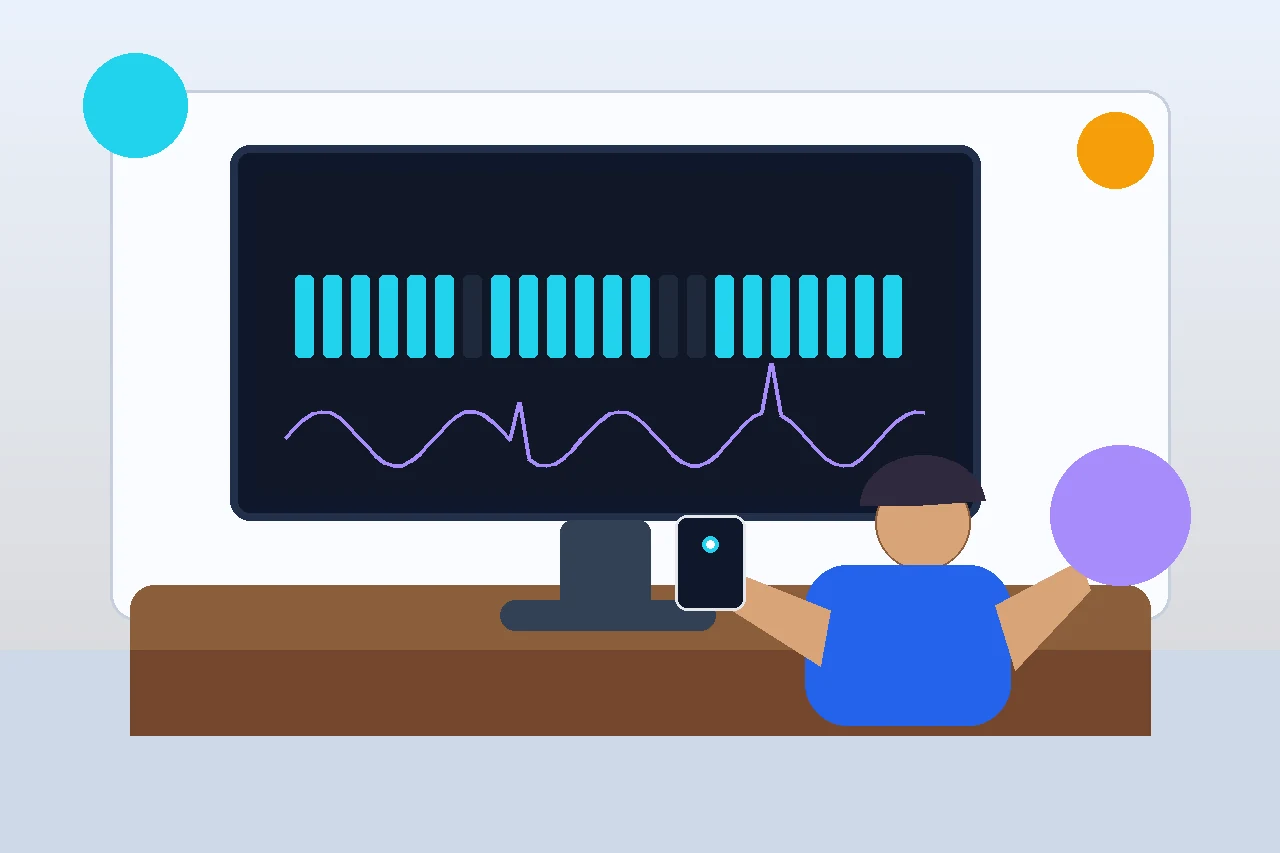
- Scroll mode (the pixel refresher). A full-screen scrolling bar pattern exercises every pixel evenly. This is the on-demand version of the overnight pixel-refresh your OLED TV runs by itself, and it is your recovery step — more on that below.
The honest limit: a browser test shows you what is visible on the panel right now and lets you run a refresher. It cannot, on its own, certify that damage is permanent — only the fade-or-stay retest below, plus the manufacturer's panel-care process, can do that. Treat the test as your first, fast screen, not the final word.

Image Retention vs Permanent Burn-In
This is the distinction that ends most of the confusion. The two look similar at a glance, but they are completely different problems with completely different outcomes.
Image retention is temporary and reversible. After a long stretch of static content, a faint ghost lingers, then fades on its own once the screen shows different content. Nothing is damaged. Burn-in is permanent and irreversible: those pixels have physically aged from showing the same thing for so long, so they are now permanently dimmer or color-shifted and the ghost never fades. Retention is the early warning; repeated retention from the same static element is what eventually leads to burn-in.
| Trait | Image retention | Permanent burn-in |
|---|---|---|
| Permanent? | No — temporary | Yes — irreversible |
| Does it fade? | Fades with varied content or a refresh cycle | Never fades; stays in the same spot |
| Typical timeframe | Minutes to about an hour | Builds over thousands of hours of static content |
| What it looks like | Faint, fuzzy ghost of recent content | A fixed, defined logo/HUD/bar that is dimmer or color-shifted |
| Cause | Short-term pixel-state lag | Physical, uneven aging of pixel material |
| Fixable? | Yes — varied content, refresher, time | No user fix; mitigate or RMA |
The one-test rule: show 50% gray, note the ghost, then run varied content or the scrolling refresher for 10–60 minutes and re-check. Faded = image retention (no damage). Still there, unchanged = burn-in (permanent). That single fade-or-stay retest is the most reliable home diagnosis you can do.
What Causes OLED Burn-In
OLED pixels are individual organic light-emitters, and each one dims slightly every hour it runs. Burn-in happens when some pixels run far harder than their neighbors, so they age unevenly and a ghost of the bright static content gets baked in. The real-world risk list:
- Static high-contrast HUDs and UI. A fixed game HUD, health bar, or minimap held on screen for hundreds of hours is the classic culprit — long-term lab testing has tied OLED monitor defects to exactly this kind of static gaming overlay.
- Taskbars, docks, and desktop elements. Using an OLED as a productivity monitor means the Windows taskbar or a dock sits in the same pixels all day.
- Channel logos and news tickers. A station bug in the corner or a scrolling ticker that is always present is a known TV-era cause.
- High brightness. Wear scales with brightness; a static element at max brightness ages pixels far faster than the same element dimmed.
- Letterbox bars and aspect-ratio borders. Permanent black bars beside or above content create a hard edge of differential wear.
Note what is not on the list: a few hours of mixed movies, games, or browsing. Independent long-term testing consistently shows burn-in is uncommon under normal varied use and mostly appears after thousands of hours of the same static high-brightness content. The same diagnose-then-decide mindset helps with neighboring panel worries too, such as telling dead and stuck pixels apart from burn-in, or working out whether blacks that look gray are a signal-range issue rather than panel wear.
Recover It: The Scrolling Pixel-Refresher
If your retest says image retention, there is a genuine recovery step — and it is built into the test. Scroll mode runs a moving bar across the whole screen so every pixel is exercised evenly, which helps the lagging cells catch up and the ghost fade. It is the same idea as the overnight pixel-refresh your OLED TV runs automatically, just on-demand in your browser.
Recovery steps, in order:
- Show varied content. Just watching different scenes or browsing for 10–60 minutes clears most light retention with no special tool.
- Run the scrolling refresher. Use the test's scroll mode in fullscreen; for stubborn retention, leaving an even moving pattern running for a few hours exercises every pixel.
- Lower brightness on static content. Drop OLED brightness when the desktop or a HUD is on screen so pixels are not over-driven.
- Run the built-in pixel-refresh. TVs and OLED monitors have a panel-care or pixel-refresh routine (often triggered in standby overnight). Let it run — it is the manufacturer's own recovery cycle.
Seeing it explained helps. This short video walks through how OLED panels work, why static content causes retention and burn-in, and what the pixel refresher actually does — a useful calibration before you judge your own panel.
When It Is Permanent: The RMA Decision
If the ghost survives varied content, the scrolling refresher, and a full built-in pixel-refresh cycle, you are most likely looking at permanent burn-in. There is no user fix that restores aged pixels — so the question becomes mitigate or claim.
Walk the decision tree:
- Did the ghost fade after varied content or a refresher? Yes → it was image retention, no action needed. No → continue.
- Did it survive a full manufacturer pixel-refresh / panel-care cycle? No, it cleared → retention, done. Yes, still there → continue.
- Is it visible during normal use, not just on a gray test screen? No → mild, you may choose to live with it. Yes → continue.
- Are you inside the warranty or burn-in coverage window? Yes → an RMA / warranty claim is reasonable. No → mitigate with lower brightness and logo-dim settings.
A browser test is a strong first screen, but it cannot certify permanent burn-in by itself. The authoritative call — and warranty eligibility — comes from the manufacturer's panel-care and support process. Many makers also require you to run their pixel-refresh routine before honoring a claim, so do that first and keep evidence.
Before you commit, run the rest of a quick display check so you are not chasing the wrong fault. A screen uniformity test reveals brightness and color evenness across the panel, a color test helps confirm a tint is wear and not a setting, and a dead pixel test separates point defects from burn-in. If your worry is motion smear rather than a fixed ghost, that is a different issue entirely — check the monitor ghosting test instead.
Prevent It Going Forward
OLED is worth owning, and a little habit-building keeps it healthy for years.
- Lower brightness for static content. Drop OLED brightness when the desktop, a HUD, or a long static screen is up.
- Enable pixel shift / orbit. These nudge the image by a pixel or two so static elements never sit in exactly the same cells.
- Auto-hide taskbars and docks. Keep persistent UI off the panel during long idle periods.
- Vary your content. Rotate channels, games, and wallpapers; avoid leaving one static screen up for hours.
- Let the panel-refresh run. Allow the overnight pixel-refresh / panel-care cycle to do its job in standby.
Your test-and-recover checklist:
- Run the burn-in test in fullscreen: cycle solid colors, then the checkerboard, then scroll mode.
- Show 50% gray, note the ghost, then run varied content or the refresher for 10–60 minutes.
- Faded = retention (no damage). Still there = burn-in.
- For retention, run the scrolling refresher and the built-in pixel-refresh, and lower brightness on static content.
- For a ghost that survives a full refresh and shows in normal use, capture evidence and contact the manufacturer about RMA / panel care.
- Prevent it: pixel shift on, auto-hide UI, vary content, dim static screens.
FAQ: OLED Burn-In and Image Retention
Does OLED burn-in go away?
It depends on which problem you actually have. Temporary image retention does go away: it usually fades after a few minutes to an hour of varied content, or after a pixel-refresh cycle. Permanent burn-in does not go away, because the organic pixels in the worn area have physically aged and emit less light than their neighbors. The practical test is to show a faint, even shade like 50% gray, note the ghost, then run varied content or a scrolling refresher for 10 to 60 minutes. If the ghost fades it was retention; if it stays in exactly the same place it is burn-in.
What is the difference between image retention and burn-in?
Image retention is temporary and reversible: a faint ghost of static content (a HUD, taskbar, or logo) that lingers after a long session and fades on its own once the screen shows different content. Burn-in is permanent and irreversible: the same static elements have run so long that those pixels are now permanently dimmer or color-shifted, so the ghost is fixed and never fades. Retention is a warning sign that, if it keeps repeating from the same static element, can eventually lead to real burn-in.
How do I test my OLED for burn-in?
Open a free OLED burn-in test in fullscreen and cycle through solid white, black, red, green, and blue, plus mid grays. Look for ghosted shapes (a taskbar bar, a HUD, a channel logo) and for patches that are dimmer or a different color than the rest of the panel. A fine checkerboard pattern helps expose stuck or dead subpixels. Then run the scrolling refresher or simply show varied content for 10 to 60 minutes and re-check: a ghost that fades was retention, one that stays is burn-in. A browser test reveals visible wear and runs a refresher, but it cannot certify permanent damage on its own.
Can you fix OLED burn-in?
You can fix temporary image retention but not true burn-in. For retention, show varied content, lower brightness, or run a scrolling pixel-refresher so every pixel is exercised evenly, then let the panel run its built-in pixel-refresh cycle (often triggered overnight in standby). For permanent burn-in there is no user fix: the pixel material has aged and cannot be restored, so the only paths are reducing how visible it is with lower brightness and logo-dimming settings, or a warranty repair or replacement if the panel still qualifies.
How long does it take to burn in an OLED?
There is no fixed hour count, and you should be skeptical of any guide that gives one. Burn-in depends on brightness, how static the content is, and panel generation. Independent long-term testing shows it is uncommon under normal mixed use and mostly appears after thousands of hours of the same high-contrast static elements at high brightness, such as a fixed game HUD or a news ticker. Modern QD-OLED and WOLED panels with pixel-shift and refresh features are far more resistant than early OLEDs, but no OLED is fully immune.
Should I RMA my OLED for burn-in?
An RMA makes sense when a ghost is clearly permanent (it survives varied content and a full pixel-refresh cycle), is visible during normal use, and the panel is still inside its warranty or burn-in coverage window. First rule out temporary retention with the test above, then run the manufacturer's pixel-refresh or panel-care routine, because some makers require that step before honoring a claim. A browser test is a strong first screen, but the authoritative call on permanent burn-in and warranty eligibility comes from the manufacturer's panel-care and support process, so capture evidence and contact them.
Sources and Further Reading
- RTINGS — Permanent Image Retention and Burn-In: long-term OLED vs LCD testing
- Notebookcheck — 3000-hour LG OLED monitor test ties defects to a static game HUD
- Samsung Support — troubleshoot burn-in / image retention and run Pixel Refresh
- LG — OLED reliability, burn-in facts, and panel-care features
Related Display Test Tools
Worried the ghost is motion smear, not a fixed image? That is a separate problem — check the PWM flicker and eye strain guide if the screen feels tiring, and use the focused tests above to be sure what you are seeing. Run the burn-in test, do the fade-or-stay retest, and you will know whether to relax, refresh, or claim.
Ready to check yours? Open the OLED Burn-In Test, go fullscreen, cycle the colors, note any ghost, then run the scrolling refresher and retest.