Free open source microphone test online. Check mic input, levels and peak volume before Zoom, Teams or Discord calls. Browser-based, no install, no recording.
Allow microphone access to visualize live audio levels. No audio is recorded or uploaded.
Status: Idle
Level meter
Current level0%
Peak0%
Was this tool helpful?Rate Mic Tester:4.3(4 ratings)Thanks for rating!
Mic Tester is a free, browser-based audio testing tool that lets you check microphone access, live input levels, and peak volume in your browser.
Cost: Free, no signup
Install: None — runs in the browser
Privacy: Runs locally, no uploads
Platforms: Windows, macOS, Linux, Android, iOS
Time: Under a minute
What Is an Online Microphone Test?
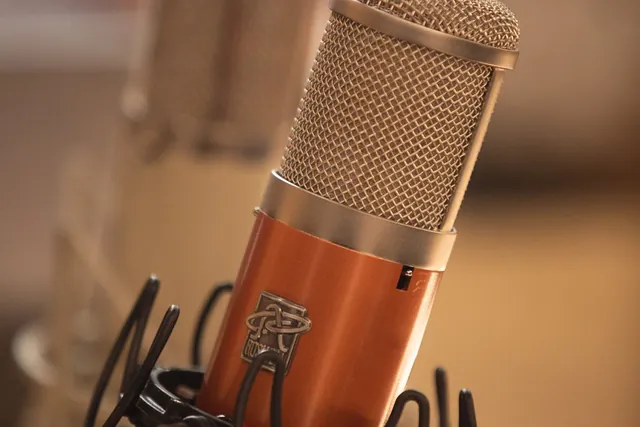
An online microphone test is a browser-based tool that checks whether your microphone can be accessed and whether it produces live input activity. Our mic tester shows a real-time level meter and peak value so you can confirm that the browser hears your voice.
This is useful before meetings, classes, interviews, streams, or support calls. If the meter moves when you speak, your microphone is working at the browser level. The live meter doubles as a loudness check: watch the peak level while speaking at normal call volume. For a full setup check, also test your headphones or speakers.
What This Microphone Tester Can Verify
Whether the browser can access your microphone
Whether live input levels respond when you speak
How loud your input gets at peak volume
Whether the mic appears completely silent in the browser
The current tool is designed for live input confirmation, not recording or playback.
How to Test Your Microphone Online
Click the start button on the tool.
Allow microphone permission in the browser prompt.
Speak at your normal volume and watch the meter move.
Check the peak value to see how loud your voice reached.
Stop the test and retry if the level never changes.
Why the Meter May Not Move
Microphone permission was denied in the browser
The mic is muted physically or in the system settings
Another app is already controlling the microphone
The wrong device is active at the operating system level
The microphone or cable is not connected properly
If your webcam and mic are both involved in a call setup, check the webcam tester too. And if the meter moves while you are silent because a game or video is playing, Windows may be routing system sound into your input device — see the fix for a mic picking up desktop audio on Windows 11.
Microphone Test FAQ
How do I know if my microphone is working?
If the meter moves when you speak and the peak value increases, the browser is receiving audio input from your microphone.
Does this microphone test record my voice?
No. This tool is built to show live level activity in the browser, not to record or upload audio.
Why is my microphone not working in the browser?
Check browser permission, confirm the mic is not muted, and verify that your system is using the correct input device.
01 / 10Hearing age testYour ears have an age of their ownThe highest tones fade first. A two-minute test shows roughly where yours stop.02 / 10Why it happensHigh frequencies fade firstThe hair cells that detect the highest pitches wear out earliest, usually unnoticed.03 / 10The mosquito toneA sound most adults cannot hearAround 17 kHz sits near the edge of adult hearing. Teenagers often hear it easily.04 / 10Before you startHeadphones on, volume lowStart quiet and raise slowly. A tone you cannot hear can still be loud enough to harm.05 / 108 kHzAlmost everyone hears thisIf 8 kHz is silent for you, that points to hearing loss rather than age. Get it checked.06 / 1012 kHzMost under-50s still hear itLosing 12 kHz is common past midlife and rarely affects speech or everyday listening.07 / 1015 kHzRoughly an under-40 markerMany adults lose this with no noticeable change to music or conversation.08 / 1017 kHzMostly under-30 territoryHearing 17 kHz suggests young or well-protected ears. Missing it is completely normal.09 / 10Read it honestlyA screening, not a diagnosisPhone speakers, cheap headphones and room noise all shift the result.10 / 10Your turnFind where your hearing stopsPlay each tone from 8 kHz upward and mark the last one you can hear.