See the pen data your browser actually receives: pressure, tilt, twist, side buttons, sample history and cautious straight-line evidence — without uploading your strokes.
Draw with a compatible stylus. The tool separates analog pressure from the constant 0.5 pressed-state value commonly reported by a mouse.
Waiting for pen input
Use a pressure-sensitive pen and draw a slow straight diagonal, then vary pressure from light to firm. Mouse input is accepted only as a limited fallback.
Guided capability check
1Detect a real pen pointerWaiting
2Reach light and high pressureWaiting
3Move the pen through a tilt rangeWaiting
4Finish one deliberate straight strokeWaiting
Draw a straight diagonal for wobble evidence, then make light-to-firm strokes for the pressure curve.
Hold the pen steadily in contact for about one second.
Pressure curve and stroke evidence
Recent pressure history
Pressure distribution
Light-touch reach--
High-pressure reach--
Steady-hold pressure jitter--
Straight-stroke evidence
Draw one deliberate straight stroke with at least eight samples.
Line deviation (RMS)
--
Maximum deviation
--
Local jitter estimate
--
These pixel values describe the path delivered to this browser. Hand movement, zoom, display scaling, driver smoothing, and browser sampling all affect them; they are not a hardware pass/fail verdict.
Recent samples
Time
Pressure
Tilt X
Tilt Y
Twist
Buttons
No pen samples yet.
🔒 All measurements stay in this browser. Exports contain only this session’s pointer measurements and browser capability flags.
ⓘ A browser cannot read raw tablet firmware or electrical sensor data. A missing field usually means the browser or driver did not expose it, not that the pen is defective.
Was this tool helpful?Rate Live Pen Pressure Tester:5.0(5 ratings)Thanks for rating!
Live Pen Pressure Tester is a free, browser-based screen testing tool that lets you test stylus pressure, tilt, twist, pen buttons and browser-observed line wobble with live Pointer Events data, pressure history and private CSV or JSON export.
Cost: Free, no signup
Install: None — runs in the browser
Privacy: Runs locally, no uploads
Platforms: Windows, macOS, Linux, Android, iOS
Time: Under a minute
Reliable browser workflow
How to test pen pressure and tilt
Use the same browser, tablet driver, zoom and display scaling when comparing two sessions.
01Confirm pen detection
Touch the drawing area with the stylus and confirm Pointer type changes to pen. A mouse is only a limited fallback.
02Sweep the pressure range
Draw several slow strokes from very light to comfortably firm pressure; do not force the nib.
03Check tilt and buttons
Lean and rotate the pen, then try the barrel button and eraser end if your device exposes them.
04Draw one straight diagonal
Make a deliberate straight stroke for browser-observed deviation and jitter evidence, then repeat before comparing.
Missing fields are usually browser or driver limitations. This page cannot inspect raw tablet firmware, calibrate force, or prove a hardware defect.
Browsers commonly report 0.5 for a pressed mouse or a device that exposes only pressed versus released state. It is not an analog pressure reading. Use a compatible pen, current tablet driver and a browser that exposes Pointer Events pressure.
Can this test calibrate my drawing tablet?
No. It displays the normalized data delivered to the browser. Use the tablet manufacturer’s driver utility for force calibration, mapping, firmware and device-specific settings.
Why are tilt, twist or tangential pressure missing?
Not every pen supports those sensors, and browsers or drivers may omit them even when the hardware has them. Not exposed does not by itself mean the pen is broken.
Does the wobble number prove my digitizer is faulty?
No. It measures deviation in the browser-rendered stroke. Hand movement, browser zoom, display scaling, driver smoothing and event sampling all influence the number, so compare repeated controlled strokes rather than treating it as a pass/fail result.
Are my drawings uploaded?
No. Strokes and measurements remain in your browser. CSV and JSON exports are generated locally and contain only the current session’s pointer samples and capability flags.
Windows app
KeyboardTester.click is also on Microsoft Store
Install the official Windows shortcut or keep using the same free browser tools.
01 / 10Monitor reality check1000Hz Is Real. Worth $999?LG's UltraGear 25G590B is the first native 1000Hz 1080p monitor. Check the fine print first.02 / 10The price$999.99 for 1080pThat is the LG.com launch price, confirmed Sept 10. A 24.5-inch IPS esports panel.03 / 10The 1 ms mathOne Frame Lasts 1 msAt 1000 Hz a frame is on screen for 1 ms—the same figure as LG's own 1 ms GtG response spec.04 / 10LG's own footnoteMBR Pro Turns Off VRRFreeSync Premium and G-SYNC Compatible are disabled while MBR Pro runs. The 1100Hz overclock drops FreeSync.05 / 10Feeding itCan Your PC Push 1000 fps?LG lists Windows 11, RTX 50 / RX 9070-class GPUs and DisplayPort 2.1. 1000 Hz does not promise 1000 fps.06 / 10Reality check1080p Is Still the Majority50.52% of Steam players ran 1080p in August 2026. LG is selling speed to the biggest resolution group.07 / 10Same moneyWhat $999 Buys InsteadA 480Hz QHD OLED tracked at $547.54 on Jul 30. LG's own 480Hz dual-mode 27G850A: about $699.99.08 / 10Verdict splitBuilt for One Kind of PlayerSerious FPS competitors with GPUs to match may justify it. Everyone else buys sharper pixels for less.09 / 10Delivery dayTest Before You TrustVerify the refresh rate your system actually reports, frame skipping, dead pixels and motion clarity.10 / 10Your turnCheck Your Refresh RateSee what your browser reports right now. A browser check reads reported rate, not certified panel speed.
01 / 10Phone buying guidePWM-sensitive? Test the phone, not the promiseDisplay specs narrow the shortlist, but no OLED is comfortable for everyone.02 / 10Build the shortlistStart with the display strategyCompare LCD, DC-dimming and high-frequency PWM options. Each still needs a real-use check.03 / 10Read the evidenceSpecifications are only a filterFrequency, modulation, brightness and firmware can all change how a screen behaves.04 / 10Before testingEnable the documented display settingToggle names and effects vary by model. Confirm the current manual before testing.05 / 10First passTest at your normal brightness firstUse the reading, video and scrolling tasks you actually do each day.06 / 10Low-light passRepeat at a lower brightnessOLED dimming behavior may change as brightness falls. Keep the same room and screen content.07 / 10Store checkCompare camera bands, not just one photoUse the same camera, exposure and distance on each phone for a fair comparison.08 / 10Read cautiouslyBanding is a clue, not a lab resultCamera bands can reveal pulsing, but not exact PWM, modulation or medical conclusions.09 / 10Final decisionLet the return window settle the choiceTry normal use briefly. Stop if discomfort occurs; return it before the seller's deadline.10 / 10One last checkRun one controlled flicker comparisonUse the same brightness and camera setup, then save the result with your buying notes.
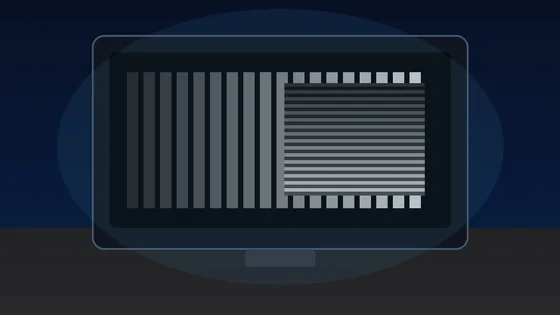
01 / 10Screen flicker testYour screen may be flickeringMany displays dim by switching the backlight on and off hundreds of times a second.02 / 10The symptomSore eyes and evening headachesStrain that gets worse at night, on one device but not another, is the clue.03 / 10What PWM meansDimming by blinking, not fadingInstead of lowering brightness, the backlight pulses. Faster pulsing is easier to tolerate.04 / 10Why night is worseLower brightness, deeper flickerThe dimmer you set the screen, the longer the backlight stays off between pulses.05 / 10Run the testWatch the moving patternA flickering backlight breaks the motion into separate copies instead of a smooth trail.06 / 10What to look forBands mean pulsingClear repeated edges suggest PWM. A smooth blur suggests steady, flicker-free dimming.07 / 10Not everyoneSome people never noticeSensitivity varies widely. Migraine and dry eyes can make the same screen unbearable.08 / 10What helpsRaise brightness, lower contrastHigher brightness usually shortens the off phase. Warm light and screen breaks help too.09 / 10One honest limitA browser cannot measure hertzThis shows whether flicker is visible to you, not the exact PWM frequency.10 / 10Your turnSee how your screen dimsRun the pattern at full and low brightness, then compare your devices.
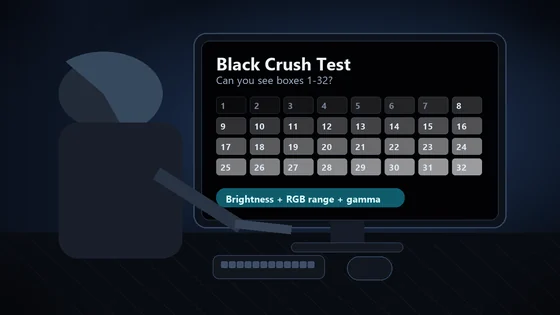
01 / 10Monitor checkDark scenes losing detail?Your monitor may be turning several near-black shades into one flat black.02 / 10The symptomShadow texture disappearsHair, clothing, caves and night scenes merge into featureless black. That is black crush.03 / 10Before you testUse normal SDR settingsDim the room, avoid glare and let your eyes adapt for 30 to 60 seconds.04 / 10The testLook for 32 near-black stepsPatch 1 is darkest. Patch 32 is easiest. Use fullscreen and do not expect the low steps to glow.05 / 10Read the resultFind the first visible patchIt should be barely separate from the black background. Note its number.06 / 10ExcellentYou can see 1 through 32Your display is preserving very dark shadow steps. Subtle is correct.07 / 10Mild crushingVisibility starts near 4Brightness may be too low, or gamma may be hiding the first few steps.08 / 10Moderate to severeVisibility starts at 8 or 16Check the monitor black-level setting and whether the GPU is sending Full or Limited RGB.09 / 10Fix one variable at a timeBrightness. Range. Gamma.Retest after each change. Establish a clean SDR result before troubleshooting HDR.10 / 10See what your display keepsRun all 32 shadow stepsThe live tool is the proper diagnostic surface; compressed story images are only a guide.