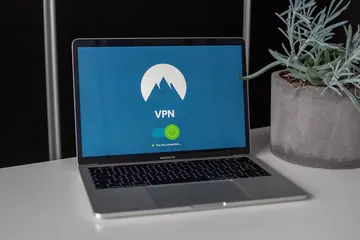
Generate strong random passwords with custom length and character rules. Create secure browser-based passwords and copy them instantly. Privacy-first, no tracking.
Tip: Use a password manager to store strong passwords.
Was this tool helpful?Rate Password Generator:5.0(2 ratings)Thanks for rating!
Password Generator is a free, browser-based online utility that lets you create strong, secure passwords with customizable options.
Cost: Free, no signup
Install: None — runs in the browser
Privacy: Runs locally, no uploads
Platforms: Windows, macOS, Linux, Android, iOS
Time: Under a minute
Password Generator guide
How to use the Password Generator accurately
Create strong, secure passwords instantly
01Open the live test
Use the browser tool below without installing software or changing your current page.
02Run one clean pass
Follow the on-screen controls and keep the input steady so the result is repeatable.
03Repeat if the result looks wrong
Run the same check again before deciding whether the device, browser, or operating system is the cause.
04Compare with related diagnostics
Use the linked tools to confirm whether the same symptom appears in another hardware check.
Use this tool to generate a password of at least 16 characters mixing uppercase, lowercase, numbers, and symbols. Longer is always better — a 20-character random password takes trillions of years to brute force, while an 8-character password can fall in hours.
What makes a password strong?
Length matters more than complexity. A 16-character random password is exponentially stronger than an 8-character one with symbols. Avoid dictionary words, names, dates, and reused patterns from other sites. The strongest passwords look random because they are random — generated, not invented.
Is this password generator safe?
Yes. The password is generated entirely in your browser using JavaScript with the Web Crypto API for true randomness. Nothing is sent to any server. We cannot see, log, or recover your generated password — and neither can anyone else. Always copy the password into a password manager before closing the tab.
Should I use a different password for every site?
Yes — and it is the single most important security habit. If one site is breached and your password leaks, attackers will try the same email-and-password combo on every other major service (this is called credential stuffing).
How long should my password be?
Minimum 12 characters for low-stakes accounts, 16 for important accounts (email, banking, password manager), and 20+ for your password manager master password. Most modern password generators default to 16-20 characters, which is a good balance between security and the rare cases you need to type it manually.
Can I generate passwords without symbols?
Yes — use the symbol toggle to exclude special characters. Some legacy systems do not accept symbols (e.g. older banking sites or Wi-Fi WPA networks). For these cases, generate a longer alphanumeric-only password (24+ characters) to compensate for the smaller character set.
Windows app
KeyboardTester.click is available from Microsoft Store
Install the official Windows app shortcut, or keep using the same free testing tools in your browser.
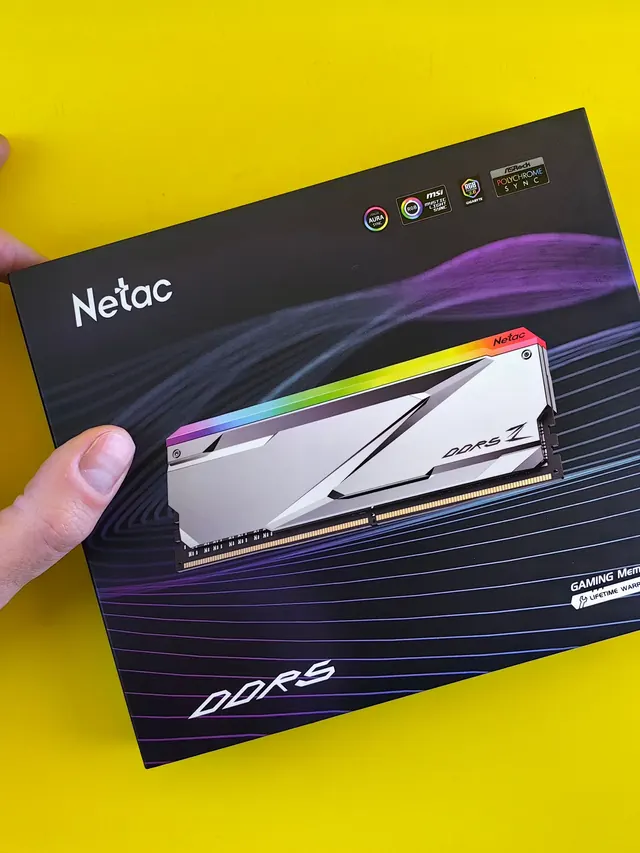
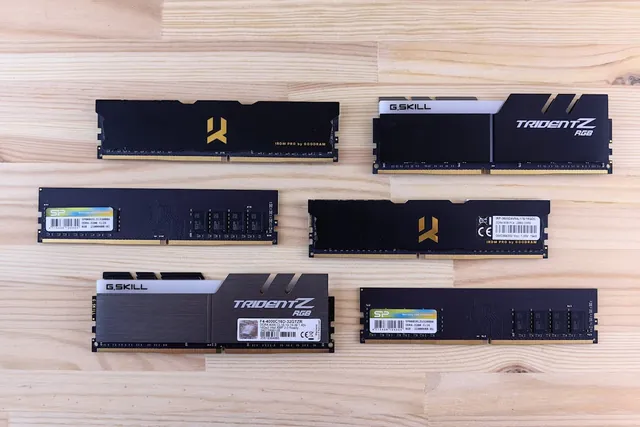
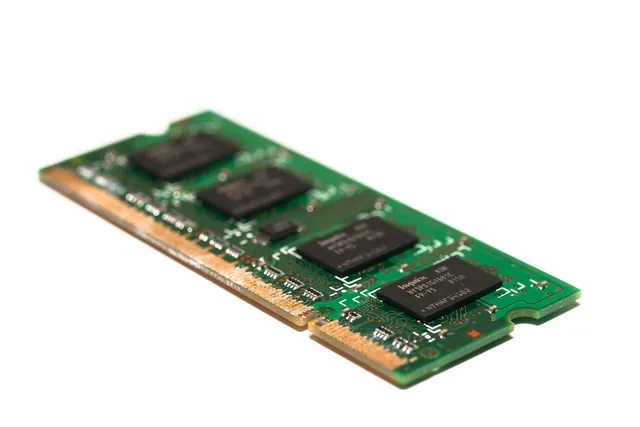
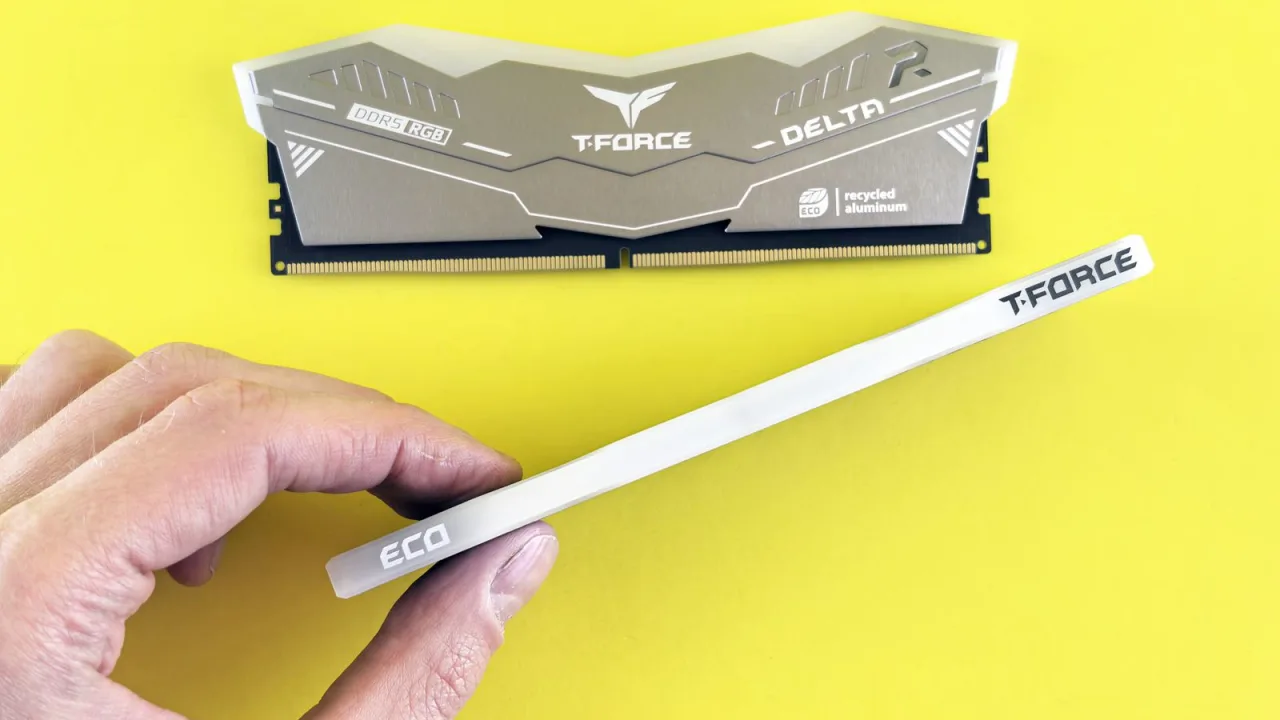
01 / 10DDR5 buying mathPay $120 more for 2 nanoseconds?CL30 vs CL36 looks big on the box. The real difference is 2 nanoseconds.02 / 10What CL really isCAS latency counts cycles, not timeCL is how many clock ticks the RAM waits before answering. Ticks get faster with speed.03 / 10The one-line formulans = 2000 x CL / MT/sTrue latency in nanoseconds. DDR5-6000 CL30: 2000 x 30 / 6000 = 10.0 ns.04 / 10CL30 vs CL36 at 600010.0 ns versus 12.0 nsSame speed, different CL: the whole debate is about 2 nanoseconds of wait time.05 / 10The tie surprise7200 CL36 is also 10.0 nsSo is 6400 CL32. A higher CL on a faster kit can match a lower CL exactly.06 / 10What 2 ns buys in gamesRoughly 1-4% average FPSOnly when CPU-bound, and benchmarks disagree. Smoother 1% lows are the steadier win.07 / 10Price check, Aug 11, 2026The CL30 premium: $120G.Skill CL30 $599.99 vs CL36 $479.99. A Patriot CL30 kit: $429.99. Shop across brands.08 / 10The EXPO/XMP gotchaYour CL30 may be running CL40Kits boot at JEDEC defaults until you enable EXPO or XMP in BIOS. Check yours today.09 / 10The X3D exceptionBig cache blunts CLOn 7800X3D-class CPUs, the stacked cache blunts CL gains. Buy CL36 and save.10 / 10The verdictSmall delta: yes. Upgrade: no.Compare your two kits in real nanoseconds - presets loaded, math done for you.
01 / 10Phone vibration testYour phone stopped buzzingBefore you book a repair, find out whether it is the motor or just a setting.02 / 10The symptomMissed calls and silent alertsA dead motor is easy to miss. You only notice the calls you never felt arrive.03 / 10What is insideA tiny weight on a motorMost phones spin an offset weight or drive a linear actuator to make the buzz.04 / 10Check this firstSettings fake a dead motorSilent mode, Do Not Disturb and per-app vibration all switch the buzz off.05 / 10Run the testOne tap, three patternsThe browser asks the phone to vibrate in short, long and pulsed patterns.06 / 10Result: weakYou feel it, but barelyA faint buzz often means a loose motor mount or a case damping the vibration.07 / 10Result: nothingNo buzz on any patternWith settings ruled out, silence points at the motor or its connector.08 / 10Result: on and offIt works, then it does notIntermittent buzzing usually means a failing solder joint or a worn motor.09 / 10One honest limitiPhones cannot run this testSafari on iOS does not support the browser vibration API, so use Android.10 / 10Your turnFind out in thirty secondsRun the three patterns, then decide whether it is a setting or the hardware.