Free open source QR code reader online. Upload a QR code image and decode it instantly in your browser. Read URLs, text, contacts, Wi-Fi passwords — no app or install needed.
Select an image with a QR code. We decode it locally in your browser.
Status: Waiting for image
Image preview
Decoded result
Was this tool helpful?Rate QR Code Reader:3.0(2 ratings)Thanks for rating!
QR Code Reader is a free, browser-based online utility that lets you scan and decode QR codes from uploaded images in your browser.
Cost: Free, no signup
Install: None — runs in the browser
Privacy: Runs locally, no uploads
Platforms: Windows, macOS, Linux, Android, iOS
Time: Under a minute
What an Online QR Code Reader Does
An online QR code reader decodes QR content from an uploaded image directly in your browser. That is useful when the QR code is already saved as a file, screenshot, or photo and you do not want to use a live camera scanner.
The workflow is entirely file-based: upload a screenshot, photo, or downloaded QR image and it decodes locally in your browser.
What You Can Decode
Links and URLs
Plain text
Codes saved from screenshots
Printed QR codes photographed with a phone
Why Use an Upload-Based QR Reader
It is often faster and more private than turning on a webcam. When the QR code is already on your device, uploading that image directly removes one extra step and keeps the workflow simple.
QR Code Reader FAQ
Common qr code reader questions
Can I read a QR code from an image file?
Yes. Upload the image containing the QR code and the browser decoder will try to extract the text or link.
Does this QR code reader use my camera?
No. This version of the QR reader is designed for uploaded images rather than live camera scanning.
Is the QR image uploaded to your server?
No. The QR image is processed locally in your browser for privacy-focused decoding.
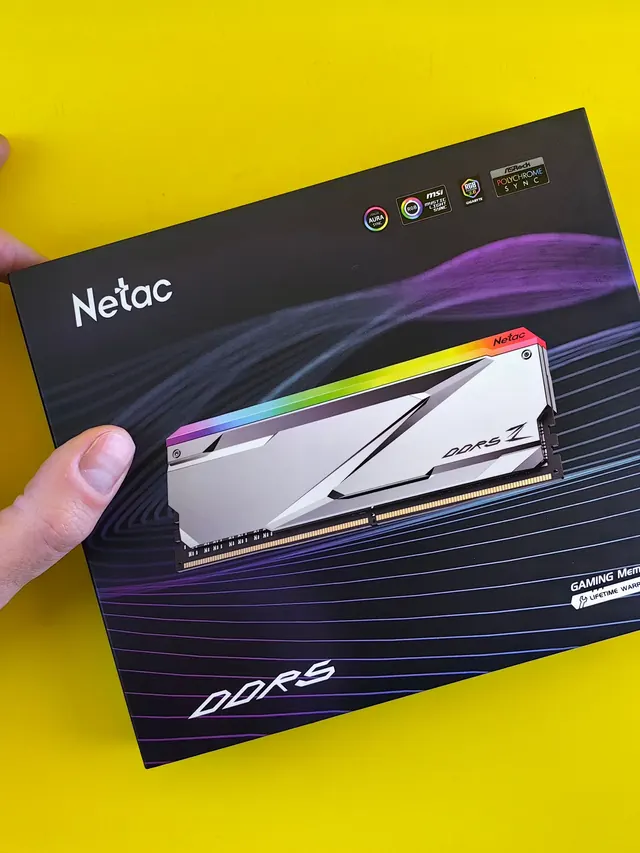
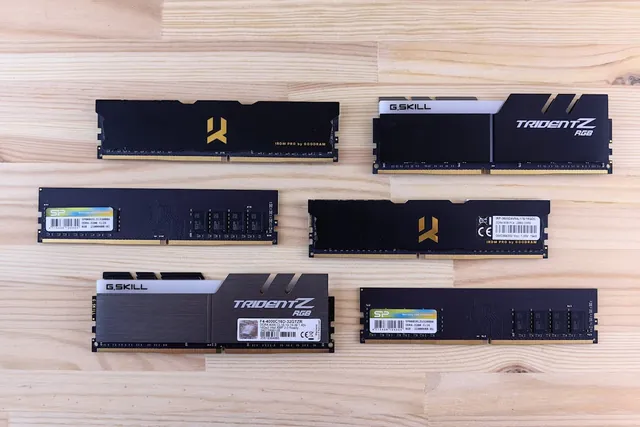
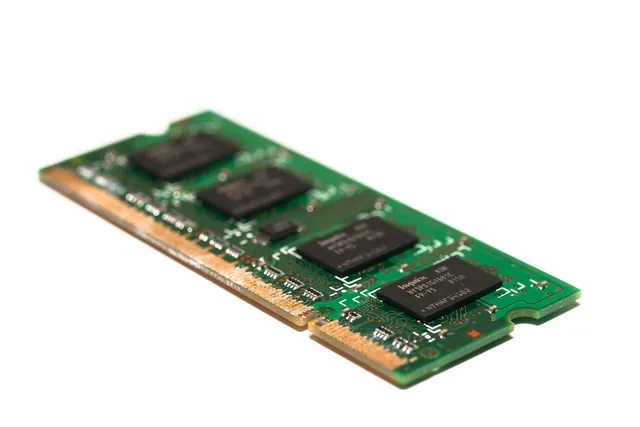
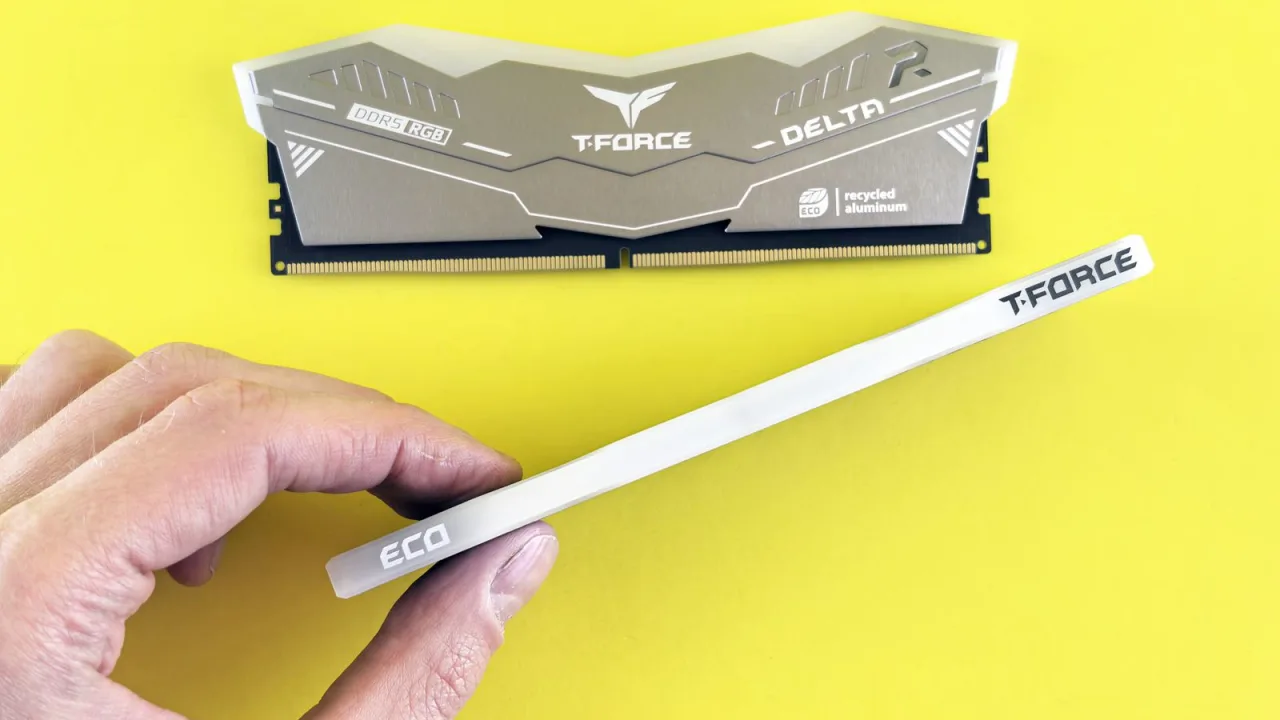
01 / 10DDR5 buying mathPay $120 more for 2 nanoseconds?CL30 vs CL36 looks big on the box. The real difference is 2 nanoseconds.02 / 10What CL really isCAS latency counts cycles, not timeCL is how many clock ticks the RAM waits before answering. Ticks get faster with speed.03 / 10The one-line formulans = 2000 x CL / MT/sTrue latency in nanoseconds. DDR5-6000 CL30: 2000 x 30 / 6000 = 10.0 ns.04 / 10CL30 vs CL36 at 600010.0 ns versus 12.0 nsSame speed, different CL: the whole debate is about 2 nanoseconds of wait time.05 / 10The tie surprise7200 CL36 is also 10.0 nsSo is 6400 CL32. A higher CL on a faster kit can match a lower CL exactly.06 / 10What 2 ns buys in gamesRoughly 1-4% average FPSOnly when CPU-bound, and benchmarks disagree. Smoother 1% lows are the steadier win.07 / 10Price check, Aug 11, 2026The CL30 premium: $120G.Skill CL30 $599.99 vs CL36 $479.99. A Patriot CL30 kit: $429.99. Shop across brands.08 / 10The EXPO/XMP gotchaYour CL30 may be running CL40Kits boot at JEDEC defaults until you enable EXPO or XMP in BIOS. Check yours today.09 / 10The X3D exceptionBig cache blunts CLOn 7800X3D-class CPUs, the stacked cache blunts CL gains. Buy CL36 and save.10 / 10The verdictSmall delta: yes. Upgrade: no.Compare your two kits in real nanoseconds - presets loaded, math done for you.
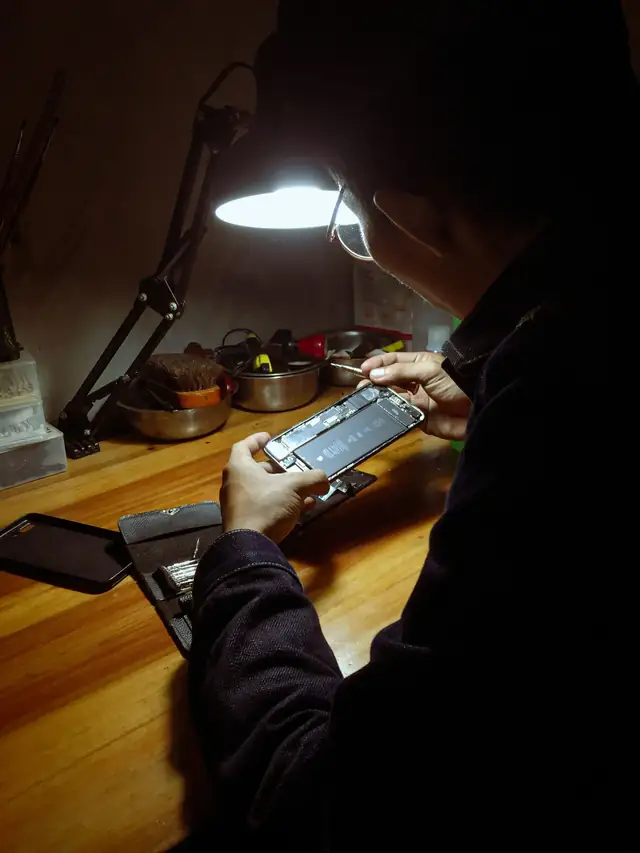
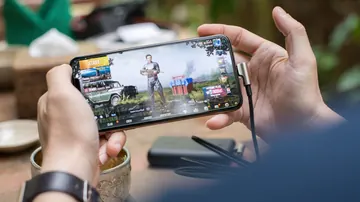
01 / 10Phone vibration testYour phone stopped buzzingBefore you book a repair, find out whether it is the motor or just a setting.02 / 10The symptomMissed calls and silent alertsA dead motor is easy to miss. You only notice the calls you never felt arrive.03 / 10What is insideA tiny weight on a motorMost phones spin an offset weight or drive a linear actuator to make the buzz.04 / 10Check this firstSettings fake a dead motorSilent mode, Do Not Disturb and per-app vibration all switch the buzz off.05 / 10Run the testOne tap, three patternsThe browser asks the phone to vibrate in short, long and pulsed patterns.06 / 10Result: weakYou feel it, but barelyA faint buzz often means a loose motor mount or a case damping the vibration.07 / 10Result: nothingNo buzz on any patternWith settings ruled out, silence points at the motor or its connector.08 / 10Result: on and offIt works, then it does notIntermittent buzzing usually means a failing solder joint or a worn motor.09 / 10One honest limitiPhones cannot run this testSafari on iOS does not support the browser vibration API, so use Android.10 / 10Your turnFind out in thirty secondsRun the three patterns, then decide whether it is a setting or the hardware.