



Fast answer: Use this guide as a practical checklist for free qr code generator: create qr codes online in seconds. Start with the main browser tool, confirm the result with one focused follow-up test, then change only one device, browser, or setting at a time so you know what actually fixed the issue.

QR codes are everywhere — on business cards, restaurant menus, product packaging, and marketing materials. Creating one takes just seconds with a free online QR code generator.

How to Create a QR Code
- Open the QR code generator
- Enter your URL, text, email, or any content
- The QR code generates instantly
- Download it as a PNG image
What Can You Put in a QR Code?
- Website URLs: Link directly to any webpage
- Plain text: Share messages, notes, or instructions
- WiFi credentials: Let guests connect without typing passwords
- Contact info (vCard): Share your business card digitally
- Email addresses: Pre-fill the recipient field
QR Code Best Practices
- Always test your QR code before printing by scanning it with the QR code reader
- Use high error correction for codes that will be printed on textured surfaces
- Maintain a quiet zone (white space) around the code
- Minimum print size: 2cm x 2cm for close-range scanning
Related Tools
- QR Code Reader — Scan and decode QR codes from images
- Scan QR from Image — Upload a screenshot to decode
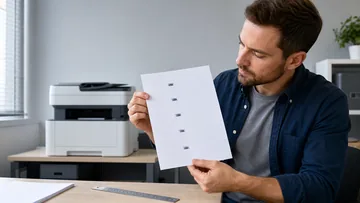
- Online Ruler — measure printed QR code size for scanning
- QR Code Reader Guide — how decoding from photos and screenshots works
Create your QR code: Open the QR code generator now.
Quick Action Checklist
- Use the tool in a clean browser tab and verify the output before sharing it.
- Avoid pasting private data into tools you do not trust.
- Save only the final result you actually need.
- Retest with a simple sample before using the tool for important work.
FAQ
Do I need to install anything for this guide?
No. The recommended checks run in a modern browser unless the article specifically points you to an operating-system or device setting.
Is the browser test private?
The KeyboardTester.click tools are designed to run the test interaction in your browser. Do not type passwords, private messages, or sensitive account data into any testing page.
What should I do if the result looks wrong?
Repeat the test in a clean browser tab, then change one variable at a time such as device, cable, USB port, permission, wireless mode, or browser profile.
When should I use a related tool?
Use a related tool when the first result points to a narrower issue, such as latency, ghosting, stuck input, camera permission, audio routing, or QR/OCR decoding quality.





Reader discussion
Comments
Share what worked, what did not, or what you would test next. Every comment is reviewed before it appears.
Loading approved comments…
Leave a comment
No account or sign-in is required. Links and HTML are not accepted.