





Most modern gaming PCs can run an AI image generator locally, and the graphics card decides how well. If your GPU has 8 GB of VRAM or more, you can generate images on your own machine with no credits, no queue and no cloud content filter deciding what you are allowed to make.
That last point is why searches for an AI image generator with no restrictions keep growing. Cloud tools often block harmless prompts: a fantasy battle scene, a horror-themed wallpaper, a stylized portrait of an original character. Running the model yourself puts those decisions back in your hands.
This guide walks through the hardware you actually need, which parts cause bottlenecks, and what to do if your current PC is not up to the job.
How Local AI Image Generation Works
Tools like Stable Diffusion and Flux are diffusion models. They start from random noise and remove it step by step until an image matching your prompt appears. Each step is a huge batch of matrix math, which is exactly what a GPU is built for.
The whole model has to sit in your graphics card's memory (VRAM) while it works. That is why VRAM matters more than raw clock speed. A fast GPU with too little memory will either refuse to load the model or slow to a crawl as data spills into system RAM.
Your CPU, RAM and storage still play a role, but mostly when loading models and switching between them. Once generation starts, the GPU does almost all of the work.
How Much VRAM Do You Need?
8 GB of VRAM is the practical starting point in 2026, and 12–16 GB is the sweet spot. Newer models are larger, so extra memory buys you headroom for the next generation of tools.
Model | Minimum VRAM | Comfortable VRAM | Notes |
|---|---|---|---|
Stable Diffusion 1.5 | 4 GB | 6–8 GB | Light and fast, huge library of community styles |
Stable Diffusion XL | 6–8 GB | 12 GB | Sharper 1024×1024 output, more detail |
FLUX.1 [dev] | 12 GB (compressed versions) | 24 GB | Best prompt accuracy and text in images |
Figures are approximate and depend on resolution, batch size and memory-saving settings.
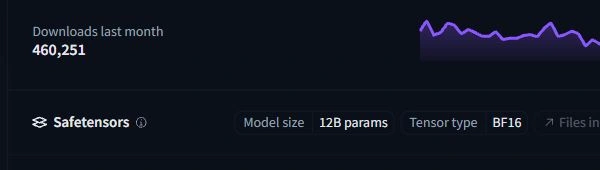
FLUX.1 [dev] on Hugging Face: at 12 billion parameters, it needs far more VRAM than older Stable Diffusion models.
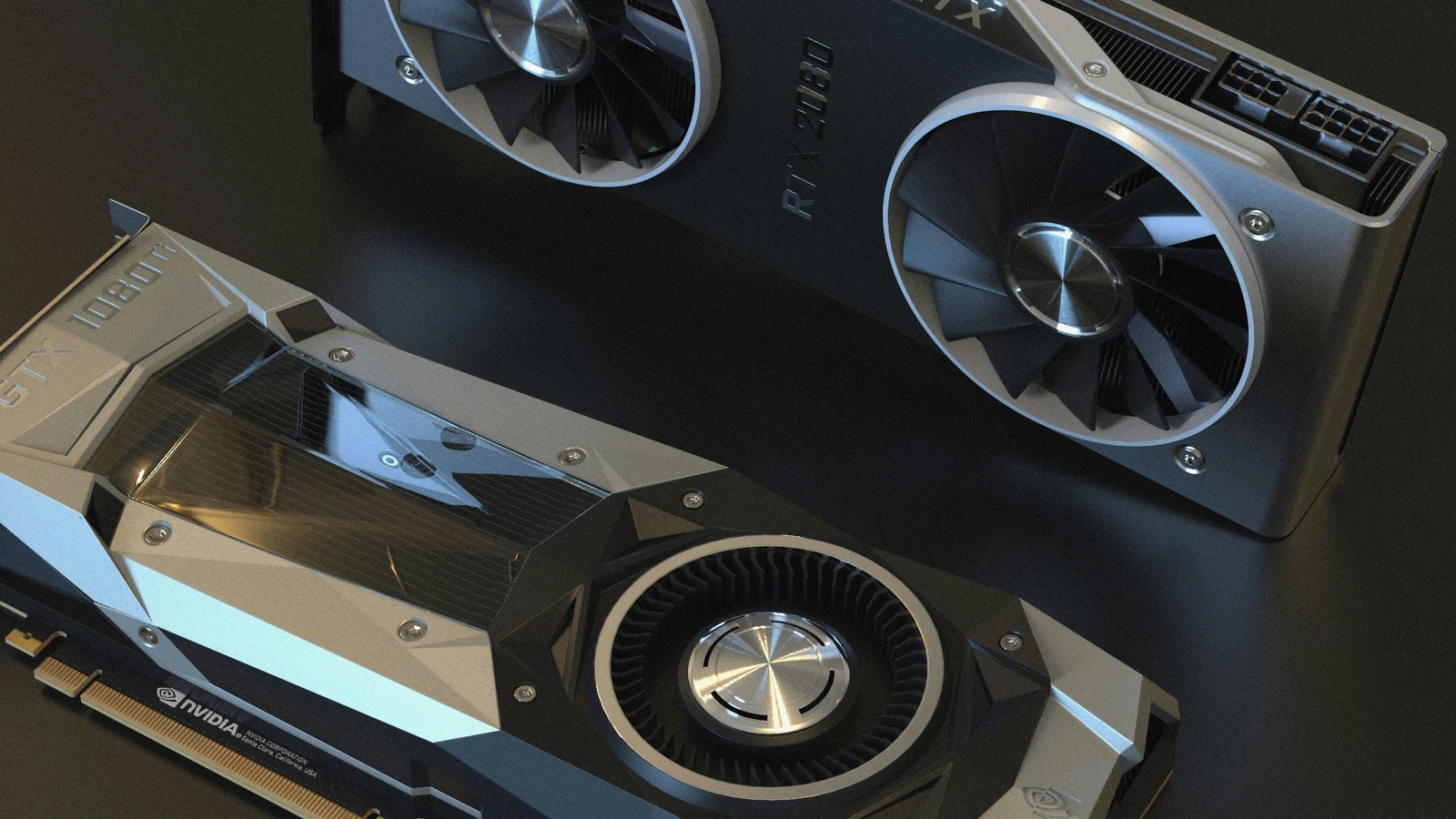
In terms of graphics cards, NVIDIA remains the easiest choice because most tools are built around its CUDA platform. A rough guide by budget:
- Entry level: RTX 3060 12 GB. An older card, but its 12 GB of VRAM still makes it a favorite for SDXL on a budget.
- Mid range: RTX 4060 Ti 16 GB or RTX 5070 Ti 16 GB. Comfortable for SDXL and compressed Flux models.
- High end: RTX 4090 24 GB or RTX 5090 32 GB. Runs full-size Flux and generates images in seconds.
AMD cards also work, but setup takes more effort and fewer tools support them out of the box.
CPU, RAM, Storage and Bottlenecks
A balanced system matters more than a single expensive part. The most common bottleneck is a strong GPU paired with too little system RAM or a slow hard drive.
- System RAM: 16 GB works for SD 1.5 and SDXL, but 32 GB is strongly recommended for Flux. When VRAM runs out, models spill into system memory.
- Storage: Use an NVMe SSD. A single model file can weigh 6–24 GB, and loading it from an old HDD can take minutes instead of seconds.
- CPU: Any modern 6-core processor is enough. The CPU mainly handles loading and image saving, so it rarely limits generation speed.
- Power and cooling: Image generation keeps the GPU at full load for long stretches, just like a demanding game. Make sure your power supply has headroom and your case has good airflow.
Before buying anything, check whether your current CPU and GPU are well matched. A bottleneck calculator gives a quick estimate, and a simple FPS test shows how your GPU handles sustained load.
Software to Get Started
You do not need to write code to run these models. Two free, open-source interfaces cover almost every use case.
- ComfyUI: A node-based editor where you connect blocks to build a workflow. It has a learning curve, but it is the most flexible option and usually the first to support new models like Flux.
- AUTOMATIC1111 Stable Diffusion WebUI: A classic browser interface with a prompt box and sliders. Easier for beginners and backed by thousands of community extensions.
The models themselves are downloaded from the Hugging Face model hub, the largest open library of AI models. Check each model's license before you use its output commercially, as terms vary between releases.
A typical first setup takes 20–40 minutes: install the interface, download one model file, place it in the models folder and start generating.
What If Your PC Can't Handle It?
If you are on a laptop with integrated graphics or a GPU with 4 GB of VRAM, local generation will be slow or impossible. Upgrading is one path, but it is not the only one.
Online tools run the model on remote servers, so any device with a browser can use them. The trade-off is that most mainstream services apply strict prompt filters. If those filters keep blocking your creative work, look for an ai image generator no restrictions option that gives you more freedom over styles and subjects without needing a powerful graphics card.
If you want to compare more options, on Get An AI For That you can find a full list of AI tools, including hundreds of image generators with filters for price, features and use case. Try two or three free tiers before paying for anything: output quality varies a lot between services.
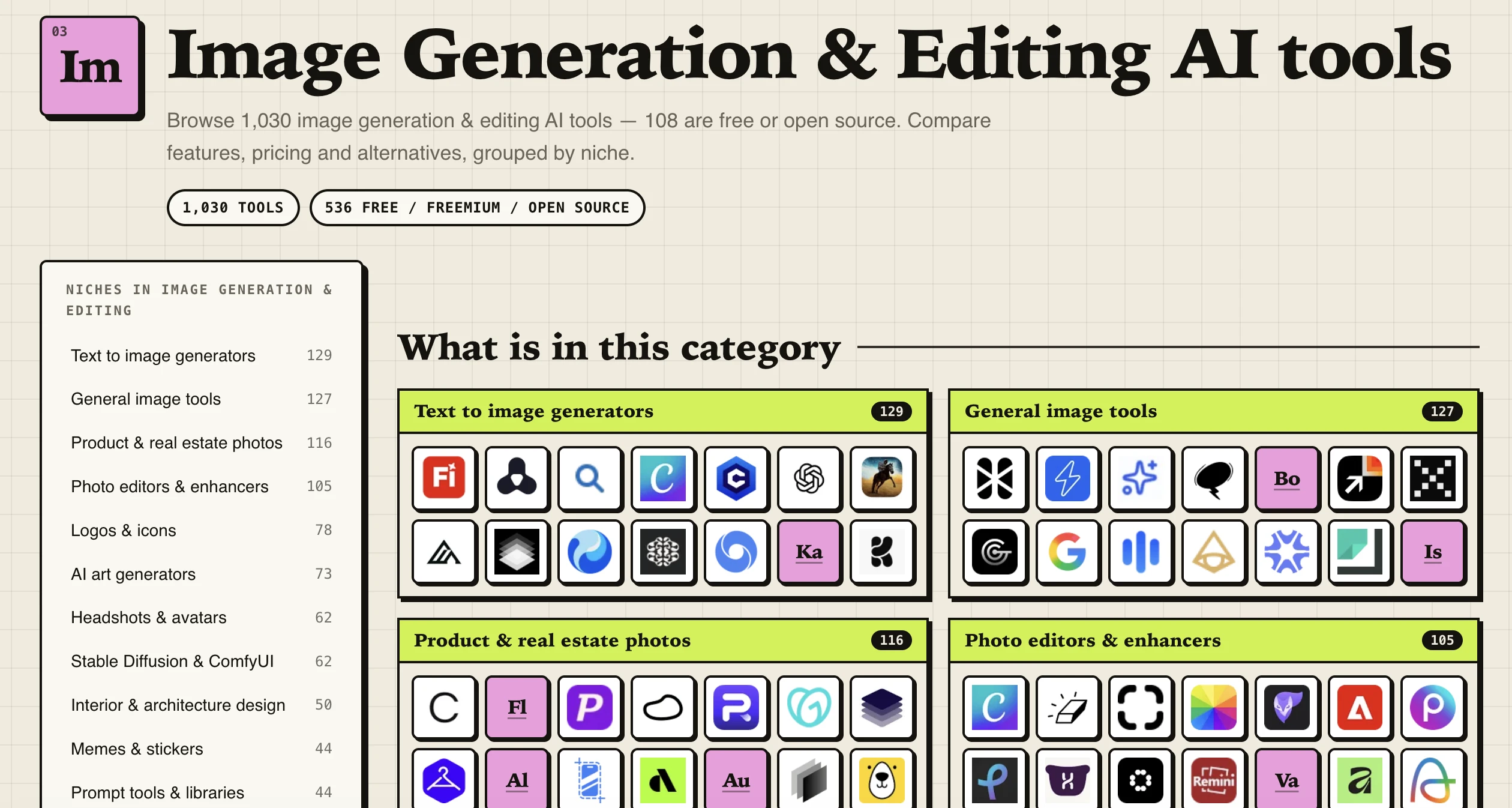
Get An AI For That lets you browse and filter thousands of AI tools in one place.
A hybrid approach also works well. Many creators sketch ideas in a cloud tool, then refine the best results locally once they upgrade their hardware.
A Note on Responsible Use
Fewer filters means more responsibility sits with you. Avoid creating realistic images of real people without their consent, respect copyrighted characters and brands, and follow the laws in your country. Used well, open tools are simply a way to make the art you have in mind without arbitrary roadblocks.
Conclusion
If your graphics card has 8 GB of VRAM or more, you can start generating images locally today. Pair it with 32 GB of RAM and an NVMe SSD, install ComfyUI or AUTOMATIC1111, and you have a private studio with no credits and no outside filters.
If your PC falls short, a cloud generator bridges the gap while you plan an upgrade. Either way, test your hardware first so you know exactly where the bottleneck is before spending money.
FAQ
Which AI image generator has no restrictions? Locally run open-source models such as Stable Diffusion and Flux have no cloud-side prompt filter, because the software runs entirely on your own PC. Online services vary: some are strict, others give users more creative freedom.
Can I run an AI image generator on a laptop? Yes, if it has a dedicated NVIDIA GPU with at least 6–8 GB of VRAM. Laptops with integrated graphics are better served by browser-based tools.
Is 8 GB of VRAM enough for AI image generation? It is enough for Stable Diffusion 1.5 and SDXL with memory-saving settings. For Flux and future models, 12–16 GB is a safer choice.
Is there a free AI image generator with no restrictions? Running open-source models locally is free apart from your electricity bill. Many online generators also offer free tiers, though usually with daily limits on the number of images.
Does AI image generation damage my GPU? No more than gaming does. It keeps the card under heavy load, so good cooling and a reliable power supply are the main things to watch.

