









Quick answer
An internet connection that drops for a few seconds and comes back is almost always one of five things: a weak or congested Wi-Fi link, a router that needs a restart or replacement, an overloaded line, a failing ISP connection, or one misbehaving device. The fastest way to find out which is to measure instead of guess: run a free internet stability test for ten minutes and look at the pattern of failures, not just the speed.
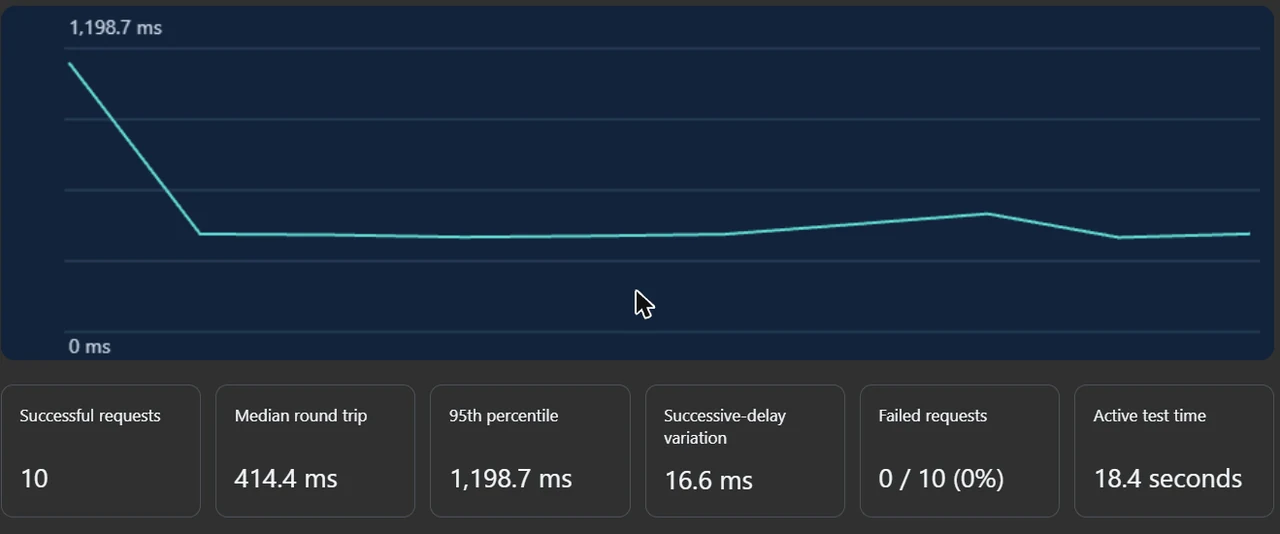
I ran four sessions on our own stability tool while writing this guide. My line logged 0 failed requests out of 46, with a median round trip between 414 and 440 ms to this site's US server. That is what a stable line looks like in the graph, and every fix below starts from that same picture: measure first, then change one thing at a time.
Few computer problems are as maddening as a connection that cuts out for five seconds and then behaves as if nothing happened. The page loads again, the game reconnects, and your ISP's status page swears everything is fine. Meanwhile you just dropped out of a meeting, again. With 78% of US adults now paying for home broadband, according to the Pew Research Center's internet fact sheet, a flaky line is not a niche annoyance; it is a broken utility.
The trap with short drops is that they hide from every tool built for long outages. A speed test between drops looks perfect. A reboot seems to fix it, until Tuesday's standup. This guide takes the approach I use on my own setup: capture the problem in a live graph first, read the pattern, then apply the one fix that matches it. You will need ten minutes, a browser, and nothing to install.
Why your internet drops for a few seconds: five layers, five patterns
Short dropouts come from one of five layers, and each one leaves a different fingerprint. Before touching a single setting, work out which fingerprint matches yours. The pattern of when and where it drops narrows the suspect list faster than any diagnostic app.
| Symptom pattern | Most likely layer | First check |
|---|---|---|
| Only Wi-Fi devices drop; anything on a cable stays up | Wi-Fi link or interference | Run the same stability session on Wi-Fi, then on Ethernet |
| Everything drops at once, including wired devices | Router, modem or the ISP line | Watch the modem lights during the next drop |
| One device drops; the rest stay connected | That device's adapter, driver or power settings | Compare two devices side by side during a session |
| Drops cluster in the evening or at busy hours | Congestion, on your network or your provider's | Run one session at a quiet hour and one at peak |
| Drops only under load, mid game or mid upload | Saturated uplink or an overheating router | Repeat the test while a large upload runs |
Notice what is not on the list: random bad luck. Short drops are mechanical. Something specific fails for those few seconds, and the sections below catch it doing so. If your real symptom is choppy audio in calls rather than a full disconnect, that overlaps with delay problems; our guide to measuring and fixing Bluetooth audio delay covers the headset side of that story.

Measure it first: what my own stability sessions showed
Everything in this article leans on one tool: a browser based internet stability test that sends one small HTTPS request to this site every two seconds and charts the round trip live. It is not a speed test. It answers a different question: does your connection respond every time, and how much does the delay wobble between requests?
On November 1, 2026 I ran four sessions back to back from my own desk, on Wi-Fi, to establish a healthy baseline for this guide. The numbers were boringly consistent, which is exactly the point. My medians landed at 414.4, 426.0, 427.3 and 440.1 ms, the successive delay variation stayed between 16.6 and 50.3 ms, and not one of the 46 requests failed. A median in the 400s sounds high if you are used to ping numbers from a nearby game server, but this test crosses half the planet from my desk to the site's US server. The absolute number reflects geography. Stability shows up in the flatness of the line and the zero in the failed column, not in how small the median is.
Two things surprised me enough to change how I will read results from now on. First, the opening request of every single run spiked to between 1.1 and 1.7 seconds while the connection was being established, which dragged the 95th percentile up to 1,198.7 ms in one 18 second run even though every later sample sat near 420 ms. Short sessions make the 95th percentile lie. Give the test ten minutes and the cold start washes out. Second, three of my four runs stopped early, freezing at 30.5, 18.5 and 18.4 seconds of active time, because I switched to another window and the browser hid the tab. The tool pauses on hidden tabs on purpose, so throttled background timers cannot masquerade as outages. The lesson cost me three runs: keep the tab visible and let it finish.
Here is my workflow, start to finish. Pick the ten minute duration. Keep the tab in the foreground. Let normal traffic run if you want to test real conditions, or close downloads for a clean baseline. Then read three numbers at the end: median round trip, successive delay variation, and failed requests. The export button saves the session, which matters once you start comparing before and after a fix.
How to read the numbers, and what a real dropout looks like
The graph tells you most of the story at a glance, but the three summary numbers each answer one precise question.
Stable
A flat line, variation under roughly 50 ms, and 0 failed requests. My four sessions all looked like this. If yours does too while the problem keeps happening, your line to this server is healthy and the fault sits elsewhere: the far end, one app, or one device.
Jittery
The line stays unbroken but saws up and down, with variation in the hundreds of milliseconds. Calls stutter and games feel rubbery even though nothing disconnects. That points at interference, a congested channel, or a saturated uplink rather than a dead line.
Dropping
Failed requests above zero, usually in clusters. Ten clean minutes, then four failures in a row, then calm again: that cluster is your few second dropout, caught on a chart with a timestamp. Note the time and length; you will reuse both in the next section.
One honest caveat, and it is printed on the tool itself: a failed HTTPS request is not courtroom proof of packet loss. A VPN hiccup, a busy server, or the route between you and this site can also eat a request. That is why the method is comparative. You never diagnose from one session; you compare Wi-Fi against Ethernet, quiet hours against peak, this week against last week, on the same device and the same server. Patterns that survive comparison are real.
Also be fair about what delay you are measuring. If clicks and keypresses feel slow but the stability graph is flat, the lag probably is not the network at all. An input latency check for your keyboard and mouse separates slow hardware from a slow line in about a minute.
Wi-Fi, router or ISP: the elimination order that actually works
Once the test has caught the pattern, isolate the layer with the cheapest experiments first. This order exists so that you never replace hardware the evidence has not convicted.
- Split one device from the herd. If only one machine drops, the network is innocent. Update that device's network driver, and on Windows laptops turn off the adapter's power saving: Device Manager, your Wi-Fi adapter, Power Management tab, untick the option that lets Windows switch the adapter off. That one checkbox causes a remarkable share of the few second drops people blame on their provider. Microsoft's own Wi-Fi troubleshooting guide for Windows walks through the driver reset steps.
- Run the stability test twice: Wi-Fi, then Ethernet. Same device, same ten minutes, one cable swap in between. Failures that appear on Wi-Fi and vanish on the cable convict the wireless link, and the fixes in the next section apply. Failures on both convict the router, the modem or the line beyond it.
- Watch the modem during a drop. If the internet or DSL/optical light blinks or goes out when the graph shows a failure cluster, the problem has left your house. Note the timestamps from the test; support agents respond very differently to
it dropped at 9:14, 9:31 and 9:47 for about ten seconds each
than toit keeps disconnecting
. - Reboot the router once, properly, and re-test. Power off, thirty seconds, power on, then run a fresh session. One clean reboot is diagnosis. A router that only behaves for a day or two after each reboot is a router that is failing, overheating, or choking on its device load.
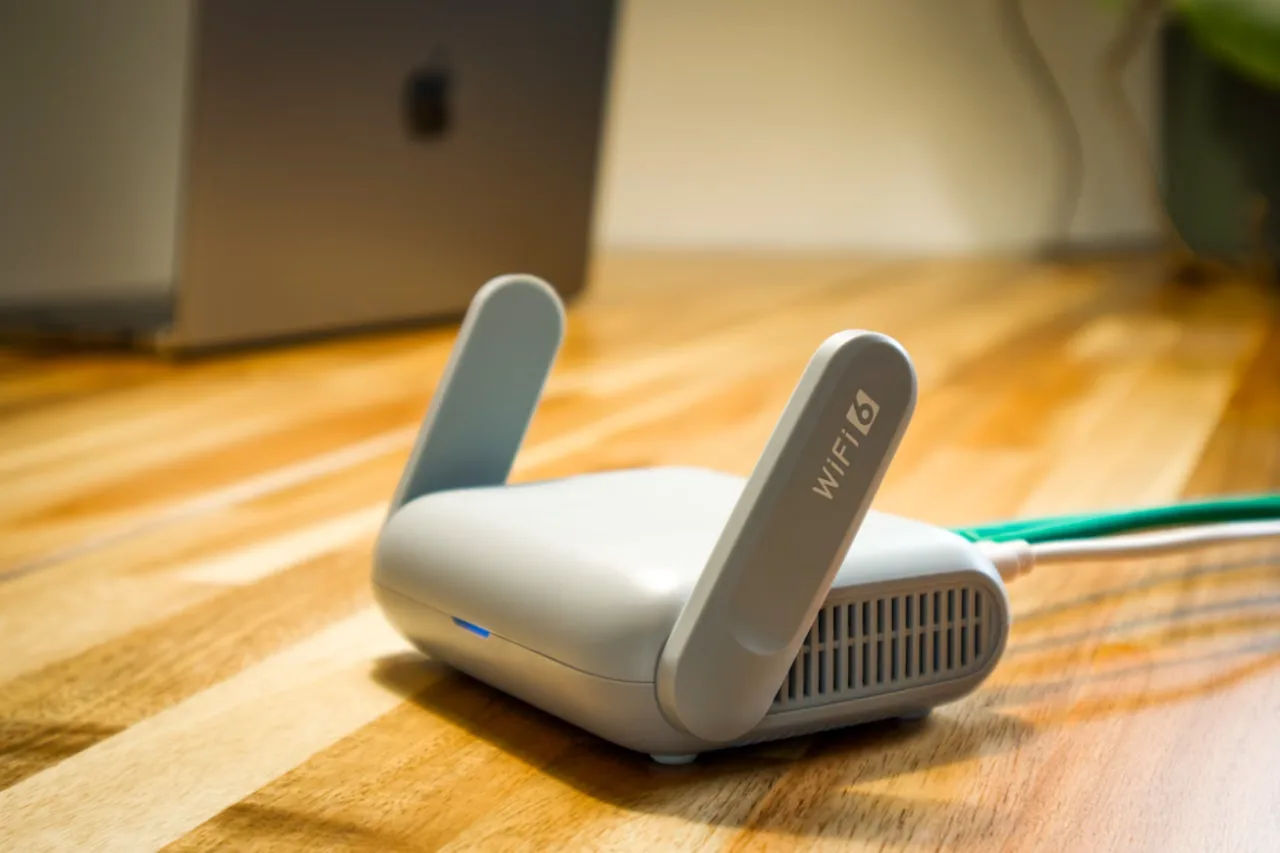
That last case raises the money question: repair or replace? My honest rule is that no purchase happens until the Ethernet run is clean while the Wi-Fi run fails, or the router needs rebooting on a schedule. If you rent the box from your ISP, demand a replacement before you spend anything; a swapped unit settles the argument for free. If you own an aging router that predates Wi-Fi 6 and your evenings involve a houseful of streams, a current one with capacity for more simultaneous devices is a justified upgrade. But if the cable run fails too, no router on earth fixes it, and the money belongs in your ISP conversation instead. To check whether your plan itself is undersized for the household, our bandwidth needs calculator adds up what your devices actually consume.
Fixes that map to Wi-Fi drops, in the order I would try them
When step two above convicts the wireless link, these are the fixes that correspond to real failure causes rather than ritual. Change one, then re-run a session so you know which change worked.
- Move the router out of the penalty box. Off the floor, out of the metal cabinet, away from the microwave, fish tank and that USB 3.0 hub. Walls and appliances between you and the router degrade signal in ways that show up as jitter long before full drops.
- Split your bands and pick the right one. Use 5 GHz near the router for speed and cleaner air, and 2.4 GHz only where distance forces it. A device that keeps hopping between bands can register as a few second drop every time it roams; pinning your work laptop to 5 GHz stops the wandering.
- Escape a crowded channel. In an apartment block, a dozen neighboring networks can share your channel. Routers usually auto select, but a manual switch to a quieter channel in the router admin page is a two minute experiment, and the stability graph before and after settles whether it helped.
- Thin the herd. Parks Associates put the average US internet household at 17 connected devices in Q3 2023, and every camera, plug and speaker holds an association with your router. Older routers degrade noticeably as that count climbs. Kick stale devices off the guest network and watch whether the drops thin out with them.
- Update what talks to the air. Router firmware and the computer's Wi-Fi driver, both. A surprising number of chronic droppers end with a driver released two years after the laptop shipped.
If calls are where the drops hurt most, two extra notes. Video meeting audio that breaks up while the graph stays flat is usually the far side, their upload, their Wi-Fi, not yours; knowing your side is measurably clean saves the awkward blame exchange. And if you use a VPN for work calls, run one stability session with it on and one with it off: an unstable VPN endpoint produces exactly the few second freezes people pin on their router. While you are in call hygiene territory, a quick WebRTC leak check tells you what address your browser actually exposes to the meeting service.
A six minute video companion

Ping spikes when gaming, and what they are not
Gamers meet this problem as a ping that sits at 40 ms, leaps to 300 for a few seconds, then settles as if nothing happened. The stability test catches those spikes in the delay variation number and in the sawtooth shape of the graph, and the usual culprit is not the game server.
The quiet killer is your own upload. A cloud backup, a console patch downloading in standby, or someone's photo sync can fill the uplink completely, and on most home connections a full uplink queues everything else behind it, a problem networkers call bufferbloat. The test makes it visible: run a session while a large upload runs, and watch the round trip climb even though nothing disconnects. The fixes, in order of effort: schedule heavy sync jobs away from play time, enable QoS or smart queue
on the router if it has it, and put the gaming machine on Ethernet so at least the radio hop is out of the equation.
Equally important is what ping spikes are not. A game that feels sluggish while the stability graph stays flat is pointing at the machine, not the network. Frame drops read as lag to your hands; our browser FPS and frame skipping test takes two minutes and separates render stutter from network stutter. The same goes for the input chain: if aim feels floaty everywhere including offline, measure the keyboard and mouse delay before rebuilding your network. I have watched people replace a router to fix what turned out to be a 125 Hz mouse.
A five minute monthly habit that keeps it fixed
The reason short drops feel unfixable is that nobody keeps evidence. The fix is a tiny ritual built around the export button.
- Keep a baseline. Once a month, run one ten minute session at a quiet hour and export the results. Mine from today reads 0 failed out of 46 with a flat median in the 420s; the absolute value matters less than having your own normal on file.
- Re-test after every change. New router, new firmware, moved desk, new mesh node: one session each time. You will know within ten minutes whether the change helped, did nothing, or made things worse.
- Capture the bad days deliberately. When the dropping returns, run the test at the exact time it usually bites, with timestamps on. That exported file is what turns an ISP support call from a script into a repair ticket.
- Re-check the whole chain twice a year. Our roundup of free browser device testers covers the rest of the setup, from webcam to microphone, so call day failures stop being a surprise.
None of this requires an account or an install, which is the point. A stability problem you can see is a stability problem you can fix, and most of the fixes above cost nothing but the ten minutes of proof.
Internet dropout questions
Why does my internet keep dropping for a few seconds and then coming back?
Because something in the chain fails briefly and recovers: a Wi-Fi link losing its connection, a router rebooting a radio, a congested channel, an overloaded uplink, or an ISP line fault. Run a ten minute stability test and match the failure pattern to the layer: Wi-Fi only, all devices, one device, busy hours, or under load.
How do I tell if the problem is my router or my ISP?
Run the stability test on a cable, directly if possible. If Ethernet sessions fail too, watch the modem lights during a drop: a blinking internet light during the failure cluster means the fault is outside your home and belongs to the ISP, with your timestamps as evidence. Clean cable runs with failing Wi-Fi runs point back at the router or the radio environment.
Why does only one device keep disconnecting?
When the rest of the network stays up, suspect that device: its Wi-Fi driver, its power saving settings, or its position. On Windows, untick the adapter power saving option in Device Manager and update the driver. Then run the stability test on that device and a healthy one side by side and compare the failed request counts.
Do failed requests in the test prove packet loss?
No, and the tool says so itself. A failed HTTPS request can also come from a VPN, browser scheduling, server load, or the route to this specific server. Treat results comparatively: same device, Wi-Fi versus Ethernet, quiet hour versus peak. A failure pattern that survives those comparisons is a real connection problem.
What counts as a good stability test result?
A flat graph, few or no failed requests, and low variation between consecutive requests. My own baseline sessions logged 0 failures out of 46 with 16 to 50 ms of variation, and medians near 420 ms simply because the test server is far from me. Judge your line against your own repeated sessions, not against a universal number.
Why does my internet only drop in the evening?
Evening drops track congestion: your household's and your provider's. More devices stream at once on your Wi-Fi, and your neighborhood shares upstream capacity. Compare a quiet morning session with a 9 pm session. If evenings are consistently worse on Ethernet too, that is a capacity conversation to have with your ISP.
Research basis: four live sessions of the KeyboardTester.click Internet Stability Test run by the author on November 1, 2026 over home Wi-Fi (46 successful HTTPS requests, 0 failures, medians 414 to 440 ms to this site's US server; three sessions ended early by the tool's hidden tab guard). The tool measures HTTPS round trips to this site, not ICMP ping, and a failed request is not by itself proof of packet loss. Statistics are cited to the Pew Research Center and Parks Associates and were checked against those sources on November 1, 2026. Windows troubleshooting steps follow Microsoft's published support guidance. Photos are free license Pexels images credited in captions; the results screenshot is the author's own session.
Sources and verification
More connection and lag guides
Catch the next drop in the act
Guesswork swaps cables. Measurement finds faults. Leave a stability session running through your next call or match, and the graph will tell you which layer to blame.
Run the Internet Stability Test





Reader discussion
Comments
Share what worked, what did not, or what you would test next. Every comment is reviewed before it appears.
Loading approved comments…
Leave a comment
No account or sign-in is required. Links and HTML are not accepted.