


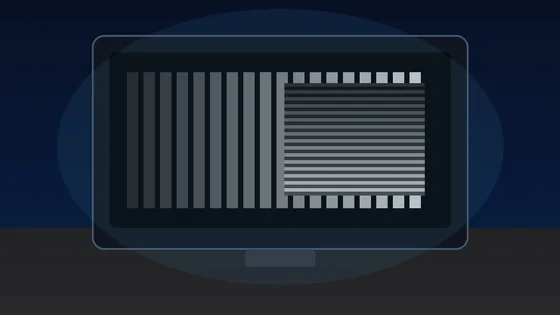






Fast answer: Open the monitor ghosting test, set your monitor to its real refresh rate, then try overdrive Off, Normal, Fast, and Extreme one at a time. Keep the lowest setting that removes the long same-color trail. If you see a bright, dark, or opposite-color halo, that is inverse ghosting or overshoot, so lower overdrive one step.
Ghosting is not fixed by chasing the highest response-time label in the monitor menu. The best setting is usually the middle overdrive mode: enough voltage boost to shorten the trail, but not so much that pixels overshoot and create a new halo. This guide shows how to read the test pattern, separate ghosting from frame skipping, and choose a setting you can actually keep for games and scrolling.
How to run a monitor ghosting test
Use a clean browser tab, the monitor native resolution, and the refresh rate you actually play at. Test each overdrive mode for at least 20-30 seconds before judging.
- Set the real refresh rate: Confirm Windows, macOS, GPU control panel, and the browser are using the same Hz. A 144Hz monitor running at 60Hz will always look blurrier.
- Start with overdrive Off or Low: Use this as the baseline. Long same-color trails here are normal on many LCD panels.
- Step through each mode: Try Normal, Fast, and Extreme one at a time. Wait for your eyes to settle before changing again.
- Stop before overshoot: Choose the highest mode that reduces the trail without creating bright halos, dark halos, or opposite-color shadows.
Open the monitor ghosting test, set your monitor to its real refresh rate, then try overdrive Off, Normal, Fast, and Extreme one at a time. Keep the lowest setting that removes the long same-color trail. If you see a bright, dark, or opposite-color halo, that is inverse ghosting or overshoot, so lower overdrive one step.
Which overdrive setting should you use?
Monitor brands use names such as Trace Free, AMA, Response Time, Overdrive, Normal, Fast, Faster, Extreme, or MPRT. The labels are inconsistent, so judge the moving pattern rather than the marketing name.
| Menu choice | What you may see | Decision |
|---|---|---|
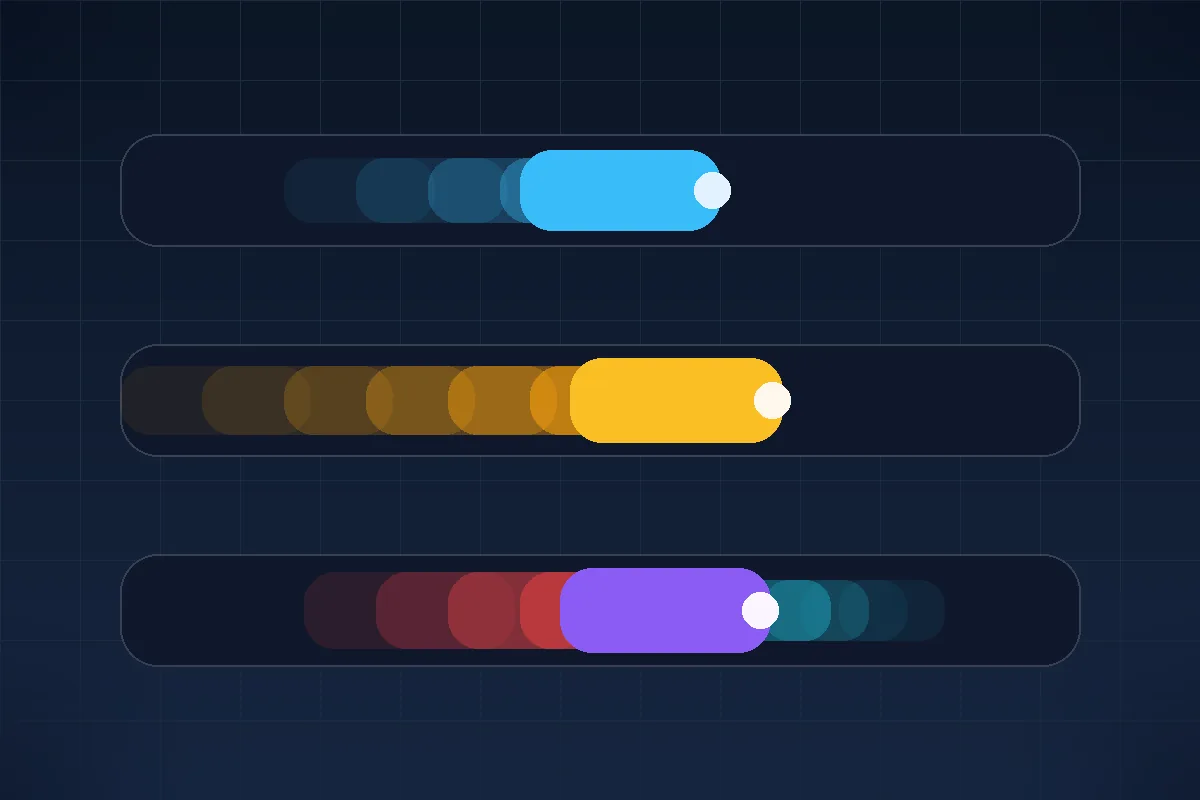
| Off / Low | A longer same-color trail behind the moving block. | Good baseline; raise one step if the trail is distracting. |
| Normal / Medium | Shorter trail with little or no halo. | Usually the best daily setting. |
| Fast / High | Cleaner on some panels, but halos may begin. | Use only if it stays clean at your refresh rate. |
| Extreme / Faster / MPRT | Bright or dark coronas, inverse ghosting, or added flicker. | Avoid unless your specific panel handles it cleanly. |
Ghosting vs inverse ghosting vs motion blur
The direction and color of the trail tells you what to change. A same-color smear usually means pixel response is too slow. A reverse-color halo usually means overdrive is too aggressive.
| Symptom | Likely cause | What to change |
|---|---|---|
| Same-color trail behind the object | Pixel response is slower than the frame transition. | Increase overdrive one step, or accept the panel limit if it remains. |
| Bright, dark, or opposite-color halo | Overdrive overshoot, also called inverse ghosting. | Lower overdrive one step and retest. |
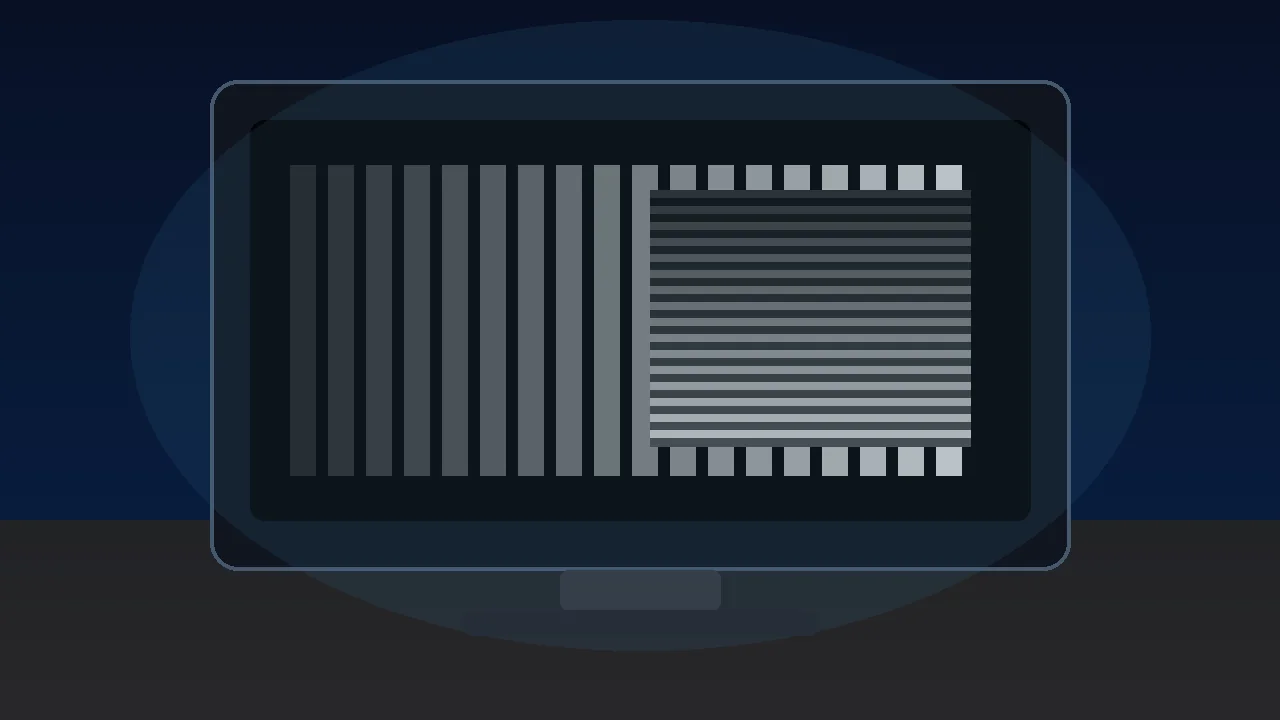
| Black smear in dark scenes | Common VA dark-to-dark transition weakness. | Try Normal overdrive, higher refresh rate, or a less dark scene test. |
| Object jumps instead of smears | Frame pacing, dropped frames, or physical frame skipping. | Use the frame skipping test and close background load before changing overdrive. |
Video: response time, overshoot, and ghosting explained
This Hardware Unboxed explainer is useful because it separates response time from overshoot and shows why the fastest menu label is not always the cleanest setting.
Sources checked
The recommendations above are based on the live tool behavior, monitor testing references, and community reports where overdrive behavior changes by refresh rate, profile, and panel type.
- TestUFO ghosting testReference motion pattern for visually spotting display motion blur, ghosting, and overdrive artifacts.
- Blur Busters LCD overdrive artifactsExplains how low overdrive can leave ghosting while excessive overdrive creates coronas or inverse artifacts.
- Blur Busters forum discussionNotes that TestUFO colors are intentionally demanding and that overdrive behavior can change by Hz, resolution, profile, VRR, and VSync state.
- Reddit inverse ghosting reportA practical example of users fixing inverse ghosting by reducing the monitor response-time or overdrive setting.
Related display tools
Run the moving pattern and compare overdrive settings.
Refresh Rate TestConfirm the browser is really running at the expected Hz.
Frame Skipping TestCheck whether motion is jumping because frames are missing.
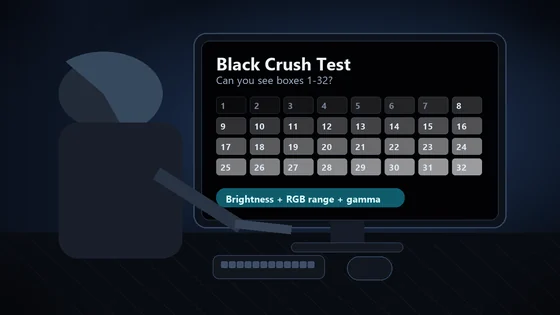
Black Level TestSeparate dark-scene smear from panel black-level behavior.
Related guides
Learn when a browser result needs a phone-camera confirmation.
144Hz Monitor Stuck at 60HzFix the refresh-rate setting before judging ghosting.
LG 25G590B: 1000Hz Worth It?Why overdrive trails matter most on the fastest panel ever sold.
Monitor ghosting FAQ
- What is the best overdrive setting for monitor ghosting?The best setting is the cleanest middle mode, not automatically the fastest mode. Use the highest overdrive level that reduces the same-color trail without adding bright, dark, or opposite-color halos.
- What does inverse ghosting look like?Inverse ghosting looks like a halo or shadow in the wrong color behind or around the moving object. It usually means overdrive is too strong, so lower the response-time setting one step.
- Why does ghosting change at 60Hz, 144Hz, and 240Hz?Overdrive tuning is tied to transition time and frame time. A setting that looks clean at 144Hz can overshoot at another refresh rate, especially with VRR, so retest at the Hz you actually use.
- Is VA black smearing the same as ghosting?It is a related pixel-response problem, but it is most obvious in dark-to-dark transitions on VA panels. Overdrive may help a little, but some black smear is a panel limitation.
- Can a browser test measure true monitor response time in milliseconds?No. A browser test is a visual diagnostic. It helps you compare settings on your screen, but lab response-time numbers require high-speed measurement equipment.
- Should I enable MPRT or backlight strobing?Only if you like the tradeoff. Strobing can reduce perceived blur, but it can add flicker, reduce brightness, and may not work well with VRR. Test it separately after choosing a clean overdrive mode.
Start with the monitor ghosting test, then confirm the same setting in your real game or scrolling workload. If the motion jumps instead of smearing, compare with the frame skipping test before blaming overdrive, and run a browser frame-rate check if you suspect the system is not delivering full FPS in the first place.





Reader discussion
Comments
Share what worked, what did not, or what you would test next. Every comment is reviewed before it appears.
Loading approved comments…
Leave a comment
No account or sign-in is required. Links and HTML are not accepted.