











Fast Answer
First find which layer is losing pressure. Draw a light-to-firm stroke in the browser pressure and tilt check. Variable pressure means the browser is receiving an analog signal, so a failing drawing app points toward its brush or input-API settings. A fixed 0 or 0.5, a mouse/touch pointer, or no input sends you toward stylus compatibility, the driver, Windows Ink/WinTab matching, the connection, and then vendor diagnostics. The browser result narrows the fault; it does not certify the hardware.
A brush that ignores light and firm strokes can fail at several different layers: the pen may be incompatible, the tablet driver may expose the wrong interface, Windows Ink and WinTab may not match the app, or the selected brush may not use pressure. Buying hardware before separating those layers wastes both time and money.
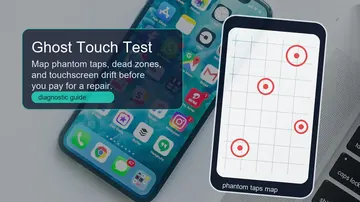
This guide gives Windows 10/11 users a reproducible fault-isolation workflow for Wacom, Huion and XP-Pen devices in Photoshop, Krita and Clip Studio Paint. It is based on browser-visible Pointer Events plus current vendor documentation; no physical tablet was lab-tested for this article. If pressure varies but the pointer itself wanders, use the cursor-drift troubleshooting guide. If finger input creates phantom marks on a pen display, map them with the ghost-touch guide.
Read the browser result before changing settings
Use this as a fault splitter, not a pass/fail certificate. Repeat the stroke, then compare the browser, the manufacturer's tester and the affected drawing app.
| Observed result | Safe interpretation | Next check |
|---|---|---|
| Pointer type is pen and pressure varies | The browser/OS path is receiving analog pressure; this still does not certify every sensor | Check the app brush and its Windows Ink/WinTab path |
| Pointer type is pen but pressure is fixed at 0 or 0.5 | The browser is not receiving variable pressure | Check driver exposure, input API and vendor tester |
| Pointer type is mouse or touch | The browser is not identifying this input as a pressure-capable pen | Confirm an active compatible stylus and correct driver |
| Vendor tester works, but browser or one app does not | The pen reaches the vendor driver; the remaining mismatch is downstream | Match protocol, browser and app settings |
| Browser works, but one drawing app fails | Strong evidence of an app-specific brush or API issue | Use the app-specific fixes below |
| Browser, vendor tester and several apps all fail | A driver installation, connection, pen or tablet fault becomes more plausible, not proven | Clean-install, cross-device test, then warranty/repair |
Test your pen pressure now, and read the result
The free stylus signal check displays the Pointer Events data delivered to this browser: pointer type, normalized pressure from 0 to 1, observed minimum/maximum/average, tilt when exposed, sample history and locally generated CSV/JSON exports. Your strokes and export data stay on the device.
Draw three slow diagonals from a light touch to a comfortably firm touch. Look for repeatable variation, not a required perfect minimum or maximum. MDN defines pressure as a normalized 0-to-1 value and notes that hardware without a pressure sensor can report 0.5 while a button is active, and 0 otherwise. A changing value shows that this browser receives analog pressure; a flat reading only shows that this browser path does not.
- 1. Confirm pointer type. A real pressure pen should normally appear as
pen. Amouseortouchlabel sends you toward compatibility and driver checks. - 2. Compare repeated strokes. Make several light-to-firm strokes without forcing the nib. Variation should be repeatable; no universal browser threshold proves a pen healthy.
- 3. Cross-check one app. If the browser varies but the affected app stays flat, inspect that app's brush dynamics and input API. If both stay flat, open the manufacturer's driver tester next.
- 4. Save evidence. Export CSV or JSON after a controlled run. It can document what the browser received for support or warranty conversations, but it is not a hardware diagnosis.
A browser cannot calibrate grams or Newtons, read raw firmware levels, inspect electrical sensors, or prove a defect. Missing tilt, twist or buttons can reflect hardware support, driver exposure or browser support. Use the result only to choose the next diagnostic layer.
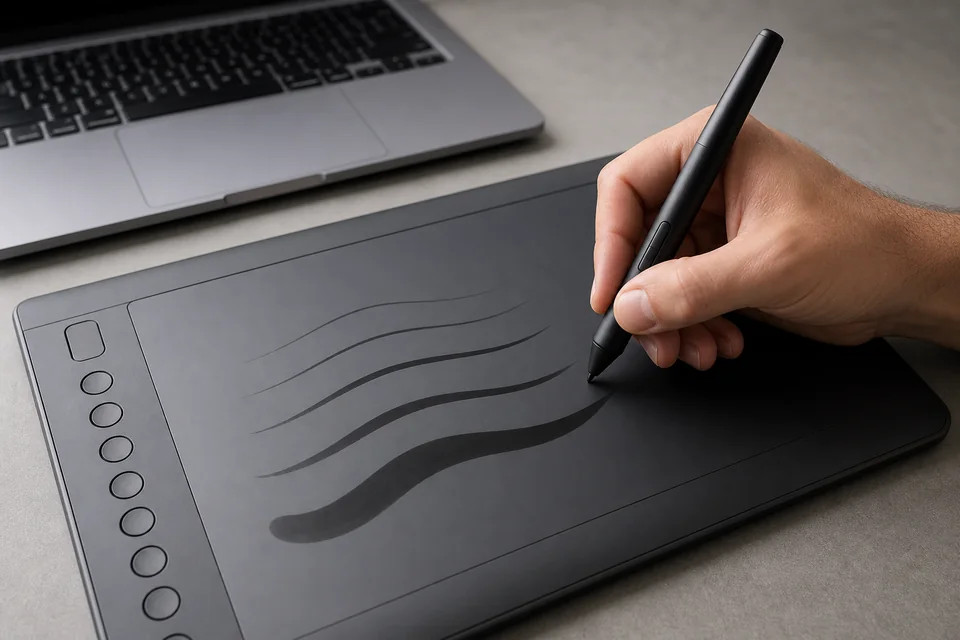
Windows Ink vs WinTab: match the driver to the app
WinTab and Windows Ink are different Windows input paths. Adobe documents Windows Ink as Photoshop's default route on current Windows versions, while Krita exposes an input-API selector and Clip Studio distinguishes WinTab pen tablets from TabletPC devices. Tablet drivers may also expose a Windows Ink switch globally or per app.
The useful rule is agreement, not ideology: the driver and target app must use a compatible path. If one app fails while the browser and another app vary normally, change only the failing app/profile, restart it, and re-test. Do not disable or enable Windows Ink everywhere as a universal fix.
Record the working combination before changing anything else. A driver update can rename or move the control, so follow the current vendor panel and the app documentation rather than copying an old menu path blindly.
Documented input paths by app
Use the path documented for your device type, match the driver, restart the app, and verify with a pressure-enabled brush.
| App | Documented control | Diagnostic action |
|---|---|---|
| Photoshop | Brush Settings > Shape Dynamics > Control: Pen Pressure; Windows Ink is Adobe's default path | Confirm the brush first; use Wacom's documented WinTab alternative only when intentionally matching that path |
| Krita | Settings > Configure Krita > Tablet Settings: WinTab or Windows 8+ Pointer Input | Change only for troubleshooting, restart Krita, then use its tester |
| Clip Studio Paint | Preferences > Tablet: WinTab for screen/pen tablets or TabletPC for tablet PCs | Choose by device type, restart, compare another app |
| Vendor driver | Global or per-app Windows Ink/WinTab control, when provided | Match the target app rather than applying one setting to every program |
Fix pen pressure per app: Photoshop, Krita, Clip Studio and more
If variable pressure reaches the browser but one program ignores it, first choose a pressure-enabled brush, then match the app input path. This is strong app-specific evidence, not proof that every hardware function is healthy. Restart the app after an API change.
- Photoshop. In Brush Settings > Shape Dynamics, set the relevant control to Pen Pressure and make a test stroke with a pressure-enabled brush. Adobe says Windows Ink is the default Windows API. If your supported setup intentionally uses WinTab instead, follow the current tablet-vendor instructions, then restart Photoshop.
- Krita. Open Settings > Configure Krita > Tablet Settings, choose WinTab or Windows 8+ Pointer Input, restart Krita, and use its tablet tester or a known pressure-enabled brush. Krita explicitly recommends switching the API only when troubleshooting.
- Clip Studio Paint. For a screen/pen tablet, Clip Studio documents Preferences > Tablet > WinTab; for a tablet PC, it documents TabletPC. Its support flow also says to compare another app, reset settings, reinstall the driver and remove multiple tablet drivers when necessary.
- One app profile at a time. If the driver offers per-application Windows Ink settings, change the failing app's profile first. Preserve a working browser/vendor-test path so you retain a control comparison.
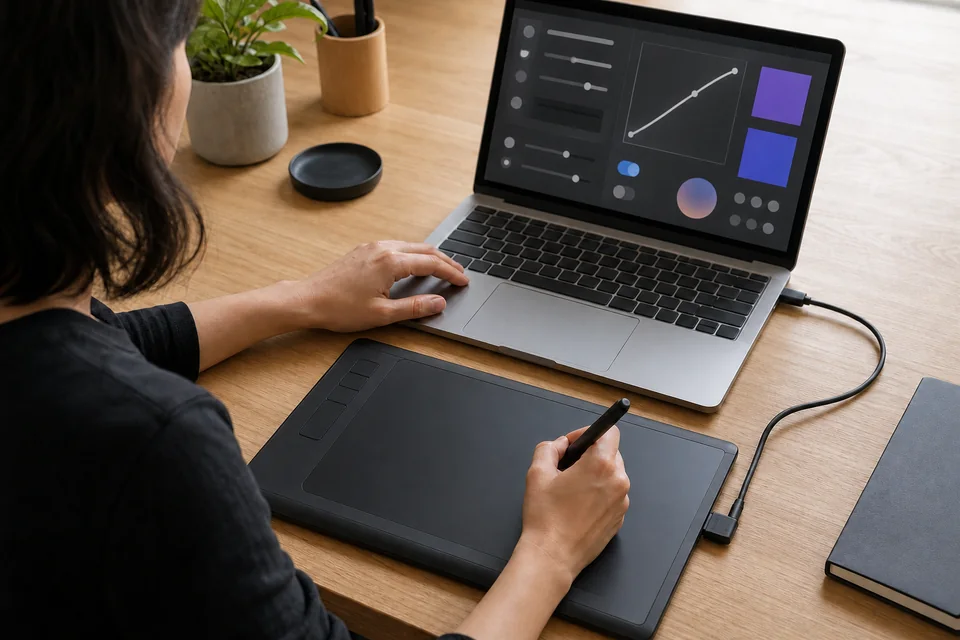
Fix the driver per brand: Wacom, XP-Pen and Huion
If the browser and target app both stay flat, open the manufacturer's own pressure tester. That comparison separates what the vendor driver receives from what it exposes downstream. Menu names vary by driver release, so use the current panel and official support page.
- Wacom. Confirm the driver is running, use its diagnostics to check the pen, verify the app's Windows Ink setting, and use Wacom's current driver-support path if the diagnostic also fails.
- Huion. Huion advises matching the driver and application protocols, testing pressure in its driver, restarting the driver, and reinstalling the current official driver if necessary.
- XP-Pen. Use the pressure test in the current PenTablet panel, confirm the application supports pressure, install the current model-specific driver, remove other tablet drivers, and restart before comparing apps again.
- After each change. Re-run the vendor tester, the browser signal test, and one pressure-enabled brush. Record which layer changed rather than changing several variables at once.
Driver checklist by brand
Same repair order for every brand: confirm the pen in the driver, match Windows Ink to your app, restart the service, reinstall clean if needed.
| Brand | First official check | If pressure stays flat |
|---|---|---|
| Wacom | Driver diagnostics and app Windows Ink setting | Restart the driver, then follow current Wacom support guidance |
| XP-Pen | Model-specific PenTablet pressure tester | Remove other tablet drivers, reboot, reinstall the current official driver |
| Huion | Driver pressure test and app-protocol match | Restart the driver, then reinstall the current official driver if needed |
Pen pressure stopped working after a Windows update
If failure begins immediately after Windows or a driver update, treat timing as a clue, not proof. First preserve the version numbers and the result from each test layer. Then change one item at a time:
Use the following recovery ladder and re-test after every step:
- Restart cleanly. Close drawing apps, reboot, open the manufacturer panel and confirm the device is detected before launching the app.
- Restore the matching API. Check the app profile and Windows Ink/WinTab choice against the working configuration you recorded.
- Clean-install the correct vendor driver. Follow that manufacturer's uninstall instructions, remove conflicting tablet drivers, reboot, and install the model-specific release.
- Compare versions only with evidence. If the current vendor release fails and the manufacturer offers an approved earlier build, test it methodically. Do not install random driver packages.
If the vendor tester, browser and several apps remain flat after a documented clean install, move to connection, nib, pen and cross-computer checks. Hardware is now more plausible, but still not proven by the browser.
When it is the nib, the pen, or the tablet: buy vs repair
Escalate only after the browser, vendor tester and more than one pressure-enabled app have been compared. A flat browser value by itself does not justify a purchase. Keep the CSV/JSON export, driver version, device model and screenshots of the vendor tester for support.
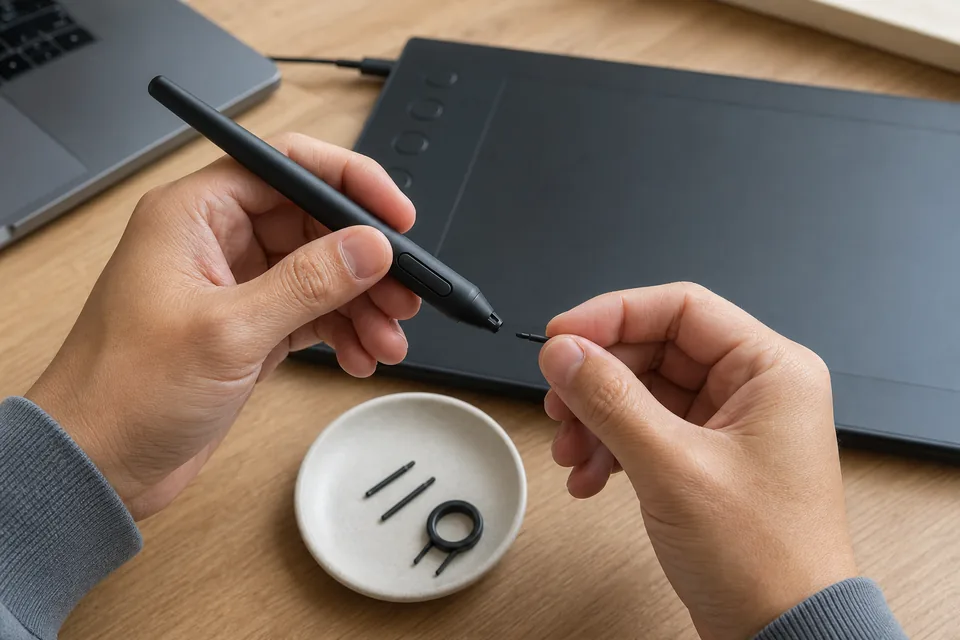
Inspect the nib using the manufacturer's guidance. Wacom advises replacement when a nib becomes short or develops a sharp edge, but wear rules and compatible parts differ by brand. A replacement nib can address a physically worn or sticking tip; it cannot fix a protocol mismatch.
- Nib and pen. Follow the device manual; do not force the nib. If a known-good compatible pen works on the same tablet, the original pen becomes the stronger suspect.
- Power, cable, USB and pairing. Reseat the supported cable, avoid an unpowered hub for the comparison, and re-pair a wireless pen/tablet when applicable. Test another supported port.
- Second computer or known-good device. Repeating the vendor test on another compatible system is stronger evidence than repeating one browser on the same installation.
- Warranty or repair. Contact the manufacturer with the serial/model, driver version, cross-app results and exports. Let its diagnostic process decide whether the pen, digitizer or connection needs service.
Replace the tablet only after cheaper compatibility, settings, driver, nib, cable and pen checks fail and the vendor or a cross-device comparison supports that decision. No universal price or warranty term is claimed here.
Buy vs repair: work up from cheapest
Fix the cheap parts before the expensive ones, and confirm each step on the pressure test before spending more.
| Step | Relative cost | When it is the right call |
|---|---|---|
| Settings and API match | No purchase | Browser/vendor pressure varies but one app fails |
| Official driver clean install | No hardware purchase | Vendor/app paths disagree or the installation is corrupted |
| Compatible nib, cable or pen check | Device-specific | Physical wear/connection evidence or a known-good part isolates the fault |
| Warranty, repair or tablet replacement | Device-specific | Failure repeats in vendor diagnostics, multiple apps and another compatible system |
Video: Wacom pressure and Photoshop brush settings
Adobe's tablet-support page embeds this photoshopCAFE tutorial. It demonstrates Wacom pressure settings and Photoshop brush controls; users of other brands should keep the same test-first logic but follow their own driver panel.

A Photoshop-focused tutorial on Wacom pen-pressure settings and pressure-enabled brush controls, embedded by Adobe in its tablet-support documentation.
Diagnose the rest of your setup while you are here
Every check below runs free in the browser, nothing installs, and your input never leaves your machine. Together they cover pressure, tracking, screen, and lag on a drawing setup.
Draw live and read pressure, tilt, twist, buttons, sample rate, and straight-line stability in one place.
Touch Screen TestMap dead zones, phantom taps, and multi-touch on a pen display or 2-in-1 that also takes finger input.
Dead Pixel TestScan a pen display such as a Cintiq or Kamvas for dead and stuck pixels before you blame the pen.
Input Event Lag CheckerCheck browser-side event-handling delay with a keyboard or mouse click. It does not measure pen latency or full end-to-end delay.
Related troubleshooting guides
Phantom taps and dead zones on touchscreens and pen displays, mapped and fixed in the browser.
Cursor Moving by ItselfWhen the pointer drifts or the pen lands off-target, this separates tracking faults from real input.
Input Latency ExplainedHow browsers time keyboard and mouse event handling, and why that is only one part of perceived pen lag.
Sources and references
The workflow is research-based, not a claim of hands-on testing with every tablet. Technical steps below use current primary documentation, checked July 19, 2026. Interface names can change with app and driver releases.
- Wacom Support: Why is my pen pressure not working?
Official pressure troubleshooting: app pressure controls, driver status, pen diagnostics and matching Windows Ink to the application.
- Adobe: Tablet support for Photoshop
Official explanation of Windows Ink versus WinTab, driver changes and the Photoshop brush-pressure control.
- Adobe: Drawing with a graphics tablet
Official Photoshop guidance for configuring pressure-sensitive brush behavior.
- Krita Manual: User support and tablet diagnostics
Official diagnostic workflow, including switching the input API only for troubleshooting and restarting Krita.
- Krita Manual: Tablet Settings
Official reference for WinTab and Windows 8+ Pointer Input.
- Clip Studio Paint: Preferences
Official device-type guidance for WinTab and TabletPC modes.
- Clip Studio Support: Pen pressure troubleshooting
Official cross-app, settings-reset, driver-reinstall and conflicting-driver checks.
- Huion Support: Pressure unavailable in an application
Official protocol-matching, driver-test, restart and reinstall steps.
- XP-Pen: Artist 13.3 Pro V2 user manual
Official pressure-support, driver-test, conflicting-driver and Windows Ink checks.
- MDN: PointerEvent.pressure
Defines normalized pressure from 0 to 1 and the active non-pressure value of 0.5.
- Wacom Support: Nib wear
Official signs for replacing a worn pen nib.
- Wacom Support: Warranty repair
Official warranty-claim and support-contact path for Wacom devices.
FAQ
- Why is pen pressure fixed at 0.5?
MDN notes that hardware without a pressure sensor can report 0.5 while a button is active, and 0 otherwise. Confirm pointer type is pen, then compare the manufacturer tester and a pressure-enabled app. The browser value alone cannot identify the failed component.
- Why does pressure work in the driver but not the app?
That result shows the vendor driver receives pressure. Check the app brush dynamics, match its Windows Ink/WinTab or TabletPC setting to the driver, restart the app, and test again.
- Should Windows Ink be on or off?
There is no universal answer. Adobe uses Windows Ink by default, while Krita and Clip Studio document selectable paths. Match the target app and driver, restart, and preserve working per-app profiles.
- Can a browser prove that my tablet is broken?
No. It shows what Pointer Events reached that browser. It cannot inspect firmware, electrical sensors or calibrated force. Use vendor diagnostics, several apps and another compatible computer before a hardware decision.
- Can a passive stylus report pressure?
A simple capacitive stylus normally behaves like touch and does not expose an active pressure pen signal. Pressure requires a compatible active pen/digitizer system and a driver or platform path that exposes it.
- When should I replace the nib, pen or tablet?
Follow the device manual for a visibly short, sharp-edged or sticking nib. Consider a pen when a known-good compatible pen works on the same tablet. Escalate to warranty, repair or tablet replacement only after documented cross-app and cross-computer failure.
After each change, return to the browser pressure and tilt test, repeat the same controlled strokes, and compare the browser, vendor tester and target app. Keep the export with the device and driver details if you contact support.





Reader discussion
Comments
Share what worked, what did not, or what you would test next. Every comment is reviewed before it appears.
Loading approved comments…
Leave a comment
No account or sign-in is required. Links and HTML are not accepted.