

Run a free keyboard latency test with mouse click latency mode, last-key display, jitter, consistency, best/worst samples, and browser input delay timing.
Was this tool helpful?Rate Latency Checker:2.4(37 ratings)Thanks for rating!
Latency Checker is a free, browser-based keyboard latency test with mouse click mode, last-key display, jitter, consistency, and browser input delay samples in milliseconds.
Cost: Free, no signup
Install: None — runs in the browser
Privacy: Runs locally, no uploads
Platforms: Windows, macOS, Linux, Android, iOS
Time: Under a minute
Latency Checker guide
How to use the Latency Checker accurately
Test device and input latency in your browser
01Open the live test
Use the browser tool below without installing software or changing your current page.
02Run one clean pass
Follow the on-screen controls and keep the input steady so the result is repeatable.
03Repeat if the result looks wrong
Run the same check again before deciding whether the device, browser, or operating system is the cause.
04Compare with related diagnostics
Use the linked tools to confirm whether the same symptom appears in another hardware check.
Input latency is the delay between pressing a key or clicking a mouse and seeing the result on screen. It is the sum of device polling delay, OS processing, application handling, GPU render, and monitor refresh. Competitive gaming targets under 20 ms end-to-end.
How accurate is this browser-based latency checker?
The tool measures the time between the keydown event and the JavaScript event loop processing it, which captures OS and browser latency but not monitor or USB polling latency. Use it for relative comparisons (keyboard A vs keyboard B on the same machine), not absolute hardware specs.

What is a good keyboard latency?
Wired gaming keyboards typically measure 1-8 ms. Wireless 2.4 GHz is usually 3-10 ms. Bluetooth can spike to 30+ ms. Office-grade keyboards often report 10-20 ms under browser timing. Use the mouse click mode separately for mouse-button consistency.
Why does my wireless keyboard show higher latency?
Wireless protocols add radio-link overhead. Most 2.4 GHz gaming dongles keep the extra latency under 5 ms. Bluetooth HID runs on slotted polling and can add 10-30 ms, which is why competitive players still prefer wired.


Can this replace a dedicated latency tester?
No. Hardware testers like the Nvidia LDAT or the Logitech Latency Tool measure photon-to-event timing with microsecond accuracy. This browser tool measures a subset of the chain - useful for directional comparison rather than forensic measurement.
Windows app
KeyboardTester.click is available from Microsoft Store
Install the official Windows app shortcut, or keep using the same free testing tools in your browser.
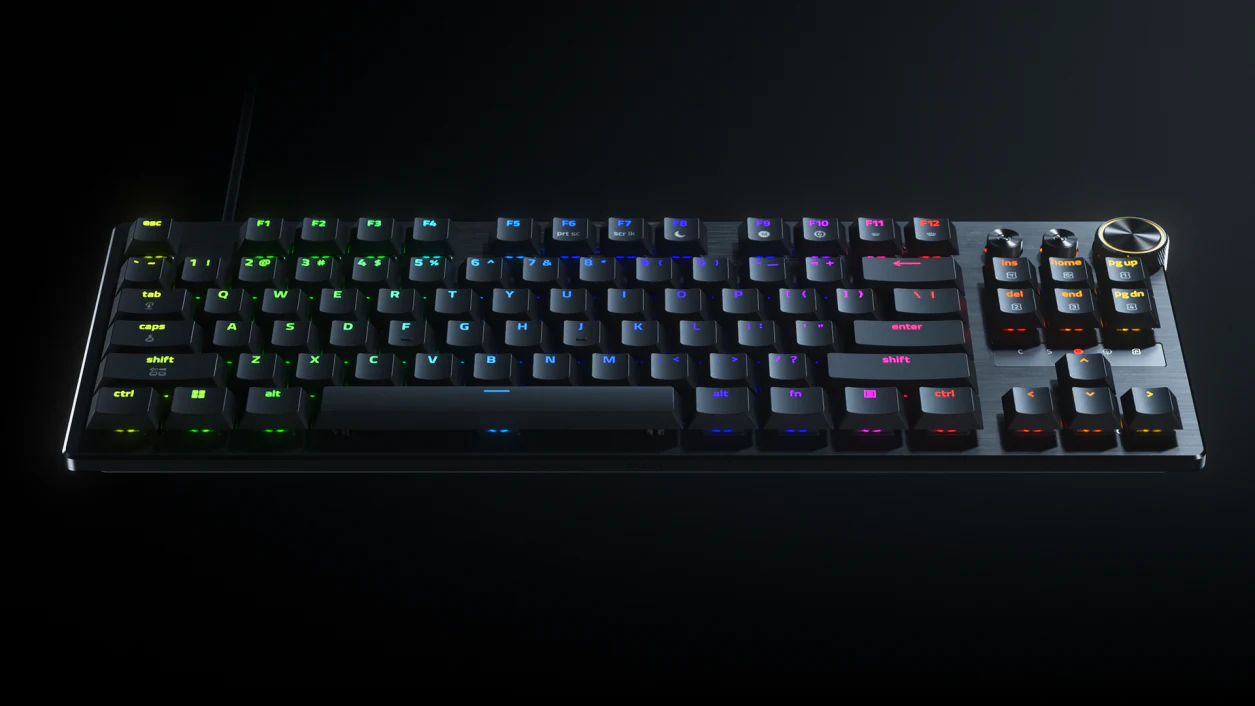
01 / 10New Razer TKLRazer Huntsman V3 Pro Low-Profile: What to TestRZ03-05850 is thinner, shorter-travel and $10 above Razer's standard US model.02 / 10Model checkKnow the exact modelRZ03-05850 is the Low-profile Tenkeyless 8KHz. Do not confuse it with RZ03-0552 or HE Magnetic RZ03-0592x.03 / 10The redesignWhat actually changed?Razer lists a 19.5 mm front height, 2.8 mm total travel and new low-profile analog optical switches.04 / 10Travel rangeShorter actuation rangeRazer lists 0.1-2.8 mm here versus 0.1-4.0 mm on the standard Pro TKL, so its maximum travel is shorter.05 / 10Price checkThe US premium is $10Checked Aug. 24: $229.99 for RZ03-05850 versus $219.99 for standard RZ03-0552. Prices can change.06 / 10Claim boundaryDo not treat 8K as proofRazer claims 8,000 Hz and 0.39 ms to USB. A browser cannot verify raw polling or end-to-end latency.07 / 10Buyer fitWho should consider it?Shortlist it for low deck height and short travel. Keep your board if you prefer deeper travel or need wireless.08 / 10Delivery testRun five delivery checksOn the factory profile, test all keys, NKRO chords, chatter and held-key repeat. Save repeatable results.09 / 10Read the resultWhat counts as a warning?Missed, doubled or stuck keys that repeat matter. One clean run cannot prove actuation depth or 8K.10 / 10Next actionTest every key firstTest every normal key once. Use repeatable return-window results, not the page as an 8K certificate.
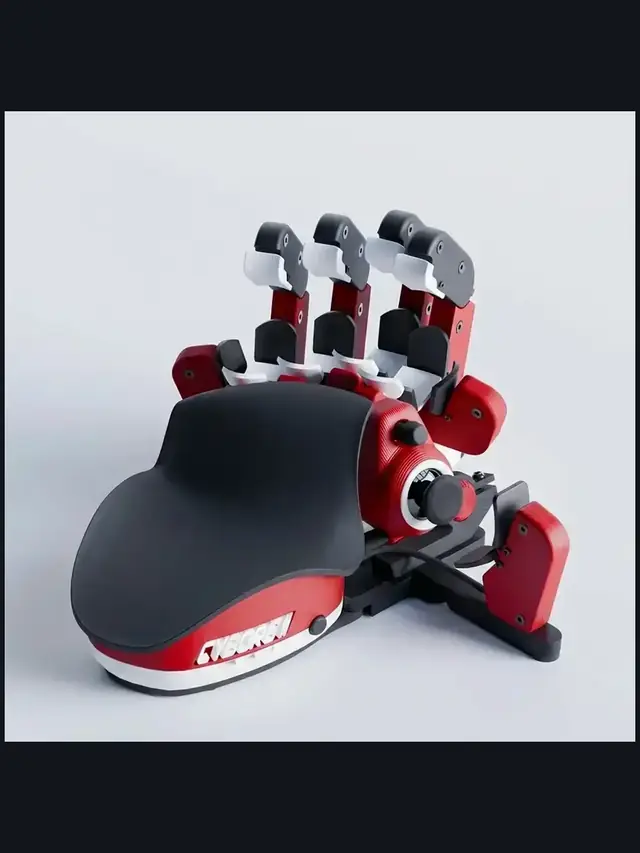
01 / 10Buyer guideOne-handed keyboards: choose by control, not hypeThe right pad depends on your thumb, hand fit, switch feel and setup time.02 / 10Start herePick the input style firstChoose raised finger towers, a flat key grid or a familiar keypad with a thumb control.03 / 10MovementA thumbstick can replace WASDTrue analog movement and an 8-way thumbpad are different. Check what each game supports.04 / 10Ergonomic pickAzeron favors reach over familiarityIts towers and 360-degree stick reduce finger travel, but profiles take time to learn.05 / 10Familiar optionMainstream keypads feel easier soonerA flatter grid and thumbpad shorten the learning curve, but offer less hand shaping.06 / 10Key feelSwitch labels do not tell the whole storyCompare press feel, spacing, stabilizers and fatigue instead of buying for RGB alone.07 / 10ProfilesSoftware can decide the experienceCheck remapping, per-game profiles, onboard memory and whether the app must stay open.08 / 10ErgonomicsHand fit beats a long feature listVerify palm-rest position, thumb reach, orientation and whether adjustments stay secure.09 / 10Return windowTest the exact bindings you will useScan every key, then try real movement-plus-modifier combos before the return window closes.10 / 10Final checkTrust your inputs, not the boxOpen the full Keyboard Tester and check every mapped key before keeping the pad.