












Fast answer: open the online keyboard tester, click the page to focus it, press every physical key once, and confirm each key lights up. If you game, repair keyboards, buy used hardware, or use Bluetooth, also run stuck-key, ghosting, N-key rollover, and latency checks before you trust the keyboard.
A basic keyboard test tells you whether each key sends a normal browser event. A serious keyboard check goes further: it verifies stuck keys, double typing, ghosting, rollover limits, wireless delay, and OS-reserved keys that a browser may never see.
This guide shows the practical way to test a laptop keyboard, mechanical keyboard, wireless keyboard, or gaming keyboard online without downloading software. Use it before a return window closes, before buying a used keyboard, after a spill, or when a key starts behaving strangely. If you run these checks often on Windows, the Microsoft Store app pins the same tester to your taskbar.
Quick Keyboard Test Checklist
Run this first. It takes two minutes and catches the most common failure types before you waste time changing drivers or replacing hardware.
- Open a clean browser tab and close apps that steal keyboard shortcuts.
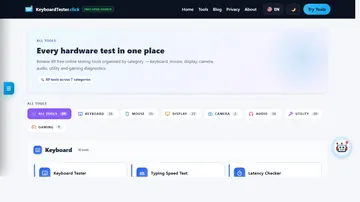
- Use the KeyboardTester.click key test and press every key once.
- Watch for keys that never light up, stay active, or fire more than once.
- Hold common combinations such as `Ctrl`, `Shift`, `Alt`, `Space`, `W`, `A`, `S`, and `D` if you game.
- Retest after cleaning, restarting, changing USB ports, or switching from Bluetooth to wired mode.
How to Test Every Key Online
Start with the full key map. Click inside the tester so the page has focus, then work across the keyboard in rows: function row, number row, letters, modifiers, arrows, navigation cluster, and numpad. Each working key should show immediate visual feedback.
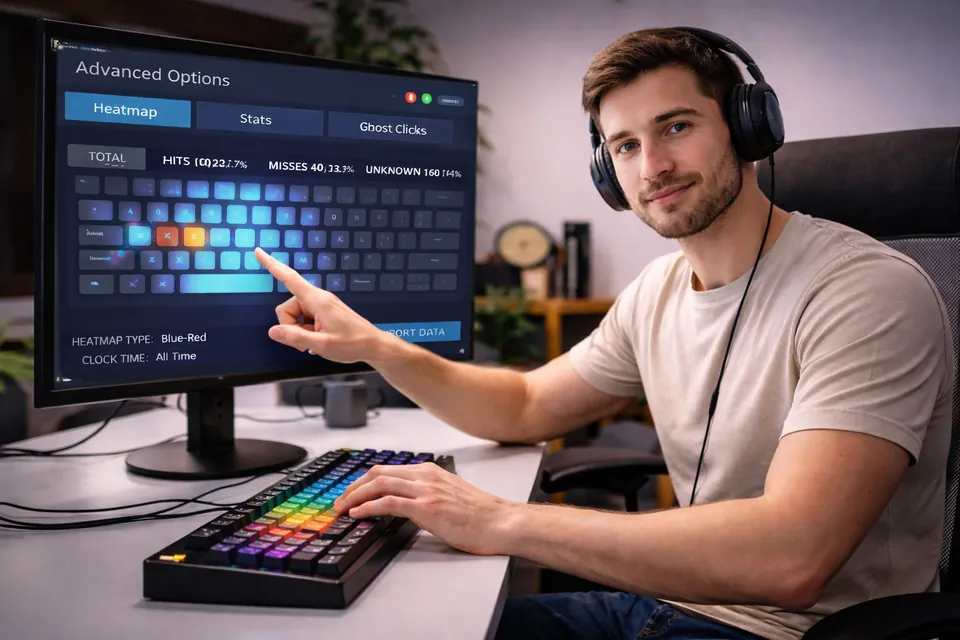
For a full-size keyboard, pay special attention to duplicate keys: left and right `Shift`, left and right `Ctrl`, left and right `Alt`, numpad `Enter`, and the top-row numbers versus numpad numbers. These can have different physical locations even when they type similar characters.
What a good result looks like
- Every normal key highlights once when pressed.
- The key releases cleanly when your finger lifts.
- No key stays active after release.
- No extra key lights up when pressing a single key.
- Modifier keys work on both left and right sides.
Check Stuck Keys, Chatter, and Double Typing
If a key repeats by itself, types two letters, or appears held down, run a focused stuck key test. That test is better than a normal key map because it watches for unexpected repeat events and keys that remain active.
| Symptom | Likely cause | Best test | Next action |
|---|---|---|---|
| One key never lights up | Dead switch, membrane contact issue, debris, cable, or controller fault | Basic keyboard tester | Clean, retest in another browser, then test on another computer. |
| One key types twice | Switch chatter or worn contact | Stuck key test and typing test | Clean the switch area; if it continues, the switch may need replacement. |
| Keys miss only in games | Ghosting, rollover limit, or game/input setting | Ghosting and NKRO tests | Test game combos and compare with a gaming keyboard if needed. |
| Wireless keyboard pauses after idle | Bluetooth wake delay or power saving | Latency checker | Compare Bluetooth, 2.4 GHz receiver, and wired USB. |
| Shortcut keys do not show | OS or browser intercepts the shortcut | Browser limits table below | Test the base key alone or use OS-level keyboard settings. |
Test Ghosting and N-Key Rollover
Ghosting is not the same as a broken key. A key can work perfectly by itself but fail inside a combination. That matters for games, shortcuts, CAD workflows, music software, and any task where you hold multiple keys together.
Use the keyboard ghosting test to press real combinations, then use the N-key rollover test to see how many simultaneous keys register. For gaming, test the actual combinations you use: `W + Shift + Space`, `Ctrl + Shift + number`, movement keys plus reload, or rhythm-game lanes.

Measure Keyboard Latency and Wireless Delay
A keyboard can pass the key map and still feel slow. Latency is the delay between pressing a key and the browser or game receiving the input. The difference is usually most visible with Bluetooth keyboards, overloaded systems, USB hubs, docks, or high-polling gaming keyboards running unstable settings.
Use the keyboard latency checker after the key map test. Collect enough samples to see average, best, worst, and jitter. Then change one variable: wired versus Bluetooth, rear USB versus hub, normal apps open versus clean boot, or one browser versus another.

Video from our channel: this quick KeyboardTester demo shows why a visual key test is useful before you blame Windows, games, or apps.

What Online Keyboard Tests Can and Cannot See
Online keyboard tests use browser keyboard events. That is exactly why they are convenient, but it also creates limits. Some keys are reserved by the operating system, firmware, browser, or device vendor and may never reach the page.
| Key or behavior | Why it may not show | What to do |
|---|---|---|
| PrintScreen | Windows and other operating systems often handle screenshots directly. | Use OS screenshot settings or a keyboard utility if you need to verify that key. |
| Fn key | Usually handled inside keyboard firmware and may not send a browser event. | Test the function-row behavior it modifies instead. |
| Volume, brightness, media keys | May be converted into system commands rather than standard key events. | Confirm the system action works, then check vendor software if needed. |
| Browser shortcuts | Shortcuts such as `Ctrl + L`, `Ctrl + T`, or `Alt + F4` may be intercepted. | Test the base keys separately and avoid destructive shortcuts during testing. |
| Layout-specific characters | `KeyboardEvent.key` follows the active layout, while `KeyboardEvent.code` identifies the physical key. | Match the tester layout and your OS input language before judging a result; use the language keyboard tester hub when checking Arabic, Korean, Russian, Japanese, or other native legends. For historical context on why layouts differ, read the QWERTY keyboard history guide. |
Laptop, Mobile, and Bluetooth Keyboard Testing
Laptops and compact keyboards need extra care because some keys are layered behind `Fn`, smaller layouts, or vendor utilities. Test the physical keys first, then test the functions they trigger: brightness, volume, keyboard backlight, airplane mode, and touchpad toggle.
On phones and tablets, a virtual keyboard does not behave like a desktop physical keyboard. KeyboardTester.click includes mobile input support so you can check normal typed characters, but external Bluetooth keyboards connected to a tablet should be tested like a regular keyboard.
Fixes Based on Your Test Results
Do not replace the keyboard after one failed press. Use the result pattern below to decide what to do next, or read the full guide on how to fix keyboard delay, lag, and sticky keys.
- One dead key: remove debris if safe, retest, then test on another device.
- Several nearby keys fail: suspect liquid damage, membrane damage, ribbon cable, or controller issue.
- Repeating key: run the stuck key test, clean the switch area, and check OS repeat settings.
- Only game combos fail: run ghosting and NKRO tests before changing software.
- Only wireless mode fails: charge the keyboard, move the receiver closer, avoid Bluetooth for gaming, or test wired mode.
- Only one browser fails: try a clean profile, disable extensions, and check whether shortcuts are being intercepted.
Research Notes
The details above are based on how browsers expose keyboard events and how USB keyboards identify keys. These references are useful if you want to understand why a tester can show one key but not another.
- MDN KeyboardEvent.key explains the logical key value a browser receives after layout and modifiers.
- MDN KeyboardEvent.keyCode documents why legacy key codes are deprecated and why `key` or `code` is preferred.
- W3C UI Events KeyboardEvent code values describe physical key positions used by browser keyboard events.
- USB HID Usage Tables define the keyboard/keypad usage page used by USB keyboards.
- Microsoft Print Screen shortcut guidance shows why screenshot keys are often handled by the operating system.
Related Keyboard Tools
Related Guides
If every key registers cleanly but your WPM still varies from run to run, follow the controlled checks in our guide to diagnosing inconsistent typing speed. It separates passage difficulty and rhythm changes from repeatable keyboard faults.
- What Is Keyboard Ghosting? Anti-Ghosting, NKRO and Fixes
- Input Latency Checker: Keyboard and Mouse Delay Guide
- Keyboard Typing Double Letters? Key Chatter Fix Guide
- Keyboard Switch Types Guide for Gaming
FAQ
Is it safe to test my keyboard online?
Yes. KeyboardTester.click processes key presses in your browser for the live test. Do not type passwords or private text into any online tester; use individual test keys and combinations only.
Why does PrintScreen or Fn not show in the keyboard tester?
Some keys are handled by the operating system, firmware, or browser before a normal web page can receive them. PrintScreen, Fn, brightness, volume, and vendor macro keys may not generate regular browser keyboard events.
Can I test a Bluetooth or wireless keyboard online?
Yes. If the keyboard is connected to your computer, the browser can usually receive its normal key events. For wireless reliability, compare Bluetooth, 2.4 GHz receiver mode, and wired USB if your keyboard supports them.
How do I know if a key is broken or just dirty?
If one key fails in the tester, clean around the keycap and retest. If the same key still fails across browsers, USB ports, or another computer, the switch, membrane contact, cable, or controller may be faulty.
What is the difference between ghosting and a dead key?
A dead key fails when pressed by itself. Ghosting or rollover failure appears when multiple keys are pressed together and one or more expected keys do not register.
Do I need to install software to check every key?
No. A browser-based keyboard tester is enough for a first pass: open the tool, focus the page, press every key, then use focused tests for stuck keys, ghosting, rollover, and latency.
Start here: open the free online keyboard tester, press every key once, then run ghosting, rollover, stuck-key, and latency checks only where the first result points you.
Quick Action Checklist
- Test once in a clean browser tab.
- Retest after changing ports, wireless mode, or device settings.
- Use the focused tool that matches the symptom, not only the general tester.
- Keep screenshots or notes when comparing hardware.
Helpful Video
This related video supports the checks and decisions covered in this guide.




Reader discussion
Comments
Share what worked, what did not, or what you would test next. Every comment is reviewed before it appears.
Loading approved comments…
Leave a comment
No account or sign-in is required. Links and HTML are not accepted.