












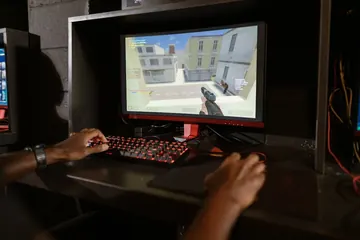



Fast answer — how to fix keyboard delay: Most keyboard delay is fixed in under two minutes — turn off Filter Keys (Settings → Accessibility → Keyboard) and shorten Repeat delay in control keyboard; for input lag on every keystroke, update the keyboard driver and switch to wired, or charge a wireless keyboard and move its dongle to a front USB port. “Keyboard delay” is really two different problems with two different fixes:
- A held key pauses before it repeats (repeat delay): press Win + R, type
control keyboard, then drag Repeat delay to Short and Repeat rate to Fast. - Every keystroke lands a beat late (input lag): turn off Filter Keys, update the keyboard driver, set polling to 1000 Hz, and on wireless charge the keyboard and move the dongle to a front USB port.
Measure the delay free in your browser before and after each step so you know which fix actually worked.
Three of the web’s most-searched keyboard problems, one guide: keyboard delay and input lag, a keyboard not typing at all, and sticky keys. All three are fixable at home in under 20 minutes without special tools.
This guide walks through each problem in the order most people actually encounter them — diagnose first with a free online keyboard tester, then apply the right fix. Works for membrane, scissor, and mechanical keyboards on Windows 10 / 11 and macOS, wired and wireless.
Quick Fixes for a Lagging or Unresponsive Keyboard
- Turn off Filter Keys under Settings → Accessibility → Keyboard — it deliberately ignores fast keypresses and is the most common cause of sudden typing lag.
- Shorten Repeat delay: press Win + R, type
control keyboard, and drag Repeat delay to Short to fix slow held-key repeating. - Reinstall the keyboard driver: in Device Manager (Win + X), uninstall the keyboard device and reboot so Windows installs a clean driver.
- Switch USB ports: plug the cable into a USB 2 port directly on the motherboard, not a hub or front panel.
- Press Shift five times and turn off Sticky Keys if Windows prompts — it can swallow input and make a keyboard seem broken.
- Fix the language layout: press Win + Space to switch back, and remove unused layouts so wrong characters stop appearing.
- For wireless keyboards: charge to 100%, move the dongle to a front USB port, and keep it away from 2.4 GHz interference.
- Disable USB selective suspend in Power Options to stop the wake-up lag on the first keypress, common on laptops.
- Clean sticky keys: pull the keycap and wipe the switch stem with 90%+ isopropyl alcohol, then let it dry fully before reseating.
Before and after each fix, measure the delay with the free keyboard latency test and confirm every key registers with the keyboard tester — both run in your browser in about 10 seconds.

First: Diagnose Before You Disassemble
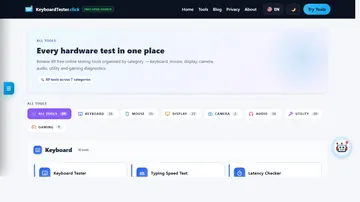
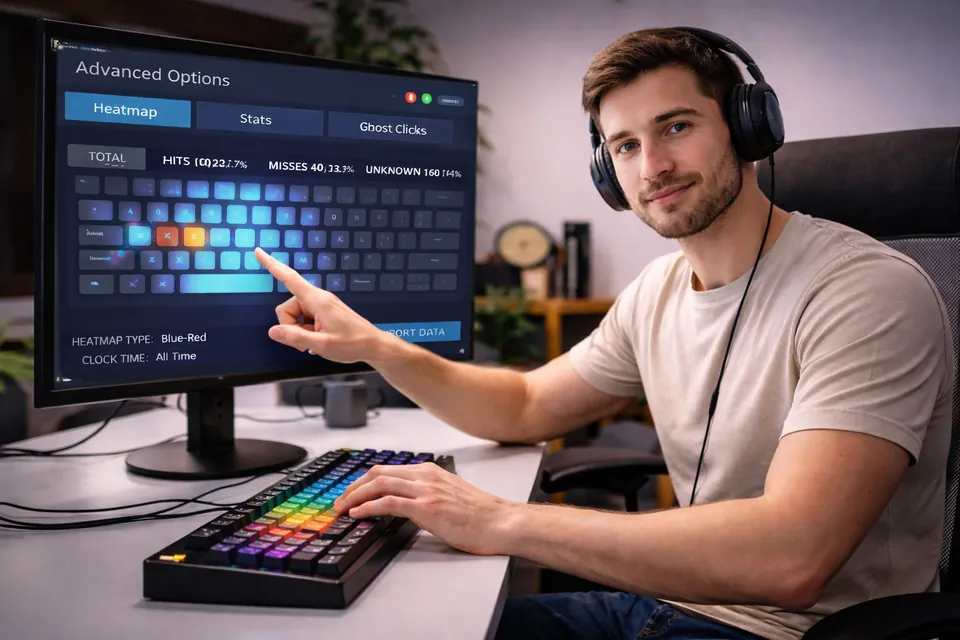
Do this before you unscrew anything. Open the free keyboard tester and press every key once. You'll immediately see:
- Every key working → the problem is software, not hardware. Skip to the "delay" or "wrong characters" sections.
- Some keys dead, others fine → debris, stuck switch, or failing individual switch. Skip to cleaning.
- Nothing registers at all → cable, USB port, or driver. See "Keyboard Not Typing" below.
- Some keys typing twice → key chatter. Read the dedicated key chatter fix guide.
What I look for first on the tester grid: When I troubleshoot a partially dead board in our Keyboard Tester, I always check the geometric pattern of the dead keys before pulling a single keycap. If an entire diagonal column (for example 3, E, D, C) or a contiguous block of four keys goes dark at the same time, that is a PCB matrix trace or membrane ribbon issue — scrubbing switch stems will not fix it. By contrast, when only high-traffic keys like W, Space, Backspace, or Enter fail intermittently or stay highlighted in the browser after you lift your finger (check this in the Stuck Key Test), 9 times out of 10 it is sticky residue or a single tired switch.
Thirty seconds of testing saves an hour of guessing. Same goes for delay — measure it with the input latency checker before assuming anything is broken.
How to Fix a Keyboard That Is Not Typing
Try these in order. Stop as soon as typing returns.
1. Try a different USB port (30 seconds)
USB 3 ports can be flaky with low-power keyboards. Move the cable to a USB 2 port directly on the motherboard (the rear I/O, not a hub or front panel). If it types now, the original port is the culprit, not the keyboard.
2. Check Sticky Keys and Filter Keys
Both of these can make a keyboard seem broken. Press Shift five times in a row — if Windows prompts about Sticky Keys, that feature is enabled and may be swallowing your input.
- Press Win + I → Accessibility → Keyboard
- Turn off Sticky Keys, Filter Keys, and Toggle Keys
- Also turn off the keyboard shortcut to enable each one so you don't re-trigger it while gaming
3. Check your language layout
Press Win + Space. If a language picker appears with more than one option, you may have accidentally switched from English (US) to another layout — a common cause of "my keyboard types the wrong characters". Pick the right one. If the alternate layout isn't needed, remove it in Settings → Time & Language → Language & region.
4. Reinstall the keyboard driver
- Press Win + X → Device Manager
- Expand Keyboards → right-click your keyboard → Uninstall device
- Reboot. Windows reinstalls the default driver automatically.
This fixes 70% of "keyboard suddenly stopped typing" cases on Windows 11 after an update.
5. Test on a different computer
If the keyboard is still dead on a second PC, the keyboard itself has failed. If it works, the original PC's USB subsystem or driver stack is at fault — consider a clean driver install or an OS repair.
How to Fix Keyboard Delay (Input Lag)
Keyboard delay — sometimes called input lag — is the gap between pressing a key and the letter appearing. Anything over ~15 ms is noticeable. But before you change anything, work out which kind of delay you actually have, because the two fixes are completely different.
First, which kind of keyboard delay do you have?
- Repeat delay — you hold a key and there's a pause before it starts repeating, or it repeats too slowly. This is a Windows setting, not a fault. Fix it in the next step.
- Input lag / latency — every keypress lands a beat late, even single taps. This is usually a driver, polling-rate, USB, or wireless issue. Skip to the wired and wireless fixes below.
Not sure which? Open the free latency checker and tap single keys. If single taps feel instant but held keys feel sluggish, it's repeat delay — not lag. For a focused walkthrough, use the key repeat rate test and repeat delay guide.
Fix repeat delay in Windows 10 / 11 (30 seconds)
This is the most common cause of a keyboard that "feels delayed," and most guides skip it entirely:
- Press Win + R, type
control keyboard, and press Enter. - On the Speed tab, drag Repeat delay all the way to Short.
- Drag Repeat rate toward Fast.
- Click the test box, hold a key to feel the new speed, then click Apply.
If you want to measure the before/after behavior instead of guessing, run the key repeat rate test and follow the dedicated repeat delay and speed fix guide.
Prefer the registry? The same control lives at HKEY_CURRENT_USER\Control Panel\Keyboard: KeyboardDelay sets the wait (range 0–3, default 1, where 0 is the shortest) and KeyboardSpeed sets the repeat rate (range 0–31, higher is faster). Sign out and back in to apply.
What we observed in our own repeat & latency tests: On a stock Windows 11 setup (KeyboardDelay = 1), holding down Backspace or W in our Key Repeat Rate Test produces an initial pause of roughly 500 ms before the second character appears. Moving the slider to Short (0) cuts that initial wait in half to roughly 250 ms, making cursor navigation and backspacing feel immediately more responsive even though single-tap hardware latency is unchanged. Meanwhile, when we tested a 2.4 GHz wireless mechanical board whose receiver was plugged into a rear USB 3.2 port right next to an external NVMe drive, our Input Latency Checker recorded intermittent 35–65 ms spikes and missed key-up events. Moving that dongle onto a short desk-edge USB 2.0 extension cable stabilized the browser key-press timing immediately.
Fix per-keystroke input lag in Windows 11
- Turn off Filter Keys. Win + I → Accessibility → Keyboard → Filter Keys off. It deliberately ignores fast presses and is the single most common cause of sudden typing lag after a Windows update. Saves 5–10 ms.
- Update or reinstall the keyboard driver. Win + X → Device Manager → Keyboards → right-click → Update driver, or Uninstall device and reboot for a clean reinstall.
- Close background CPU hogs. Open Task Manager (Ctrl + Shift + Esc), sort by CPU, and end runaway processes — a pegged CPU delays input system-wide.
- Disable USB selective suspend. Control Panel → Power Options → Change plan settings → Advanced → USB settings → Disabled. Stops the "wake-up" lag on the first keypress, common on laptops.
Before you commit to any of this, measure the actual delay with the input latency checker. It tells you whether the problem is real or perceived and gives you a baseline to compare against after each fix.
Wired keyboard delay fixes
- Direct USB port: plug into the motherboard's rear I/O, not a hub or dock. Saves 3–8 ms.
- 1000 Hz polling rate: set this in your keyboard software (Corsair iCUE, Razer Synapse, Logitech G Hub, etc.). Default is often 500 Hz or 125 Hz.
- Quit RGB animation software while gaming. Complex RGB patterns can add 1–3 ms because the controller is busy.
Wireless keyboard delay fixes
- Charge to 100%. Low battery is the #1 source of wireless keyboard stuttering. Always test this first.
- Move the dongle closer: plug into a front USB port or a short USB extension so the 2.4 GHz receiver has line-of-sight to the keyboard.
- Move away from 2.4 GHz interference: routers, phones, Bluetooth speakers. The same band as most wireless keyboards.
- Switch to wired mode (most 2026 wireless keyboards ship with a USB-C cable) for benchmark comparison. If wired fixes it, the RF link is the problem.
On a Bluetooth keyboard specifically, the adapter falling asleep and crowded 2.4 GHz airspace cause most of the stutter — our dedicated guide to fixing Bluetooth keyboard lag walks the battery, Windows power-management, re-pairing, and interference fixes in order.
If latency drops from 18 ms to 5 ms after a dongle move, you just saved more reaction time than any mouse upgrade would buy you.
How much delay does each connection type add?
A lot of “keyboard delay” is simply the connection you chose. Typical added latency, on top of the switch and OS processing time:
| Connection | Typical added delay | Main lever if it feels slow |
|---|---|---|
| Wired USB (1000 Hz) | ~1–5 ms | Direct motherboard port, raise polling rate from 125 Hz |
| 2.4 GHz dongle | ~1–8 ms | Full charge, dongle in line-of-sight, away from USB 3 ports |
| Bluetooth | ~10–40 ms | Re-pair, disable adapter power saving, reduce 2.4 GHz clutter |
Two details most guides miss: USB 3 ports and hubs radiate 2.4 GHz interference, so a wireless dongle plugged right next to one can stutter even at full charge — use a USB 2 port or a short extension. And these ranges are exactly why a Bluetooth keyboard can never feel as instant as the same keyboard in wired mode. Don’t take the table’s word for it: run the latency checker in each mode your keyboard supports and compare your own numbers, then verify the reporting rate with the keyboard polling rate test guide.
Fix keyboard delay on a Mac
macOS ships with a conservative repeat delay, and its accessibility features can slow input exactly like Filter Keys does on Windows:
- Speed up key repeat: System Settings → Keyboard — drag Key repeat rate to Fast and Delay until repeat to Short.
- Turn off Slow Keys (the macOS equivalent of Filter Keys): System Settings → Accessibility → Keyboard → Slow Keys off. When enabled it deliberately waits before accepting each keypress.
- Go below the slider minimum (optional, Terminal):
defaults write -g InitialKeyRepeat -int 10anddefaults write -g KeyRepeat -int 1, then log out and back in. Delete the keys withdefaults delete -g InitialKeyRepeat/defaults delete -g KeyRepeatto restore defaults. - Re-pair a laggy Bluetooth keyboard: System Settings → Bluetooth → remove the device, then pair again — and charge it; low battery causes the same stutter on macOS as on Windows.
- Check CPU load: open Activity Monitor, sort by % CPU, and quit runaway processes — a saturated core delays input system-wide, same as on Windows.
The latency checker and keyboard tester both run in Safari and Chrome on macOS, so you can measure before and after these steps on a Mac too.
Reduce keyboard delay for gaming
- Set polling to 1000 Hz in your keyboard software — at the default 125 Hz the keyboard reports at most every 8 ms; at 1000 Hz every 1 ms. Verify what your board actually reports with the polling rate test.
- Use your keyboard’s game mode if it has one — it typically disables the Windows key, heavy macros, and complex RGB effects, all of which keep the controller busy.
- Play in exclusive fullscreen where the game offers it — borderless windowed adds a compositor hop that can delay the whole input-to-photon chain.
- Plug in for matches. Even good 2.4 GHz links can spike under interference; wired mode removes that variable entirely.
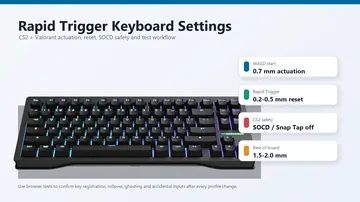
- About Hall Effect and analog switches: adjustable actuation points and rapid-trigger resets fire the keystroke earlier in the key travel. That saves real reaction time, but it is travel time, not signal latency — a well-set-up conventional keyboard at 1000 Hz is not meaningfully slower on the wire.
How to Clean Keyboard Keys (and a Full Keyboard)
Cleaning isn't just cosmetic — dust, skin oil, and crumbs are the most common cause of sticky keys and dead keys on both membrane and mechanical keyboards. A monthly clean prevents most hardware calls.
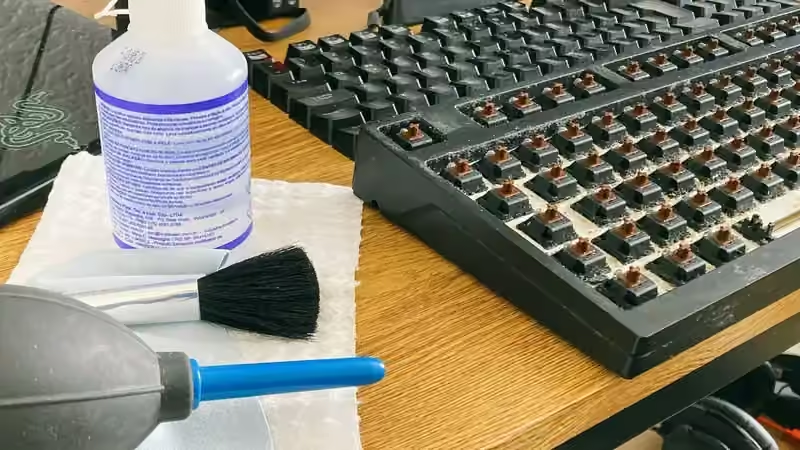
Tools you need (with October 2026 prices)
- Can of compressed air ($7–$12) or a rechargeable electric air duster ($25–$35)
- 90–99% isopropyl alcohol ($6–$10 a bottle — evaporates much faster than 70% rubbing alcohol and leaves less water residue inside switches)
- Microfiber cloth and cotton swabs (Q-tips)
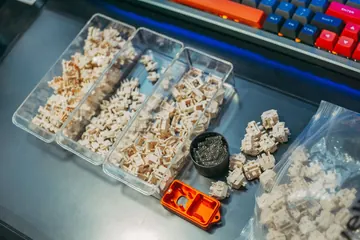
- Wire keycap puller + switch puller kit ($5–$9 — strongly preferred over cheap $2 plastic ring pullers, which can scratch keycap sides or snap tight stems)
- A bowl for soaking removed mechanical keycaps
Basic clean (5 minutes, do this monthly)
- Unplug the keyboard. Always.
- Turn it upside down and shake gently. You'll be surprised what falls out.
- Tilt it 60°, go row by row with compressed air. Short bursts, 3 inches away. Don't invert the can — propellant will spray as liquid.
- Dampen a microfiber cloth with isopropyl alcohol (not soaked — damp). Wipe the top of the keys and the chassis.
- Use a cotton swab for the narrow gaps between keys.
- Air-dry for 5 minutes. Plug back in.
Deep clean sticky keys (15 minutes)
A key that feels mushy or double-registers usually has gunk under the keycap or the switch stem.
- Photograph the keyboard layout first. You'll thank yourself later.
- Use a keycap puller to remove the affected keys. Pull straight up — never pry sideways with a screwdriver; you'll snap the stem.
- For mechanical: drop the keycaps in warm soapy water. Swish. Rinse. Air-dry 24 hours before reseating (trapped water causes shorts).
- For membrane / laptop: keycaps are usually too fragile to soak — wipe with alcohol on a cloth only.
- Swab the exposed switch stem with a cotton swab dipped in isopropyl alcohol. Don't flood it.
- Compressed air into the switch housing. 2–3 short bursts.
- Let everything air-dry fully. Reseat keycaps (look at your photo for reference).
Mechanical keyboard keycap soak (30 minutes active + 24h dry)
The big visual payoff clean. Only attempt if you're comfortable removing all keycaps. Process:
- Pull every keycap. Large keys (space, shift, enter) have a wire stabilizer — remove gently.
- Soak in warm water + a drop of dish soap for 30 minutes.
- Agitate, rinse, spread on a towel to dry.
- While caps dry: brush the bare switch plate with a soft brush, then compressed air.
- Wait 24 hours. Reinstall.
What to avoid
- Spraying any liquid directly onto the keyboard. Always apply to a cloth first.
- Window cleaner, bleach, or acetone — they eat keycap legends and plastics.
- Dishwashers — some people do this with keycaps only (top rack, no heat dry). It works but is aggressive. We don't recommend it for expensive double-shot PBT.
- Inverting compressed air cans — sprays liquid propellant on your PCB.
Quick Reference: Which Fix for Which Symptom?
| Symptom | First check | Most likely fix |
|---|---|---|
| Nothing types at all | USB port + driver | Different port, reinstall driver, test on 2nd PC |
| Some keys dead, others fine | Debris or failing switch | Clean under the keycap, swab the stem |
| Keys feel mushy / sticky | Skin oil / sugar residue | Pull keycap, alcohol wipe, 24h dry |
| Key types twice from one press | Switch chatter (microswitch bounce) | Read the key chatter guide |
| Noticeable typing delay | Polling rate + driver | Set 1000 Hz, direct USB, disable Filter Keys |
| Random wrong characters | Language layout | Win+Space, remove unused layouts |
| Wireless stutter / skip | Battery / interference | Charge 100%, move dongle, avoid 2.4 GHz clutter |
When to Repair vs. Replace (October 2026 Cost Breakdown)
Before ordering parts or spending an afternoon disassembling a board, compare the actual October 2026 cost of repair supplies against a replacement keyboard:
| Option / Part | Oct 2026 Cost (USD) | Time Required | Verdict |
|---|---|---|---|
| 90–99% Isopropyl Alcohol + Wire Keycap/Switch Puller Kit | $11 – $18 total | 15 mins | Always worth it for sticky, mushy, or dust-blocked keys on any mechanical or desktop board. |
| Replacement Hot-Swap Switches (35-pack, e.g., Gateron Milky Yellow Pro / Akko V3) | $9 – $16 (~$0.25–$0.45/switch) | 5 mins (hot-swap) | Best fix when 1 to 10 switches stay dead or chatter after cleaning on a hot-swap mechanical keyboard. |
| Replacement Double-Shot PBT Keycap Set | $18 – $45 (standard) / $65–$110 (enthusiast) | 20 mins | Worth it if your board works well but has cracked stems or worn-off legends. |
| Laptop Replacement Keyboard Assembly | $22 – $75 (part) / $90–$180 (shop labor) | 45 – 90 mins | Worth DIY if riveted/screwed access is clean; use an external USB keyboard first after a liquid spill to verify the laptop motherboard is healthy. |
| Membrane / Office Keyboard Replacement | $15 – $35 | Immediate | Replace, do not repair if a membrane trace dies after a liquid spill. |
| New Entry Hot-Swap Mechanical or Hall Effect Keyboard | $38 – $65 (Mechanical) / $49.99–$99.99 (Hall Effect) | Immediate | Often cheaper than buying soldering tools if an older soldered mechanical board has multiple dead matrix columns. |
Related Tools
- Keyboard Tester — test every key, spot the dead ones in seconds
- Input Latency Checker — measure keyboard delay in ms before and after each fix
- Key Repeat Rate Test — verify your Windows or Mac repeat delay and repeat speed
- Typing Speed Test — confirm full-keyboard function by typing a passage
- Keyboard Ghosting Test — catches simultaneous-press issues
- N-Key Rollover Test — verifies how many simultaneous keys your keyboard reports
- Stuck Key Test — detects keys that never release
- Keyboard Shortcut Identifier — press any combo, see what it does on Windows/macOS/Linux
Related Guides
- Keyboard Typing Double Letters? Key Chatter Fix Guide
- How to Test Your Keyboard Online
- How to Measure Your Typing Speed (WPM)
- Input Latency Checker Guide
Frequently Asked Questions
How do I fix keyboard delay or input lag?
For wired keyboards: update the driver, disable Filter Keys in Windows Accessibility settings, and set polling rate to 1000 Hz in your keyboard software. For wireless: charge to 100%, move the dongle to a front USB port (not a hub), avoid 2.4 GHz interference from phones and routers, and disable USB selective suspend in power options. If only held keys feel slow, shorten Repeat delay in control keyboard instead. Measure the result with a latency checker — most fixes save 5–15 ms.
Why does my keyboard lag after a Windows 11 update?
Windows updates sometimes install a generic or duplicate keyboard driver. Open Device Manager (Win+X), expand Keyboards, right-click your keyboard, choose Uninstall device, then reboot so Windows reinstalls a clean driver. Also confirm Filter Keys didn't switch back on under Settings → Accessibility → Keyboard, and check the Repeat delay slider in control keyboard.
Does a higher polling rate or 1000 Hz fix keyboard delay?
A higher polling rate of 500 to 1000 Hz shaves a few milliseconds off per-keystroke input lag, but it does nothing for repeat delay — the pause before a held key starts repeating. If the delay only appears while you hold a key down, change Repeat delay in the keyboard control panel instead. Measure with a free latency checker to confirm which type of delay you have.
How do I fix keyboard delay on a Mac?
Open System Settings → Keyboard and drag Key repeat rate to Fast and Delay until repeat to Short. Then check System Settings → Accessibility → Keyboard and make sure Slow Keys is off — it deliberately waits before accepting each keypress, exactly like Filter Keys on Windows. For an even shorter delay than the slider allows, run defaults write -g InitialKeyRepeat -int 10 and defaults write -g KeyRepeat -int 1 in Terminal, then log out and back in. A laggy Bluetooth keyboard usually needs charging or re-pairing.
How do I fix a keyboard that is not typing?
Work through the free, reversible checks in order: (1) try a different USB port, (2) press Shift five times to confirm Sticky Keys isn't toggled on, (3) switch your language layout back with Win+Space, (4) reboot, (5) reinstall the keyboard driver from Device Manager. If one whole key area is dead but the rest works, it's almost always debris or a failing membrane or switch — cleaning or a switch replacement fixes it. If every key is dead, the cable, controller, or port is the suspect.
What is the safest way to clean keyboard keys?
Unplug the keyboard first. Shake it upside down to dislodge crumbs, then use compressed air at an angle across the rows. For sticky keys, pop the keycap off with a keycap puller, wipe the keycap and switch stem with a microfiber cloth dampened with 70–90% isopropyl alcohol (never spray liquid directly on the board), let it dry fully, then reseat. Once a month is enough for most users.
Can I clean a keyboard with water?
Only the removed keycaps, not the board itself. Keycaps can be washed in warm soapy water, rinsed, and left to air-dry for at least 24 hours before reinstalling. The keyboard body must only be wiped with a lightly-damp cloth or isopropyl alcohol swab — water on the PCB can cause shorts. Some laptop keyboards are even more sensitive; use a dry microfiber and compressed air only.
Why does my keyboard type the wrong characters?
99% of the time it's the keyboard language layout, not a hardware fault. Win+Space or Alt+Shift switches between installed layouts. Go to Settings → Time & Language → Language & region → Preferred languages and remove the ones you don't use. If the physical keycap legends don't match what types, you may have a US vs UK vs AZERTY mismatch that software can fix in one click.
Start here: Run the free keyboard tester and see in 30 seconds exactly which keys are failing — before you order replacement parts or spend an afternoon disassembling anything.
Quick Action Checklist
- Test once in a clean browser tab.
- Retest after changing ports, wireless mode, or device settings.
- Use the focused tool that matches the symptom, not only the general tester.
- Keep screenshots or notes when comparing hardware.





Reader discussion
Comments
Share what worked, what did not, or what you would test next. Every comment is reviewed before it appears.
Loading approved comments…
Leave a comment
No account or sign-in is required. Links and HTML are not accepted.