

















Fast Answer
Use the keyboard repeat rate test first: hold one normal letter key for about five seconds and record the first-repeat delay in milliseconds plus the repeat speed in Hz. If single taps feel instant but held keys wait too long before repeating, change repeat delay/rate in your operating system. If one key repeats after release or types double letters from a single tap, test for key chatter or a stuck key instead.
Keyboard repeat rate is easy to misdiagnose because it feels like lag. The difference is simple: input lag affects every tap; repeat delay only appears after you hold a key down.
This guide starts with measurement, then walks through Windows, macOS, and Linux settings. It also shows when the problem is not repeat rate at all, but keyboard latency, polling-rate confusion, key chatter, or a physically stuck key.
How to Run a Clean Key Repeat Rate Test
A repeat-rate result is only useful when you test the same way each time. Do not mash keys. Hold one ordinary key and let the operating system produce repeat events.
- Open the tester
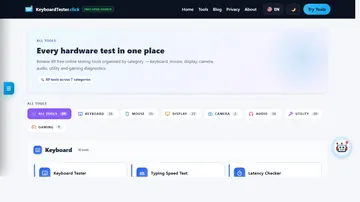
Start with the repeat-rate checker and use a simple letter key such as A, S, or J. Avoid modifier keys because browsers and apps treat them differently.
- Hold for five seconds
The first pause is your repeat delay. The events after that pause are your repeat rate. Run three passes and compare the middle result.
- Change one setting at a time
If you adjust delay, leave speed alone for the next run. If you adjust speed, keep delay fixed. Otherwise you cannot tell what helped.
- Compare wired and wireless only if needed
Bluetooth and 2.4 GHz keyboards can add separate latency. For pure repeat-rate tuning, a wired run gives the cleanest baseline.
Repeat Delay vs Repeat Rate vs Latency vs Chatter
These terms overlap in search results, but they are different problems. Use the table before changing settings.
| Symptom | Likely cause | Best next check |
|---|---|---|
| A held key waits before repeating | Repeat delay is too long | Run this repeat-rate test, then adjust OS keyboard delay. |
| A held key repeats too slowly after it starts | Repeat rate is too low | Raise repeat speed and re-test the Hz result. |
| Every single tap appears late | Input latency, wireless delay, display delay, or app lag | Use the keyboard latency checker. |
| One physical press types two letters | Switch bounce / key chatter | Use the keyboard double-click test and read the chatter guide. |
| One key keeps firing after release | Stuck switch, debris, firmware state, or accessibility repeat behavior | Test the key state and compare with the stuck key test. |
| Browser Hz looks lower than keyboard specs | OS auto-repeat, not hardware polling rate | Use the keyboard polling rate test only for the right question. |
Good Repeat Delay and Repeat Rate Settings
There is no universal best setting. Fast repeat helps shortcuts and games, but too-fast repeat can flood text fields and accessibility workflows.
Use a medium delay and medium-fast repeat. This prevents accidental doubled letters while still making backspace and arrow-key movement responsive.
Use short delay with fast repeat if you often hold arrow keys, delete, backspace, or Vim-style movement keys. Re-test after changing your editor key repeat behavior.
Short delay and fast repeat can make held hotkeys feel more responsive. Test in-game too because some games ignore OS repeat or apply their own input rules.
Use a longer delay or enable accessibility filters only if held keys fire when you do not intend them to. Do not enable heavy filters for gaming unless you need them.
How to Change Repeat Delay and Speed on Windows, Mac, and Linux
Use the normal settings UI first. Registry commands and terminal overrides should be last, because they are easy to over-tune and hard to explain later.
- Windows 10 and current Windows 11
Press Win + R, type
control keyboard, then use the Speed tab. Move Repeat delay toward Short and Repeat rate toward Fast, apply, and re-test. Newer Windows builds are also moving character repeat delay/rate into Settings > Accessibility > Keyboard. - macOS
Open System Settings > Keyboard. Adjust Key repeat rate and Delay until repeat. If Slow Keys is enabled under accessibility settings, turn it off or tune it separately before blaming repeat rate.
- Ubuntu and GNOME Linux
Open Settings > Accessibility > Typing and use Repeat Keys, Delay, and Speed. For X11 power users,
xset r rate 200 40is an advanced temporary test, not the first fix. - After each change
Return to the browser test, run the same key again, and write down delay plus Hz. The goal is consistency, not the highest number possible.
Troubleshooting Matrix
If the repeat-rate sliders do not solve it, the symptom usually points to a different layer.
| Symptom | Likely cause | Best next check |
|---|---|---|
| Repeat never starts | Repeat Keys may be disabled, the app blocks repeats, or the key is not a repeatable character. | Test in a plain text field and another browser. |
| Repeat starts late | Repeat delay is long, Slow Keys or Filter Keys may be active, or the keyboard is waking from power saving. | Shorten repeat delay and check accessibility keyboard settings. |
| Repeat is too fast | Repeat rate is high or an app is interpreting held keys aggressively. | Lower repeat rate and test in the app where it hurts. |
| Repeats after release | The key may be physically stuck, dirty, or sending a late keyup event. | Run a full keyboard tester and clean that switch area. |
| Only one key behaves badly | Likely switch, stabilizer, debris, or firmware issue rather than OS repeat settings. | Use the chatter/stuck-key workflow before changing global OS settings. |
| Only one game or editor is affected | That app may override key repeat or bind held-key actions separately. | Check the app settings and confirm the browser result is normal. |
Watch: Changing Keyboard Repeat Delay and Rate on Windows
This video supports the Windows part of the workflow. Use it for the control-panel path, then come back and verify the result with the browser test.

The video demonstrates where to change keyboard repeat delay and rate in Windows 11. Pair it with live measurement so you know whether the setting actually changed your repeat behavior.
Tools to Use Next
Measure first-repeat delay and repeat Hz after every settings change.
Keyboard Latency CheckerUse this when single taps feel delayed, not just held keys.
Keyboard Polling Rate TestSeparate OS repeat events from hardware report-rate claims.
Keyboard Double-Click TestCheck whether one press is registering twice because of key chatter.
Spacebar TestConfirm whether the most-used key is missing, doubling, or repeating incorrectly.
Related Guides
Use this broader guide when every tap feels slow or the keyboard is not typing correctly.
Keyboard Typing Double Letters? Key Chatter FixGo here when a single press creates two letters instead of a held-key repeat.
Keyboard Polling Rate Test GuideUnderstand why browser repeat events are not the same as 1000 Hz hardware polling.
Spacebar Not Working or Double-SpacingUse this if the spacebar is the only key with repeat, missing, or double-space symptoms.
Input Latency Checker GuideUse this when the problem is delay on every keypress, not only held keys.
Sources and Research Notes
This article combines KeyboardTester.click first-party search data, live tool behavior, and stable operating-system references. The practical warning is simple: measure before applying global keyboard settings.
- Microsoft Support: Windows build note on character repeat settings
Microsoft documents character repeat delay/rate moving from Control Panel to Settings in newer Windows builds.
- Apple Support: Keyboard settings on Mac
Apple documents Key repeat rate and Delay until repeat controls in macOS keyboard settings.
- Ubuntu Help: Manage repeated key presses
Ubuntu documents Repeat Keys, Delay, and Speed settings for held-key behavior.
- Super User: repeat rate beyond Windows limits
Community discussion showing why advanced users often confuse registry tweaks, Filter Keys, and normal repeat-rate controls.
FAQ
- What is keyboard repeat rate?
Keyboard repeat rate is how many repeated key events fire per second after you hold a key long enough for auto-repeat to start. It is different from keyboard polling rate.
- What is keyboard repeat delay?
Keyboard repeat delay is the pause between the first keypress and the first repeated event while you keep holding the key down. If held keys feel slow but single taps are instant, this is the setting to check.
- Does repeat rate affect gaming?
It can affect games or actions that accept held-key repeat events, such as menus or some hotkeys. Many games read key state directly, so always test inside the game after changing OS settings.
- Is repeat delay the same as input lag?
No. Input lag affects every keypress. Repeat delay only affects what happens after a key is held. Use a latency test if single taps are late.
- Why does one key repeat even after I release it?
That is usually not a global repeat-rate setting. It points to a stuck key, dirt, switch chatter, firmware state, or a delayed keyup event. Test that key separately before changing OS-wide settings.
- Can I set repeat rate higher than the normal slider allows?
Advanced registry or terminal tweaks exist, but they can cause accidental repeats and inconsistent app behavior. Use the normal settings first, then verify with the browser test before going further.
Start with evidence, not guesses. Run the keyboard repeat rate test, change one OS setting, then re-test before touching latency, polling rate, or hardware fixes.






Reader discussion
Comments
Share what worked, what did not, or what you would test next. Every comment is reviewed before it appears.
Loading approved comments…
Leave a comment
No account or sign-in is required. Links and HTML are not accepted.