











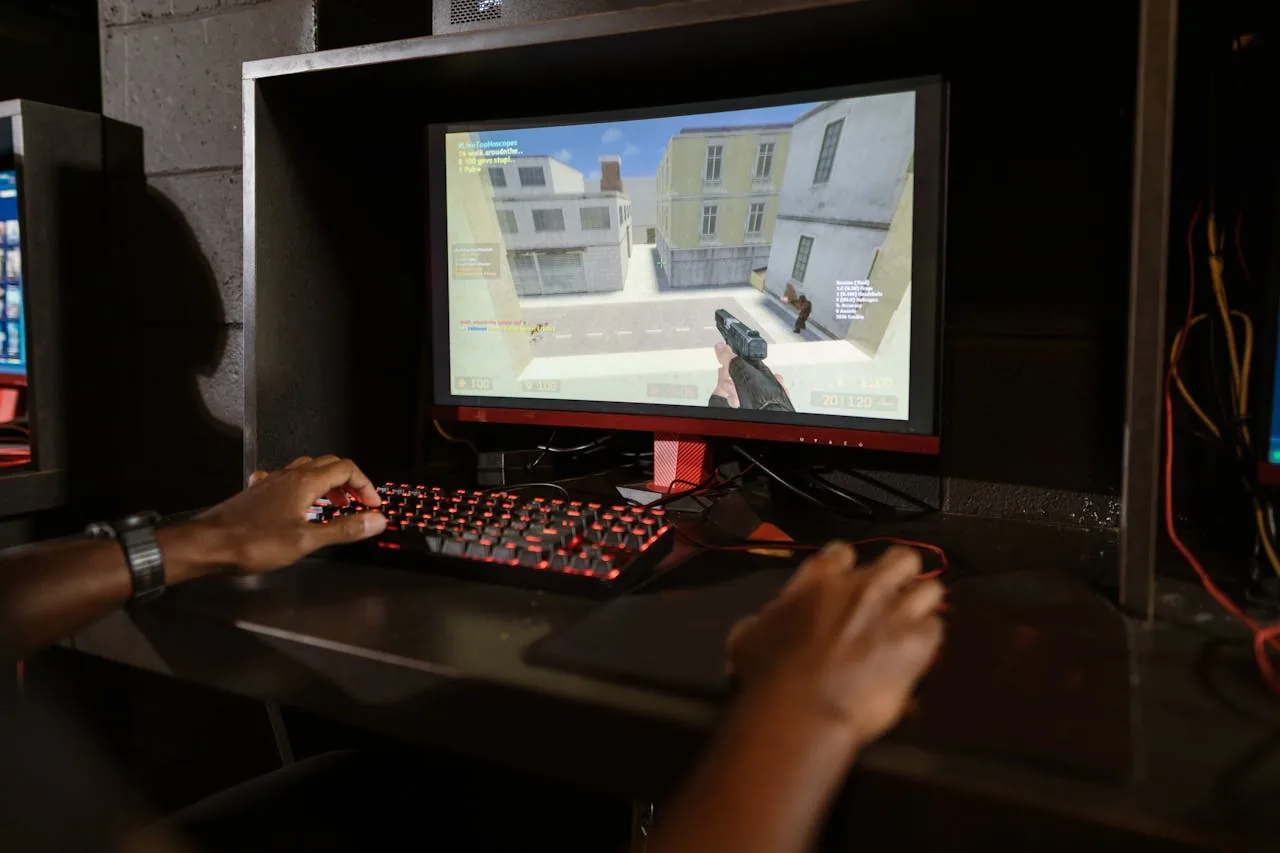


Fast answer: input latency is the time it takes for a keyboard press, mouse click, or mouse movement to become usable by your PC and then visible in the app or game. For this browser-based test, treat a stable average under 8 ms as strong, 8-16 ms as usable, and repeated results above 20 ms as a signal to isolate the device, USB path, wireless mode, system load, and display settings.
Gamers usually talk about input lag as if it is one number. It is not. A single shot in Valorant, CS2, Apex Legends, Fortnite, Warzone, or The Finals passes through a chain: switch or mouse sensor, device firmware, USB or wireless polling, the operating system input queue, the game engine, the GPU render queue, and the monitor. Power users feel the same chain when a KVM, dock, Bluetooth keyboard, remote desktop session, or overloaded workstation makes typing feel sticky. If your typing feels delayed or keys stick regardless of the game, our fix keyboard delay guide walks through cleaning, software, and hardware causes step by step.
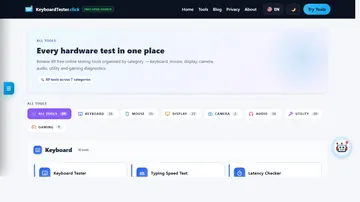
This guide turns the KeyboardTester.click latency checker into a repeatable diagnostic workflow. The goal is not to pretend that a web page can replace a high-speed camera or a hardware analyzer. The goal is to give you a clean, repeatable way to compare your keyboard, mouse, ports, settings, and background load without installing anything.
What an Online Input Latency Checker Measures
The live checker records keyboard and mouse events in the browser, compares the browser event timestamp with when the page processes that event, then reports the result in milliseconds. It now shows the last pressed key or mouse button, recent samples, average, best, worst, jitter, consistency, and separate keyboard or mouse click modes.
That distinction matters. NVIDIA describes total system latency as the time from a user action to a resulting display update, while browser APIs expose an event timestamp inside the software path. Both are useful, but they answer different questions. Use this page to find input-path problems. Use frame-rate, render-latency, and monitor tests to complete the full picture.
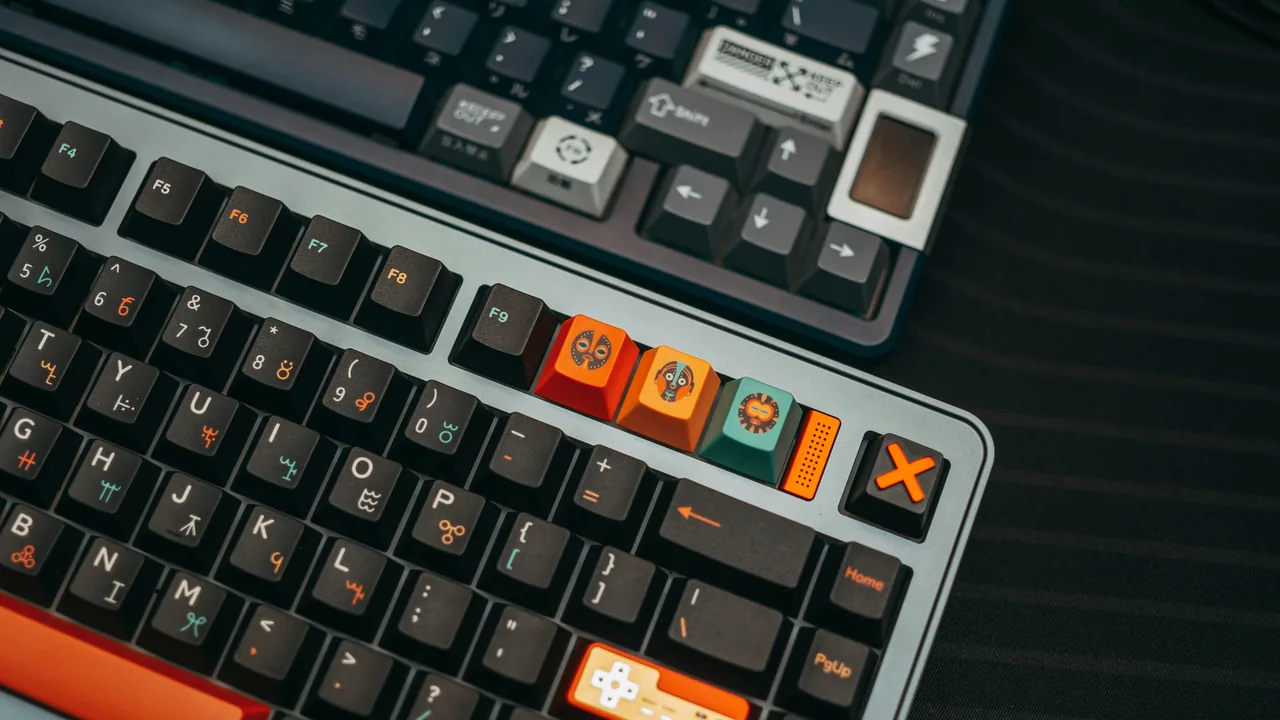
The Full Input Latency Chain
When a key press or mouse click feels late, do not blame the keyboard first. The delay can be introduced at several layers, and the slowest or most inconsistent layer usually defines what you feel.
1. Switch, sensor, and actuation
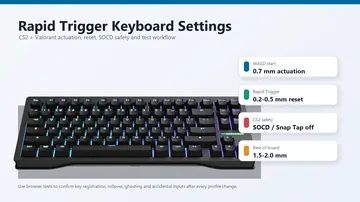
A mechanical keyboard switch does not register at the same physical point as every other switch. Hall Effect and optical keyboards can have shorter actuation and rapid-trigger features, but aggressive settings can create accidental inputs if your hand is not stable. Mouse latency starts at the click switch, the debounce algorithm, and the sensor reporting movement.
Before benchmarking delay, use these safe Rapid Trigger actuation and reset settings so you change one variable at a time.
2. Firmware, debounce, and scan rate
Keyboard firmware scans the matrix, filters switch bounce, then sends a report. Debounce protects against false double inputs, but too much debounce adds delay. Gaming boards often advertise 1000Hz, 4000Hz, or 8000Hz polling, yet the real feel depends on firmware quality and consistency, not just the biggest number on the box.
For a current 8K example, our source-based Razer Huntsman V3 Pro Low-profile TKL analysis turns those limits into five return-window checks without claiming that a browser can certify raw 8,000Hz polling or switch-to-USB latency.
3. USB, 2.4GHz wireless, Bluetooth, hubs, and docks
Wired USB and good 2.4GHz gaming wireless can both be fast. Bluetooth is designed for compatibility and battery life, so it is usually the wrong mode for competitive gaming. USB hubs, monitor USB ports, docking stations, KVM switches, and long extension chains can also add scheduling problems or packet bursts.
4. Operating system and app input path
Windows games often use Raw Input because it lets applications receive device data without relying on higher-level pointer acceleration paths. Browser tools, game engines, and native apps still depend on CPU scheduling. If your PC is compiling code, indexing files, rendering video, or running background overlays, the input event may wait behind other work.
5. Render queue and monitor scanout
If you press a key and the app has the input instantly, you can still see lag if the game is GPU-bound, VSync is queuing frames, the monitor refresh rate is low, or the display has slow processing. This is why a complete gaming diagnosis combines input testing with frame pacing, refresh-rate, and monitor checks. A high-refresh monitor that is quietly running at 60Hz is a classic hidden cause — see 144Hz monitor stuck at 60Hz: how to fix it and verify your real Hz to rule it out.
How to Read Your Latency Checker Numbers
Do not obsess over one sample. Pressing a key once and seeing a low number proves very little. Run a controlled set, look at average and worst-case values, then compare against a second setup or a changed setting.
| Browser-test result | What it usually means | What to do next |
|---|---|---|
| 0-3 ms average | Excellent browser processing path. Any game feel problem is likely elsewhere in the pipeline. | Check frame rate, Reflex/low-latency settings, VSync, and display response. |
| 3-8 ms average | Strong result for most wired gaming keyboards and mice in a clean browser session. | Compare worst-case spikes and jitter before changing hardware. |
| 8-16 ms average | Usable, but one 60Hz frame is 16.67 ms, so spikes can become noticeable. | Test direct USB, close overlays, and compare wired vs wireless mode. |
| 16-30 ms average | Noticeable delay for shooters, rhythm games, and fast editing workflows. | Investigate Bluetooth, hubs, power saving, CPU load, browser extensions, and firmware settings. |
| 30+ ms or heavy spikes | Something in the path is unstable or intentionally buffering input. | Change one variable at a time: device, port, cable, mode, browser, and background load. |
Polling rate changes the maximum time a device can wait before its next report. The math is simple, but the real-world result depends on the whole machine.
| Polling rate | Report interval | Practical read |
|---|---|---|
| 125Hz | 8 ms | Old office-mouse territory. Fine for casual use, poor for competitive aim. |
| 500Hz | 2 ms | Good baseline for many older gaming devices. |
| 1000Hz | 1 ms | Modern default for gaming mice and many keyboards. |
| 4000Hz | 0.25 ms | Can help high-refresh players, but uses more CPU and needs stable firmware. |
| 8000Hz | 0.125 ms | Only worth it if your game, CPU, USB path, and monitor can benefit without adding stutter. |
Competitive rule: average latency wins screenshots, but low jitter wins matches. If one setting gives you 2 ms average with 25 ms spikes and another gives 5 ms average with almost no spikes, the second one will usually feel better.
A Serious Gamer Test Workflow
Use the latency checker like a small lab test. Change one variable at a time and write down the average, worst, and jitter. Ten random clicks while Discord, OBS, RGB software, launchers, and browser tabs are all active will not tell you much.
- Start clean. Reboot or close heavy background apps, overlays, updaters, and game launchers.
- Set a baseline. Open the latency checker, choose keyboard mode, and collect 50 presses on your normal setup.
- Repeat for mouse click mode. Test left click with the same sample count. Watch the recent-sample list for spikes.
- Move the device. Plug into a rear motherboard USB port instead of a front-panel port, hub, dock, or monitor USB port.
- Change transport. Compare wired, 2.4GHz dongle, and Bluetooth if your device supports them.
- Change polling safely. Test 500Hz, 1000Hz, 4000Hz, or 8000Hz only if your device software exposes the option. Confirm the result with the keyboard polling rate test.
- Add load deliberately. Run your usual game, recording software, or a CPU stress test in another tab and repeat the samples. If jitter jumps, the problem is scheduling pressure, not the switch.
- Testing a controller instead? Run the gamepad latency test to measure button delay, polling rate, and stick response for PS5, Xbox, and Switch pads with the same one-variable-at-a-time habit. Before blaming the pad itself, check your controller's polling rate in Hz — a 125Hz report interval adds up to 8ms of wait before the console even sees the press.
Symptoms, causes, and the test to run
| Symptom | Likely cause | Best quick test |
|---|---|---|
| Keyboard feels late only in games | Render queue, VSync, game input mode, overlay, or CPU/GPU limit | Compare latency checker results with and without the game running, then run a frame skipping test. |
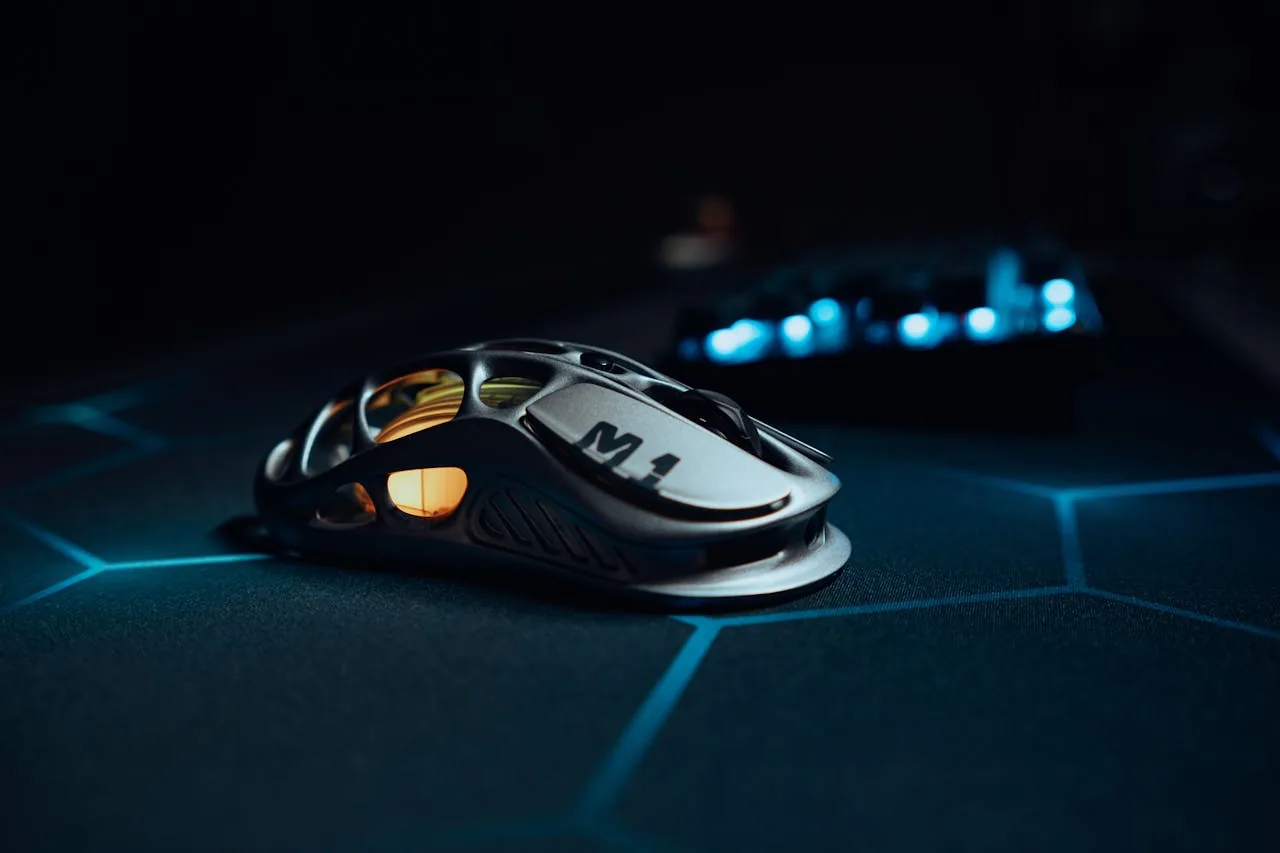
| Mouse click feels inconsistent | Switch debounce, wireless packet bursts, USB hub, or polling instability | Use mouse click mode, check worst samples, then move the dongle/USB port. |
| WASD occasionally misses during fights | Ghosting, rollover limit, or keyboard firmware issue | Run the keyboard ghosting test and N-key rollover test. |
| Bluetooth keyboard lags after idle | Power saving or Bluetooth wake delay | Compare Bluetooth against wired or 2.4GHz mode after 60 seconds idle. |
| Numbers spike when streaming | CPU scheduling, encoder load, browser extensions, or capture software | Run the same 50-sample test while OBS is on and off. |
Power-User Latency Problems Most Guides Miss
Input lag is not only a gaming issue. Developers, editors, designers, traders, and support teams notice it when the machine stops feeling direct. The cause is often infrastructure rather than the keyboard itself.
- USB-C docks: A dock can share bandwidth across displays, Ethernet, storage, and input devices. Test the keyboard directly on the laptop or motherboard.
- KVM switches: Some KVMs buffer HID input for compatibility. Compare direct USB before blaming the keyboard.
- Remote desktop and VMs: Web-based or remote sessions add network and frame encoding latency. Test locally first.
- Power plans: USB selective suspend and aggressive laptop power modes can create wake-up delay after idle.
- Browser extensions: Heavy extensions, password managers, screen recorders, and injected scripts can add jitter to browser event handling.
- High-polling devices on weak CPUs: 4000Hz and 8000Hz can increase interrupt and processing load. If the PC stutters, drop to 1000Hz and retest.
Fixes That Actually Matter
Most latency fixes are boring because the biggest wins come from removing unstable layers. Start with the cheap, measurable changes before buying a new keyboard or mouse.
| Fix | Why it helps | Priority |
|---|---|---|
| Use rear motherboard USB | Removes hub, dock, front-panel, and monitor USB uncertainty. | High |
| Avoid Bluetooth for competitive play | Bluetooth optimizes compatibility and power, not lowest gaming delay. | High |
| Set a stable polling rate | 1000Hz is often the most reliable balance. Higher is useful only when stable. | High |
| Disable pointer acceleration for FPS | Improves aim consistency; use in-game raw input where available. | Medium |
| Close overlays and capture tools while testing | Reduces CPU scheduling spikes and browser event delays. | Medium |
| Check VSync and low-latency game settings | Input can be fast but still wait in the render queue. | High for games |
| Update firmware only when needed | Firmware can fix debounce or polling bugs, but do not update blindly before a tournament or deadline. | Medium |
One note on the VSync row: the render queue only stays short when the frame rate itself is stable. A quick frame rate test shows whether your system holds its target FPS in the browser — if it cannot, fix that before chasing smaller input-path delays.
What the Research and Vendor Docs Agree On
Reliable latency work is conservative: define the measurement, isolate variables, and separate input-path delay from full system latency. The sources below are useful because they each cover a different layer of the chain.
- NVIDIA system latency optimization guide explains total system latency and why rendering, GPU queues, and display output matter after the input event.
- RTINGS keyboard latency methodology is useful for understanding lab-style keyboard latency testing and why polling rate can affect measured delay.
- Microsoft Raw Input documentation explains how Windows applications can receive raw HID data from input devices.
- MDN Event.timeStamp documentation explains the browser timestamp used by web apps when measuring event timing.
- Blur Busters mouse guide gives practical context on mouse polling, high-refresh displays, and why smoother reporting can matter for gaming.

Related Tests for a Complete Setup Check
Input latency is one part of setup quality. Use these tools together when diagnosing a gaming PC, work laptop, docked workstation, or new keyboard and mouse.
Start with the live test: open the input latency checker, collect 50 keyboard samples, switch to mouse click mode, then change only one setting at a time. The fastest setup is the one that stays fast when your real apps and games are running.
Input Latency FAQ
What does an online input latency checker measure?
A browser input latency checker measures the delay between the browser timestamp for a keyboard or mouse event and the page processing that event. It is useful for comparing devices, USB ports, wireless modes, and system load, but it is not a full click-to-photon lab measurement.
What is a good keyboard or mouse input latency result?
For this browser-based test, a stable average under 8 ms is strong, 8 to 16 ms is usually usable, and consistent results above 20 ms are worth investigating. Jitter matters as much as the average for competitive gaming.
Why can a mouse or keyboard feel laggy even when the device is high end?
The device is only one part of the path. Wireless mode, USB polling, firmware debounce, OS input queues, CPU load, game render latency, VSync, GPU queues, and display scanout can all add delay or jitter.
Does 8000Hz polling always make input feel faster?
Higher polling can reduce the maximum wait between reports, but the practical gain depends on the game engine, CPU overhead, USB path, firmware, frame rate, and display refresh rate. Stability is more important than chasing the largest Hz number.
Quick Action Checklist
- Test once in a clean browser tab.
- Retest after changing ports, wireless mode, or device settings.
- Use the focused tool that matches the symptom, not only the general tester.
- Keep screenshots or notes when comparing hardware.
Helpful Video
This related video supports the checks and decisions covered in this guide.

FAQ
Do I need to install anything for this guide?
No. The recommended checks run in a modern browser unless the article specifically points you to an operating-system or device setting.
Is the browser test private?
The KeyboardTester.click tools are designed to run the test interaction in your browser. Do not type passwords, private messages, or sensitive account data into any testing page.
What should I do if the result looks wrong?
Repeat the test in a clean browser tab, then change one variable at a time such as device, cable, USB port, permission, wireless mode, or browser profile.
When should I use a related tool?
Use a related tool when the first result points to a narrower issue, such as latency, ghosting, stuck input, camera permission, audio routing, or QR/OCR decoding quality.





Reader discussion
Comments
Share what worked, what did not, or what you would test next. Every comment is reviewed before it appears.
Loading approved comments…
Leave a comment
No account or sign-in is required. Links and HTML are not accepted.