
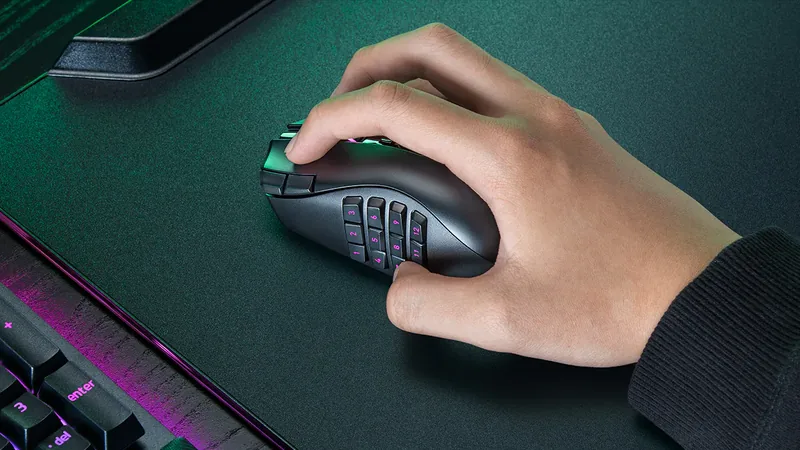








If your aim feels inconsistent in Valorant, CS2, or Apex Legends, mouse acceleration on Windows 11 is the first thing to check. The setting is hidden behind a friendly name — Enhance Pointer Precision — and it quietly changes how far your cursor travels based on how fast you move the mouse. That breaks the muscle memory every FPS player relies on.
This guide shows exactly how to turn off mouse acceleration in Windows 11, why raw input matters even after you disable it, and how to confirm the change actually took effect. You will also learn when the setting helps (yes, that case exists) and how to keep it from re-enabling itself after Windows updates.
Check first: Open Settings → Bluetooth & devices → Mouse and check Enhance pointer precision. On versions without the direct toggle, use Additional mouse settings → Pointer Options. Turn it off if you want to compare desktop movement without Windows pointer acceleration, then compare slow and fast mouse swipes using the same physical distance.
Scope: This checks desktop/browser movement. A game using raw input can behave differently, and neither the checkbox nor a browser result guarantees better aim or proves the mouse is fault-free.
What Is Mouse Acceleration on Windows 11?
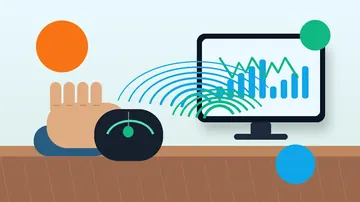
Mouse acceleration changes how far the pointer travels according to how quickly you move the mouse. Windows calls its pointer-acceleration setting Enhance pointer precision. A faster movement can cover more screen distance than a slower movement over the same physical distance. This can help with desktop navigation; whether you prefer it depends on the task.
Turning the setting off removes that Windows pointer adjustment. It does not set your mouse DPI, fix a faulty sensor or make desktop movement identical to every game's camera movement.
| Setting state | What changes | What to check |
|---|---|---|
| Enhance pointer precision on | Windows adjusts pointer movement according to movement speed. | Whether slow positioning and fast desktop navigation feel comfortable. |
| Enhance pointer precision off | The Windows pointer-acceleration adjustment is disabled. | Keep DPI and pointer speed fixed when comparing equal-distance swipes. |
| A game using raw input | Its input path differs from the ordinary desktop cursor path. | Check that game's current input settings and test inside the game. |
How to Turn Off Mouse Acceleration in Windows 11
Settings: use the direct toggle when available
- Press Win + I, then open Bluetooth & devices → Mouse.
- Find Enhance pointer precision and switch it off. Microsoft's current Windows 11 mouse-settings instructions show this control on the Mouse page.
- If your version does not show that toggle, choose Additional mouse settings → Pointer Options, clear Enhance pointer precision, then choose Apply and OK.
- Reopen the setting to confirm its state before comparing movement.
Classic shortcut: open Mouse Properties directly
Press Win + R, enter main.cpl, and press Enter. In Pointer Options, clear Enhance pointer precision, then apply the change. This is useful when Windows Settings looks different from a tutorial.
Mouse Acceleration vs Raw Input: What Is the Difference?
Windows pointer settings affect the ordinary desktop cursor path. Raw input exposes mouse movement through a different interface. Microsoft's RAWMOUSE documentation explains that raw mouse input is not subject to the mouse-speed setting in the Control Panel's Mouse Properties sheet.
| Layer | What you can inspect | What it does not establish |
|---|---|---|
| Windows desktop pointer | Enhance pointer precision and pointer speed. | How every game reads or transforms movement. |
| Game or aim trainer | Its current sensitivity and documented raw-input or acceleration options, where provided. | That a desktop checkbox controls its camera. |
| Mouse software | The active DPI/profile and only the controls actually offered for your model. | That motion sync, smoothing and angle snapping are all acceleration, or that every vendor exposes the same options. |
In a browser, raw movement requires an appropriate supported input mode. MDN describes pointer lock with unadjustedMovement and its compatibility limitations. The KBT acceleration comparison uses ordinary pointer positions, not that raw-input mode.
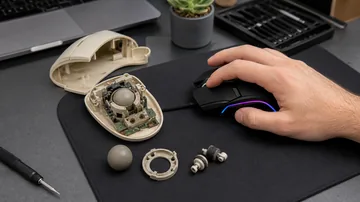
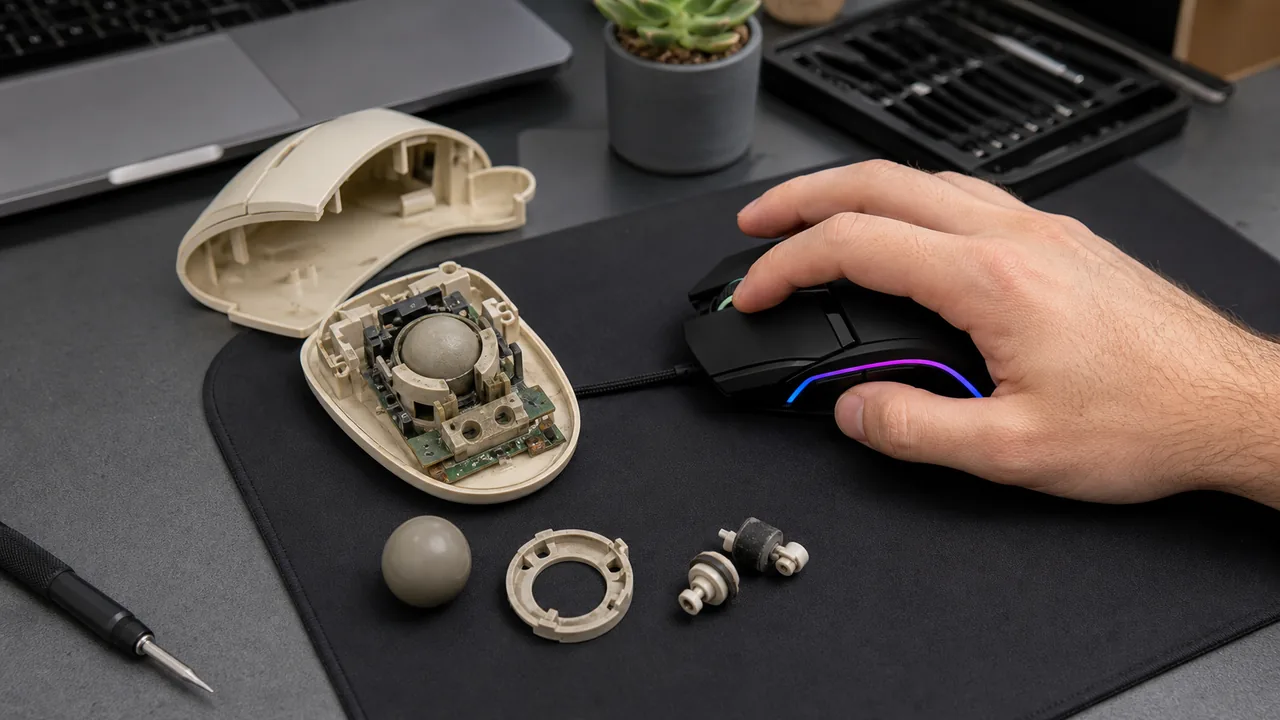
For the hardware side, see how ball, optical and laser mice generate movement reports. That is a different question from how software scales those reports.
Does Mouse Acceleration Affect Aim in CS2 and Valorant?
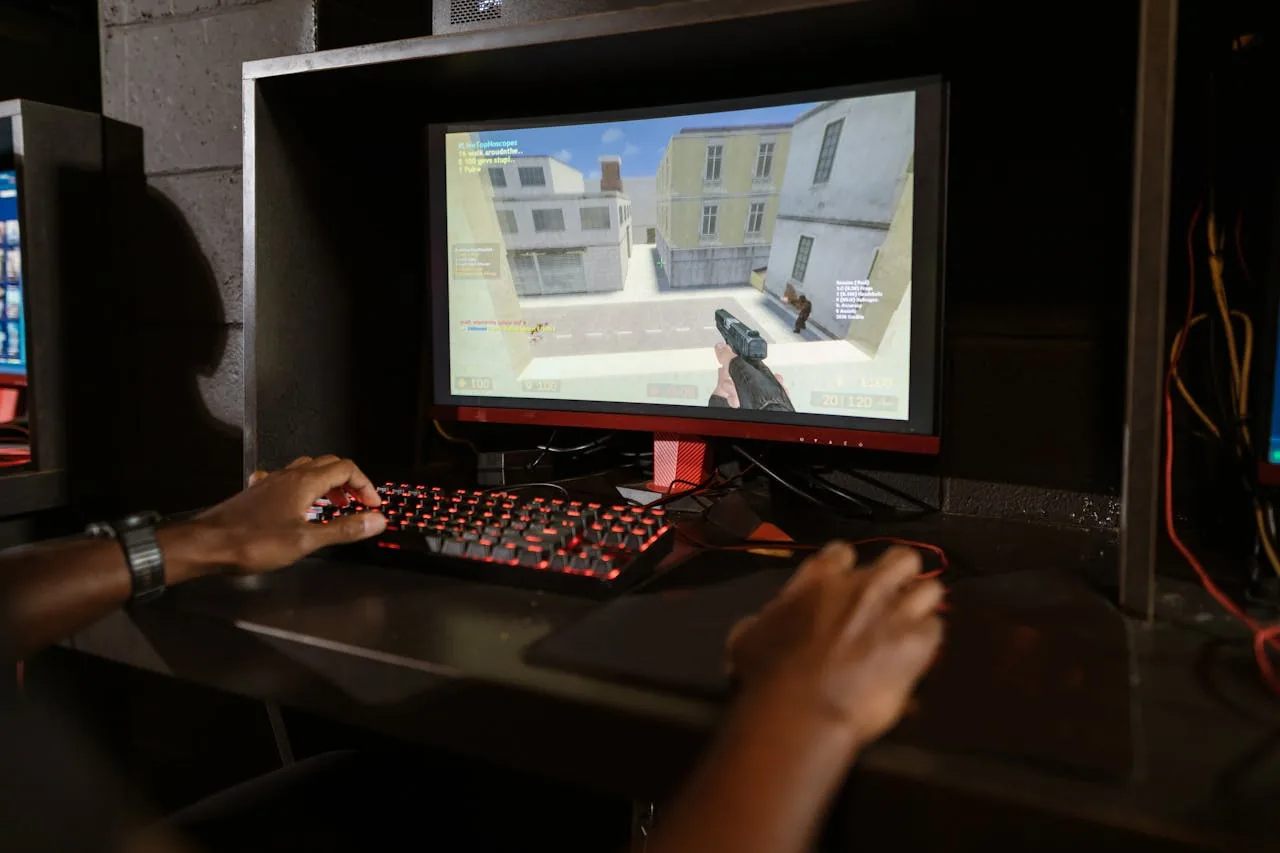
Do not infer a game's camera behavior from a desktop cursor test. For CS2, Valorant or an aim trainer, check the current game documentation and the options actually present in your version. A raw-input path can bypass the desktop pointer adjustment while the game still applies its own sensitivity or other processing.
Keep your DPI and in-game sensitivity fixed, use the same practice scene, and compare controlled movements inside that game. A desktop setting change may alter menus or the Windows cursor without changing camera rotation. It does not guarantee improved accuracy or K/D.
How to Check If Mouse Acceleration Is On in Windows 11
First check Enhance pointer precision in Windows. Then use the browser comparison to look for a repeatable difference in movement. The website cannot read that Windows setting or measure how far your hand moved.
Run a controlled slow-versus-fast comparison
- Use a physical mouse on the same surface. Keep DPI, Windows pointer speed, browser zoom and display scaling unchanged. A touchpad has different processing and is not a substitute for this mouse comparison.
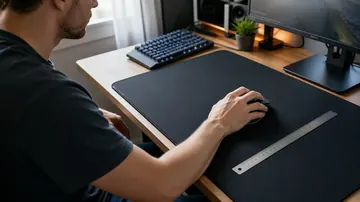
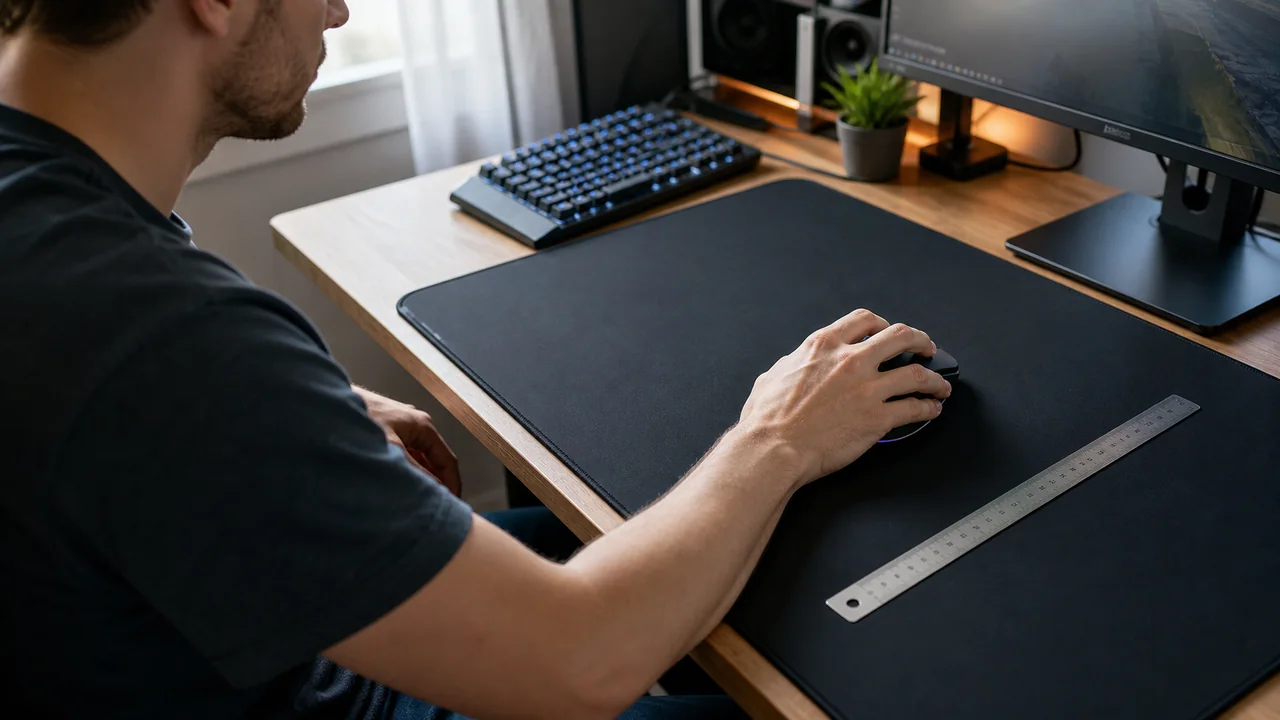
- Mark a short straight distance on the mousepad with a ruler or two removable markers. Choose a distance that leaves plenty of cursor space before the screen edge; lower the pointer speed before the comparison if necessary.
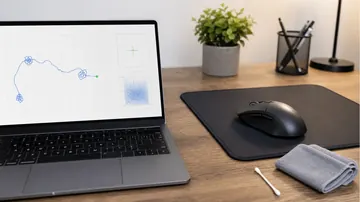
- Open the test. Position the cursor inside its pad and the mouse at your physical start marker. Hold the mouse button, move slowly to the end marker, then release. The tool records a drag, not a button-free swipe.
- With the button released, reposition both the cursor and mouse to their starting points. Lift and reposition the mouse as needed. Do not record the return movement.
- Hold, drag faster over the same marked distance, then release. Do not use such a short flick that the tool treats it as an accidental tap. If a pass was not recorded, repeat it.
- Note the two pixel distances and ratio. Select Reset after each completed pair and collect at least three pairs. This repetition is a practical consistency check, not a laboratory standard.
- If results vary widely, improve the physical-distance control and avoid screen edges before drawing a conclusion. To compare the Windows setting on versus off, change only that setting and repeat the same process.
Read the ratio without treating it as a hardware verdict
The result is fast recorded pixel distance ÷ slow recorded pixel distance. The engine adds movement segments reported by browser pointer events, so a curved or shaky path can differ from a straight path even when both end at the same place.
| Observation | Useful interpretation | Do not conclude |
|---|---|---|
| Repeated ratios near 1 | The browser recorded similar distances in these controlled passes. | That the sensor is perfect, every input path is linear or every game has acceleration off. |
| Repeated ratios above 1 | The fast pass recorded more movement. Recheck the Windows setting and repeat with equal physical distances. | Which software layer caused it, based on this result alone. |
| Ratios below 1 or inconsistent results | Check unequal travel, path shape, screen edges and event sampling before blaming the device. | That the mouse definitely has smoothing, deceleration or a hardware fault. |
Choose another test only for the symptom it measures
- Check mouse buttons and scrolling if a click or wheel action is missing.
- Use the ghost-click detector for unwanted repeated click events.
- The pointer trail visualizer shows the path you draw. A smooth-looking line does not prove that acceleration is off.
- The browser input-timing check compares event timestamps with handler time. It does not measure the complete physical mouse-to-screen delay.
Why Does Enhance Pointer Precision Keep Turning Itself Back On?
First confirm that the setting itself changed. A different feel can also come from DPI, a profile switch or application behavior while the Windows checkbox remains unchanged.
- Check the setting in the Windows account where the problem occurs.
- Record the state, then recheck after the specific event you suspect: signing in, launching a mouse utility or switching an application profile.
- If you can reproduce a change, inspect that application's documented profile options or ask the administrator of a managed PC. Do not assume every mouse utility changes the Windows setting.
A registry command does not prevent a later change. A recurring script can also hide which application caused the change, so identify the trigger before considering an automated workaround.
When Mouse Acceleration Actually Helps
Acceleration can make it easier to combine careful small movements with travel across a large desktop. Choose the behavior that suits your work and comfort. There is no universal requirement to disable it, use a particular DPI or copy a professional player's setup.
If your game uses a different input path, keep the desktop comfortable and evaluate the game independently. Change one setting at a time rather than changing DPI, sensitivity and acceleration together.
What About Mac and Linux?
On a Mac that offers the option, open System Settings → Mouse → Advanced and check Pointer acceleration. Apple's Mouse settings guide documents the switch; a third-party utility is not always required. Available options can depend on the mouse and macOS version.
On Linux, the control depends on your desktop environment, version and input driver. Check its mouse settings and current documentation for an acceleration profile such as adaptive or flat. Do not apply GNOME commands to KDE or assume a Steam Deck's desktop pointer and game controls use identical settings.
For keyboard equivalents, see our Windows, Mac and Linux shortcuts reference.
Common Mistakes After Disabling Mouse Acceleration
- Changing several settings at once. Keep DPI and pointer speed fixed while comparing the acceleration setting.
- Using a mouse test to diagnose a touchpad. They can use different settings and processing.
- Confusing distance with timing. Acceleration concerns movement scaling. A delayed-feeling cursor needs a separate investigation; an acceleration ratio does not measure latency.
- Reading a browser polling result as USB certification. The mouse event-rate test observes events delivered to the browser, which can differ from device reports.
- Diagnosing the sensor from one ratio. Repeat controlled passes, check the Windows state and test the actual application before considering a replacement mouse.
How This Fits Into the Rest of Your Aim Setup
Separate the questions instead of treating one setting as a complete fix:
- For movement-event timing, read the mouse polling-rate guide and its browser limits.
- For a rough DPI comparison, use a carefully measured physical distance with the DPI analyzer, and follow the mouse DPI measurement guide. It is an estimate, not a calibration certificate.
- For unwanted repeated clicks, follow the double-click troubleshooting guide.
- For in-game consistency, keep a reproducible practice scene and track changes within that application. Desktop results alone cannot establish a gaming improvement.
No fixed percentage of aim improvement can be promised from these checks. Their purpose is to isolate a repeatable symptom and avoid changing or replacing the wrong thing.
FAQ: Mouse Acceleration on Windows 11
Where is mouse acceleration in Windows 11?
Open Settings > Bluetooth & devices > Mouse and look for Enhance pointer precision. If the direct toggle is unavailable, choose Additional mouse settings > Pointer Options. You can also press Win + R, enter main.cpl and open Pointer Options.
Does mouse acceleration cause input lag?
Acceleration describes how movement is scaled, not a measurement of delay. The acceleration comparison cannot determine physical mouse-to-screen latency. Investigate a delayed-feeling cursor separately rather than inferring its cause from a ratio.
Should I disable mouse acceleration if I only browse and use Office?
Choose the pointer behavior that is comfortable for your desktop work. There is no universal requirement to disable it. Keep DPI and pointer speed fixed while comparing the setting on and off.
Do all gamers need to turn off mouse acceleration?
No. Preferences and application input paths differ. A game using raw input can behave differently from the Windows desktop. Check its current options and test within the game rather than assuming a desktop setting guarantees better aim.
Can I disable mouse acceleration without admin rights?
You can normally change your own pointer preference through Windows Settings or Mouse Properties. On a managed computer, organizational policies may restrict or restore settings; ask the administrator if the control is unavailable.
Does the in-game sensitivity slider replace turning off acceleration?
No. Sensitivity and speed-dependent movement scaling are different controls. A game may process movement through a different input path from the desktop, so check its options and change only one variable at a time.
Will disabling acceleration improve my K/D in Valorant or CS2?
There is no guaranteed K/D or accuracy improvement. A raw-input game may not change camera behavior when you change the Windows pointer setting. Use the same practice scene and fixed DPI and sensitivity to assess any difference.
How do I turn off mouse acceleration in Windows 11?
Switch off Enhance pointer precision in Settings > Bluetooth & devices > Mouse. If needed, use Additional mouse settings > Pointer Options, clear the checkbox, and select Apply and OK. Reopen the setting to confirm its state; a browser ratio cannot read it for you.
Is Enhance Pointer Precision the same as mouse acceleration?
It is the Windows pointer-acceleration setting. Other applications or input paths can handle movement differently. Turning it off does not certify the mouse sensor or prove that every game and browser mode has the same response.
Quick Action Checklist
- Test left, right, middle, scroll, and side-button behavior separately.
- Compare wired, receiver, and Bluetooth modes if available.
- Use the same browser and surface when comparing results.
- Retest after changing drivers, polling rate, or game settings.




Reader discussion
Comments
Share what worked, what did not, or what you would test next. Every comment is reviewed before it appears.
Loading approved comments…
Leave a comment
No account or sign-in is required. Links and HTML are not accepted.