

Focused insights
Track DPI and sensitivity with live updates.
Dpi And Sensitivity
Use this free online mouse dpi tester to move the mouse and review results instantly.
Run quick checks tailored for DPI and sensitivity.
See updates as you test in real time.
Primary tool
Use the live tool below to complete your test.
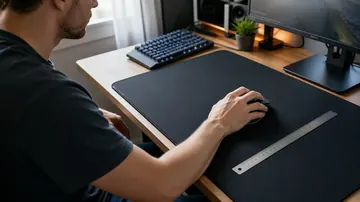
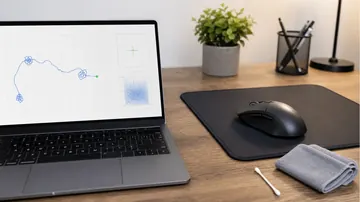
Enter the physical distance you move your mouse, then drag inside the track area.
Dpi And Sensitivity
Run focused checks and confirm results in seconds.
Track DPI and sensitivity with live updates.
See changes as you test in real time.
Start, stop, and reset in seconds.
Compare multiple runs quickly.
Simple workflow
Follow the quick steps below to test and confirm results.
Open the tool and prepare to begin.
along the guide to calibrate.
Check your DPI and sensitivity stats and retest if needed.
Explore the full suite for keyboard, mouse, audio, and utilities.
Language support: The Keyboard Tester is the only tool with translated interfaces (Arabic, Russian, Spanish, French, Portuguese, Japanese, German, Korean). All other tools are currently English-only.
Test keyboard functionality, detect ghosting, measure latency, check for stuck keys
Test your keyboard Arabic Keyboard TesterTest Arabic keyboard layout and key response in an Arabic-first interface
Test Arabic layout Mouse TesterCheck mouse buttons, scroll wheel, cursor movement, and responsiveness
Test your mouse Mouse Speed TesterMeasure your click speed (CPM or CPS) with timed tests
Check click speed Mouse Sensitivity / DPITest DPI, sensitivity, and tracking accuracy
Test DPI settings Mouse TrailVisualize mouse movement trails and precision
View mouse trails Ghost Click DetectorDetect unintended or phantom clicks
Detect ghost clicks Typing Speed TestMeasure WPM, accuracy, and typing consistency
Check typing speed Latency CheckerTest device and input latency in your browser
Measure latency Screen TesterDetect dead, stuck, or hot pixels on screens
Test your screen Webcam TesterCheck webcam quality, resolution, and snapshots
Test your webcam Mic TesterVerify microphone input and audio levels
Test your microphone Headphone / Speaker TesterTest stereo channels and sound output
Test audio output OCR ToolExtract text from images quickly
Extract text now QR Code ReaderScan QR codes with camera or image upload
Scan QR codes QR Code GeneratorCreate custom QR codes instantly
Create QR code WhatsApp Link GeneratorCreate clickable WhatsApp chat links
Generate chat link WhatsApp Brand LinksCreate branded WhatsApp links and QR codes
Create brand link WhatsApp Sentiment AnalyzerAnalyze chat sentiment and tone
Analyze sentiment Password GeneratorCreate strong, secure passwords instantly
Generate passwordA mouse DPI test measures how sensitive your mouse actually is compared to its settings. DPI (Dots Per Inch) determines how far your cursor moves on screen relative to physical mouse movement. Our free online DPI tester helps you verify your mouse's true sensitivity.
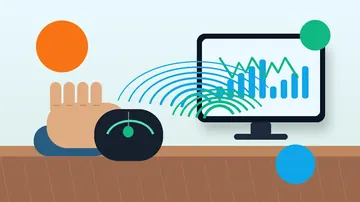
The test works by tracking pixel movement as you drag your mouse a measured distance. You input your expected DPI, move your mouse exactly one inch (or another distance), and the tool calculates your actual DPI based on cursor travel.
This matters because not all mice report DPI accurately. Budget mice may claim 1600 DPI but actually perform at 1400 DPI. Gaming mice sometimes have sensor inconsistencies. Knowing your real DPI helps you configure games and applications correctly. For complete mouse diagnostics, also use our mouse button tester to verify all inputs work.

DPI and sensitivity are often confused, but they work differently.
DPI is a hardware measurement built into your mouse sensor. At 800 DPI, moving your mouse exactly one inch makes the cursor move 800 pixels on screen. At 1600 DPI, the same movement covers 1600 pixels.
Higher DPI means:
Your operating system and games apply a sensitivity multiplier on top of DPI:
Your effective DPI (eDPI) = Mouse DPI x Software Sensitivity. A player at 800 DPI with 1.5 in-game sens has 1200 eDPI.
If your mouse reports 800 DPI but actually performs at 750 DPI:
Follow this process for reliable DPI measurement.
Optimal DPI depends on your game genre, play style, and physical setup.
Most professional FPS players use surprisingly low DPI. Before adjusting settings, test your mouse for ghost clicking issues that could affect gameplay:
Why low DPI works for FPS:
MOBA players typically use higher DPI:
If you play various games, 800-1200 DPI is a versatile middle ground. Adjust in-game sensitivity per title rather than changing mouse DPI constantly. For Minecraft PvP and clicking games, also measure your clicks per second to optimize performance.
Work tasks have different DPI needs than gaming.
Incorrect DPI causes physical strain:
Test different DPIs for a week each. The right setting feels effortless - you reach screen corners without overshooting or needing multiple swipes.
Common DPI-related problems and solutions.
Some mice advertise high DPI (16000+) but interpolate above their native sensor resolution. Real performance may cap at 3200-6400 DPI depending on the sensor. This isn't a defect - interpolated DPI adds input lag and reduces accuracy. Using native DPI is better.
For FPS games, 400-800 DPI is most common among professionals due to precision benefits. For MOBAs and strategy games, 800-1600 DPI works better for quick camera movement. There's no universally "best" DPI - it depends on your game, sensitivity preferences, and desk space.
Check your mouse software (Logitech G Hub, Razer Synapse, SteelSeries Engine, etc.). If you don't have mouse software, check the product manual or manufacturer website. Our DPI test can also measure your actual DPI if you move a measured distance.
Not necessarily. Higher DPI means faster cursor movement, but also less margin for error in precise tasks. Very high DPI (8000+) is often interpolated and can introduce tracking issues. Most people perform best between 400-2400 DPI depending on their task and display resolution.
Games have their own sensitivity multipliers. A game at sensitivity "1" might use raw DPI, while another at "1" might apply 2x multiplication. Use a sensitivity converter tool to match feel across games, or set a consistent cm/360 (centimeters to do a full in-game turn).
For consistency, set your mouse DPI once and adjust in-game sensitivity per game. This keeps Windows and desktop behavior constant. Some pros use a set DPI (like 400 or 800) for years and only adjust in-game settings.
Native DPI (what your sensor actually tracks) has no lag impact. Interpolated DPI (calculated from lower native DPI) can add slight input lag. For competitive gaming, using a DPI at or below your sensor's native resolution is recommended.
CPI (Counts Per Inch) and DPI (Dots Per Inch) are functionally identical for mice. DPI is more commonly used, but technically CPI is more accurate - mice count movement, they don't print dots. Use them interchangeably.
Common reasons: mouse acceleration is enabled (disable "Enhance pointer precision" in Windows), Windows pointer speed is not at default (6/11), or your mouse sensor has natural variance. Budget mice may have significant DPI inaccuracy. Some variation (under 5%) is normal.
Windows: Control Panel > Mouse > Pointer Options > uncheck "Enhance pointer precision." Also check your mouse software for acceleration settings. Some games have their own acceleration options that need disabling separately.
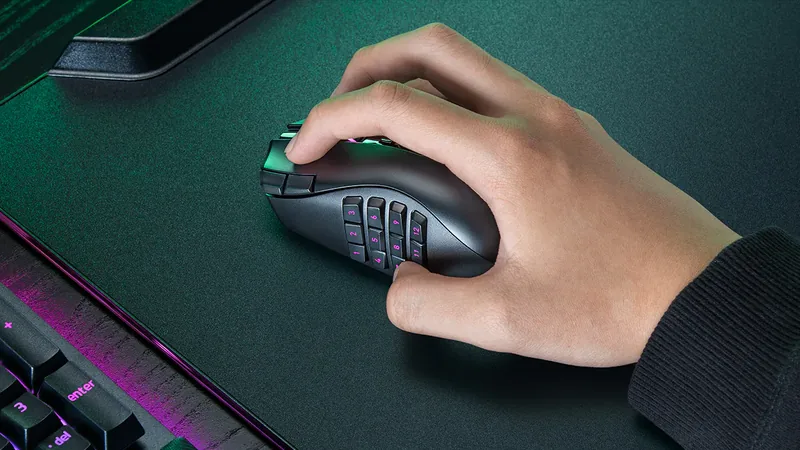

400 DPI works fine even on 4K monitors - you just adjust in-game or Windows sensitivity. However, for desktop use on high-resolution displays, you may find 800-1600 DPI more comfortable to avoid excessive mouse movement for basic navigation.
Quick steps to run the mouse dpi tester and review your DPI and sensitivity results.
Make sure the page is focused and the correct device is selected.
Use the reset button to clear results and start over.
Most tools work best on desktop, but mobile may still function for basic checks.
Yes. Reset after each run to compare results.
Testing runs locally in your browser and is not uploaded.

Try another browser or device to confirm the issue.