








Fast Answer
To change mouse DPI without losing aim, keep your eDPI the same: new sensitivity = old DPI x old sensitivity / new DPI. Example: 800 DPI at 0.5 sensitivity feels the same as 1600 DPI at 0.25 sensitivity in the same game. Use the Mouse DPI Calculator or eDPI Calculator before moving your slider, then use the DPI Tester only if you need to confirm the mouse really outputs the DPI it claims.
Changing DPI is not the problem. Changing DPI and leaving the game sensitivity untouched is the problem. That doubles or halves your effective sensitivity, so every flick, tracking correction, and turn distance feels wrong.
This guide is the practical conversion workflow: write down the old numbers, calculate the new sensitivity, test the real DPI if the mouse feels suspicious, and only then adjust for mousepad, grip, polling rate, or Windows settings. If you need to understand where those movement counts come from, read how ball, optical, and laser mice work first.
The Formula That Preserves Your Aim
The goal is to keep eDPI unchanged. DPI is the hardware count. In-game sensitivity is the multiplier. eDPI is the combined feel inside one game.
new sensitivity = old DPI x old sensitivity / new DPI800 DPI x 0.50 sensitivity = 400 eDPI
1600 DPI would feel twice as fast if sensitivity stayed 0.50
1600 DPI x 0.25 sensitivity = 400 eDPI
Use the Calculator Before You Touch the Slider
A calculator removes mental math mistakes, especially when you are changing several DPI stages or moving between games with different sensitivity scales.
- Open the Mouse DPI Calculator and enter your old DPI and old in-game sensitivity.
- Enter the new DPI stage you want to use. The tool returns the matching new sensitivity.
- Save the old setting first. If the new mouse or pad feels wrong, you need a clean rollback point.
- If you do not know your real DPI, measure it with the DPI Tester before converting.
Do not reset your muscle memory by guessing. Open the Mouse DPI Calculator, preserve your eDPI, then verify with the DPI Tester only if the mouse number itself is uncertain.
Common DPI Changes and the Sensitivity You Should Use
These examples assume the same game and the same aim feel. If you also change games, use a game sensitivity converter or cm/360 check afterward.
| Old DPI | Old sens | New DPI | New sens | Result |
|---|---|---|---|---|
| 400 | 1.00 | 800 | 0.50 | Same 400 eDPI |
| 800 | 0.50 | 1600 | 0.25 | Same 400 eDPI |
| 1600 | 0.25 | 800 | 0.50 | Same 400 eDPI |
| 1200 | 0.40 | 800 | 0.60 | Same 480 eDPI |
If the Math Is Correct but Aim Still Feels Wrong
When eDPI matches but the mouse still feels different, the problem is usually outside the formula. Check these before blaming the calculator.
Mouse software may say 800 DPI while the sensor reports a little higher or lower. Measure it if precision matters.
Pointer speed and Enhance pointer precision can change desktop feel. Many games use raw input, but menus and browser tests still expose this.
125 Hz, 500 Hz, 1000 Hz, or 4000 Hz changes update timing. It does not change eDPI, but it can change smoothness and latency.
Weight, feet, shell shape, lift-off distance, and pad friction can all change stopping power even when the numbers match.
A Clean 10-Minute DPI Change Workflow
Do this in order. The key is changing one layer at a time so you know what actually caused the new feel.
- Record the old chain
Write down DPI, in-game sensitivity, scoped sensitivity, FOV, resolution, polling rate, Windows pointer speed, and mousepad.
- Calculate the new sensitivity
Use the DPI calculator to keep eDPI unchanged before opening the game.
- Verify real DPI if needed
If the mouse has no trusted software or the result feels far off, run the browser DPI tester on your real pad.
- Run a short practice test
Do one aim trainer routine or private match. Look for consistent over-shooting or under-shooting, not one bad round.
- Adjust only after evidence
If tracking is consistently off after the numbers match, then tune in small 2-5 percent steps and record the change.
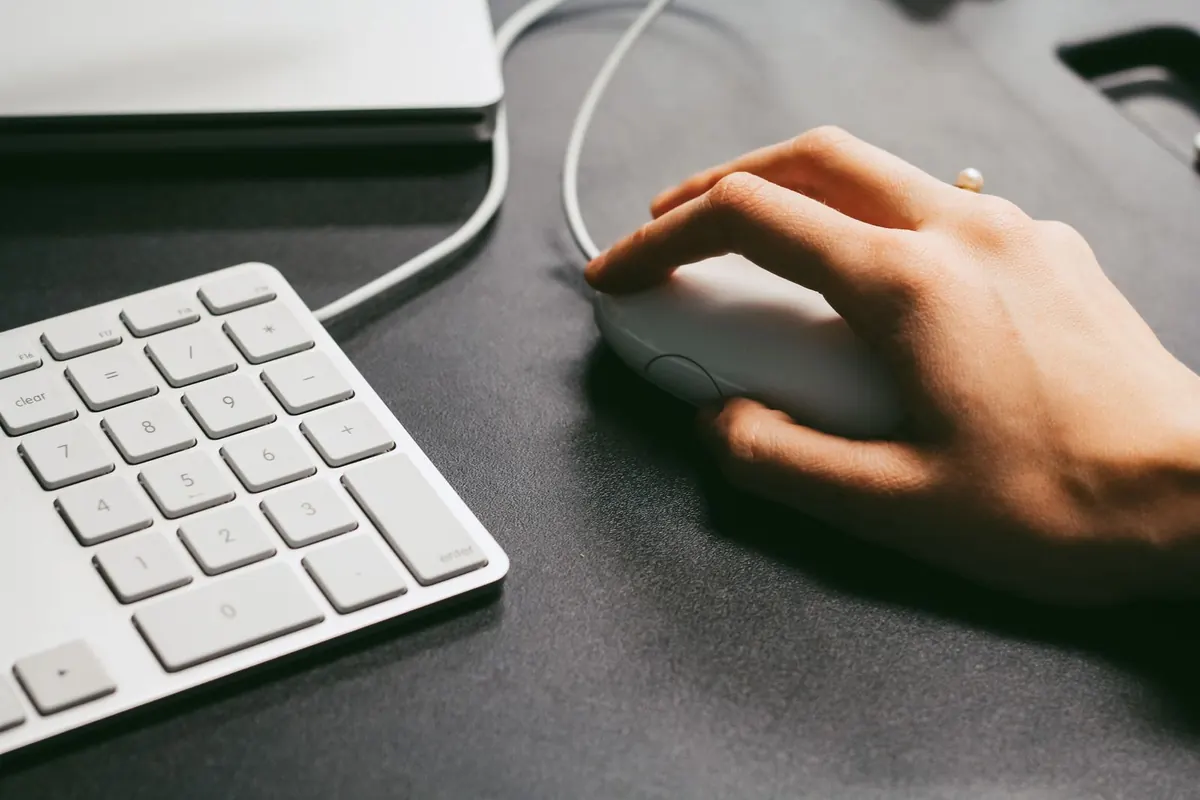
Watch: How to Check Mouse DPI Before You Convert
This supporting video shows the measurement side of the workflow. Use it when you do not trust the DPI number from a mouse button, driver app, or product page.

The video walks through checking mouse DPI on a PC. Pair that measurement with the calculator formula above so the hardware number and in-game sensitivity stay aligned.
Tools to Use Next
Convert old DPI and sensitivity into the new sensitivity before changing settings.
eDPI CalculatorCompare complete aim feel across DPI and game sensitivity.
DPI TesterMeasure actual mouse DPI when software or a DPI button is not trustworthy.
Polling Rate TestCheck whether the mouse report rate changed and affected smoothness.
Related Guides
Measure real DPI and understand why Windows does not show hardware DPI.
Same DPI Feels DifferentTroubleshoot cases where the numbers match but the mouse still feels wrong.
Mouse DPI Tester GuideLearn what the browser DPI test can and cannot prove.
Best Gaming Mouse 2026Pick a mouse after you know what DPI and shape you actually need.
Sources and Research Notes
This article uses existing KeyboardTester.click DPI data, the site calculator behavior, and stable technical references for Windows pointer settings and raw input. The topic was selected because KBT already has search demand around DPI analyzer and DPI calculator pages.
- Microsoft Support: Change mouse settings
Documents Windows pointer speed and pointer precision settings that can affect desktop cursor behavior.
- Microsoft Learn: Raw Input
Explains how Windows applications can read input directly from devices instead of relying only on the normal pointer path.
- ProSettings
Useful reference for how players publish DPI, sensitivity, and eDPI rather than DPI alone.
- Mouse Sensitivity Community
Shows the recurring user problem: lowering or raising DPI while trying to keep the same sensitivity feel.
FAQ
- What happens if I change DPI but not sensitivity?
Your effective sensitivity changes by the same ratio. Moving from 800 DPI to 1600 DPI without changing sensitivity makes aim feel about twice as fast in the same game.
- What sensitivity should I use when changing from 800 DPI to 1600 DPI?
Use half the old sensitivity. For example, 800 DPI at 0.50 becomes 1600 DPI at 0.25 because both equal 400 eDPI.
- Should I match DPI or eDPI?
For aim feel inside one game, match eDPI or cm/360, not DPI alone. DPI is only one part of the chain.
- Does the DPI calculator measure my mouse?
No. The calculator converts numbers you provide. If you need to know whether your mouse really outputs 800 DPI, use the DPI Tester first.
- Why does my aim still feel different after matching eDPI?
Real DPI variance, polling rate, Windows pointer settings, raw input behavior, mouse weight, feet, pad texture, and grip can still change feel. Check those one by one.




Reader discussion
Comments
Share what worked, what did not, or what you would test next. Every comment is reviewed before it appears.
Loading approved comments…
Leave a comment
No account or sign-in is required. Links and HTML are not accepted.