











The first time someone asked me “what’s my DPI?” I did what most people do: I opened Windows mouse settings, stared at the pointer speed slider, and confidently gave them the wrong answer. That slider is not your DPI. It took me a botched test or two to figure out that the only honest way to answer how to check mouse DPI is to stop looking it up and actually measure what the mouse is doing under your hand right now.
So that is what this guide does. I’ll show you how to read your real DPI live in your browser in under a minute, why Windows quietly refuses to tell you the number, every other way to check it (and when each one is worth your time), and the difference between DPI, sensitivity, and eDPI that trips up almost everyone. If you just want the number, start at the top. If you want to understand it, keep reading.
The fast answer: Windows never shows your hardware DPI — only a pointer-speed slider. To actually find it, open the Mouse DPI Analyzer, turn off “Enhance pointer precision” in Windows first, then slide your mouse one measured inch along a ruler. The page reads the cursor counts and gives you your real DPI — no software, no driver, works on any mouse.

The Fastest Way: Measure Your DPI Live, Right Here
Forget hunting through driver software or squinting at a spec sheet. The quickest way to answer how to check my DPI is to measure the cursor movement directly. The Mouse DPI Analyzer does exactly that in the browser, so it works even on a no-name office mouse that never came with an app.
But there is one step almost every “check your DPI” article skips, and skipping it is exactly how I got a garbage reading the first time:
Turn off mouse acceleration before you measure. In Windows, press Win + I → Bluetooth & devices → Mouse → Additional mouse settings → Pointer Options, then uncheck Enhance pointer precision. If you leave it on, the cursor covers more distance when you move fast, so the test reads a DPI that is inflated and inconsistent. With it on, I once “measured” a steady 800 DPI mouse at three different numbers in a row. If you game, leave it off for good — here is the full walkthrough on disabling mouse acceleration in Windows 11 and using raw input.
Here is the three-step routine I use every time:
- Disable Enhance pointer precision (the box above), and set the Windows pointer-speed slider to the middle notch so it is not scaling things either.
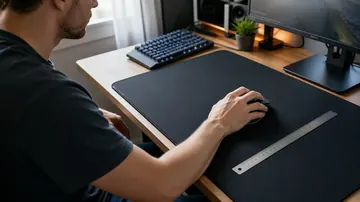
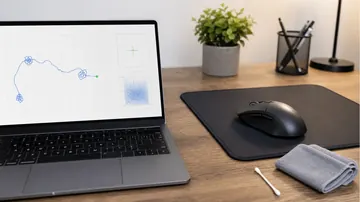
- Open the Mouse DPI Analyzer, enter the DPI your mouse claims, lay a ruler flat next to your mousepad, and pick a distance — 1 inch is fine, but a longer pull like 4 inches lowers your percentage error.
- Click start, drag the mouse that exact distance in one smooth motion, and release. The page shows your real DPI and how far it is from the label. Do it three or four times and take the average — a single hand-pull is never perfectly straight.
If you want the deeper version of this — how far your measured DPI can drift from the advertised spec and what that means for aim — I wrote a companion piece on exactly that: measuring actual vs advertised mouse sensitivity. This guide stays focused on simply finding the number by whatever method fits your mouse.
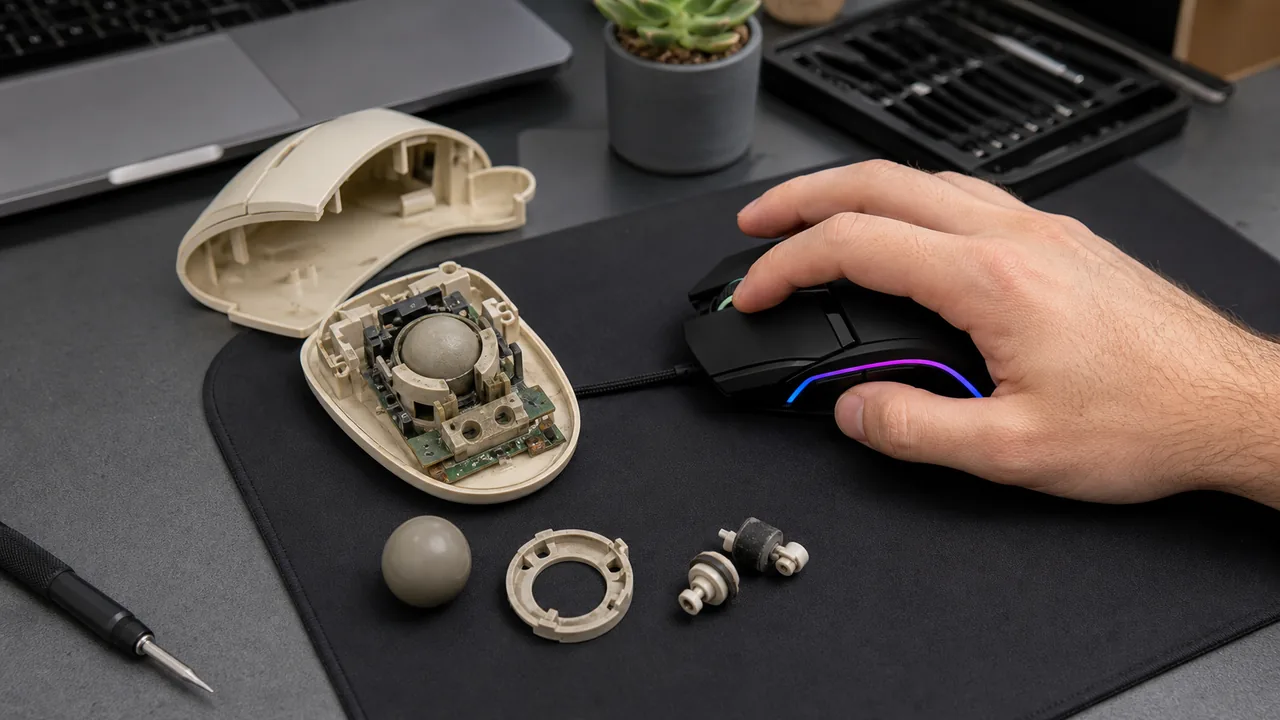
If you want the hardware background behind those counts, read how ball, optical, and laser mice turn surface movement into DPI/CPI counts. It explains why the sensor, surface, and firmware can change what the analyzer measures.
Can You Check DPI in Windows 10 or 11? (The Honest Answer)
This is the single most common thing people get wrong, and I was guilty of it too. No, Windows does not show your mouse DPI. Not in Windows 10, not in Windows 11, not in any hidden menu.
What Windows gives you is a pointer speed slider. That is a software multiplier sitting on top of whatever the mouse sends. It does not read the sensor, it does not know your DPI stage, and it changes nothing inside the mouse hardware. Move the slider and you are scaling the cursor in software; the mouse is still reporting the same counts per inch it always did.
If a tutorial tells you to “check your DPI in Control Panel,” it is showing you pointer speed, not DPI. Those are two different layers, and confusing them is how people end up with a sensitivity that feels wrong in every game.
So when someone asks “how much DPI is my mouse?”, the only real ways to answer are: measure it (the analyzer above), read it from the manufacturer’s software if the mouse has an app, or find the printed spec. Everything else is a guess.
Every Way to Check Mouse DPI (and When to Use Each)
There is no single “correct” method — it depends on the mouse you have. Here is the decision tree I actually follow, fastest and most reliable first.
| Method | Best for | What it tells you | Catch |
|---|---|---|---|
| Live online analyzer | Any mouse, especially cheap or no-app ones | Your real, measured DPI right now | Acceleration must be off; pull the ruler distance carefully |
| Manufacturer software | Gaming mice (Logitech, Razer, SteelSeries, etc.) | The DPI set on the active stage | Shows the configured value, not a measurement |
| Spec sheet / box / product page | Knowing the maximum the sensor supports | The advertised DPI range | A claim, not what your mouse outputs today |
| DPI button + stage counting | Mice with an on-board DPI cycle button | Which preset stage you are on | Easy to lose count; stages vary by model |
| Paint pixel-ruler (manual) | No app, no analyzer, just curiosity | A rough DPI from pixels per inch | Fiddly; acceleration ruins it instantly |
1. The live online analyzer (my default)
Covered above. It is the only method that measures rather than reports, and it works on a $9 mouse with zero software. If I only had time for one check, this is it.
2. Manufacturer software
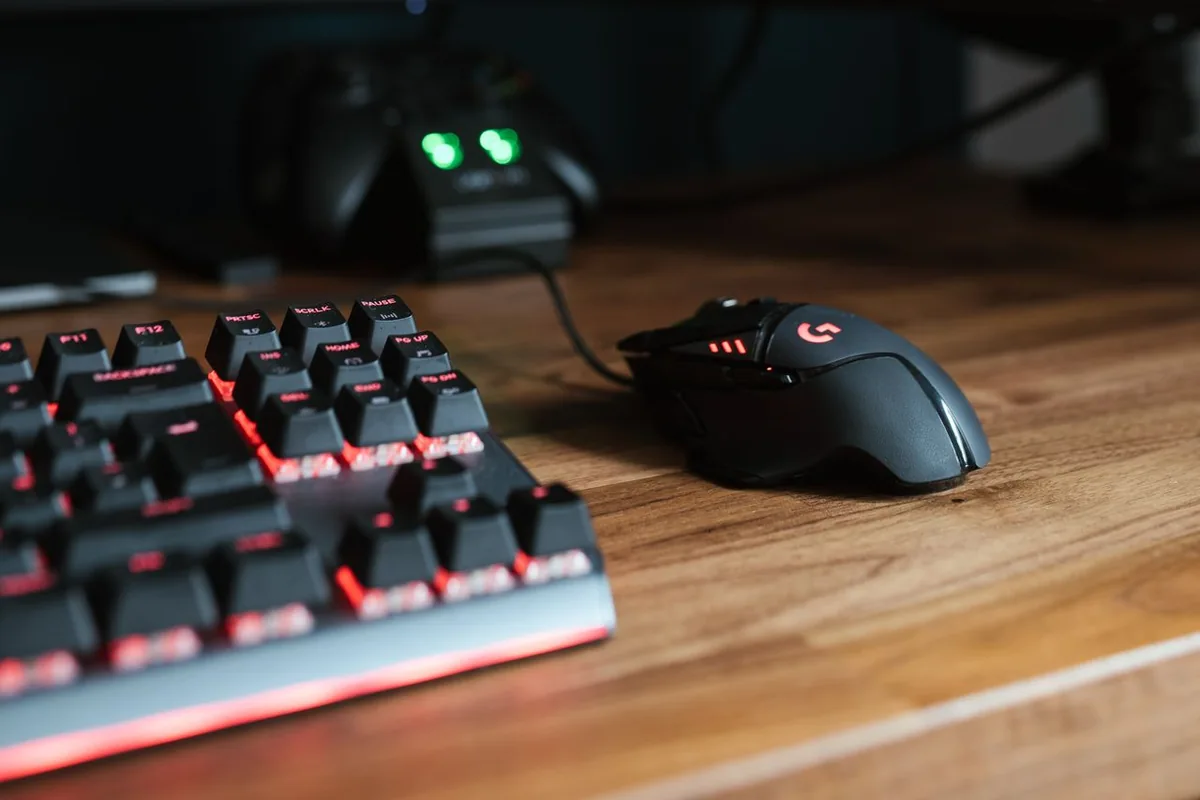
If your mouse has an app — Logitech G HUB, Razer Synapse, SteelSeries GG, Corsair iCUE, Glorious Core — open it and look at the DPI stages. The active stage is your current DPI as configured. That is genuinely useful, but remember it shows the number the software set, not the number the sensor is actually producing on your surface. I treat the app value as the “intended” DPI and the analyzer as the “real” DPI.
3. Spec sheet, box, or product page
The box will tell you the sensor’s advertised range, like “up to 26,000 DPI.” That is the ceiling, not your setting. It is fine for shopping, but it never answers “what am I running right now?” If you bought the mouse used or lost the box, the manufacturer’s product page lists the same numbers.
4. The DPI button and stage counting
This one bit me directly. Many gaming mice have a small button just behind the scroll wheel that cycles through preset DPI stages — say 400, 800, 1600, 3200. I once spent ten minutes convinced my mouse had “changed” its sensitivity, when in fact I had bumped that button while reseating my hand and silently jumped a stage. There is usually a brief LED flash or color change to mark the active stage. If your aim suddenly feels off, check that button before you blame anything else.
5. The Paint pixel-ruler method (manual, fiddly)
If you have no app and want to try it the hard way: open a fullscreen drawing app like Microsoft Paint, hold left-click, and drag the mouse exactly one inch along a physical ruler. The pixel coordinates Paint reports tell you roughly how many pixels moved per inch — which, at 100% display scaling, approximates your DPI. I tried this before I knew about analyzers and got nonsense, because I had left mouse acceleration on and the line length changed with how fast I dragged. If you do this, disable Enhance pointer precision first, drag slowly and steadily, and treat the result as a ballpark. An online analyzer does the same math more reliably.
Measured vs Advertised DPI: Why the Box Can Be Wrong
When your measured number does not match the label, it is tempting to think the mouse is faulty. Usually it is not. A few ordinary things make the measured DPI differ from the spec:
- Acceleration left on: by far the most common culprit. Enhance pointer precision inflates fast movements and gives inconsistent readings.
- The active stage isn’t what you assumed: a stray press of the DPI button changes everything.
- Surface differences: a sensor calibrated for cloth can report slightly differently on glass or bare desk.
- DPI-step rounding: mice cycle in steps of 50 or 100, so a “1600” stage may sit a hair above or below after internal math.
- Sensor calibration: the advertised DPI is a target the factory aims for, not a guaranteed exact output. It can differ from the spec, especially on budget sensors.
I am deliberately not quoting a hard “mice are off by X percent” figure, because the honest answer is “it depends on the sensor.” Premium gaming sensors track very close to their spec; cheap mice can wander further. The point is simple: measure on your surface, with acceleration off, and trust your measurement over the marketing.
DPI vs Sensitivity: They Are Not the Same Thing
This is the conflation that causes the most confusion, and it is worth slowing down for.
DPI is a hardware setting on the mouse. It is how many counts the sensor reports for one inch of physical movement. It lives in the mouse and travels with it from PC to PC.
Sensitivity is a software multiplier. Every game, and your operating system, can scale the movement the mouse sends. Two friends can both run 800 DPI and aim completely differently because one has in-game sensitivity at 0.3 and the other at 0.8.
| Term | Lives in | Measured in | Changes when… |
|---|---|---|---|
| DPI (or CPI) | The mouse hardware | Counts per inch | You change the DPI stage or button |
| In-game / OS sensitivity | Software | A multiplier (e.g. 0.5) | You change the slider in a game or Windows |
| eDPI | The combination | DPI × sensitivity | Either of the two above changes |
| Polling rate | The mouse hardware | Hz (reports per second) | You change the report rate, not the distance |
By the way, you may see CPI (counts per inch) used instead of DPI — Logitech prefers it. They mean the same thing in practice. 800 CPI and 800 DPI are identical; DPI is just a leftover term borrowed from printing.
What Is eDPI and How to Calculate It
Once you know your DPI and your in-game sensitivity separately, you can combine them into the one number that actually matters for comparing setups: eDPI, short for effective DPI.
eDPI = mouse DPI × in-game sensitivity.
Example: 800 DPI × 0.5 sensitivity = 400 eDPI. So is 400 DPI × 1.0. Both move the crosshair the same physical distance, even though the raw numbers look different.
This is why pros talk in eDPI instead of DPI: it lets two players with different mice and different sliders compare aim feel on equal footing. If you want to copy a pro’s exact feel, you match their eDPI, not just their DPI. You can plug your numbers into the eDPI calculator to get the figure instantly, and to convert a sensitivity from one DPI to another without losing your muscle memory.
If you are changing DPI after this measurement, use the full change DPI without losing aim workflow before touching your in-game slider. It keeps the formula, rollback notes, and real-DPI checks in one place.
The practical takeaway: if you ever change your DPI — say you measured it and decided to set it cleanly to 800 — recalculate your in-game sensitivity so your eDPI stays the same. Otherwise every flick and tracking habit you built suddenly feels wrong.
Does Higher DPI Make You Better at Gaming?
Short answer: no, and I wish someone had told me this before I spent a week at 3200 DPI thinking it would make me snappier. It just made me twitchy and inconsistent.
Here are the myths worth busting, because they show up in every comment section:
- “Higher DPI = better aim.” False. DPI controls speed, not precision. More DPI means the cursor flies further per inch, which gives your hand less physical room to make small corrections. That is the opposite of helpful for tracking a head.
- “Windows shows my DPI.” Covered above — it shows pointer speed only.
- “DPI is the same as sensitivity.” Hardware vs software. Different layers.
- “Polling rate and DPI are the same.” No. DPI is counts per inch (distance). Polling rate is Hz (how often the mouse reports). They are completely separate dials.
- “The advertised DPI is exactly what my mouse outputs.” Close on good sensors, looser on cheap ones, and the active stage and acceleration can change it.
What actually makes the mouse feel responsive is a stable polling rate (1000 Hz is the modern standard) and a good sensor — not a giant DPI number. That is why most competitive FPS players sit at 400 or 800 DPI. Here is the rough lay of the land:
| Game type | Common pro DPI | Why |
|---|---|---|
| Tactical FPS (CS2, Valorant) | 400–800 | Low DPI gives maximum room for tiny crosshair corrections |
| Battle royale (Apex, Fortnite) | 800–1600 | A bit more speed for fast flicks and building |
| MOBA / RTS | 1200–2400 | Cursor travel across the map beats pixel precision |
If your aim feels floaty or laggy even after you set a sensible DPI, the issue is more likely responsiveness than DPI. Confirm it with the input latency checker (mouse click mode), and read up on why a low report rate feels like lag in the polling rate and Hz guide.
How to Change Your Mouse DPI
Once you know your number, changing it is easy. You have three options depending on your mouse:
- The on-board DPI button: press the small button behind the scroll wheel to cycle through preset stages. Watch for the LED color or a brief flash that marks the active stage. This is the fastest way, and it works without any software.
- Manufacturer software: open your mouse app (G HUB, Synapse, etc.) and edit the DPI stages directly. You can usually delete stages you never use so a stray button press cannot send you somewhere useless, and set a precise value like exactly 800.
- Per-game sensitivity: if you cannot or do not want to change hardware DPI, you can adjust the in-game sensitivity instead. Just remember the combined feel is the eDPI, so changing one means rechecking the other.
After any change, do two quick checks: re-measure with the DPI analyzer to confirm the new stage is what you expect, and recalculate your eDPI so your aim habits survive the switch. While you are at it, the mouse button and scroll test is a good way to confirm every button still registers cleanly.
My quick DPI checklist:
- Turn off Enhance pointer precision, set Windows pointer speed to the middle notch.
- Measure with the analyzer over a long ruler pull, three times, and average.
- Confirm which DPI-stage button/stage you are on before trusting any number.
- Compare measured vs the app/box value — small gaps are normal.
- If you change DPI, recompute eDPI so your muscle memory holds.
- If it still feels laggy, check polling rate and latency, not DPI.
FAQ: Checking Your Mouse DPI
How do I check my mouse DPI without software?
Use a browser-based DPI analyzer. Turn off Enhance pointer precision in Windows, open the Mouse DPI Analyzer, enter your claimed DPI, and slide the mouse one measured inch along a ruler. It reads the cursor counts and shows your real DPI — no download, even on cheap mice with no app.
Does Windows 10 or Windows 11 show my mouse DPI?
No. Windows only has a pointer-speed slider, which is a software multiplier, not the sensor’s hardware DPI. There is no screen anywhere in Windows that displays your DPI. You need a measurement test, the manufacturer’s app, or the printed spec.
How do I know if my mouse is 800 or 1600 DPI?
Measure it. Set the analyzer target to 800 and move the mouse one inch; if the cursor goes roughly twice as far as it should, you are on 1600. Many gaming mice cycle stages with a button behind the scroll wheel, so one press can silently double or halve your DPI.
Why is my measured DPI different from the number on the box?
Usually acceleration left on, the wrong active stage, surface differences, DPI-step rounding, or normal sensor calibration variance. The advertised DPI is a manufacturer claim, so a small gap is expected rather than proof the mouse is broken.
Is DPI the same as sensitivity?
No. DPI is a hardware setting in counts per inch. In-game or OS sensitivity is a separate software multiplier on top. Two players at the same 800 DPI can aim very differently because their sensitivity differs. The combined feel is the eDPI.
What is eDPI and how do I calculate it?
eDPI (effective DPI) equals DPI × in-game sensitivity. For example, 800 DPI at 0.5 is 400 eDPI. It makes aim feel comparable across setups, so two configs with the same eDPI move the crosshair the same distance. Use the eDPI calculator to work it out.
Does a higher DPI make you better at gaming?
No. Higher DPI only moves the cursor faster per inch, not more accurately. Most FPS pros use 400 or 800 because low DPI leaves more room for small corrections. Responsiveness comes from polling rate and a stable sensor, not a big DPI number.
Sources and Further Reading
- Microsoft — Change mouse settings (pointer speed and Enhance pointer precision)
- Logitech G — HERO sensor and DPI/CPI explained
- ProSettings — pro player DPI, sensitivity, and eDPI databases
Ready to find your number? Open the free Mouse DPI Analyzer, turn off acceleration, grab a ruler, and stop guessing what your mouse is actually doing.




Reader discussion
Comments
Share what worked, what did not, or what you would test next. Every comment is reviewed before it appears.
Loading approved comments…
Leave a comment
No account or sign-in is required. Links and HTML are not accepted.