










Fast Answer
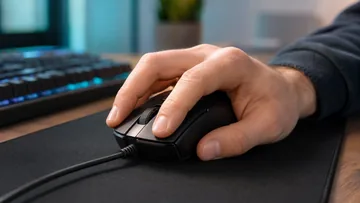
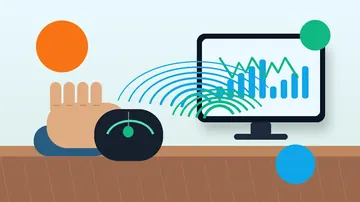
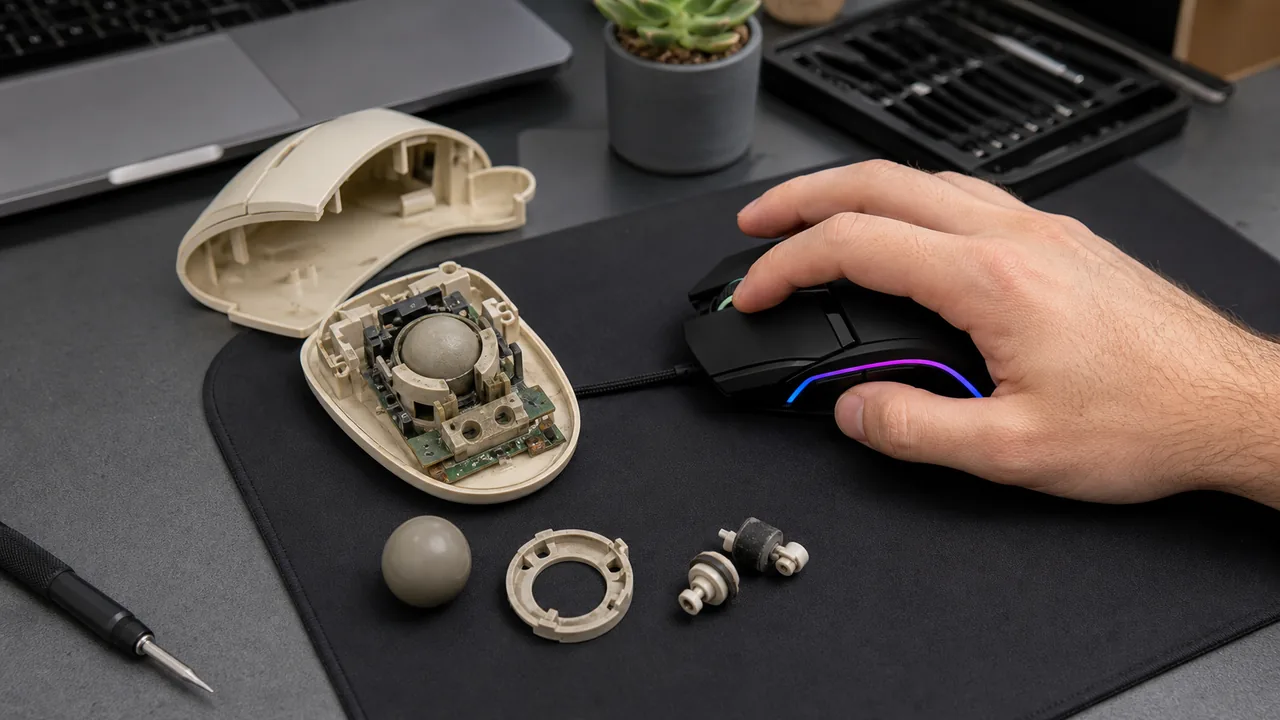
A computer mouse turns hand movement into small X/Y movement reports. A ball mouse rolls a rubber ball against two rollers, then encoder wheels convert the roller rotation into cursor movement. An optical mouse lights the surface, captures tiny high-speed images, and compares how the surface texture shifts between frames. A laser mouse is still an optical-style imaging mouse, but it uses laser or infrared illumination to reveal finer surface detail. That can help on difficult desks, but it does not automatically make the mouse better for gaming.
A mouse feels simple because the cursor moves as soon as your hand moves. Under the shell, though, the device is constantly translating friction, light, sensor frames, switches, wheel pulses, firmware filtering, and USB or Bluetooth reports into the pointer motion you see on screen.
This guide explains the technology in practical terms: how old ball mice worked, how optical and laser sensors replaced the ball, why glass and shiny desks still confuse many mice, and which browser tests help you check the mouse you actually use.
How every mouse turns movement into cursor data
Most mice do not report an absolute screen position. They report movement since the last update: a little left, a little right, a little up, a little down. The operating system adds those deltas to the current cursor position and applies your pointer speed, acceleration, display scaling, and game settings.
A USB mouse usually sends a HID report containing button states, X movement, Y movement, and wheel movement. A Bluetooth mouse sends the same kind of information through a wireless stack. That shared report layer is also why two mice can show the same DPI but still feel different once firmware, polling, surface, and software settings are involved; the practical workflow is in the same-DPI mouse feel guide.
- Buttons: report pressed or released states.
- Wheel: reports scroll encoder movement.
- Sensor: reports X/Y counts, not inches or centimeters.
- Firmware: may smooth, scale, debounce, or filter those reports before the computer sees them.
How a ball mouse works
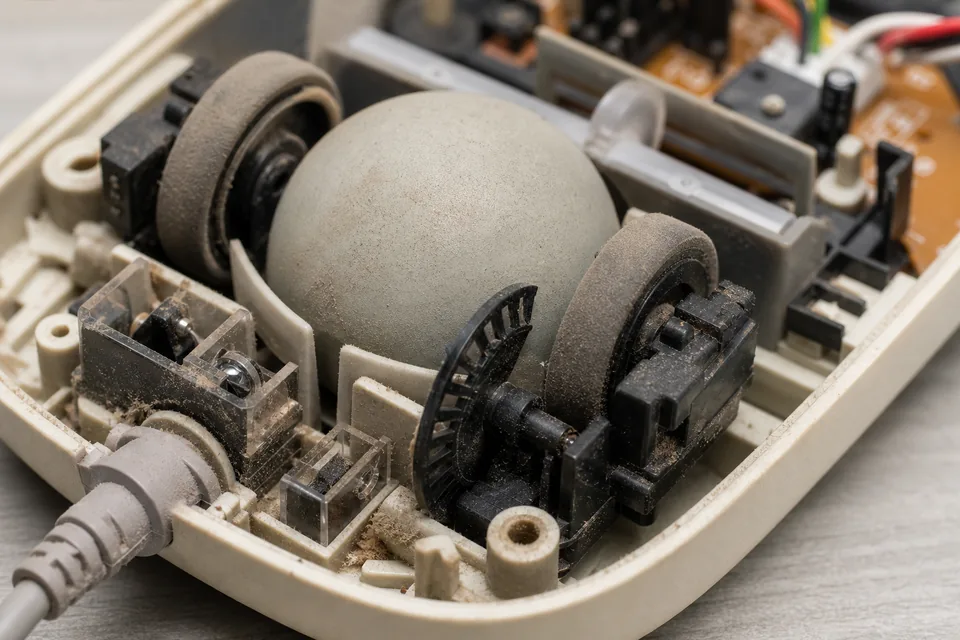
A mechanical ball mouse is the easiest version to understand because you can see the moving parts. The rubber ball touches the desk. When you move the mouse, the desk turns the ball. Inside the mouse, two rollers touch the ball at right angles: one roller follows left-right movement, the other follows forward-back movement.
Each roller spins a slotted encoder wheel. A light beam and sensor watch the slots pass by. The electronics count the pulses to estimate speed and use the order of the light changes to know direction. More pulses mean more cursor movement.
The weak point was dirt. The ball picked up dust, skin oil, fibers, and hair from the desk, then carried that material onto the rollers. Once a roller was coated, it slipped instead of turning cleanly, so the cursor skipped, dragged, or moved only in one direction until the rollers were cleaned.
How a trackball works
A trackball is the same idea turned upside down. The device stays still while your thumb or fingers rotate the ball. Older trackballs used the same roller-and-encoder approach as ball mice. Many modern trackballs use optical sensing against the ball instead.
The benefit is not magic precision. It is control without desk travel. Trackballs are useful on cramped desks, in production booths, on some accessibility setups, and for users who prefer moving fingers instead of pushing a whole mouse around a pad.
How an optical mouse works
An optical mouse removes the ball. An LED lights the surface, a lens focuses a tiny patch of that surface onto a CMOS image sensor, and a processor compares frame after frame. If the surface texture shifts three counts left and one count up between frames, the mouse reports that movement.
The sensor images are not normal photographs. They are small, high-speed, low-detail texture samples. The mouse cares about contrast, edges, speckles, fabric weave, dust, and microscopic irregularities, not a readable picture. This is why a plain white glossy desk can track worse than a cheap cloth pad: the sensor needs texture to compare. If the pointer moves while the mouse is untouched, use the mouse drift troubleshooting guide to separate sensor noise from touchpad, controller, and software causes.
Modern gaming mice usually use LED optical sensors because they are consistent on cloth mousepads, can run high frame rates, and often avoid the acceleration quirks that gave some older laser sensors a bad reputation with competitive players.
How a laser mouse works
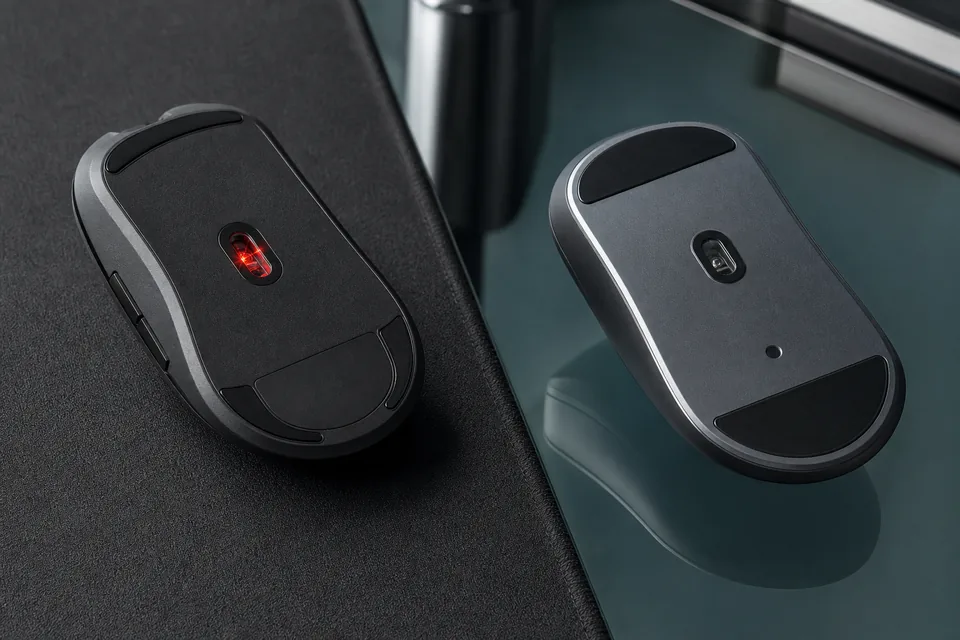
A laser mouse is not a completely different category from optical tracking. It still uses reflected light, a lens, an image sensor, and frame comparison. The difference is the illumination source: laser or infrared light instead of a visible red LED.
Laser illumination can reveal finer surface detail and can track on some surfaces where a basic LED optical mouse struggles. That is useful for office and travel mice because people use them on desks, hotel tables, folders, and sometimes glass.
The tradeoff is that more surface detail is not always better. Some laser implementations over-read cloth texture, dust, or tiny surface variation, which can show up as jitter, positive acceleration, inconsistent feel at high speed, or higher lift-off distance. If fast swipes travel farther than slow swipes over the same physical distance, confirm it with the mouse acceleration and raw input guide. Good modern sensors reduce these issues, but laser is not automatically a premium gaming upgrade.
Why glass and shiny desks are hard
Clear glass is difficult because normal optical sensors need visible surface texture. If light passes through or reflects in a clean mirror-like way, there is not enough stable pattern for the sensor to compare. Glossy desks can cause a similar problem by throwing glare back into the sensor.
Darkfield-style mice solve a specific version of this problem by reading tiny particles, scratches, and surface imperfections on glass. That makes them excellent for office portability, but it does not mean they beat a top gaming optical sensor on a proper mousepad.
Buttons, scroll wheels, and double-clicking
Movement is only one part of a mouse. Main buttons usually use mechanical microswitches, though some gaming mice use optical switches. A mechanical switch can bounce electrically when pressed, so firmware applies debounce timing to avoid counting one press as many.
As switches wear, bounce can get worse. That is one common reason an old mouse starts double-clicking when you only clicked once. Start with the mouse buttons and scroll wheel test guide; if the failure is specifically repeated single-clicks becoming two clicks, compare it with the double-click switch bounce guide and the ghost click detector guide. The scroll wheel also uses an encoder. Dust, worn contacts, or a loose wheel can cause missed scroll steps, reverse scroll jumps, or uneven scrolling.
DPI, CPI, polling rate, lift-off distance, acceleration, and jitter
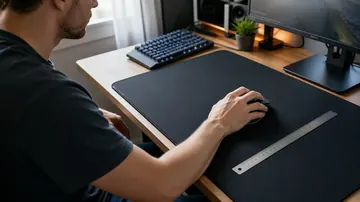
These terms get mixed together in product pages, but they measure different parts of the mouse chain. DPI or CPI is how many movement counts the sensor reports per inch of physical movement; if you only need the measurement workflow, use how to check mouse DPI. Polling rate is how often the mouse sends reports to the computer; the practical Hz test is covered in the mouse polling rate guide. Lift-off distance is the height where tracking stops when you pick the mouse up.
Acceleration means the output changes with movement speed instead of only physical distance. Jitter is unstable tiny movement when the mouse should be still or moving smoothly. A dirty lens, bad surface, extreme DPI, unstable wireless link, or sensor-specific filtering can all create jitter. If you change DPI but want aim to stay stable, use the change mouse DPI without losing aim workflow before moving game sliders. One more speed-related limit is worth knowing: every sensor has a maximum tracking speed (IPS), and exceeding it during a hard flick makes the cursor whip or spin — the mouse spinning out guide covers how to see that failure live and fix it.
- Higher DPI is not automatically more accurate: it often just makes the pointer faster.
- Higher polling rate lowers report interval: 125 Hz is about 8 ms, 1000 Hz about 1 ms, and 8000 Hz about 0.125 ms under ideal conditions.
- Low lift-off distance helps low-sensitivity players: they can pick up and reposition without dragging the cursor.
- Raw input matters in games: it can bypass OS pointer acceleration and use mouse counts more directly.
Ball vs optical vs laser: which is best today?
The best mouse technology depends on the job. For most people, a modern LED optical mouse on a decent mousepad is the most predictable choice. If you are buying for FPS or competitive play, pair this technology background with the best gaming mouse guide so shape, weight, polling, and sensor behavior are judged together.
| Type | How it tracks | Best for | Weak point |
|---|---|---|---|
| Ball mouse | Rubber ball turns X/Y rollers and encoder wheels | Retro computers, repair learning, legacy setups | Dirt, roller slip, heavy maintenance |
| Trackball | User rotates a ball; rollers or optical sensing read it | Limited desk space, ergonomic preference | Learning curve and ball cleaning |
| Optical LED mouse | LED, lens, sensor frames, surface comparison | Gaming, normal desks, cloth pads | Glass, mirror-like, and very low-texture surfaces |
| Laser or darkfield mouse | Laser/IR illumination with optical-style image sensing | Office travel, difficult desks, some glass use | Can feel less consistent on some cloth pads or high-speed gaming setups |
Test your own mouse after reading
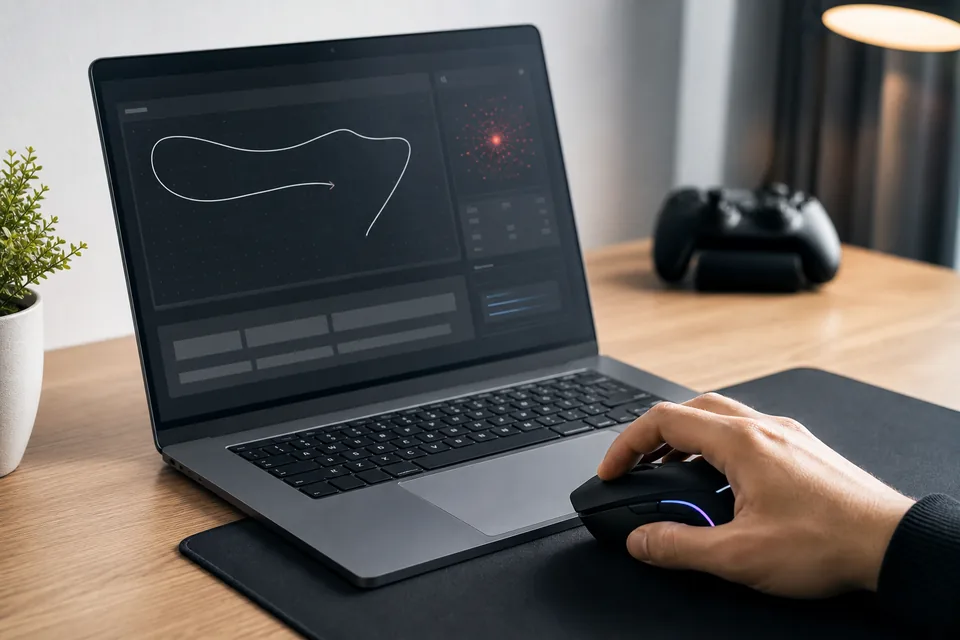
The theory is useful, but the mouse on your desk is what matters. Use this quick workflow to separate sensor, switch, wheel, and settings problems.
Check left, middle, right, and scroll input in the browser.
Mouse DPI testerMeasure real CPI/DPI against a known physical distance.
Polling rate testSee how often the mouse reports movement to the browser.
Lift-off distance testCheck when tracking stops as you lift the mouse.
Mouse drift testDetect unwanted cursor movement while the mouse is idle.
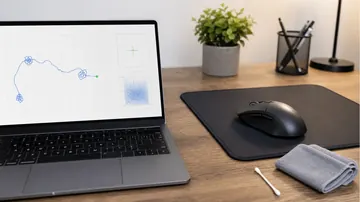
Mouse trail visualizerWatch movement smoothness, skips, and uneven paths.
Mouse acceleration testCompare slow and fast movement over the same distance.
Ghost click detectorCatch switch bounce, unintended clicks, and double-click behavior.
Related mouse guides
How to measure real DPI and understand variance.
How to check mouse DPIA practical DPI checking workflow for Windows, macOS, and browser tests.
Mouse polling rate explainedWhat Hz changes, what it does not, and how to verify it.
Test mouse buttons and scroll wheelDiagnose switches, scroll encoders, missed clicks, and wheel issues.
Mouse cursor moving by itselfSeparate sensor drift from touchpad, wireless, and software causes.
Disable mouse accelerationFix inconsistent aim from OS or game acceleration settings.
Mouse spinning out on fast flicksWhat sensor spin-out is, how to watch it happen live, and every fix in order.
Video: a visual explanation of mouse sensors
This video is useful if you want to see the sensor-and-frame-comparison idea animated after reading the mechanical explanation.

A visual overview of how a modern mouse detects motion and turns it into cursor movement.
Sources and research notes
The technical explanation above is based on sensor documentation, manufacturer releases, operating-system HID documentation, and community Q&A patterns around the confusing parts users search for.
- PixArt PAW3204 optical sensor datasheet
Sensor documentation describing optical mouse image processing and motion output.
- Avago ADNS-2051 optical mouse sensor datasheet
A classic optical mouse sensor reference for frame-based tracking concepts.
- Microsoft IntelliEye announcement
Microsoft announcement for the IntelliMouse Explorer and the move away from the mouse ball.
- Agilent laser mouse sensor release
Manufacturer release describing laser sensor tracking in Logitech laser mice.
- Logitech Darkfield release
Logitech release explaining Darkfield tracking for glass and glossy surfaces.
- Linux HID report descriptor documentation
Operating-system documentation for how HID devices describe mouse reports.
- HowStuffWorks ball mouse explainer
Plain-language explanation of old ball mouse rollers and encoder wheels.
- Reddit ELI5 and MouseReview threads
Used only for wording and real user confusion around ball mice, optical sensors, laser sensors, and surfaces.
FAQ
- Do optical mice take pictures?
Yes, but not normal photos. The sensor captures tiny low-resolution surface frames very quickly, then compares texture changes between frames to estimate movement.
- Is laser better than optical?
Not automatically. Laser can work on more difficult surfaces, but modern LED optical sensors are usually preferred for consistent gaming on a good mousepad.
- Why did old ball mice stop tracking smoothly?
Dust, hair, and skin oil stuck to the ball and rollers. The rollers then slipped or turned unevenly, so the cursor skipped or moved badly.
- Why does my mouse not work on glass?
Normal optical sensors need visible surface texture. Clear or glossy glass may not provide enough stable detail, so the sensor cannot compare frames reliably.
- What is DPI in a mouse?
DPI or CPI is how many movement counts the mouse reports per inch of physical travel. Higher DPI makes pointer movement faster, but it is not automatically more accurate.
- What is mouse polling rate?
Polling rate is how often the mouse reports data to the computer. For example, 125 Hz is roughly every 8 ms, while 1000 Hz is roughly every 1 ms under ideal conditions.
- What is lift-off distance?
Lift-off distance is the height where the sensor stops tracking after you pick up the mouse. Low LOD helps players reposition without moving the cursor.
- Why does my cursor jitter?
Common causes include a dirty sensor lens, a bad or glossy surface, very high DPI, laser sensor behavior on cloth, wireless instability, or software pointer acceleration.
Once you know how the sensor works, run the mouse button and scroll test, then check real DPI, polling rate, lift-off distance, and cursor drift. The quickest troubleshooting path is to test the exact mouse and surface you use every day.




Reader discussion
Comments
Share what worked, what did not, or what you would test next. Every comment is reviewed before it appears.
Loading approved comments…
Leave a comment
No account or sign-in is required. Links and HTML are not accepted.