













Fast answer: Use this guide as a practical checklist for how to test your mouse buttons and scroll wheel online. Start with the main browser tool, confirm the result with one focused follow-up test, then change only one device, browser, or setting at a time so you know what actually fixed the issue.

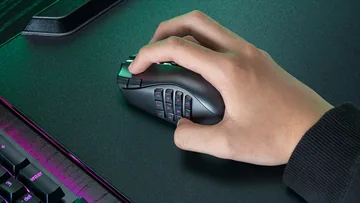
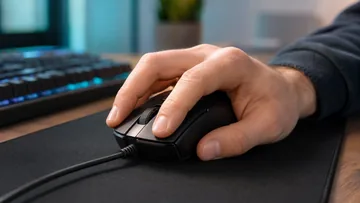
A malfunctioning mouse can be incredibly frustrating. Whether your left click is not registering, your scroll wheel is skipping, or your middle button has stopped working, an online mouse tester can help you diagnose the exact problem in seconds.
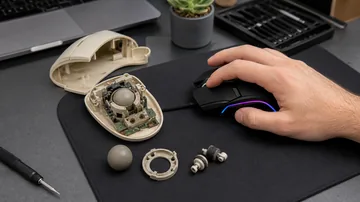
This guide focuses on switches, scroll-wheel encoders, and click events. If the issue is cursor movement, surface tracking, DPI, or optical/laser behavior, start with how a computer mouse works internally, then come back here for button and wheel checks.
Using a laptop touchpad instead? A browser can verify tap, click, pointer, and two-finger scroll events, while Windows or macOS normally handles three- and four-finger gestures outside the page. Use our laptop touchpad gestures and shortcut guide to configure and practise those actions.
Why Test Your Mouse?
- Verify a new mouse works before your return window expires
- Diagnose click issues like unresponsive buttons or accidental double clicks
- Check scroll wheel behavior for skipping, reversing, or not registering
- Compare mouse performance between different mice you own
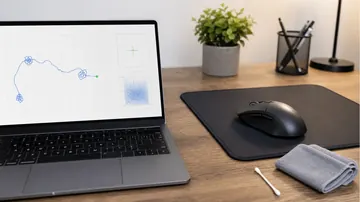
- Test after cleaning to confirm the mouse works properly
How to Test Your Mouse Online
- Open the free mouse button tester
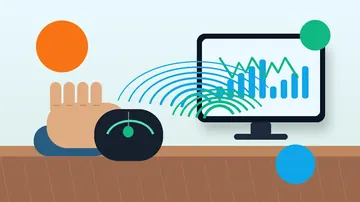
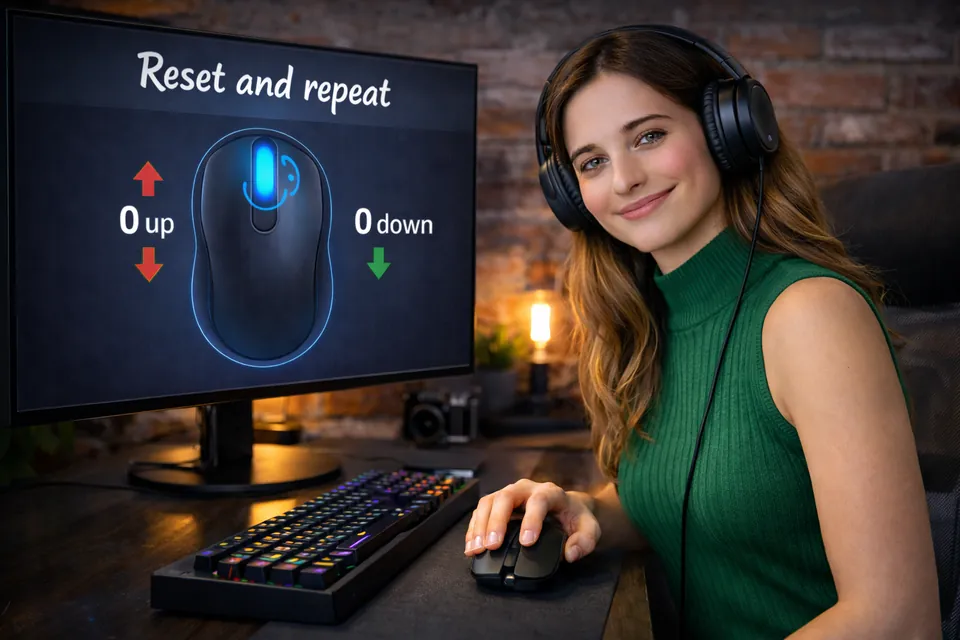
- Click each button — left, right, and middle — and watch the visual feedback
- Scroll up and down to test the scroll wheel
- Each action is confirmed on screen so you know exactly what registered
Common Mouse Problems
Ghost Clicks / Double Click Issue
If your mouse registers two clicks when you only click once, the microswitch inside is likely worn out. This is the most common mouse failure and is especially prevalent in mice over 2 years old. Use the ghost click detector to confirm the issue.
If the switch is worn and the mouse is out of warranty, repair is rarely worth it on budget models — the recent gaming mouse launches roundup is an honest look at what shipped in 2026 before you rebuy.
Scroll Wheel Problems
Scroll wheels can skip lines, reverse direction, or stop working entirely. The scroll wheel test helps you verify whether the issue is hardware or software related.
DPI / Sensitivity Issues
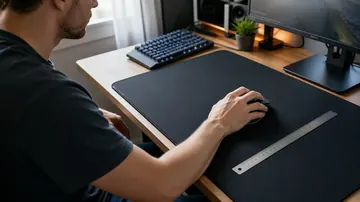
If your cursor moves too fast or too slow, your DPI settings might be off. Use the DPI tester to measure your mouse’s actual sensitivity.
Related Mouse Tools
- Click Speed Test — Measure your clicks per second
- Ghost Click Detector — Detect unwanted double clicks
- DPI Tester — Measure mouse sensitivity
- Mouse Trail — Visualize mouse movement patterns
- Double Click Test — Test for worn microswitches
- Mouse Drag Click Test — Measure drag-click CPS and peak burst
Related reading: if you push your buttons hard with high-CPS clicking, see Drag Click Test: How to Drag Click and Hit 20+ CPS to learn how the technique affects switch wear.
FAQ
Why is my left click not working?
Common causes include a worn microswitch, debris under the button, driver issues, or a damaged cable/wireless connection. Test with our mouse tester first to confirm the hardware issue.
Can I test a wireless mouse?
Yes. As long as your wireless mouse is connected via Bluetooth or USB receiver, the online tester will detect all button clicks and scroll events.
Test your mouse now: Open the free mouse tester.
Quick Action Checklist
- Test left, right, middle, scroll, and side-button behavior separately.
- Compare wired, receiver, and Bluetooth modes if available.
- Use the same browser and surface when comparing results.
- Retest after changing drivers, polling rate, or game settings.
Helpful Video
This related video supports the checks and decisions covered in this guide.






Reader discussion
Comments
Share what worked, what did not, or what you would test next. Every comment is reviewed before it appears.
Loading approved comments…
Leave a comment
No account or sign-in is required. Links and HTML are not accepted.