













Fast answer: Use this guide as a practical checklist for mouse trail visualizer: see your mouse movement patterns. Start with the main browser tool, confirm the result with one focused follow-up test, then change only one device, browser, or setting at a time so you know what actually fixed the issue.

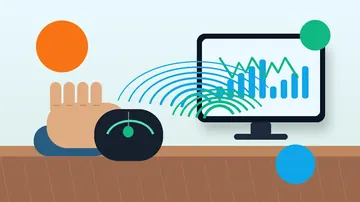
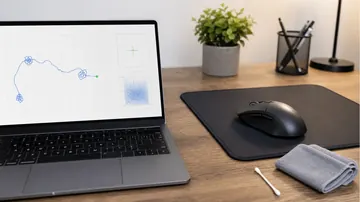
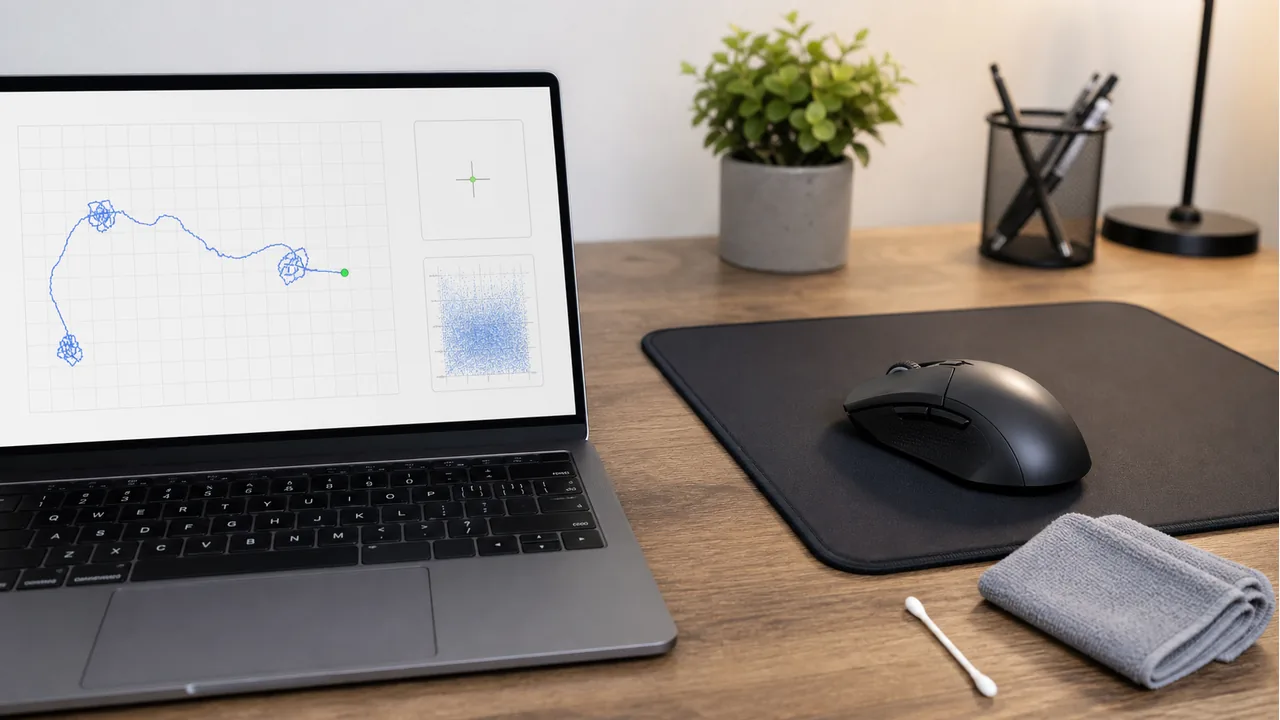
Ever wondered how smoothly your mouse tracks? The mouse trail visualizer creates a colorful trail behind your cursor, revealing jitter, acceleration issues, and tracking inconsistencies that are invisible during normal use.
What the Mouse Trail Reveals
- Sensor jitter: Tiny zigzag patterns indicate a noisy sensor or low polling rate
- Acceleration: Inconsistent trail spacing shows mouse acceleration is enabled
- Smoothness: Clean, even curves indicate good sensor performance
- Prediction: Unnaturally straight lines suggest angle snapping is enabled in your mouse firmware
How to Use It
- Open the mouse trail tool
- Move your mouse around the screen at different speeds
- Draw circles, straight lines, and figure-eights
- Observe the trail quality for jitter or inconsistencies
Related Tools
- Mouse Button Tester
- DPI Tester
- Click Speed Test
- Frame Skipping Test — detects when smooth motion is being interrupted
Try it now: Open the mouse trail visualizer.
Quick Action Checklist
- Test left, right, middle, scroll, and side-button behavior separately.
- Compare wired, receiver, and Bluetooth modes if available.
- Use the same browser and surface when comparing results.
- Retest after changing drivers, polling rate, or game settings.
Helpful Video
This related video supports the checks and decisions covered in this guide.

FAQ
Do I need to install anything for this guide?
No. The recommended checks run in a modern browser unless the article specifically points you to an operating-system or device setting.
Is the browser test private?
The KeyboardTester.click tools are designed to run the test interaction in your browser. Do not type passwords, private messages, or sensitive account data into any testing page.
What should I do if the result looks wrong?
Repeat the test in a clean browser tab, then change one variable at a time such as device, cable, USB port, permission, wireless mode, or browser profile.
When should I use a related tool?
Use a related tool when the first result points to a narrower issue, such as latency, ghosting, stuck input, camera permission, audio routing, or QR/OCR decoding quality.



Reader discussion
Comments
Share what worked, what did not, or what you would test next. Every comment is reviewed before it appears.
Loading approved comments…
Leave a comment
No account or sign-in is required. Links and HTML are not accepted.