











Fast answer
The most broadly useful touchpad moves are two-finger scrolling, two-finger right-click, and pinch zoom. On Windows, add three-finger app switching and four-finger desktop switching; on Mac, use Mission Control, App Exposé, Spaces, or Command-Tab for the equivalent workflow. Confirm what your hardware supports, then use the live Mouse Tester to compare clicks, pointer movement, vertical scroll behavior, and horizontal deltaX input before and after one settings change.
A laptop touchpad is not just a small substitute for a mouse. Used deliberately, it becomes a command surface: one hand can select, pan, zoom, switch windows, move between desktops, open links, and close tabs without traveling between the keyboard and a separate mouse.
The catch is compatibility. Windows exposes advanced gestures only on supported touchpads, manufacturers may change defaults, and macOS lets you enable or disable many gestures. This guide labels every move by platform, follows the official Microsoft gesture map and Apple Multi-Touch guide, and separates actions the browser can test from gestures the operating system intercepts.
Start with compatibility, not muscle memory
On Windows 11, open Settings > Bluetooth & devices > Touchpad. If the page offers three-finger and four-finger controls, you have the advanced gesture layer used by the Windows workspace and custom actions in moves 13–18. If those controls are absent, basic tapping, scrolling, and zooming may still work, but copying an advanced gesture from another laptop will not make the hardware support it.
On a Mac, open System Settings > Trackpad. The Point & Click, Scroll & Zoom, and More Gestures panels show a short animation for each available action. Apple notes that some gestures require a Magic Trackpad or a Multi-Touch trackpad, so treat the panel on your own Mac as the source of truth.
| Label in this guide | Where it normally works | What to verify |
|---|---|---|
| Universal | Most modern Windows touchpads and Mac trackpads | Tap, click, two-finger scroll, and pinch are enabled |
| Windows Precision | Supported Windows 10/11 laptops | Three- and four-finger options appear in Touchpad settings |
| Browser hybrid | Chrome and similar desktop browsers | Modifier key and click behavior is not overridden by an extension |
| Mac Multi-Touch | MacBook trackpads and compatible Magic Trackpads | The specific action is enabled in Trackpad settings |
The 21 touchpad gestures and shortcuts worth learning
Read across, not just down. The same goal can use a different gesture on Windows 11 and macOS, and “differs” is more honest than pretending both platforms behave alike. The keyboard column gives you a fallback when a laptop lacks the gesture.
| # and action | Windows 11 | macOS | Fallback or best use |
|---|---|---|---|
| 1. Move the pointer | Glide one finger; lift and re-center at the edge. | Glide one finger; tracking speed is set separately. | Use small final movements for precise targets. |
| 2. Primary click | Tap once or press the touchpad’s main click area, often toward the lower-left. | Tap once when Tap to click is enabled, or press anywhere. | Use Enter or Space on the focused control. |
| 3. Secondary click | Tap or click with two fingers; a corner zone is optional. | Click or tap with two fingers, or use Control-click. | Shift+F10 opens many Windows context menus. |
| 4. Double-click | Tap twice quickly without moving between taps. | Tap or click twice at the configured double-click speed. | Open files and select words without a hard press. |
| 5. Drag without holding a hard click | Double-tap, keep the second contact down, then move. | On a compatible Force Touch trackpad, enable three-finger drag in Accessibility; otherwise use the drag option your hardware offers. | Best for text selection and short moves. |
| 6. Physical click-and-drag | Hold the primary click with a thumb while another finger moves. | Press and hold with one finger while another finger moves. | Most reliable for long file or object moves. |
| 7. Vertical scroll | Slide two fingers up or down together. | Slide two fingers; natural scrolling may reverse the content direction. | Page Up, Page Down, or Space for long pages. |
| 8. Horizontal scroll | Slide two fingers left or right in a supported app. | Slide two fingers left or right in a supported app. | Useful in sheets, editors, timelines, and galleries. |
| 9. Pinch zoom | Pinch in or stretch out in apps that accept content zoom. | Pinch with two fingers in supported apps. | Ctrl/Command plus + or −; Ctrl/Command+0 resets browser zoom. |
| 10. Smart zoom | No universal two-finger double-tap action; behavior differs by app. | Double-tap with two fingers to zoom in, then repeat to return. | Quick reading zoom without changing every browser page. |
| 11. Rotate content | No universal system gesture; some creative apps implement rotation. | Rotate two fingers around each other in supported apps. | Use the app’s rotate command for exact angles. |
| 12. Go back or forward | Use Alt+Left/Right, or assign a supported custom gesture. | Swipe left or right with two fingers in supported pages and apps. | Excellent for browsing folders and research history. |
| 13. Show every workspace | Swipe up with three fingers for Task View. | Swipe up with three or four fingers for Mission Control. | Win+Tab on Windows; Control+Up on Mac. |
| 14. Show the desktop | Swipe down with three fingers when that preset is selected. | Spread the thumb and three fingers when Show Desktop is enabled. | Win+D on Windows; use the configured Mac shortcut. |
| 15. Navigate app windows | Swipe left or right with three fingers to switch open apps. | Swipe down with three or four fingers for App Exposé. | Alt+Tab on Windows; Control+Down on Mac. |
| 16. Switch virtual desktops | Swipe left or right with four fingers. | Swipe left or right with three or four fingers between spaces or full-screen apps. | Win+Ctrl+Left/Right; Control+Left/Right on Mac. |
| 17. Open notifications | A four-finger tap can open Notification Center when configured. | Swipe left from the right edge with two fingers. | Win+N opens Windows notifications. |
| 18. Create a middle click | Assign three-finger tap to Middle mouse button in advanced gestures. | There is no universal native middle-tap mapping; use Command-click for tab work. | Open background tabs without aiming at tiny controls. |
| 19. Open a background tab | Ctrl-tap a link, or use the mapped middle click. | Command-click a link. | Queue sources without leaving the current page. |
| 20. Open and follow a new tab | Ctrl+Shift-tap a link. | Command+Shift-click a link. | Use when the destination is the next task. |
| 21. Close a browser tab | Middle-click the tab with your mapped gesture. | Use Command+W; native middle-tap is not universal. | Ctrl+W on Windows closes the active tab. |
Customize the touchpad without creating chaos
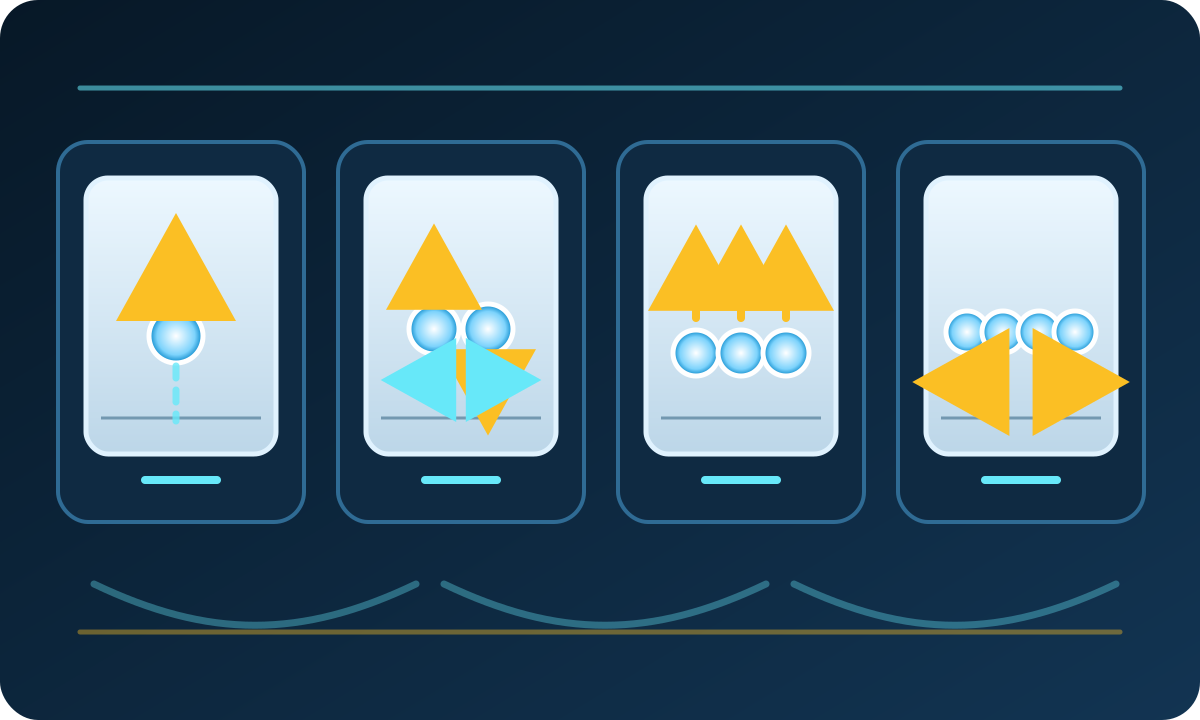
Customization works when each gesture has one stable meaning. If a three-finger swipe sometimes changes audio and sometimes changes apps, hesitation removes the time you hoped to save. Pick actions that are easy to remember by direction: up reveals an overview, down clears the workspace, and sideways changes context.
Microsoft documents the related keyboard commands in its Windows shortcut reference, while Apple lists the Mac keyboard equivalents. For a broader local reference, use KBT’s complete keyboard-shortcuts guide. Keep one keyboard fallback for every gesture you depend on; it helps when you connect a different laptop, dock the machine, or temporarily disable the pad.
Press Win+I, open Bluetooth & devices > Touchpad, tune Taps and Scroll & zoom, choose three/four-finger presets, then open Advanced gestures when available. Record the old choices before assigning a custom shortcut.
Open System Settings > Trackpad for secondary click, scroll/zoom, and workspace gestures. On a compatible Force Touch trackpad, three-finger drag lives under Accessibility > Pointer Control > Trackpad Options. Force Click also requires compatible hardware.
A safe setup sequence
- Write down the defaults. Screenshot the Touchpad or Trackpad settings before editing them.
- Choose one navigation layer. Use three fingers for apps and four fingers for desktops, or keep the system default.
- Map one tap. Middle click is a practical choice for browser work; play/pause can suit media-heavy work.
- Adjust sensitivity separately. Test after changing sensitivity, then return and adjust pointer speed only if necessary.
- Practice for one day. Remove any mapping you trigger accidentally twice; reliable beats clever.
Four expert workflows that combine touchpad and keyboard
The touchpad is fastest when it handles spatial work and the keyboard handles named commands. These combinations reduce long pointer trips without turning the guide into a general keyboard-shortcut list.
Use Ctrl/Command-click to queue sources in background tabs. Reach notes with Windows three-finger app switching; on Mac use Command-Tab or Mission Control. Close reviewed tabs with a Windows middle-click mapping or the platform tab shortcut.
Two-finger scroll for travel, Shift plus an arrow key for exact text extension, pinch for visual inspection, and Ctrl/Command+0 to restore a predictable page zoom.
On Windows, Task View plus three-finger app switching and four-finger desktop switching manage the workspace. On Mac, Mission Control, App Exposé, Spaces, and Command-Tab serve those distinct jobs.
Two-finger vertical scroll changes rows, horizontal pan changes columns, and a held physical click plus the other hand preserves a long drag at the pad edge.
Test what the browser can actually see
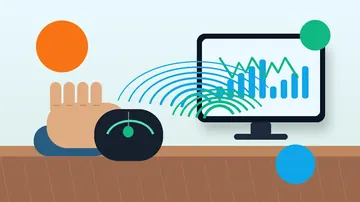
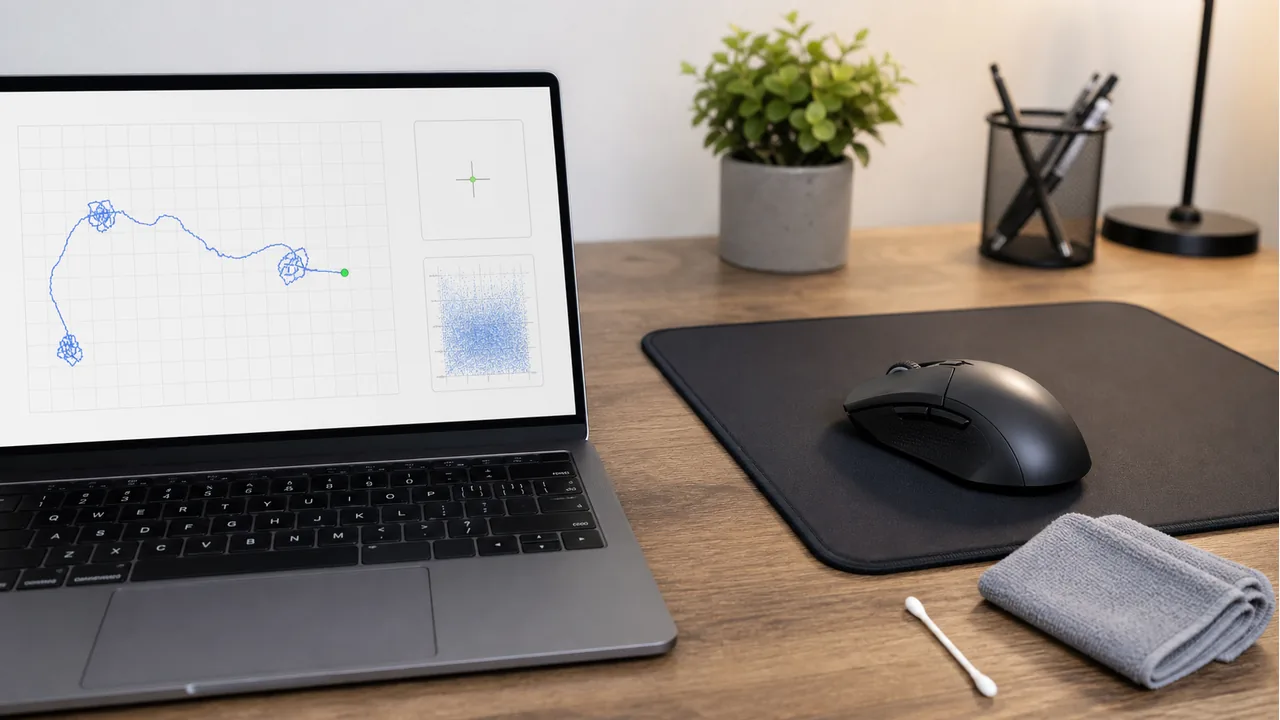
Open the touchpad click and scroll diagnostic and press Start test. A web page can record button events and pointer movement. This tester evaluates vertical direction and reversal consistency from deltaY, while horizontal input is accumulated from deltaX; it does not assign left/right quality grades. It also cannot identify finger count because Windows and macOS often consume three- and four-finger gestures before the browser receives anything.
Use a controlled A/B check. Record one pass, change exactly one setting, reset the tool, and repeat the same motions. Do not compare raw pointer-distance or gap numbers across different browsers or laptops as if they were universal grades; use them to compare the same machine under the same conditions.
The five-minute touchpad check
- Tap the mouse image ten times at a steady pace. The left count should rise once per intentional tap. Extra tap events call for a review of tap/double-tap settings plus cleaning and a retest; repeated events from a physical press can instead point to click-mechanism bounce.
- Two-finger tap or click ten times. Confirm the right-button count rises and the page context menu does not interrupt the test area.
- If you mapped middle click, three-finger tap ten times and confirm the middle count. If nothing appears, check the OS mapping rather than assuming the pad is broken.
- Move slow circles over the mouse image, then fast straight lines. Pointer distance should update continuously; compare movement gaps only with your own second pass.
- Run the timed scroll area vertically in one direction and watch for deltaY reversals. Then scroll horizontally and confirm deltaX registers without heavy unintended vertical leakage; the tool accumulates horizontal movement but does not grade left-versus-right consistency.
- For a selection that drops while your finger is still down, continue with the drag continuity test; it is designed for held-button failures.
| Action | Healthy evidence in the tool | If it fails |
|---|---|---|
| Primary and secondary click | One count per intentional action | Review tap/double-tap settings, clean the pad, and retest; separate tap events from physical-click bounce |
| Middle-click mapping | Middle count rises for each mapped tap | Recheck the three-finger tap assignment |
| Pointer movement | Distance updates through the motion | Compare after driver/settings checks; do not trust one absolute threshold |
| Scroll diagnostics | Vertical deltaY direction/reversals are consistent; horizontal deltaX registers with little unintended vertical leakage | Disable conflicting app behavior and compare another browser; do not infer horizontal direction quality from the total |
| Three- or four-finger OS gesture | The intended system view or desktop changes | Verify in OS settings; the browser may correctly receive no event |

Fix a touchpad that skips, scrolls badly, or triggers gestures by accident
Begin with reversible checks. Microsoft’s touchpad troubleshooting guidance prioritizes updating or reinstalling the driver through Windows Update or Device Manager; a driver mismatch can remove gesture options even when the hardware is capable.
- Clean and dry the surface. Oils and moisture can turn one broad contact into unstable input. Use the laptop maker’s cleaning guidance and never flood the pad.
- Disconnect other pointing devices. Temporarily remove a mouse, dock, tablet, or remote-control utility so you are testing one input path.
- Check palm rejection and post-typing sensitivity. If the pointer jumps while typing, choose a level that suppresses palm contact for longer; if deliberate taps immediately after typing are missed, choose a more responsive level. This is separate from pointer speed.
- Verify scroll direction and tap settings. A reversed direction or disabled tap can feel like failure even when events are arriving normally.
- Install the correct driver. Use Windows Update and the laptop manufacturer’s support page. Avoid random driver-download sites.
- Retest after one change. Return to the same Mouse Tester sequence so a temporary improvement is not mistaken for a fix.
When to repair the touchpad or use an external mouse
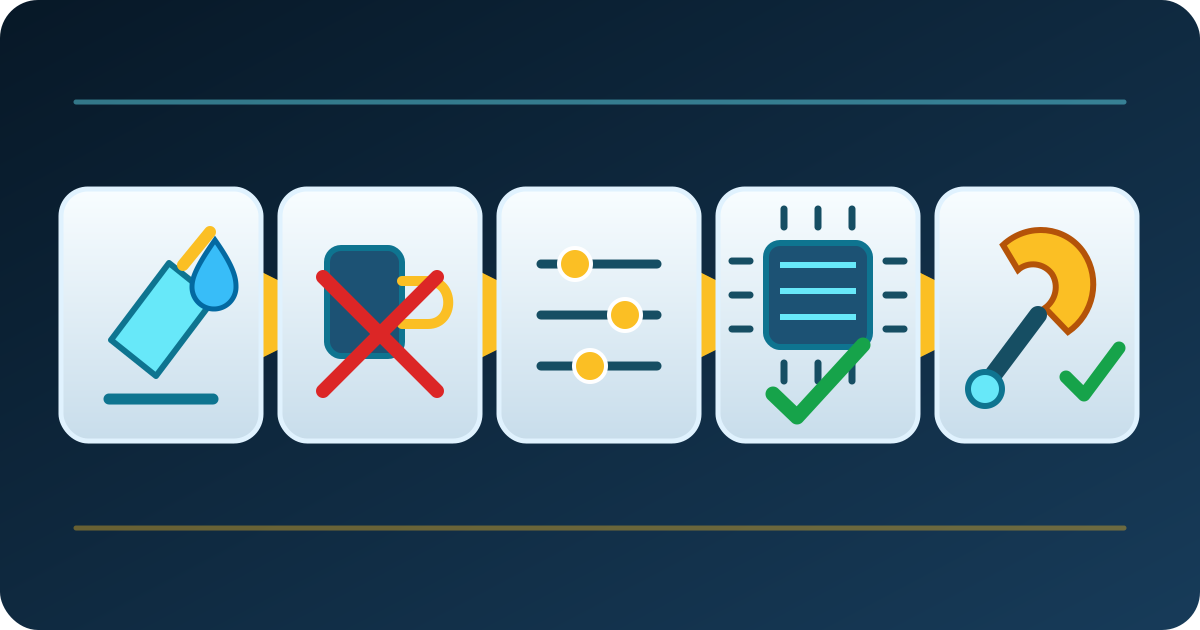
Settings cannot repair a swollen battery, loose cable, cracked click mechanism, or liquid damage. Stop pressing a touchpad that is lifting above the palm rest; power down the laptop and have the hardware inspected because the pad may be displaced from below.
Clicks, pointer movement, and scroll all register consistently, and only speed, sensitivity, or gesture mappings feel wrong.
Precision dragging, gaming, CAD, or long desk sessions exceed what the pad does comfortably, while the built-in pad remains useful for travel.
Input drops across apps and operating systems, the pad is physically raised or damaged, or the correct driver and a clean retest do not restore basic clicks and movement.
See where Windows 11 hides custom gestures
This short Acer Support walkthrough shows the Windows 11 Touchpad settings used to change three- and four-finger gestures. Menu wording can vary slightly by Windows build and laptop driver.

Official sources and testing basis
Gesture behavior and settings paths in this guide come from the platform owners. The testing advice describes the actual events exposed by KeyboardTester.click tools and keeps OS-level gesture limits explicit.
- Touch gestures for Windows (Microsoft Support)
Official Windows touch and touchpad gesture map, including three- and four-finger navigation.
- TOUCHPAD_SENSITIVITY_LEVEL (Microsoft Learn)
Official Windows touchpad sensitivity levels; useful for separating contact sensitivity from pointer speed.
- Fix touchpad problems in Windows (Microsoft Support)
Microsoft’s driver-update and reinstall path for touchpad problems.
- Keyboard shortcuts in Windows (Microsoft Support)
Official Windows keyboard fallbacks paired with the gesture workflows.
- Multi-Touch gestures on Mac (Apple Support)
Official list of Mac Multi-Touch gestures and the hardware/settings caveat.
- Intro to Mac keyboard shortcuts (Apple Support)
Official Mac modifier keys and shortcut conventions.
- Chrome keyboard shortcuts (Google Chrome Help)
Official Chrome link, tab, window, and zoom shortcuts used in the browser hybrids.
Continue with focused touchpad checks
Use one tool for one question. The same-language editions below keep the workflow clear without sending localized readers to an English fallback.
Check button events, pointer movement, vertical deltaY direction/reversals, and whether horizontal deltaX input registers without excessive vertical leakage.
Mouse Accuracy TestPractice controlled pointer placement after changing speed or acceleration settings.
Mouse Drag TestFind a held click that releases during selections or file moves.
Mouse Drift TestSeparate accidental palm contact from a pointer that moves while the touchpad is untouched.
Keyboard Shortcut IdentifierVerify the key combination you plan to record as a custom Windows gesture.
Related mouse guides
Understand how pointer devices turn physical motion into on-screen coordinates.
Why right-click often feels slowerSee why context-click technique and button mechanics change repeated-click results.
Mouse sensor spin-out diagnosisUse a controlled movement workflow when the pointer suddenly jumps or loses direction.
Complete keyboard shortcuts guideUse the full Windows, macOS, and Linux reference when a keyboard command is better than a gesture.
How to test buttons and scrollingRead the dedicated interpretation guide for the Mouse Tester results used here.
Cursor moving by itself?Diagnose palm contact, sensor jitter, and genuine pointer drift without expanding this gesture guide into a second repair article.
Frequently asked questions
- Which laptop touchpad gestures should I learn first?
Start with two-finger scrolling, two-finger right-click, pinch zoom, and one workspace gesture: three-finger app switching on Windows or Mission Control on Mac. Add four-finger desktop switching only if you already use virtual desktops. A small stable set is easier to remember and use consistently than a crowded map.
- Why do three-finger gestures not work on my Windows laptop?
Open Settings > Bluetooth & devices > Touchpad and look for three-finger controls. If they are missing, the laptop may not expose Precision Touchpad features or the correct driver may not be installed. Update through Windows Update and the laptop manufacturer before using third-party driver sites.
- How do I right-click with a laptop touchpad?
Tap or click with two fingers on most modern Windows touchpads and Mac trackpads. You can also press a configured lower corner. If neither works, enable secondary click or two-finger tap in Touchpad or Trackpad settings, then verify the right-button event in Mouse Tester.
- Can I customize three- and four-finger touchpad gestures?
Yes on supported Windows Precision Touchpads: Settings > Bluetooth & devices > Touchpad exposes three- and four-finger gestures and, on some systems, advanced assignments. Macs offer gesture toggles in System Settings > Trackpad, but the available remapping is more limited.
- How can I tell whether my touchpad is faulty or only misconfigured?
Take a baseline in Mouse Tester for primary and secondary clicks, pointer movement, and both scroll axes. Change one setting or driver state, reset, and repeat the same motions. Consistent events with uncomfortable speed usually point to configuration; missing events across apps after the correct driver and cleaning justify hardware inspection.
Turn gestures into evidence: open the Mouse Tester, record one clean click-pointer-scroll pass, change one setting, and keep only what improves the repeat test.




Reader discussion
Comments
Share what worked, what did not, or what you would test next. Every comment is reviewed before it appears.
Loading approved comments…
Leave a comment
No account or sign-in is required. Links and HTML are not accepted.