






Fast answer: Use this guide as a practical checklist for ghost click detector: how to fix mouse double clicking. Start with the main browser tool, confirm the result with one focused follow-up test, then change only one device, browser, or setting at a time so you know what actually fixed the issue.
You click once, but your computer registers two clicks. Files open twice, text gets deselected, drag-and-drop fails. Sound familiar? This is called ghost clicking or phantom double clicking, and it is one of the most common mouse hardware failures.

What Causes Ghost Clicks?
- Worn microswitches: After millions of clicks, the metal contact inside the switch degrades and bounces, causing double registration
- Dust or debris: Particles inside the switch mechanism can cause intermittent false clicks
- Software bugs: Rarely, driver issues or OS settings can cause perceived double clicks
- Low debounce settings: Gaming mice with very low debounce times are more prone to ghost clicks
How to Detect Ghost Clicks
- Open the ghost click detector
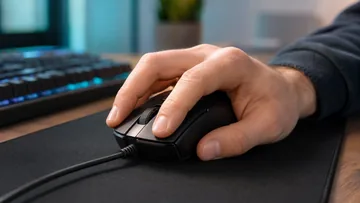
- Click normally at your regular pace
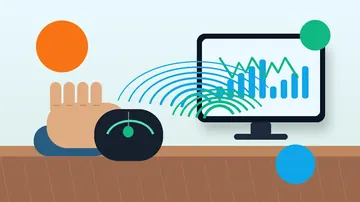
- The tool tracks every click event and measures the time between clicks
- If the tool detects clicks with impossibly short intervals (under 40ms), you have a ghost click problem
How to Fix Ghost Clicks
Software Fix (Temporary)
Increase your mouse’s double-click speed threshold in your OS settings. On Windows, go to Control Panel, Mouse, and adjust the double-click speed slider. This masks the problem but does not fix it.
Hardware Fix (Permanent)
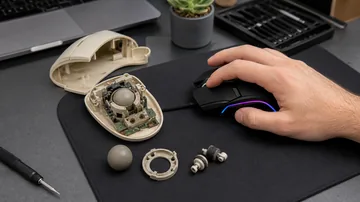
Replace the microswitch inside your mouse. Common replacement switches include Omron D2FC-F-7N, Kailh GM 8.0, and TTC Gold. This requires basic soldering skills but costs under $2 per switch.
Contact Cleaning
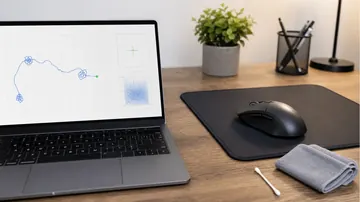
Open the mouse, locate the microswitch, and spray electronic contact cleaner into the switch. Click the switch rapidly to work the cleaner in. This can restore function for a few months.
When Replacement Wins
If the mouse is cheap, old, or fails again after cleaning, replacing it usually beats a second repair. The latest gaming mouse releases guide compares what the major brands shipped most recently.
Related Tools
- Mouse Button Tester — Test all buttons
- Double Click Test — Measure time between click events
- Click Speed Test — Verify click registration at high speeds
- Frame Skipping Test — related display diagnostic
- Mouse Acceleration on Windows 11 guide — rule out software-side aim inconsistency before blaming the switch
Check your mouse now: Open the ghost click detector.
Quick Action Checklist
- Test left, right, middle, scroll, and side-button behavior separately.
- Compare wired, receiver, and Bluetooth modes if available.
- Use the same browser and surface when comparing results.
- Retest after changing drivers, polling rate, or game settings.
FAQ
Do I need to install anything for this guide?
No. The recommended checks run in a modern browser unless the article specifically points you to an operating-system or device setting.
Is the browser test private?
The KeyboardTester.click tools are designed to run the test interaction in your browser. Do not type passwords, private messages, or sensitive account data into any testing page.
What should I do if the result looks wrong?
Repeat the test in a clean browser tab, then change one variable at a time such as device, cable, USB port, permission, wireless mode, or browser profile.
When should I use a related tool?
Use a related tool when the first result points to a narrower issue, such as latency, ghosting, stuck input, camera permission, audio routing, or QR/OCR decoding quality.




Reader discussion
Comments
Share what worked, what did not, or what you would test next. Every comment is reviewed before it appears.
Loading approved comments…
Leave a comment
No account or sign-in is required. Links and HTML are not accepted.