







Quick answer
A high-pitched tone that changes with GPU load or frame rate can be coil whine from the graphics card, PSU or motherboard. A microphone spectrum is a clue, not a component diagnosis. Use the Coil Whine Test for relative comparisons under a repeatable load; a narrow peak alone cannot distinguish a coil from another tonal source.
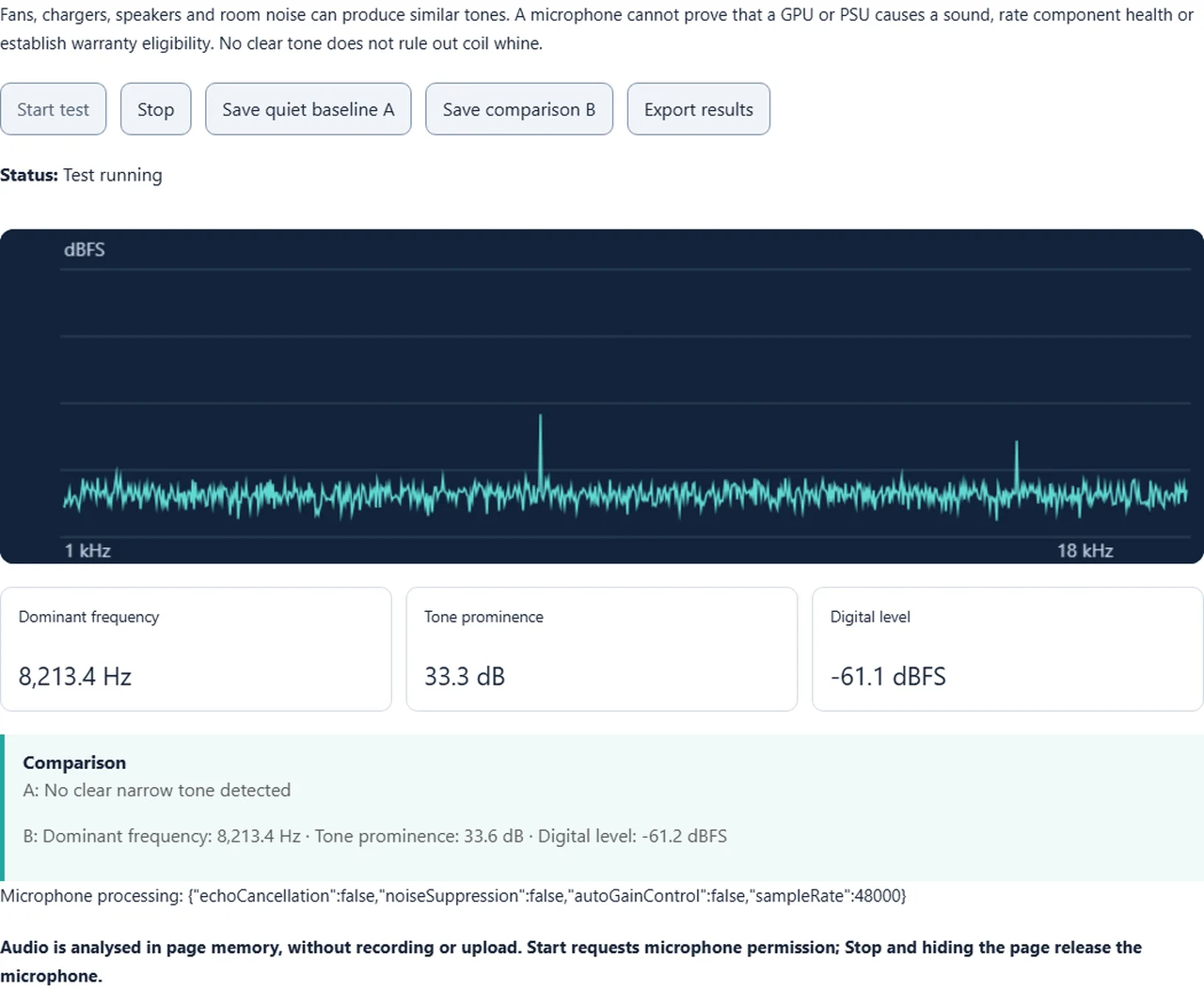
The writing assistant’s November 2 preparation log records a browser session at 48,000 Hz: Reading A had no detected narrow tone; Reading B displayed 8,213.4 Hz, 33.6 dB prominence and -61.2 dBFS. These are reported reference readings, not independently verified measurements of a particular GPU or PSU. No physical component identification or before/after hardware repair is established by this example.
Few PC building moments are more deflating than buttoning up a clean desktop build, launching a game, and hearing a thin, mosquito-like whistle cut straight through your room. Turn the game off and the PC goes whisper-quiet again. Move your mouse across an uncapped title-screen menu and the buzz actually plays musical notes. Because a graphics card's voltage regulation modules (VRMs) and a power supply's switching transformers work in lockstep under load—and echo inside the same steel and glass box—even experienced builders routinely blame the GPU when the PSU is singing, or vice versa.
The workflow below is a reproducible troubleshooting method: compare a quiet baseline with a repeatable load, then compare safe microphone positions without changing the workload. These observations can guide the next check; they cannot certify a component as faulty.
Coil whine vs fan bearing vs speaker ground loop: five PC noise patterns
Not every high-pitched noise inside a computer comes from an inductor. Before you change power cables or adjust voltage curves, match when the sound appears and how fast it reacts to what is happening on screen.
| Sound pattern | Most likely source | First verification step |
|---|---|---|
| Pitch jumps in milliseconds when FPS changes, in game menus, or as you pan the camera | GPU VRM inductors (graphics card coil whine) | Cap frame rate to your monitor refresh rate and compare Reading A vs B |
| Steady high buzz under heavy total wattage, loudest at the bottom or rear case grille | PSU primary transformer or secondary chokes | Hold the mic 10 cm from the rear PSU exhaust vs the upper GPU edge under identical load |
| Pitch ramps up and down gradually over 3 to 10 seconds after load starts or stops | Case, CPU, or GPU cooling fan blade / worn bearing | Watch fans spin down after closing the load; coil whine stops instantly on frame drop |
| Faint rhythmic ticking, gurgling, or constant hum near the CPU socket even at idle | AIO liquid cooler pump impeller or trapped air | Vary pump RPM in BIOS/software while GPU load stays at 0% |
| Buzzing comes through wired headphones or desk speakers when the GPU works hard | Audio ground loop or motherboard EMI bleed | Unplug speakers/headphones and re-run the open-air microphone spectrum check |
Notice the dividing line between row one and row three: reaction time. Fans have rotational inertia and thermal hysteresis, so they take seconds to speed up or slow down. Electromagnetic coil whine reacts at the speed of frame rendering—the instant you alt-tab out of a 3D scene, the tone vanishes or drops an octave. If your GPU noise is accompanied by falling clock speeds and sudden frame drops rather than just sound, check our RTX 50 hotspot temperature and GPU throttling guide to rule out a cooler contact issue. And if you want to hear what a pure 4 kHz to 12 kHz tone sounds like at low volume before measuring your case, run a quick sweep in our audio frequency response test.
Measure it first: what my 48 kHz Coil Whine Test sessions showed
The writing assistant’s November 2 preparation log records a browser session at 48,000 Hz: Reading A had no detected narrow tone; Reading B displayed 8,213.4 Hz, 33.6 dB prominence and -61.2 dBFS. These are reported reference readings, not independently verified measurements of a particular GPU or PSU. No physical component identification or before/after hardware repair is established by this example.
The tool code requests echoCancellation, noiseSuppression and autoGainControl off, and uses an AnalyserNode FFT of 32,768 samples. At 48 kHz the bin spacing is about 1.46 Hz; this is not a guarantee of microphone accuracy or resolving two adjacent tones. Actual microphone processing depends on the device and browser. Source inspection also confirms that hiding the tab stops capture. Keep the analyzer and workload visible in separate windows, or use a second device.
How to read Dominant Frequency, Tone Prominence, and Digital Level
Frequency identifies the strongest detected narrow peak in the tool’s 1–18 kHz search range. Prominence measures contrast with nearby bins; the 12 dB detection gate is this tool’s heuristic, not an industry pass/fail limit. dBFS is a relative digital level, not calibrated dBA. Compare both level and prominence with the same microphone, distance, gain and load. A change in background noise can change prominence without changing the tone itself. Use the browser decibel-meter accuracy guide for measurement limits. These readings cannot establish hearing safety.
GPU vs PSU coil whine: the 4-step physical and load isolation protocol
- Shut down and unplug the PC before removing a side panel; follow its manual. Never open the PSU. Keep microphones, loose clothing and any listening tube outside the chassis, away from fans and electrical parts.
- Under the same repeatable workload, compare positions outside the PSU exhaust and GPU area at equal distance. Reflections and microphone direction affect the result: a stronger signal suggests a location, but does not prove the source.
- Compare a capped and uncapped frame rate using the same scene. Both GPU and PSU respond to changing load, so a pitch change cannot uniquely identify either component. Stop testing if the system becomes unstable or overheats.
- Noise during mouse movement or at idle may also involve motherboard power circuitry. Do not rule the GPU in or out from that symptom alone; use manufacturer support for confirmation.
Safe fixes that actually quiet coil whine (in the order I would try them)
- Try an in-game or driver frame-rate cap first, then repeat the same measurement. Results depend on the hardware; no fixed dB improvement is promised.
- With the PC shut down and unplugged, check connector seating and cable routing against the GPU and PSU manuals. Use only cables explicitly compatible with that exact PSU. Never mix modular cables or change power connections while running.
- A small manufacturer-supported power-limit reduction may change the sound, with possible performance loss. Voltage tuning is optional and hardware-specific: there is no universal safe millivolt value. Keep defaults recorded and revert if unstable.
- If a UPS seems involved, follow its manufacturer’s guidance or ask support. Do not defeat grounding or change live mains wiring. A PSU’s ATX version alone does not predict its acoustic behavior.
- Move the PC farther away while preserving ventilation. Never open the PSU, stop fans by hand, or apply glue to coils. Burning smells, sparks, crackling, shutdowns or damaged connectors require stopping use and contacting support, rather than assuming harmless coil whine.
Video explainer: why inductors whine under load

RMA, return, or keep it? A practical hardware decision guide
Warranty handling and return windows depend on the seller, model and region. Ask support about the actual policy; not every manufacturer or retailer treats noise identically. Do not rely on an undocumented burn-in period or let a return deadline pass while waiting for improvement. A replacement may sound different, but improvement is not guaranteed.
A 2-minute before-and-after verification habit
The workflow below is a reproducible troubleshooting method: compare a quiet baseline with a repeatable load, then compare safe microphone positions without changing the workload. These observations can guide the next check; they cannot certify a component as faulty.
- Mark your microphone spot. Place a small piece of tape on your desk or case edge 10 cm from the suspect component so every test happens at the identical distance and angle.
- Keep the analyzer visible in its own window. Remember that hiding the browser tab triggers the privacy stop guard; tile the live coil whine spectrum analyzer on one half of your screen and your GPU stress test on the other.
- Capture Reading A at idle, then Reading B after 30 seconds of steady load. Watch both Dominant Frequency (Hz) and Tone Prominence (dB).
- Frequency identifies the strongest detected narrow peak in the tool’s 1–18 kHz search range.
GPU and PSU coil whine questions
Is GPU or PSU coil whine dangerous or damaging to my PC?
Coil whine by itself can be a normal vibration of inductors. Sound alone cannot rule out another fault. If noise is accompanied by burning smells, sparks, crackling, instability or damaged connectors, stop using the equipment and contact the manufacturer.
How can I tell if coil whine is coming from my GPU or my PSU?
Shut down and unplug the PC before removing a side panel; follow its manual. Never open the PSU. Keep microphones, loose clothing and any listening tube outside the chassis, away from fans and electrical parts. Under the same repeatable workload, compare positions outside the PSU exhaust and GPU area at equal distance. Reflections and microphone direction affect the result: a stronger signal suggests a location, but does not prove the source. Compare a capped and uncapped frame rate using the same scene. Both GPU and PSU respond to changing load, so a pitch change cannot uniquely identify either component. Stop testing if the system becomes unstable or overheats.
Why does my PC only whine at high FPS or in game menus?
Try an in-game or driver frame-rate cap first, then repeat the same measurement. Results depend on the hardware; no fixed dB improvement is promised.
Does coil whine go away on its own after a burn-in period?
There is no guaranteed burn-in cure or universal number of hours. Recheck your seller’s return deadline and contact support if the noise is unacceptable.
Can a browser microphone test prove a GPU or PSU warranty claim?
No, and our tool explicitly states that limitation. Consumer microphones vary in sensitivity, apply hardware filtering, and measure relative digital level (dBFS) rather than calibrated sound pressure (dBA). Use the exported JSON readings and spectrum graph as a consistent before-and-after troubleshooting log, and pair them with a short video showing the sound reacting to 3D load if you contact retailer or vendor support.
Why did the Coil Whine Test stop when I switched browser tabs to start my game or stress test?
By design, the tool includes a privacy guard on the browser's visibilitychange and pagehide events that immediately stops audio analysis and releases your microphone whenever the tab is hidden. To measure while running a browser GPU stress test or game, keep the Coil Whine Test visible in a side-by-side window (or run it on your smartphone held near the PC case).
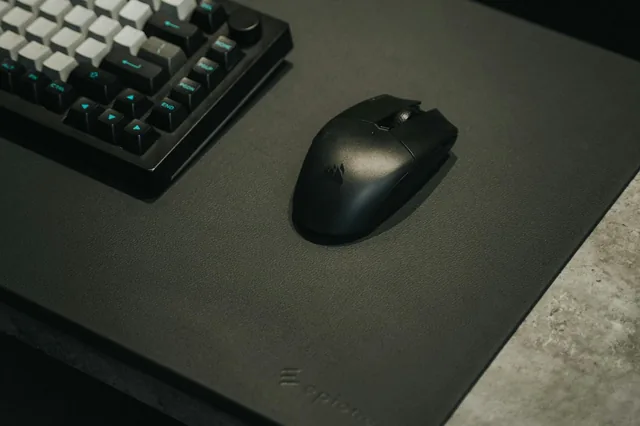
Editorial basis: prepared with AI assistance and reviewed against the linked manufacturer and Web Audio documentation on November 2, 2026. The writing assistant reported the illustrated browser readings; the physical audio source and any hardware repair outcome were not independently verified. The article recommends a repeatable method, not a certified GPU/PSU diagnosis or hearing-safety test. Photos are credited Pexels images; the English screenshot illustrates the supplied reference readings. KeyboardTester.click owns the linked tools.
Sources and verification
More GPU and audio troubleshooting guides
Catch the whine on a spectrum graph before you swap hardware
Guesswork blames the graphics card for a noisy power supply or a rubbing fan. Save a quiet baseline, trigger the load in a separate window, and let the 1–18 kHz spectrum show whether a narrow tone actually appears.
Run the Coil Whine Test



Reader discussion
Comments
Share what worked, what did not, or what you would test next. Every comment is reviewed before it appears.
Loading approved comments…
Leave a comment
No account or sign-in is required. Links and HTML are not accepted.