




Fast answer
Bluetooth audio always arrives late because sound must be encoded, sent over 2.4 GHz radio, buffered, and decoded before you hear it. A dedicated low-latency link can hold that near 40 ms; an everyday phone-and-earbuds pairing often lands in the hundreds of milliseconds. Measure your real number first with the browser audio delay check: run it wired, run it again over Bluetooth, and the difference is your Bluetooth share. Then fix in order — re-pair, force a better codec, enable game mode, remove interference and multipoint, disable enhancements, update firmware.
When voices land a beat after lips move, or a game footstep arrives after the enemy is already visible, you are hearing Bluetooth latency. Wireless listening is now the default way people hear their devices — the Bluetooth SIG projects Bluetooth device shipments to surpass 5.3 billion units in 2025 — yet the radio link is never instant, and guessing which fix helps wastes evenings.
This guide takes a measurement-first path. You will put a real millisecond number on your delay with the on-page round-trip sound check, compare it against honest expectations for each connection type, then work through a fix ladder ordered by how often each step actually helps. It ends with the question the settings menus cannot answer: when is the delay a hardware limit, and what upgrade genuinely removes it?
How much Bluetooth audio delay is normal?
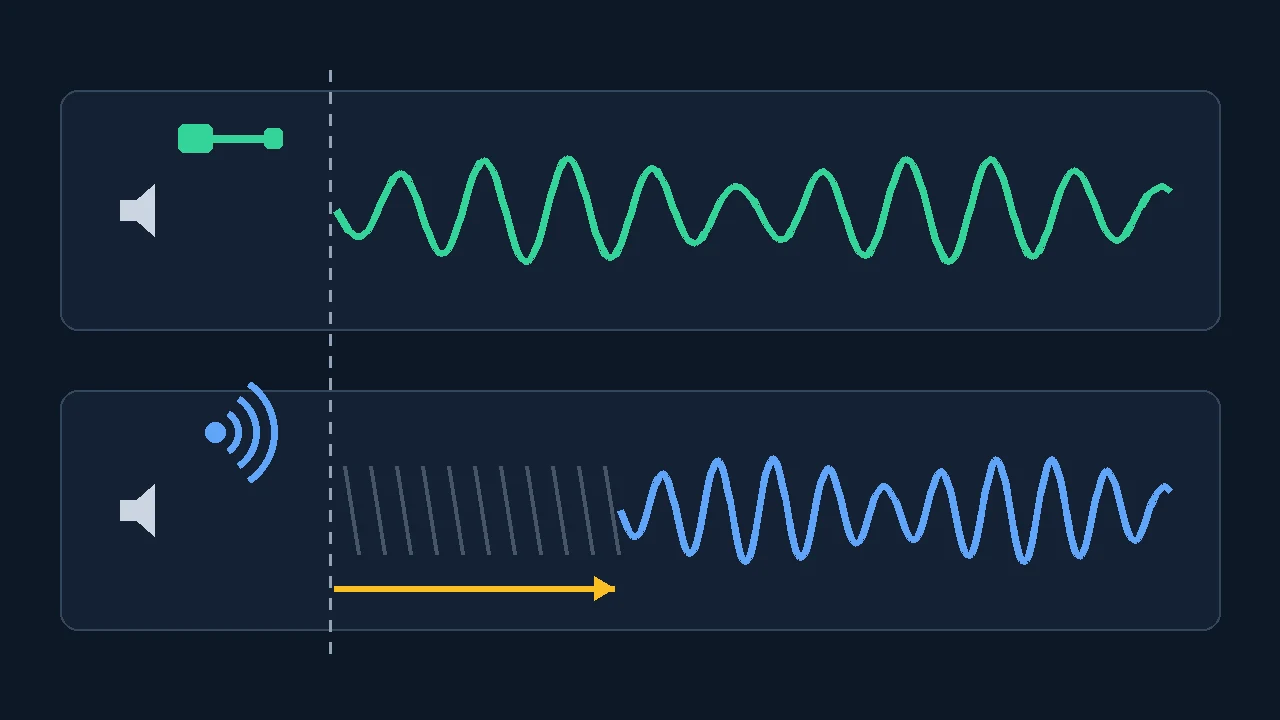
Every Bluetooth audio chain performs four jobs before you hear anything: the source compresses the sound with a codec, the radio transmits it in packets, the receiver buffers enough data to survive retransmissions, and the headphone chip decodes it back into audio. Each stage costs milliseconds, so the total depends on the codec both ends agreed on, the radio conditions, and how conservatively each device buffers.
Human tolerance is narrow. In broadcast research behind Rec. ITU-R BT.1359-1 (ITU), viewers began detecting a lip-sync error when audio lagged the picture by roughly 125 ms — or led it by only about 45 ms. Ordinary Bluetooth links exceed that lag threshold routinely, which is why uncompensated video looks dubbed.
Video apps hide the problem; games cannot. Modern players quietly hold back the picture so it lines up with your delayed audio, which is why YouTube can look fine while the same earbuds feel broken in a shooter. A game cannot postpone a gunshot until your earbuds are ready — game audio has to react to input immediately, so the full delay is exposed.
Realistic expectations by connection type
| Connection | What the evidence says | Basis |
|---|---|---|
| Wired headphones or speakers | Effectively immediate for lip-sync purposes; use your wired measurement as the baseline that contains all the non-Bluetooth overhead | Practical guidance |
| Everyday Bluetooth (SBC, AAC, aptX, LDAC) | Measured averages of 308-369 ms across four Android flagships: SBC 308 ms, aptX 316 ms, LDAC 324 ms, AAC 369 ms | SoundGuys lab tests, 2019 (updated 2021) |
| aptX Low Latency link (both ends support it) | About 40 ms by specification — near the threshold where audio and video feel synchronized | Qualcomm, official aptX documentation |
| Bluetooth LE Audio (LC3 codec) | Designed for reduced latency compared with Classic Bluetooth audio; no single public ms figure, so measure your pairing | Microsoft, Windows 11 LE Audio documentation |
| 2.4 GHz gaming dongle (proprietary, not Bluetooth) | Purpose-built for game timing; vendor-specified figures vary, so verify with a measurement | Practical guidance |
Measure your real delay before changing anything
You can put a number on your delay with nothing but a speaker and a microphone. The acoustic round-trip measurement plays a series of correlated chirps, listens for their return, and reports the median delay with confidence filtering and jitter, rejecting weak or ambiguous detections. Apple uses the same principle when an iPhone microphone calibrates Wireless Audio Sync on Apple TV 4K — an acoustic timing measurement is the practical way to see a full audio chain.
A round-trip number includes fixed parts that have nothing to do with Bluetooth: the system output buffer, the microphone capture path, and the sound's travel through the air. The honest workflow is therefore an A/B comparison — measure twice, change only the output device, and subtract.
The wired-versus-Bluetooth workflow
- Baseline first. Run the check with wired or built-in speakers in a quiet room, system volume around 30-50%, microphone about 20-50 cm from the speaker. Note the median result.
- Switch only the output. Connect the Bluetooth headphones or speaker, keep the same placement, volume, room, and browser, and run the check again.
- Subtract. Bluetooth result minus wired result is your Bluetooth link share — the number this article helps you shrink.
- Trust only clean runs. If jitter is high or chirps get rejected, close noisy apps, quiet the room, and rerun rather than reading a shaky median.
- Re-measure after every fix. Change one thing at a time in the ladder below and repeat the Bluetooth run, so you know which step actually earned the milliseconds.
Why Bluetooth audio lags: the usual suspects
Knowing the cause tells you which rung of the fix ladder will pay off. Six mechanisms explain almost every delayed-audio complaint:
Receivers hold audio in reserve so a lost packet can be retransmitted without a dropout. The worse the link, the deeper devices buffer — delay is the price of stutter-free playback.
Both ends must support a codec, or the link quietly drops to baseline SBC. It happens after re-pairing, multipoint switching, or a phone that never supported your earbuds' best codec — and nothing warns you.
Wi-Fi routers, microwaves, USB 3.0 ports, and your own body all interfere with the band Bluetooth uses. Retransmissions grow the buffer, so delay climbs precisely when audio also starts stuttering.
Staying connected to two sources, or a TV streaming to two headphones at once, adds scheduling overhead and often forces the plainest codec for compatibility.
A television delays the picture too, with upscaling and motion processing. What you perceive is the audio path minus the video path, which is why the same headphones behave differently on every input and picture mode.
Voice calls use the hands-free profile — a narrow, low-latency voice link with much lower fidelity. Music and video use the high-quality media profile with bigger buffers. Same headphones, two different pipelines.
The fix ladder: cheapest step first
Work top to bottom and re-measure after each rung. Most delayed-audio cases resolve in the first four steps; the rest are hardware limits covered later.
- Re-pair from scratch. Do not just reconnect — forget the device on the source, restart both, and pair again. This forces fresh codec negotiation and clears a stale link that dropped to SBC weeks ago.
- Pick the best mutual codec. On Android, enable Developer options and set Bluetooth Audio Codec to the strongest option both devices hold onto. On Windows 11, check whether your PC and buds support the LE Audio toggle. macOS and iPhone negotiate automatically — your codec lever there is choosing compatible hardware.
- Enable the low-latency or game mode. Many earbuds ship one in their companion app — Samsung documents Game mode on Galaxy Buds for exactly this lag. It usually trades range or quality for a smaller buffer.
- Clear the airwaves. Move closer, get line of sight, keep the phone on the same side as the receiving earbud, distance yourself from the router and USB 3.0 hubs, and disable multipoint or a second connected device while gaming or watching.
- Disable audio enhancements. Equalizers, spatializers, and "enhancement" processing add their own buffers. Turn off enhancement toggles in Windows sound settings or the vendor app, then re-measure. The same settings pages hide the monitoring toggle that makes a microphone pick up desktop audio on Windows 11 — worth checking in the same visit.
- Update firmware and drivers. Earbud firmware updates regularly tune codec and buffer behavior; on PCs, Bluetooth adapter drivers matter as much. Update both before blaming hardware.
- Re-measure and decide. Run the delay check again. If your Bluetooth share is still far above the 40 ms class after all six steps, settings will not close the gap — the upgrade section below will.
Quick checklist while troubleshooting
- One change at a time, one measurement per change.
- Keep the wired baseline number written down.
- Confirm which codec is actually active after every re-pair, not which one the box advertises.
- Test games and video separately — video players hide delay, games expose it.
- If delay appears only on one app, suspect the app's own output settings before the headphones.
- If one earbud lags the other, re-seat both in the case and let them resync before deeper fixes.
Ladder done? Run the measurement again and compare with your baseline — if the gap collapsed, one of your changes worked, and now you know which one.
Where the levers are on each platform
The same physics applies everywhere, but each operating system exposes different controls. This is where the fix ladder's codec step lives on each device you own.
| Platform | Where the lever is | What to expect |
|---|---|---|
| Windows 11 | Settings > Bluetooth & devices; LE Audio toggle on supported PCs; sound settings for enhancements; adapter drivers from the maker | LE Audio support requires Windows 11 22H2 or newer plus compatible radio, codec, and drivers |
| Android | Developer options > Bluetooth Audio Codec, after enabling Developer options | Codec list varies by manufacturer; the setting can revert after reconnecting |
| macOS | No manual codec picker — AAC or SBC is negotiated automatically | Your levers are re-pairing, interference control, and going wired or dongle for latency-critical work |
| iPhone / iPad | No user codec setting; AAC-centric stack | Video apps compensate well; game latency depends on the earbud generation |
| TV / streaming box | Sound output menu, AV-sync or audio-delay sliders, game mode; Apple TV 4K offers acoustic Wireless Audio Sync | Direct TV-to-headphone Bluetooth is usually plain SBC — the next section covers the workarounds |
The TV special case: lip-sync that sliders cannot fix
Televisions are the hardest room in the house. The TV delays the picture with upscaling and motion processing while its built-in Bluetooth typically speaks only baseline SBC — and the popular "audio delay" slider mostly works in the wrong direction: it delays sound further to fix a soundbar that runs ahead of the picture. It cannot pull late Bluetooth audio earlier.
What genuinely helps: enable the TV's game mode to strip video processing so the picture stops racing ahead; use a player-level sync adjustment when an app offers one that shifts both directions; calibrate with Wireless Audio Sync on Apple TV 4K, which times a test tone through an iPhone microphone; or bypass the TV's radio entirely with a low-latency Bluetooth transmitter on the optical or headphone output feeding a matching headset.
When settings can't win: what to buy instead
If your measured Bluetooth share is still in the hundreds of milliseconds after the full ladder, you have hit the hardware's ceiling, not a settings problem. Spend money only where it fixes your actual use case:
Best for TVs and older sources. A transmitter with aptX Low Latency or aptX Adaptive on the optical/3.5mm output, paired with headphones that support the same codec, targets the roughly 40 ms class.
The standards-based path forward: reduced latency versus Classic Bluetooth plus features like Auracast. Requires support on both ends — a recent phone or an LE Audio-capable Windows 11 PC.
A proprietary radio dongle designed around game timing rather than Bluetooth compatibility. The reliable competitive-gaming choice; check the dongle's platform support before buying.
The guaranteed fix and usually the cheapest: no radio, no codec, no buffer. A USB-C or 3.5mm adapter revives wired listening on jackless phones.
Before paying for any of these, check the codec or link listed on both ends, confirm the source has the port the dongle needs, and keep the receipt: repeat the same round-trip measurement inside the return window. A reproducible millisecond difference between old and new hardware is far better evidence than "it feels faster" — in either direction.
One more Bluetooth culprit hides outside the audio path: a wireless controller adds input delay of its own. If a game feels late even with fast audio, give the pad a controller response check and see the companion guide on Bluetooth input lag — input delay stacks on top of whatever your headphones add, and our input-delay check keeps that measurement separate from the audio one.
See codec delay side by side
This short demonstration plays the same video through headphones on different Bluetooth codecs, so you can watch baseline links fall behind while an aptX Low Latency pair stays with the picture — the visual version of the numbers your own measurement produces.

Sources and measurement basis
Millisecond claims in this guide come from the named primary and testing sources below; your own numbers should come from the reproducible wired-versus-Bluetooth workflow above.
- aptX Low Latency technology (Qualcomm)
Official specification pages describing aptX Low Latency's approximately 40 ms figure and its lip-sync purpose.
- Android Bluetooth latency measurements (SoundGuys, 2019, updated 2021)
Independent lab measurements across four Android flagships: average SBC 308 ms, aptX 316 ms, LDAC 324 ms, AAC 369 ms.
- Relative timing of sound and vision, Rec. ITU-R BT.1359-1 (ITU)
Broadcast recommendation whose research places lip-sync detectability near 45 ms of audio lead and 125 ms of audio lag.
- Configuring Bluetooth LE Audio quality settings on Windows 11 (Microsoft)
Documents LE Audio's reduced latency versus Classic Bluetooth audio and the Windows 11 requirements for enabling it.
- Developer options: Bluetooth Audio Codec (Android)
Official documentation for the Developer options Bluetooth Audio Codec selector used in the fix ladder.
- Sound from your Galaxy Buds lags during games or videos (Samsung)
Manufacturer guidance on earbud sound lag: proximity, interference sources, and Game mode.
- Calibrate video and audio on Apple TV 4K (Apple)
Official guide to Wireless Audio Sync — an acoustic timing calibration using an iPhone microphone.
- 2025 Bluetooth Market Update: device forecast (Bluetooth SIG)
Industry forecast: Bluetooth device shipments projected to surpass 5.3 billion units in 2025 and approach 8 billion by 2029.
Keep diagnosing with these tools
Each check answers one narrow question, so you can separate the audio path, the speakers, and the input chain instead of guessing.
Measure round-trip sound delay with correlated chirps, confidence filtering, and jitter — the wired-versus-Bluetooth workflow from this guide.
Headphone / Speaker TestConfirm left and right channels and basic output health before blaming delay for what is actually a routing problem.
Surround Sound TestCheck multi-channel mapping when a home-theater chain is part of your delay puzzle.
Input Latency CheckerLook at keyboard and mouse input timing separately, so input lag never gets mistaken for audio lag.
Gamepad TesterVerify a wireless controller's response when a game feels late even after the audio measures fast.
Related audio and Bluetooth guides
The input-side twin of this article — the same radio realities applied to typing delay.
Do you react faster to sound or sight?Why wireless audio delay quietly skews sound-based reaction measurements.
Left/right channel test for headphonesRule out swapped or dead channels before you chase milliseconds.
Is my subwoofer working or blown?A structured low-frequency diagnosis for the rest of your audio chain.
Internet keeps dropping for a few seconds?When the whole call freezes rather than just the sound, a ten minute stability session shows which network layer is failing.
Frequently asked questions
- Why is my Bluetooth audio delayed or out of sync?
Bluetooth sound is encoded, transmitted in packets, buffered against radio errors, and decoded — every stage adds milliseconds. The total grows when the link falls back to the basic SBC codec, when interference forces retransmissions, or when multipoint and dual-audio features add overhead. Video players usually compensate by delaying the picture; games cannot, which is why the same earbuds can feel fine on YouTube and broken in a shooter.
- How much delay is normal for Bluetooth headphones?
Everyday pairings measure far higher than spec sheets suggest: SoundGuys' tests across four Android flagships averaged 308-369 ms depending on codec. A dedicated aptX Low Latency link is specified at about 40 ms by Qualcomm, and Bluetooth LE Audio is designed to reduce latency versus Classic audio. Broadcast research (ITU-R BT.1359-1) found people start noticing when audio lags video by roughly 125 ms.
- Can Bluetooth ever be as fast as wired audio?
No. Even the best low-latency links carry tens of milliseconds of codec and buffering overhead that a wire does not have. Around 40 ms is close enough that video and most gaming feel synchronized, but for strict competitive play the reliable choices remain a 2.4 GHz gaming dongle or a wired connection.
- Why are my calls fine but videos out of sync?
Calls and media use different Bluetooth pipelines. Voice runs on the hands-free profile, a narrow low-latency link with modest sound quality, while music and video use the high-quality media profile with larger codec buffers. Low delay on calls therefore proves nothing about your video delay — measure the media path separately.
- Does a newer Bluetooth version automatically mean less audio delay?
Not by itself. A version number like Bluetooth 5.3 or 5.4 does not define audio latency. What matters is which audio path both devices support: the codec on Classic links, or LE Audio with the LC3 codec, which is the feature actually designed to reduce latency. Check for named codec and LE Audio support rather than the version digit.
- How do I know which fix actually worked?
Measure between changes. Take a wired baseline with the round-trip check, measure over Bluetooth, then re-measure after each ladder step — re-pairing, codec selection, game mode, interference cleanup, disabling enhancements, firmware. The step that visibly shrinks the Bluetooth-minus-wired difference is the one that worked on your hardware.
Stop guessing in settings menus: take your wired baseline, measure the Bluetooth delay, and let the millisecond difference tell you whether a fix, a codec, or new hardware is the answer.




Reader discussion
Comments
Share what worked, what did not, or what you would test next. Every comment is reviewed before it appears.
Loading approved comments…
Leave a comment
No account or sign-in is required. Links and HTML are not accepted.