






Fast answer: Use this guide as a practical checklist for headphone and speaker test: check left and right audio channels. Start with the main browser tool, confirm the result with one focused follow-up test, then change only one device, browser, or setting at a time so you know what actually fixed the issue.

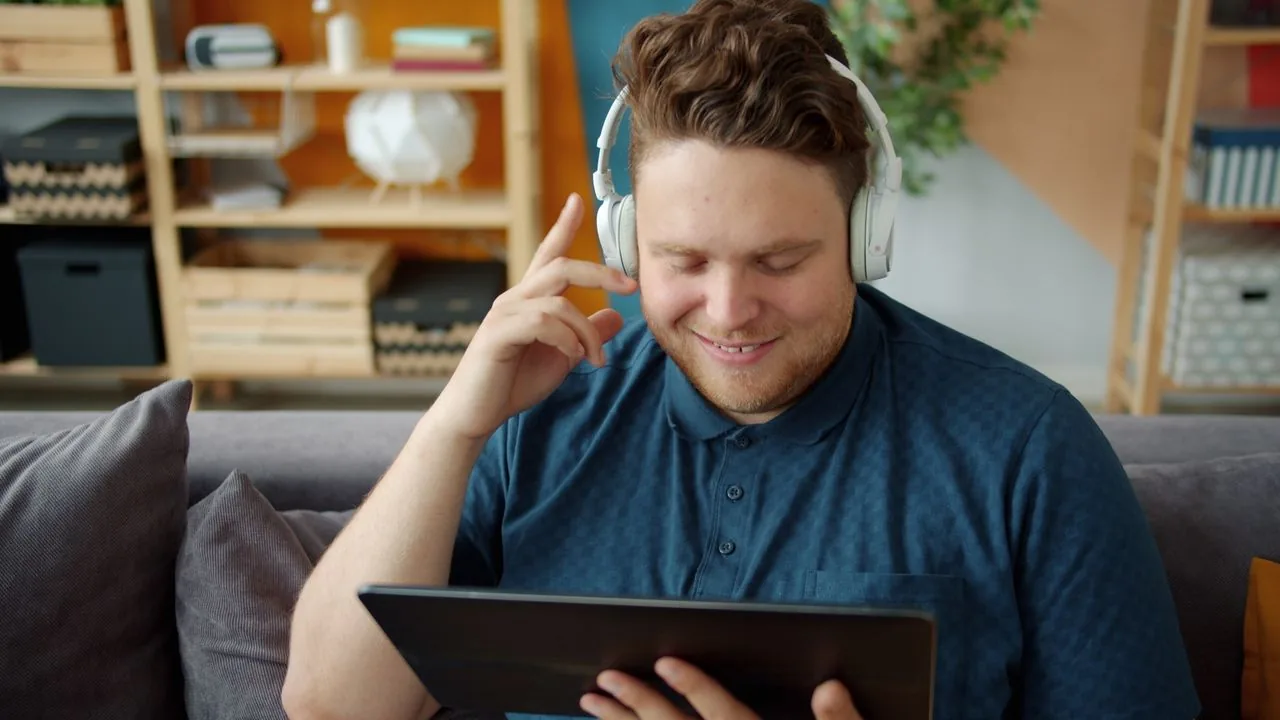
Are both your headphone drivers working? Is the left and right audio properly balanced? A simple stereo test can answer these questions in seconds. This is essential before recording, mixing, or even just watching movies.

How to Test Your Headphones
- Open the headphone/speaker tester
- Put on your headphones
- Play the left channel test — you should only hear sound in your left ear
- Play the right channel test — you should only hear sound in your right ear
- If both ears hear both channels, your wiring may be incorrect
Common Audio Issues
- One channel not working: Likely a damaged driver or broken cable
- Channels swapped: Left and right are reversed — check your headphone orientation or audio settings
- Crackling/static: Loose connection, damaged cable, or interference
- Volume imbalance: One side is louder — adjust balance in your OS audio settings
Related Audio Tools
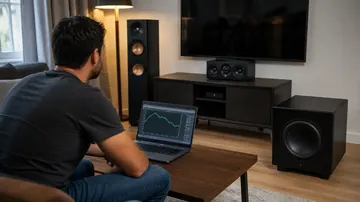
- Stereo and Left/Right Speaker Test
- Microphone Tester
- Hearing Age Test (Mosquito Tone) — How old are your ears? 12-step high-frequency screening
- Pitch Detector — Sing into your mic and see the live note in Hz / cents
- Surround Sound Test — 5.1/7.1 channel walk-around for surround setups
- Frequency Response Test — full sweep 20 Hz - 20 kHz
Test your audio: Open the headphone/speaker tester now.
Quick Action Checklist
- Select the correct input or output device first.
- Test in a quiet room and then in your real call or gaming setup.
- Check browser permission prompts before blaming hardware.
- Retest after changing USB ports, Bluetooth mode, or audio drivers.
FAQ
Do I need to install anything for this guide?
No. The recommended checks run in a modern browser unless the article specifically points you to an operating-system or device setting.
Is the browser test private?
The KeyboardTester.click tools are designed to run the test interaction in your browser. Do not type passwords, private messages, or sensitive account data into any testing page.
What should I do if the result looks wrong?
Repeat the test in a clean browser tab, then change one variable at a time such as device, cable, USB port, permission, wireless mode, or browser profile.
When should I use a related tool?
Use a related tool when the first result points to a narrower issue, such as latency, ghosting, stuck input, camera permission, audio routing, or QR/OCR decoding quality.




Reader discussion
Comments
Share what worked, what did not, or what you would test next. Every comment is reviewed before it appears.
Loading approved comments…
Leave a comment
No account or sign-in is required. Links and HTML are not accepted.