




Fast answer: Use this guide as a practical checklist for how to test your microphone online before meetings and calls. Start with the main browser tool, confirm the result with one focused follow-up test, then change only one device, browser, or setting at a time so you know what actually fixed the issue.
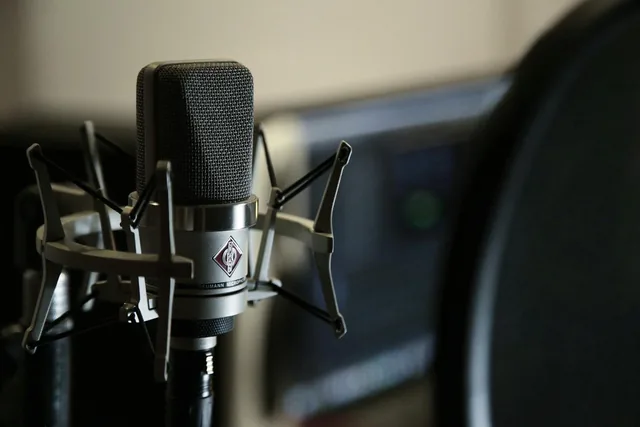
Nothing is worse than joining an important video call only to discover your microphone is not working. An online microphone test takes 10 seconds and saves you from embarrassment, missed meetings, and scrambling for last-minute fixes.
While you are pre-call checking, give the camera ten seconds too: if your preview shows you mirrored, that is not a fault — video apps flip your self-view on purpose, and everyone else sees you the right way around. The guide on why your camera looks mirrored proves it with a quick snapshot of the raw feed.
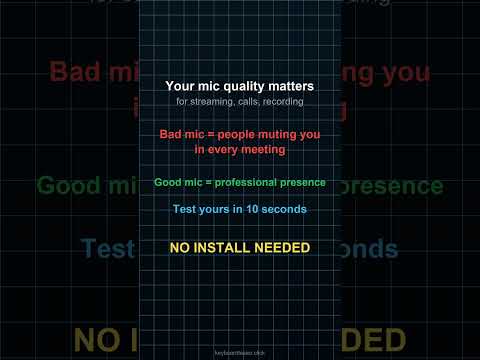
How to Test Your Microphone
- Open the microphone tester
- Allow browser permission to access your microphone
- Speak or make noise — the real-time level meter shows your audio input
- Check the peak level indicator to verify your mic is capturing sound
Common Microphone Problems
Mic Not Detected
Check that your microphone is plugged in, the correct input is selected in your OS sound settings, and browser permissions are granted.
Low Volume
Use the microphone volume test to check your input levels. Increase mic gain in your system sound settings or move closer to the microphone.
Background Noise
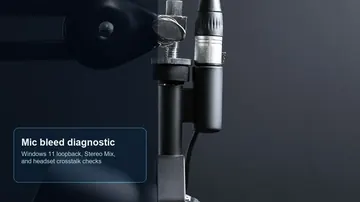
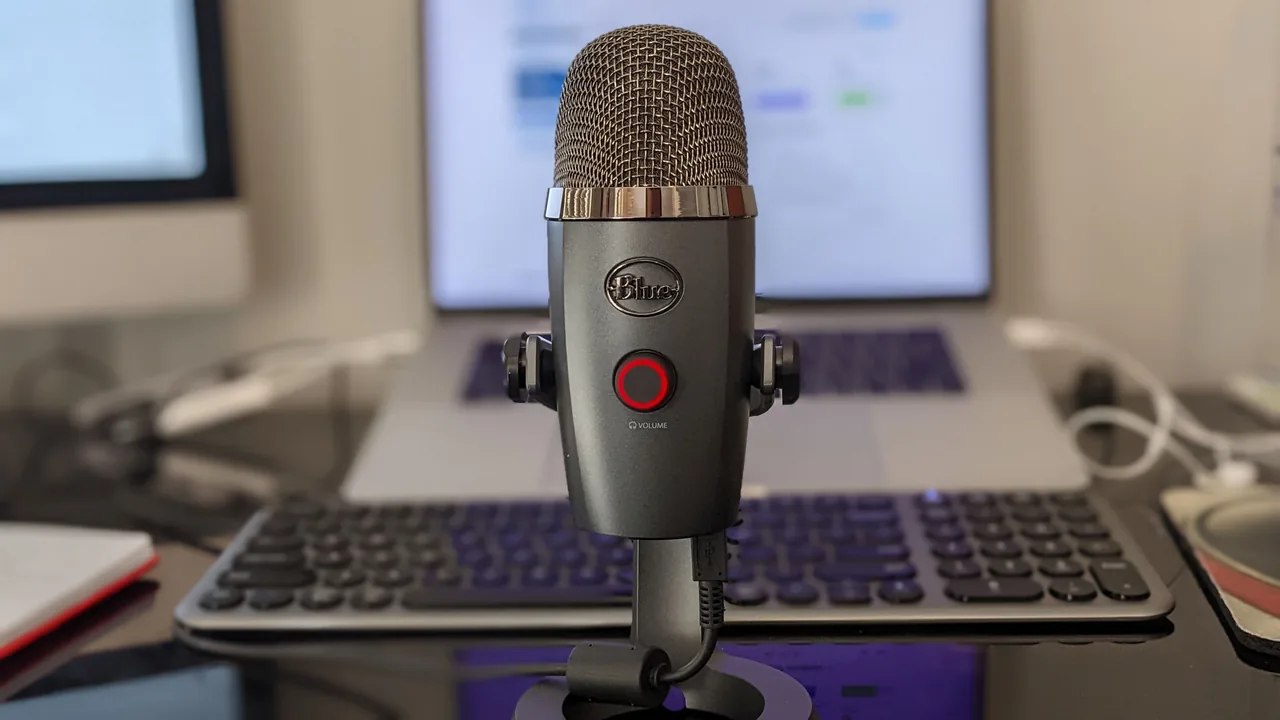
If the level meter shows activity when you are not speaking, your mic is picking up background noise. Use noise cancellation software or switch to a directional (cardioid) microphone. If the meter reacts to game or video sound rather than room noise, Windows may be routing system audio into your input device — the mic picking up desktop audio on Windows 11 guide covers the listen-tab and stereo-mix fixes.
Related Audio Tools
- Microphone Volume Test — Calibrate input levels
- Quick Mic Check — Fast microphone verification
- Headphone/Speaker Test — Test audio output
- Stereo and Left/Right Speaker Test
- Pitch Detector — Sing into your mic and see the live note in Hz, name, and cents; our guide on what note you are singing and how to hum for a steady reading explains octave errors and jumpy readings
- Hearing Age Test — Mosquito-tone screening from 8 to 22 kHz
- Frequency Response Test — sweep audio frequencies through speakers/headphones
Test your mic: Open the microphone tester now.
Quick Action Checklist
- Select the correct input or output device first.
- Test in a quiet room and then in your real call or gaming setup.
- Check browser permission prompts before blaming hardware.
- Retest after changing USB ports, Bluetooth mode, or audio drivers.
FAQ
Do I need to install anything for this guide?
No. The recommended checks run in a modern browser unless the article specifically points you to an operating-system or device setting.
Is the browser test private?
The KeyboardTester.click tools are designed to run the test interaction in your browser. Do not type passwords, private messages, or sensitive account data into any testing page.
What should I do if the result looks wrong?
Repeat the test in a clean browser tab, then change one variable at a time such as device, cable, USB port, permission, wireless mode, or browser profile.
When should I use a related tool?
Use a related tool when the first result points to a narrower issue, such as latency, ghosting, stuck input, camera permission, audio routing, or QR/OCR decoding quality.




Reader discussion
Comments
Share what worked, what did not, or what you would test next. Every comment is reviewed before it appears.
Loading approved comments…
Leave a comment
No account or sign-in is required. Links and HTML are not accepted.