




Fast Answer
Your camera is not broken, and nobody sees you backwards. Almost every video app mirrors your own preview on purpose, because a mirrored self-view is the only version of your face you are used to. The frame your camera actually transmits is not mirrored: the other people on the call see you the right way around, writing and all. You can prove it in ten seconds with the free webcam mirror: click Mirror until the badge reads Raw, then click Snapshot. The saved PNG is the exact, un-mirrored frame your camera sends to everyone else.
It usually starts with text. The logo on your hoodie reads backwards in the meeting preview, the poster behind you is reversed, and now you are wondering whether your boss, your class, or your date has been reading everything about you in mirror writing. Community threads for Zoom, Google Meet, and Microsoft Teams fill up with exactly this worry, and most answers bury the one sentence people need first: the mirror is only for you.
This guide starts by letting you prove that on your own camera, because seeing the raw feed beats being told about it. Then it explains why every app mirrors your preview on purpose, where the real mirror toggles live in Zoom and Teams (and why Google Meet does not have one), what is going on with phone selfies that flip after you shoot them, and the handful of genuine cases where other people really do see you flipped. If your camera problem is blur rather than direction, that is a different diagnosis: start with the webcam resolution check guide instead.
Match what you're seeing
Six situations cover almost every "my camera is mirrored" search. Find yours and jump straight to the fix.
| What you see | What it means | Where to go |
|---|---|---|
| Preview shows text backwards; others say you look normal | Working exactly as designed: the mirror is self-view only | Why apps mirror you |
| You want your self-view un-mirrored inside the app | Zoom and Teams have a native toggle | Zoom, Teams & Meet |
| Google Meet shows you mirrored and there is no setting | Correct: Meet has no native mirror control | Zoom, Teams & Meet |
| Selfies flip after you take them | The phone saves the true image by default | Phone selfies |
| Other people genuinely see your writing backwards | Something rewrote the stream: OBS or a virtual camera flip | Genuinely flipped feeds |
| Image is upside down or sideways | Rotation, not mirroring | Genuinely flipped feeds |
Prove what your camera really sends, in 10 seconds
The fastest cure for mirror anxiety is to look at the raw feed yourself. The free camera mirror check shows your live picture with a one-click Mirror toggle: it starts mirrored, exactly like a call preview, with a badge reading Mirror; one click flips it to Raw, the orientation your camera actually hands to apps. Nothing installs and the video never leaves your browser.
The part that makes it proof rather than reassurance is the snapshot. The Snapshot button saves a PNG with the current mirror state baked in. So with Mirror switched off, the file on your disk is the exact, un-mirrored frame your camera transmits, the same orientation a recording or the person on the other side of the call receives.
- 1. Open the check and start the camera. Click Start and allow camera access when the browser asks; without permission no page can read a camera at all.
- 2. Raise your right hand. In the default mirrored view it rises on the same side you feel it, like a bathroom mirror. That comfortable match is exactly what call previews imitate.
- 3. Hold up anything with writing. A book cover or a mug works. In the mirrored preview it reads backwards, which is the moment most people panic.
- 4. Click Mirror so the badge reads Raw. The picture flips. This is what leaves your camera: the writing reads normally, and your right hand is on the viewer's left, exactly as if they stood facing you.
- 5. Click Snapshot with Mirror off. The saved PNG is your evidence. Open it, read the writing, and stop worrying about what the other side sees.
Three honest limitations before you move on. This check proves the behavior; it cannot change what Zoom, Teams, or Meet show, because each app applies its own mirroring to its own preview, with its own settings covered below. The brightness and contrast sliders on the tool page change only how the preview is displayed, never the camera signal. And if the page reports that another app is using the camera, close Zoom, Teams, or OBS first; if the camera will not start anywhere, run the full webcam test before blaming mirroring for anything.
Why every app mirrors your self-view (it's a feature, not a fault)
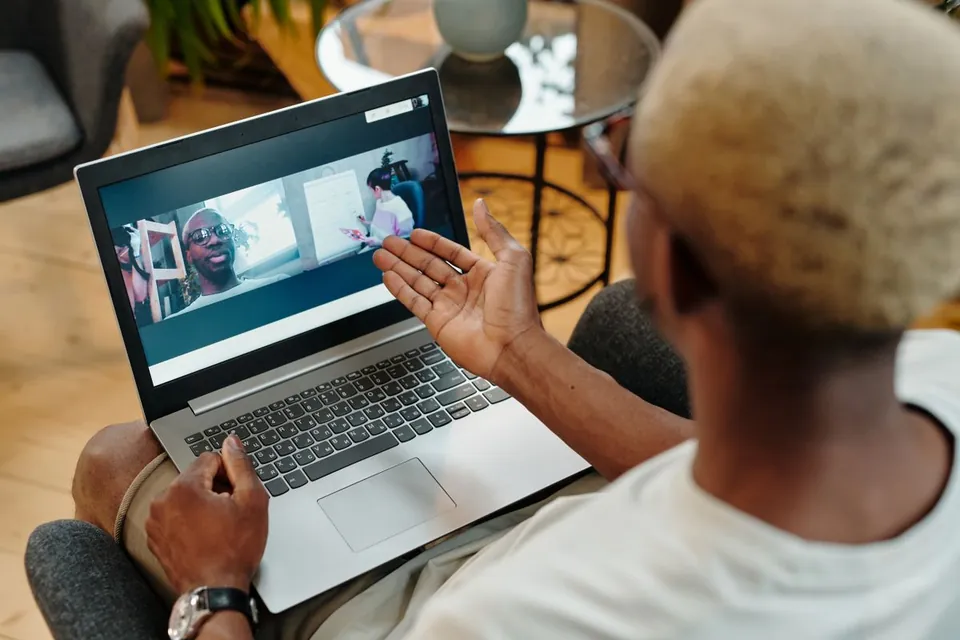
You have seen your own face far more often in mirrors than anywhere else, and mirrors swap left and right. When you move your right hand, mirror-you moves on the side you feel the motion. An un-mirrored self-view breaks that lifelong habit: lean left and the on-screen you leans the other way, and suddenly adjusting your hair in the preview feels like steering a truck in reverse. App designers mirror the preview so that you can act naturally on camera.
The preference runs deeper than convenience. In a classic study, psychologists Theodore Mita, Marshall Dermer, and Jeffrey Knight found that people reliably preferred a mirror-image print of their own face, while close friends preferred the true image, the version they actually see, consistent with people simply liking the orientation they are most exposed to (Journal of Personality and Social Psychology, 1977). It is the same reason photos of yourself can look subtly wrong: you are the only person who expects the mirrored version of your face.
So the design holds two facts at once. Your preview is mirrored so it feels natural to you; the transmitted feed is un-mirrored so your writing, your logo, and your gestures look right to everyone else. The same tool from step one doubles as a virtual mirror online whenever you want that natural mirrored view for framing, lighting, or a quick hair check before joining a call.

Where the mirror setting lives in Zoom, Teams, and Google Meet
Only each app can change its own preview, and none of these switches change what other participants receive; that feed is already un-mirrored. Every path below was checked against the vendor's current official documentation in July 2026. If a blog tells you a different menu path, trust the vendor doc first.
| App | What the official documentation says | Where the setting lives |
|---|---|---|
| Zoom | "Mirror my video" horizontally flips your video preview and "only affects how you see your video" (Zoom Support, 2026). | Settings > Video & effects > Video > Mirror my video |
| Microsoft Teams | "Mirror my video — Changing this setting will only change the view for you" (Microsoft Support). | Settings > Devices > Video settings > Mirror my video |
| Google Meet | No native mirror control. Self-view is always mirrored; attendees "will see the image the correct way around" (HUE webcam FAQ; Google Meet Community). | No setting; browser extensions change only your local view |
- Zoom: in the Zoom Workplace desktop app, open Settings and go to Video & effects > Video > Mirror my video. Zoom's own settings article says the option "horizontally flips your video preview" and "only affects how you see your video". The same setting exists in the Zoom mobile app's settings; the linked Zoom article covers both.
- Microsoft Teams: Settings > Devices > Video settings > Mirror my video. Microsoft's support page is explicit: "Changing this setting will only change the view for you." Microsoft introduced the off switch in 2022 for presenters who want their preview to match the audience view, for example with a whiteboard behind them.
- Google Meet: there is no native mirror setting. Your self-view is always mirrored, you cannot turn it off in Meet itself, and your attendees always see the image the correct way around. The browser extensions that exist for "un-mirroring Meet" exist precisely because the option is missing; they change only the rendering in your own browser.
- Whichever app you use: after changing a setting, re-run the snapshot proof once. Preview mirroring and transmitted orientation are two different pipelines, and the snapshot settles what actually leaves the camera.
Phone selfies: why the saved photo flips after you shoot it
The same design shows up in your pocket. Phone front cameras mirror the preview while you frame the shot, then most of them save the true, un-mirrored image by default. That is why the photo in your gallery can feel subtly "off" compared with what you posed for a second earlier: the preview showed mirror-you, the file shows real-you.
Both major platforms let you choose. On iPhone XS, XR, and later, Settings > Camera > Mirror Front Camera saves the selfie exactly as the mirrored preview showed it (Apple's guide documents the switch). On Samsung Galaxy phones, the camera's settings include Save selfies as previewed, which does the same job: on, you keep the mirrored preview look; off, the photo is stored the way other people see you.
Neither choice is more "correct". The mirrored version matches the face you know from mirrors; the true version matches the face everyone else knows. Text is the only hard tiebreaker: if writing needs to be readable in the shot, save the un-mirrored version.
When it's genuinely wrong: flips that other people can see
Everything above is self-view only. But occasionally the outgoing stream really is flipped, and the giveaway is always the same: other people tell you that your writing reads backwards on their screen, or a finished recording plays back mirrored. That is not the preview illusion; something in your video chain is rewriting the stream itself. The verified causes are software that sits between the camera and the app.
- OBS transforms. In OBS Studio, right-clicking a source and choosing Transform > Flip Horizontal flips the rendered output, and recordings, streams, and the OBS Virtual Camera all inherit it. A flip applied months ago and forgotten is a classic cause of "everyone sees me backwards".
- Vendor camera software with a virtual camera. Elgato's Camera Hub, for example, can mirror or flip the feed that apps receive through the Elgato Virtual Camera (documented in Elgato's own release notes). If you installed any camera utility that offers a flip or mirror control, check it before blaming the app.
- Isolate it with the camera picker. In the mirror toggle check, use the camera selector to snapshot the physical webcam and then the virtual camera, both with Mirror off. If the physical camera's snapshot reads correctly and the virtual camera's is backwards, the software between them is the culprit.
One near-miss worth separating: an image that is upside down or sideways is a rotation problem, not mirroring. The table below tells the three apart at a glance. For rotation, check how the camera is physically mounted, then look for a rotate control in the camera's own utility software; and while you are at it, a quick camera resolution check confirms the rest of the signal is healthy too.
Mirrored vs upside down vs sideways
Three different problems get reported as "my camera is flipped". They have different causes and different fixes.
| What it looks like | What it is | Likely cause |
|---|---|---|
| Left and right swapped; writing reads backwards | Horizontal mirror | The self-view default, or a mirror/flip setting in the app, OBS, or a vendor virtual camera |
| Whole image upside down | 180° rotation | Camera physically mounted upside down, or a rotation setting in the camera's utility software |
| Image sideways | 90° rotation | Orientation/rotation setting in the camera's utility software |
Check the rest of the camera while you're here
Every check below runs free in the browser, nothing installs, and the video never leaves your machine. Together they answer the mirror question, the quality question, and the "does it even work" question.
Live preview with the Mirror/Raw toggle and the snapshot that proves what your camera transmits.
Webcam TestThe general health check: framing, focus, exposure, and whether the camera starts at all.
Camera Resolution TestRead the exact pixel dimensions your camera actually delivers, not what the box claims.
Take a Picture with WebcamCapture-only stills for profile photos and side-by-side sharpness comparisons.
Related camera guides
Check the resolution your camera actually delivers and fix the light, USB, and app caps that shrink it.
Webcam Test Before Video CallsThe pre-call checklist: preview, framing, lighting, and troubleshooting before Zoom, Teams, or Meet meetings.
How to Test Your Microphone OnlineThe other ten-second pre-call check: watch your live input level in the browser before Zoom or Teams meetings.
Video: the Zoom mirror checkbox, on screen
This short walkthrough shows the Zoom "Mirror my video" checkbox being toggled in the settings, useful if you would rather follow clicks than menu paths. Remember what it changes: your preview, and nothing anyone else sees.
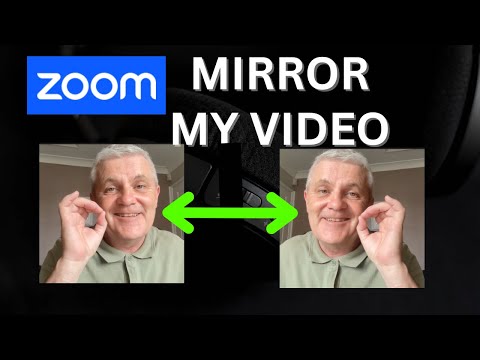
A walkthrough of Zoom's Mirror my video setting: where the checkbox lives and how the self-view changes when it is toggled.
Sources and research notes
App behavior comes from the vendors' own support documentation, the mirror-preference research from the original 1977 journal study, and the genuine-flip causes from OBS and Elgato documentation. All sources were checked in July 2026.
- Zoom Support: Changing settings in the Zoom Workplace desktop and mobile app
Documents Mirror my video under Video settings: it horizontally flips the preview and only affects how you see your own video.
- Microsoft Support: Manage your device settings in Microsoft Teams (free)
Documents the Mirror my video toggle under Settings > Devices, with the note that changing it "will only change the view for you".
- Microsoft Teams Blog: Turn off Mirror my video in Teams meetings
Microsoft's 2022 announcement of the un-mirror option, framed as matching your self-view to your audience's view.
- HUE cameras FAQ: Google Meet mirroring
A webcam manufacturer's documentation that Meet mirrors the self-view by default, attendees see the image the correct way around, and no Meet setting controls it.
- Google Meet Community: How to change Mirror of video
The long-running official-forum thread confirming Meet has no native mirror control for self-view.
- Mita, Dermer & Knight (1977): Reversed facial images and the mere-exposure hypothesis
Journal of Personality and Social Psychology, 35(8), 597-601. Participants preferred their mirror-image photo; their friends preferred the true image.
- Apple Support: Take a selfie with your iPhone camera
Documents the Mirror Front Camera setting (iPhone XS, XR, and later) that saves selfies as the mirrored preview showed them.
- SamMobile: Samsung's "Save selfies as previewed" setting
Explains the Galaxy camera option that stores selfies in the mirrored preview orientation when enabled.
- OBS Forums: Horizontal flip video
The Transform > Flip Horizontal operation on a source, which flips the rendered output for recordings, streams, and the virtual camera.
- Elgato: Camera Hub 1.5.1 release notes
Documents mirroring/flipping the video feed that third-party apps receive via the Elgato Virtual Camera.
- Anthony English: Zoom Mirror my camera walkthrough
The embedded video showing the Zoom mirror checkbox being toggled.
FAQ
- Do other people see my camera mirrored?
No. In Zoom, Microsoft Teams, and Google Meet, mirroring applies only to your own preview; the transmitted feed is un-mirrored, so other participants see you the right way around. The only exceptions are setups where software actively flips the outgoing stream, such as an OBS Flip Horizontal transform or a vendor virtual camera with a flip enabled.
- Why does text look backwards on my webcam?
Because you are looking at the mirrored self-view, not the transmitted picture. Hold the text up, switch the mirror toggle off in a webcam mirror check, and take a snapshot: the saved image shows the text reading normally, which is exactly what recordings and other callers receive.
- How do I stop Zoom from mirroring my video?
In the Zoom Workplace desktop app, open Settings, go to Video & effects > Video, and uncheck Mirror my video. Zoom's documentation notes the setting only affects how you see your own video; participants and recordings are un-mirrored either way.
- Can I turn off mirroring in Google Meet?
Not natively. Google Meet always mirrors your self-view and offers no setting to change it; browser extensions that un-mirror Meet only change the rendering in your own browser. Your attendees always see the image the correct way around, so there is nothing to fix on their side.
- Are Zoom recordings mirrored?
No. The Mirror my video setting changes only your live self-view, so recordings capture the normal, un-mirrored orientation regardless of the checkbox. If a finished recording does play back mirrored, something upstream flipped the actual stream, most commonly an OBS transform or a vendor virtual camera flip.
- Why do my selfies flip after I take them?
Phone front cameras mirror the preview while you pose but save the true orientation by default. iPhone XS, XR, and later have Settings > Camera > Mirror Front Camera, and Samsung Galaxy phones have Save selfies as previewed in the camera settings; turn either on to keep the mirrored preview look in the saved photo.
Still not quite convinced nobody sees you backwards? Take the ten seconds: open the camera mirror check, switch Mirror off, click Snapshot, and keep that PNG. It is the you everyone else has been seeing all along, right way around.



Reader discussion
Comments
Share what worked, what did not, or what you would test next. Every comment is reviewed before it appears.
Loading approved comments…
Leave a comment
No account or sign-in is required. Links and HTML are not accepted.