




Fast Answer
Your webcam's real resolution is whatever it actually delivers to an app right now, not the number printed on the box. You can verify it in about ten seconds: open the camera resolution test, allow camera access, select a 1080p target, and read the width × height the browser reports back. If your "1080p" webcam comes back at 1280×720, don't blame the hardware yet: dim lighting, a shared USB hub, or a video app's own quality caps are the usual culprits, and all three are fixable for free.
The box says Full HD 1080p, but every meeting still looks soft. Before you order a replacement, it is worth knowing that most "my webcam looks bad" complaints are really a resolution question in disguise: is the camera actually sending 1920×1080 pixels, or did something between the sensor and your call quietly downgrade it? Advertised resolution is a maximum under ideal conditions, and lighting, USB bandwidth, browser defaults, and the call apps themselves all get a vote before your face reaches the other side.
This guide shows you how to read the resolution your webcam genuinely delivers, what the 480p/720p/1080p/4K labels mean in practice, why a "1080p" camera so often runs at 720p, why Zoom, Google Meet, and Microsoft Teams stream you below your camera's spec by design, and every fix in order of cost, so you only spend money on a new webcam when the old one has honestly run out of pixels.
How to check your webcam's actual resolution (no downloads)
The most direct way to answer "what resolution is my webcam, really?" is to read what the camera hands to your browser, because browser delivery is exactly what Zoom, Meet, and Teams web clients consume. The webcam resolution test asks your webcam for common targets, 480p, 720p, 1080p, and higher, and reports the exact pixel dimensions the browser receives back, live.
- 1. Open the check and allow camera access. Nothing installs and the video stays in your browser; without permission the camera cannot be read at all.
- 2. Pick the camera you want to verify. Laptops often expose more than one device (built-in plus an external USB webcam); test the one you actually use for calls.
- 3. Select a 1080p or 4K target. Then read the reported width × height. This is the delivered capture resolution, and it is the number that matters.
- 4. Take a snapshot. A still frame per target makes sharpness differences between modes obvious side by side.
- 5. Re-run in good light with a direct USB connection. If the reported size or visible detail improves, your limit was environmental, not the camera.
One honest limitation before you read too much into the numbers: this check reports the capture resolution your browser receives. It cannot measure frame rate, judge sensor quality, or see what a specific app does to the stream after capture. For an OS-side second opinion on Windows 11, open Settings > Bluetooth & devices > Cameras and select your camera: Windows lists the formats it can use. The advertised maximum lives on the manufacturer's spec page. And if the camera refuses to start at all, that is a different problem: run the webcam not working test first to rule out permissions and driver failures.
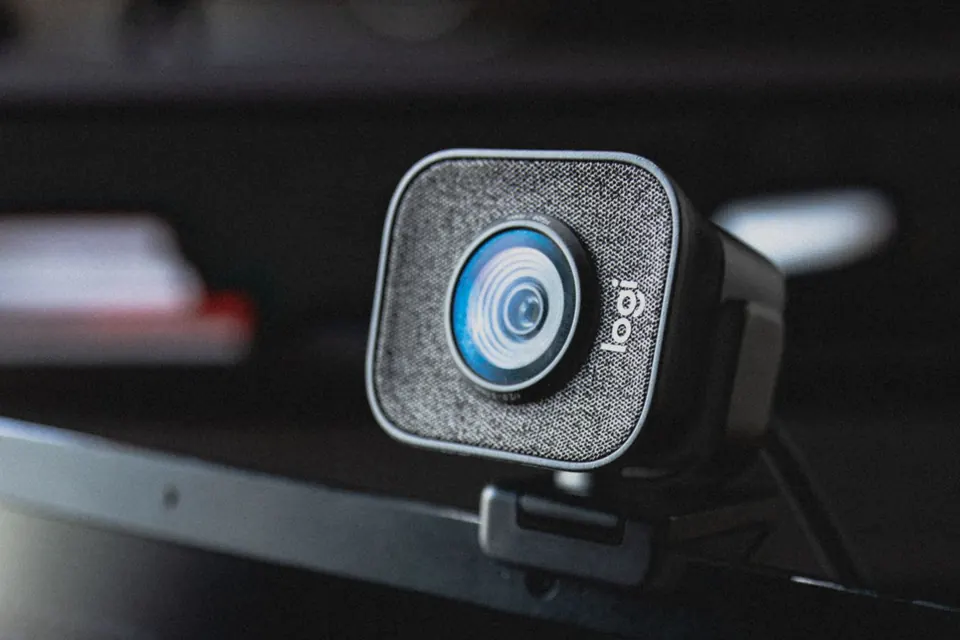
480p vs 720p vs 1080p vs 4K: what the numbers actually mean
Resolution labels are shorthand for the height of the frame in pixels: 720p means 1280×720, 1080p means 1920×1080. What the marketing skips is how steep the steps are. Each jump roughly doubles or quadruples the total pixel count, which is why a 1080p feed can be cropped, zoomed, or shown full screen so much more gracefully than a 720p one.
Resolution tiers at a glance
Total pixels are plain arithmetic (width × height). The practical column is what each tier honestly looks like on a call in 2026.
| Label | Pixels | Total | What it is realistically good for |
|---|---|---|---|
| 480p (SD) | 640 × 480 | ~0.3 MP | Bare minimum; older built-in laptop cameras. Soft even in small call tiles. |
| 720p (HD) | 1280 × 720 | ~0.9 MP | The standard laptop webcam, and the practical ceiling of many group calls. |
| 1080p (Full HD) | 1920 × 1080 | ~2.1 MP | The current external webcam standard. Sharp full screen; headroom for light cropping. |
| 4K (UHD) | 3840 × 2160 | ~8.3 MP | Recording, cropping, and zooming headroom. Rarely delivered end to end in live calls. |
Why your "1080p" webcam is delivering 720p (or worse)
When the box says 1080p but the check reports 720p, one of a handful of chokepoints between the sensor and the app is responsible. Work through them in this order; the first two cover most cases.
- Low light. Webcam sensors are tiny and starve quickly in dim rooms. The camera compensates by raising gain, which adds noise, and many models also drop frame rate or resolution to keep the image usable. Detail collapses even when the reported number stays high, which is why the same camera can look sharp at noon and like 480p at night.
- USB bandwidth. USB 2.0 tops out at 480 Mbps (USB-IF, USB 2.0 specification). Uncompressed 1080p at 30 fps needs roughly 1 Gbps, plain arithmetic: 1920 × 1080 pixels × 2 bytes × 30 frames per second, about double what the port can move. Cameras cope by compressing the stream or silently stepping down to 720p, and a hub shared with other devices makes it worse. A direct rear-panel USB 3.0 port is the clean test.
- The app never asked for 1080p. Browser camera requests are treated as preferences, not guarantees (MDN, Media Capture and Streams API). If a site or app requests no specific size, or a modest one, the browser and OS decide what to deliver. The same webcam can legitimately run at three different resolutions in three different apps.
- Windows picked a lower default format. Windows assigns each camera a default "media type". A Microsoft Q&A thread on low-quality Teams video traces exactly this: the fix is Settings > Bluetooth & devices > Cameras > your camera, then setting Media type to the highest resolution instead of "Let Windows choose".
- Another app is holding the camera. When two programs share the camera at once, the stream can end up negotiated at the lower requester's settings. Close vendor utilities, browser tabs, and streaming software, then re-run the check.
Why Zoom, Google Meet, and Teams stream below your webcam's spec
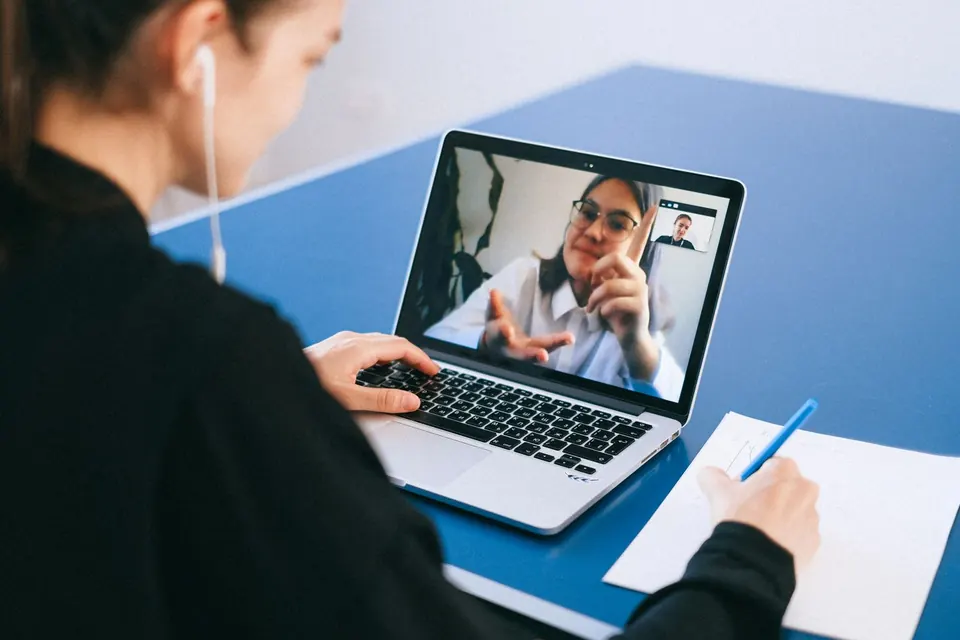
Here is the part almost nobody tells you: you can verify a clean 1080p in the browser check and still look like 720p, or worse, in the actual meeting, and that is by design. Conferencing apps optimize for call stability and bandwidth across every participant, not for your camera's maximum. The caps below come straight from the vendors' own documentation, checked in July 2026.
| App | What the vendor documentation says | Where the setting lives |
|---|---|---|
| Zoom | In group meetings, HD 720p applies to the active-speaker layout and requires a Pro, Business, Education, or Enterprise account. Full HD 1080p must be enabled by Zoom Support and needs an i7 quad-core CPU or better, with virtual backgrounds off (Zoom Support, 2026). | Settings > Video > HD |
| Google Meet | Send resolution is selectable at 360p, 720p, or 1080p. Standard definition 360p "uses less data, but your camera will send a lower quality picture" (Google Meet Help). | Settings > Video > Send resolution |
| Microsoft Teams | Teams is "always conservative on bandwidth utilization and can deliver HD video quality in under 1.5 Mbps". On the minimum bandwidth tier (150/200 kbps), meeting video runs at up to 240p; up to 1080p only with recommended bandwidth, network permitting (Microsoft Learn, updated May 2026). | Windows camera Media type; Teams web app as a workaround |
So a webcam check that reports 1080p and a call that looks like 720p are not a contradiction; they are two different pipelines. Verify the delivered capture resolution first, then fix the app settings, and for an important meeting walk through a full pre-call camera check a few minutes before you join.
How to get the resolution you paid for: fixes in order
Work down this ladder from free to paid, and re-run the resolution check after each step so you can see which one actually moved the number, or the visible detail.
- 1. Put light in front of you. A window or a desk lamp facing your face is the cheapest, biggest quality jump a webcam can get. Check the result in the webcam mirror: it shows you exactly what the camera sees.
- 2. Plug the webcam into a rear USB 3.0 port. Skip hubs, front-panel ports, and long extension cables, then re-test. Bandwidth starvation disappears instantly when the path is clean.
- 3. Turn HD on in the app. Zoom: Settings > Video > HD (account permitting). Google Meet: Settings > Video > Send resolution. Teams desktop capping you? Many users report better video in the Teams web app.
- 4. Fix the Windows media type. Settings > Bluetooth & devices > Cameras > your camera > Media type, set the highest resolution, per the Microsoft Q&A fix linked in the sources.
- 5. Close everything else that uses the camera. Vendor apps, spare browser tabs, OBS. Then snap a test photo and compare sharpness against your earlier snapshot.
- 6. Update the driver or firmware. Use the manufacturer's utility (Logitech Options+/G HUB, Razer Synapse, and so on); resolution negotiation bugs do get patched.
- 7. Only now consider new hardware. If the camera honestly maxes out at 720p on a clean port in good light, no setting will invent the missing pixels; a 1080p upgrade is the honest fix. Verify the new camera with the same check before the return window closes.
Check the whole camera setup, not just the pixels
Each tool below runs free in the browser, with nothing uploaded. Together they cover delivered resolution, framing, mirroring, snapshots, startup failures, and the microphone side of call quality.
The ten-second readout of the video size your webcam actually delivers, with snapshots for side-by-side sharpness checks.
Webcam testFull live preview: framing, focus, exposure, and device info, the general health check for any camera.
Webcam mirrorSee yourself exactly as the camera sees you, ideal for fixing lighting and framing before a call.
Take a picture with webcamCapture still frames to pixel-peep sharpness and compare cameras or settings.
Webcam not working testIf the camera will not even start, diagnose permissions, drivers, and device detection first.
Microphone testThe other half of looking professional on a call: confirm your mic level and clarity.
Related guides
The pre-call checklist: preview, framing, lighting, and troubleshooting before Zoom, Teams, or Meet meetings.
Mic picking up desktop audioFix the call-quality problem on the audio side: why your microphone rebroadcasts system sound on Windows 11.
Why is my camera mirrored?Your preview flips on purpose and other people see you the right way around; prove it in ten seconds with a raw-feed snapshot.
Video: why webcams lag so far behind phone cameras
This Techquickie explainer covers the hardware side of the story: why webcam sensors, optics, and processing lag years behind the phone in your pocket, useful background for why raw resolution is only half of image quality.

Techquickie explains why webcam image quality trails phone cameras: tiny sensors, tight cost targets, and limited on-device processing.
Sources and research notes
App resolution behavior comes from the vendors' own support and admin documentation, bandwidth figures from the USB-IF specification, and browser behavior from MDN. All sources were checked in July 2026.
- Zoom Support: Enabling HD video for Zoom Meetings
Zoom's official requirements for Standard HD 720p (paid accounts, active-speaker layout in group meetings) and Full HD 1080p (enabled by Zoom Support, i7 quad-core CPU or higher, virtual backgrounds off).
- Google Meet Help: Improve your video & audio experience
Google's documentation of Meet's send/receive resolution options (360p, 720p, 1080p) and their data trade-offs.
- Microsoft Learn: Prepare your organization's network for Teams
Microsoft's bandwidth documentation: Teams delivers HD video in under 1.5 Mbps, with minimum-tier meeting video at up to 240p and recommended-tier video up to 1080p, network permitting. Updated May 2026.
- Microsoft Q&A: Low quality camera in Teams desktop
Community-verified fix thread: the Windows Settings > Manage cameras > Media type change, and reports that the Teams desktop app caps resolution below the webcam's capability.
- USB-IF: USB 2.0 Specification
The USB Implementers Forum specification defining Hi-Speed USB 2.0 signaling at 480 Mbps, the bandwidth ceiling that forces webcams to compress or downscale uncompressed HD video.
- MDN: Media Capture and Streams API (Constraints)
Browser documentation showing camera resolution requests are treated as non-required preferences, which is why delivered resolution varies by app.
- Techquickie: Why Your Webcam Still SUCKS!
The embedded reference video on why webcam hardware trails phone cameras.
FAQ
- Is 720p good enough for video calls?
For most meetings, yes. Google Meet offers 360p as its data-saving send option, and Microsoft Teams delivers HD video in under 1.5 Mbps, so in small gallery tiles the difference between 720p and 1080p is barely visible. Lighting affects how you look far more than that last resolution step. If you present full screen or record, 1080p is worth having.
- Does a 4K webcam make Zoom calls look better?
Usually not for the live call itself. Zoom group meetings run at 720p for the active speaker unless HD is enabled on a paid account, and Full HD 1080p has to be enabled by Zoom Support with hardware requirements on top. A 4K sensor still helps with recordings, digital zoom, and cropping headroom, but it cannot push a call above the app's own cap.
- Why does my 1080p webcam only report 720p in the check?
The usual causes, in order: not enough light, a USB 2.0 port or shared hub without the bandwidth for full HD, Windows holding a lower default media type for the camera, or another app already using the camera at lower settings. Walk the fix ladder in this guide; if it still reports 720p on a direct port in good light, check the spec sheet fine print, since some cameras advertise 1080p only for still photos or a specific mode.
- Why does my webcam look grainy and dark at night?
Webcam sensors are tiny, so in dim rooms the camera multiplies its weak signal, which shows up as grain, and smooths that noise away, which erases detail. The reported resolution can stay at 1080p while the image looks like much less. A light source in front of your face fixes more than any setting.
- How can I check my camera resolution without installing anything?
Use a browser-based check: it reads the video stream your camera delivers through the browser's own camera API and reports the exact pixel dimensions. On Windows 11, Settings > Bluetooth & devices > Cameras also lists each camera's available formats without any extra software.
- Does the browser resolution check upload or record my video?
No. The preview and the reported dimensions are produced locally in your browser, nothing is uploaded to a server, and no recording happens. Snapshots exist only if you choose to save them to your own device.
Stop guessing what the box promised. Run the camera resolution check in good light, read the pixels your webcam actually delivers, then walk the fix ladder, light, USB, app settings, before you spend money on a new camera.



Reader discussion
Comments
Share what worked, what did not, or what you would test next. Every comment is reviewed before it appears.
Loading approved comments…
Leave a comment
No account or sign-in is required. Links and HTML are not accepted.