







Fast answer
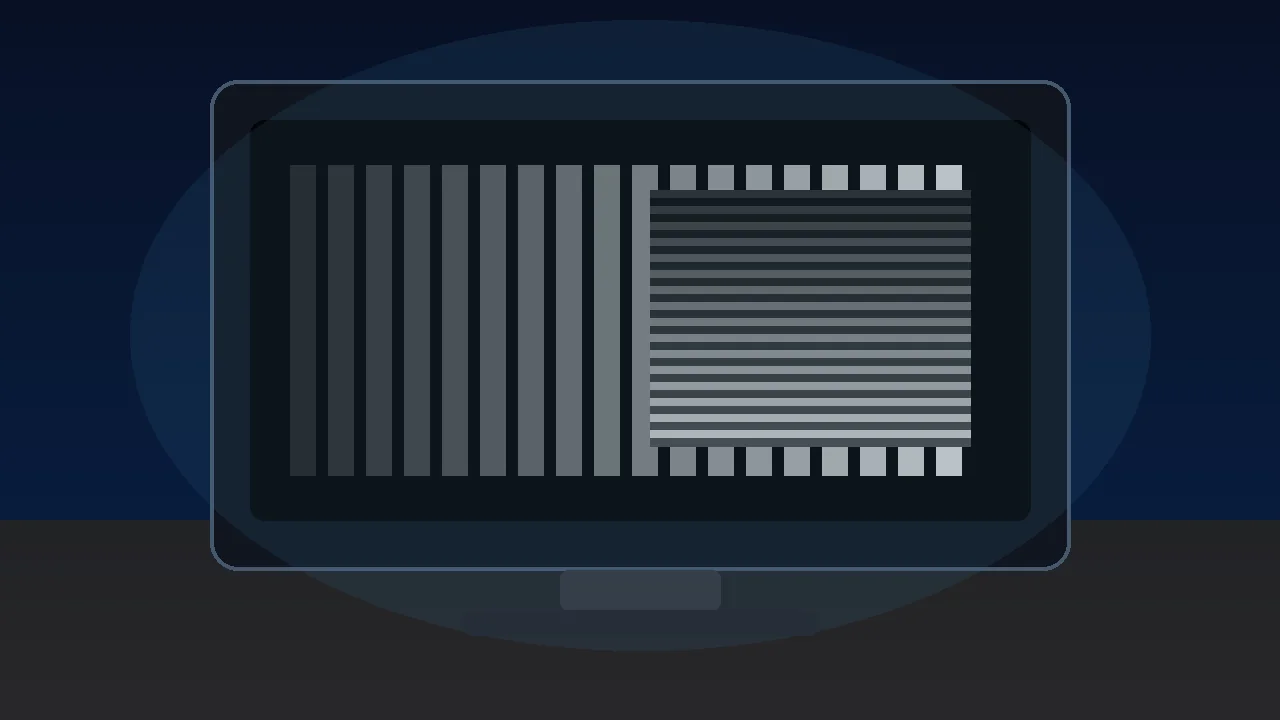
Open the Monitor Gamma Test, go fullscreen, and adjust the slider until the striped pattern and solid gray patch blend together. For normal PC and web use, the practical target is gamma 2.2. A lower result usually makes shadows and colors look washed out; a higher result makes midtones and dark scenes look too dark.
Gamma is not the same as brightness. Brightness moves the black floor or the backlight; gamma changes how quickly tones get brighter between black and white. That is why a monitor can have correct brightness but still look flat, gray, harsh, or too dark in games and photos.
This guide uses a reproducible browser workflow: run the gamma pattern, note the value, change only one display setting, and retest. If the problem is blur, shadow clipping, or gray blacks rather than gamma, the links later in the article route you to the matching display check instead of making you guess.
How to Run the Monitor Gamma Test
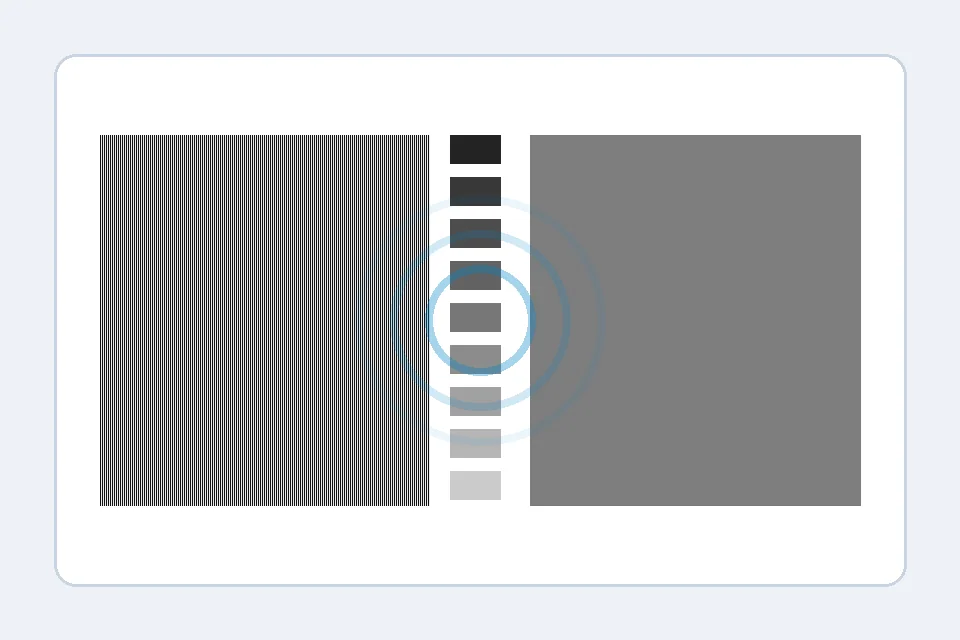
Use the gamma checker as a controlled visual comparison, not as a score contest. The goal is to find the setting where the patterned half and solid half merge when your eyes are slightly defocused.
- Go fullscreen: Open the gamma test, make the browser fullscreen, and keep zoom at 100%.
- Use normal mode first: Start in SDR with your everyday monitor picture mode. Disable dynamic contrast, game black equalizer, and AI contrast for the first pass.
- Squint or step back: The stripe side should blur into a flat tone. Move the slider until it visually matches the solid patch.
- Retest after every change: Change monitor gamma, OS profile, or GPU output one at a time. If you change three things at once, you will not know what helped.
How to Read the Gamma Result
For ordinary web, desktop, and most game use, 2.2 is the practical reference. Small differences are normal by eye, but large shifts explain many "new monitor looks wrong" complaints.
| Result | What it looks like | What to do next |
|---|---|---|
| Around 2.2 | Balanced for sRGB/web content. Midtones look natural. | Leave gamma alone, then check sharpness, color range, and black level if something still feels wrong. |
| 1.8-2.0 | Lifted shadows, weak contrast, gray-looking blacks, flat photos. | Try a 2.2 gamma preset, remove bad ICC profiles, and run the color range test. |
| 2.4 | Darker cinematic look, sometimes useful in a dim room. | Acceptable for video/dark-room use, but desktop web pages may look too heavy. |
| 2.5+ | Too-dark midtones, hidden detail, harsh game shadows. | Lower gamma, reset black stabilizer, and check the black level test for crushed shadows. |
| Value changes wildly | The pattern never settles or changes with angle. | Check viewing angle, room light, browser zoom, and any dynamic picture mode. |
Fix Washed-Out or Too-Dark Gamma
Most wrong-gamma problems come from a monitor preset, OS color profile, GPU correction, HDR mode, or room-light mismatch. Work down this list in order.
- Set monitor gamma to 2.2: In the monitor OSD, look under Picture, Color, or Image. If there are presets like 1.8, 2.0, 2.2, and 2.4, start with 2.2.
- Reset the picture mode: Try Standard or sRGB mode before Game, Movie, Vivid, Dynamic Contrast, or Black Equalizer modes.
- Check OS color profiles: On Windows, remove suspicious custom ICC profiles or rerun color calibration. On macOS, compare the default display profile before installing a third-party one.
- Check the GPU panel: NVIDIA, AMD, and Intel panels can apply desktop color corrections. Reset them before blaming the panel.
- Separate HDR from SDR: If only the Windows desktop looks wrong with HDR on, test SDR first. HDR tone mapping can make SDR apps look flat on weak HDR monitors.
- Retest in the same light: Your eyes adapt. Retest after a minute in the same room lighting, not immediately after staring at a bright page.
Gamma vs Brightness, Contrast, RGB Range, and Sharpness
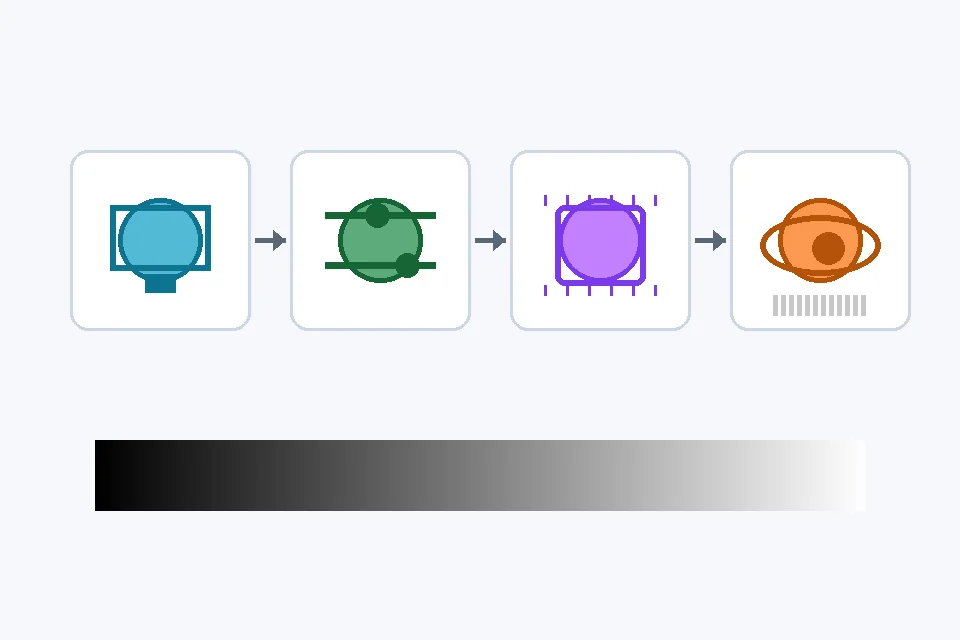
Gamma often gets blamed for other display problems. Use the symptom table before changing every setting. If text is soft, use the blurry monitor guide; if near-black patches vanish, use the black crush test guide; if black looks gray, use the RGB range fix; if the corners glow, check backlight bleed.
| Symptom | Likely issue | Best next test |
|---|---|---|
| Whole image looks flat and low contrast | Low gamma, wrong ICC profile, or HDR desktop mapping | Monitor Gamma Test and Color Range Test |
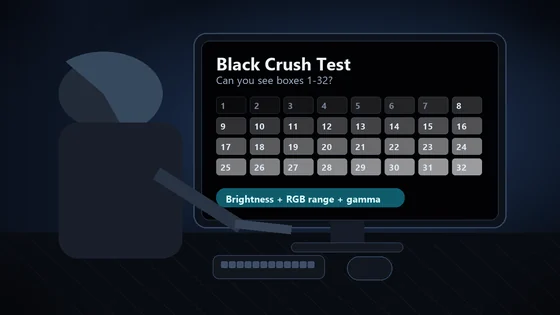
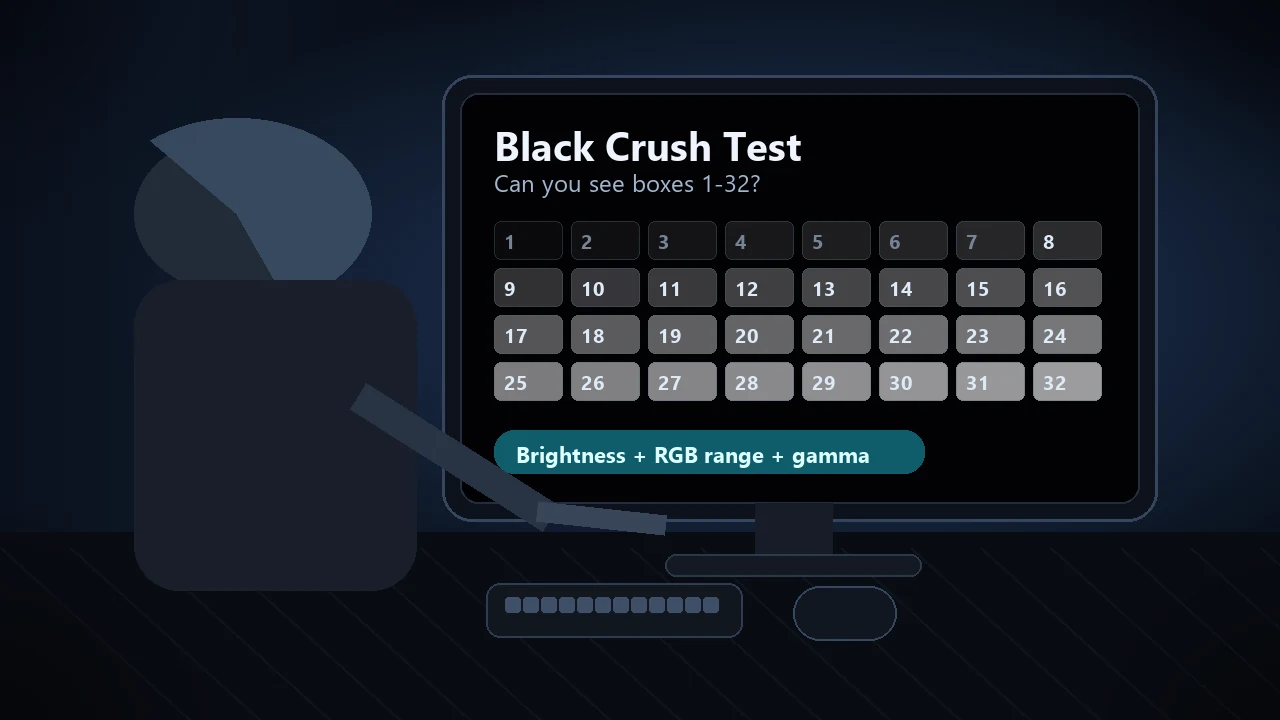
| Dark scenes lose shadow detail | High gamma, black crush, or black stabilizer too aggressive | Black Level Test |
| Blacks are gray or milky | Full vs Limited RGB mismatch or HDR washout | Color Range Test |
| Text and edges look fuzzy | Non-native resolution, scaling, sharpness, or chroma subsampling | Monitor Sharpness Test |
Room Light and Viewing Angle Matter
A visual gamma test depends on perception. Run it from your normal seat with steady lighting, because TN/VA viewing angle shifts, sunlight, and a completely dark room can all move the result by eye.
- Use your normal work or gaming brightness, not maximum brightness just for the test.
- Sit straight in front of the panel. Off-axis viewing can make gamma look darker or lighter.
- Avoid direct sunlight on the screen; reflections lift dark tones and hide the real result.
- If you use one monitor for both web work and dark-room movies, keep separate picture presets instead of forcing one gamma for everything.
Related Tools
Blend the stripe pattern with solid gray and target gamma 2.2.
Black Level TestCheck whether shadow detail is being crushed into pure black.
Color Range TestFind Full vs Limited RGB mismatches that make blacks gray or clipped.
Contrast TestCheck whether bright and dark tones separate cleanly.
Monitor Sharpness TestVerify pixel sharpness, scaling, and chroma clarity after gamma is fixed.
Related Display Guides
Use these deeper guides when the gamma test points to a neighboring display problem:
Resolution, scaling, sharpness, chroma, and OLED fringing fixes.
Black Crush TestShadow-detail checks for dark games and movies.
Blacks Look Gray on Monitor?Full vs Limited RGB fixes for washed-out blacks.
Backlight Bleed GuideSeparate panel glow and bleed from global gamma mistakes.
Watch: Monitor Settings That Affect Gamma
This RTINGS monitor settings guide is a useful companion because it explains how common picture controls affect real image quality.

The video supports the settings workflow: start with a sane picture mode, avoid aggressive processing, then verify changes with repeatable test patterns.
Sources and Research Notes
These sources support the gamma target, visual test method, and practical settings sequence. A browser test is useful for diagnosis, but a colorimeter is still the reference tool for professional color work.
- RTINGS monitor calibration settings
Explains common monitor controls, including gamma presets and how changing gamma affects dark and bright areas.
- EIZO Monitor Test
Secure browser test suite with gamma, grayscale, black-level, and other display patterns.
- KeyboardTester Monitor Gamma Test
The live browser tool used for the workflow in this guide.
- Reddit monitor gamma discussion
User reports show the practical confusion around gamma 2.2, washed-out modes, and too-dark presets.
Frequently Asked Questions
- What is the best gamma for a monitor?
For normal PC, web, and most game use, gamma 2.2 is the practical target because it matches the sRGB expectation used by most desktop content. Gamma 2.4 can suit dark-room video, while lower gamma looks brighter and flatter.
- Why does gamma 2.2 still look wrong on my monitor?
The label in the monitor menu is not proof. A preset can be inaccurate, the OS can load a bad ICC profile, HDR can remap SDR content, or the GPU panel can apply extra corrections. Retest after resetting those layers.
- Is gamma the same as brightness?
No. Brightness changes the black floor or backlight level. Gamma changes the curve between black and white, so it mostly changes midtones and shadow separation.
- Can I calibrate gamma without a colorimeter?
You can get a useful visual check with a browser pattern, but it is not a lab calibration. For print, photo, or paid color work, use a hardware colorimeter and profile the display.
- Why does my result change when I move my head?
Some panels shift tone response with viewing angle, especially TN and some VA screens. Run the test from your normal seat and avoid judging from the side.
Start with the Monitor Gamma Test. If 2.2 looks right but the picture still feels wrong, move to the Color Range Test, Black Level Test, and Monitor Sharpness Test in that order.




Reader discussion
Comments
Share what worked, what did not, or what you would test next. Every comment is reviewed before it appears.
Loading approved comments…
Leave a comment
No account or sign-in is required. Links and HTML are not accepted.