








Fast Answer
A monitor almost always looks blurry for one of five reasons: it is not running its native resolution, the OS display scaling is wrong, the monitor is over-sharpening in its on-screen menu, the signal dropped to chroma subsampling (4:2:2 instead of 4:4:4), or you are seeing OLED text fringing from a non-RGB sub-pixel layout. Open the live sharpness test to see where the blur is - the 1 px grid, color-fringing panel, and sub-pixel ruler show the problem by eye. The test does not read your resolution or output a score; confirm native resolution and scaling in your OS Display settings, then re-check the grid to verify the fix.
If text looks soft, edges look gritty, or the whole screen seems slightly out of focus, the panel is rarely broken. In almost every case a setting between your GPU and your pixels is off, and the display is being forced to interpolate.
This guide walks the five real causes in order, from most common to most subtle. Each one has a tell-tale sign and a concrete fix, and you can watch the on-screen pixel grid react as you change settings - that is how you know a fix actually landed instead of guessing.
How to read the test: it is a look-and-verify tool, not a meter. There is no sharpness number, no resolution readout, and no score. The 1 px grid should blend into a uniform grey on a clean setup; banding, moire, or shimmer means something is interfering. The color-fringing and sub-pixel panels reveal your panel layout by eye. Questions like "am I on native resolution?" and "what is my scale set to?" are answered in your operating system, not by the test.
The 5 Real Reasons a Monitor Looks Blurry
Scan this first. Match your symptom to the tell-tale sign, then jump to the matching section for the full fix.
| Cause | Tell-tale sign | First fix |
|---|---|---|
| Not native resolution | Everything is soft, the UI looks too big, and no edge anywhere is truly crisp. | Set the display to its native resolution in OS settings. |
| Wrong DPI / display scaling | Some apps are sharp, others fuzzy - often after a monitor swap, a dock, or a Windows update. | Set a recommended scale and turn on the "fix blurry apps" override. |
| Monitor over-sharpening | Edges have halos or ringing, text looks gritty rather than soft. | Set the monitor Sharpness control to neutral (usually the middle value). |
| Chroma subsampling / cable | Red or colored text on a dark background smears while black-on-white stays fine. | Force RGB / 4:4:4 and use a cable rated for your resolution and refresh rate. |
| OLED sub-pixel layout | Thin red/green/blue halos hug letter strokes on a new OLED panel. | Re-run ClearType / font smoothing; this is mitigated, not eliminated. |
Fastest Check: Run the Live 1px Sharpness Grid
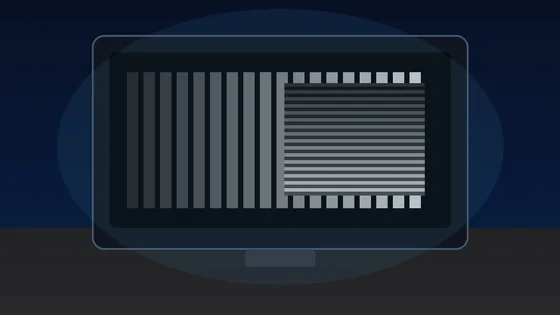
Before you change a single setting, look at the pixel grid. It draws a 1 px alternating pattern at your device pixel ratio, so on a clean, correctly-scaled, native-resolution display it blends into a flat mid-grey at arm's length. Anything else is a clue.
- Open the pixel grid
Launch the browser sharpness test and view the 1 px grid at your normal desk distance. You are looking, not measuring - the panel shows no score and no number.
- Watch for banding, moire, or shimmer
A clean setup looks like uniform grey. Visible waves, a rainbow shimmer, or bands that crawl when you move your head mean scaling, over-sharpening, or a non-native signal is interfering with pixel-perfect rendering.
- Switch to color fringing and the sub-pixel ruler
On the fringing and sub-pixel panels, colored halos on letter edges point to a non-RGB-stripe layout, and a reversed R-G-B stripe order means your panel is BGR.
- Read the text-clarity samples
The same paragraph renders at eight sizes in sans, serif, and mono. Note whether small sizes stay crisp or turn mushy - that tells you if the problem is global or font-rendering specific.
Keep this tab open. After every change below, come back and re-check the grid: if the shimmer is gone and the grid is flat grey, the fix worked. That is the whole diagnose-fix-verify loop, done by eye.
Cause 1 - You Are Not on Native Resolution
A flat panel has a fixed grid of physical pixels - its native resolution. Feed it any other resolution and the monitor must stretch or interpolate the image across pixels that do not line up. The result is always soft, no matter how good the panel is.
A 1080p signal on a 1440p or 4K panel is the classic offender. 1920x1080 does not divide evenly into 2560x1440, so every line gets smeared across fractional pixels. Even 1080p on a 4K panel - which scales as a clean 2:1 - looks softer than native because you are throwing away three quarters of the panel's detail.
Windows 11: right-click the desktop, choose Display settings, and under Scale & layout set Display resolution to the value marked (Recommended). That value is your native resolution.
macOS: open System Settings > Displays and pick Default, or choose the resolution that reads as the panel's native pixel count. Avoid the lowest "larger text" options if crispness matters more than size.
The sharpness test cannot tell you which resolution you are running - that lives in OS settings. What it can do is confirm the result: set native resolution, then re-open the grid. If a soft, shimmery grid snaps to clean grey, you were interpolating.
Rule of thumb: if every app, icon, and menu looks soft at once - not just one program - resolution is the first thing to check, before scaling or sharpness.
Cause 2 - Wrong OS / DPI Scaling
Scaling is separate from resolution. You can be on native resolution and still get blurry text because the operating system is enlarging the interface and some apps handle that enlargement badly. This is the usual reason one app is razor-sharp while another is fuzzy.
Display settings > Scale. Use the value marked (Recommended) - commonly 125% or 150% on high-DPI panels. A round scale (100/150/200%) is cleaner than an odd custom value like 137%.
Search "advanced scaling settings" and turn on "Let Windows try to fix apps so they're not blurry." For a stubborn legacy app, open its Properties > Compatibility > Change high DPI settings and let the app override scaling.
On a Retina or scaled display, System Settings > Displays offers "Looks like" options. The non-default scaled modes render to a larger buffer and downscale, which can very slightly soften text. Pick Default for the sharpest result.
Docking, undocking, or moving a window between monitors with different scales can leave an app blurry until it re-renders. Signing out and back in - or dragging the window off and back - forces a clean redraw.
On the grid, a scaling problem often shows as faint, regular banding rather than random shimmer, because whole rows of pixels are being duplicated or dropped by the scaler. Fix the scale, re-check the grid, and the banding should flatten out.
Cause 3 - Monitor Over-Sharpening and the Sharpness OSD Setting
Many monitors ship with edge enhancement turned up, or you nudged the Sharpness control looking for a "crisper" image. Over-sharpening does not add detail - it paints bright/dark halos along every edge, which reads as gritty, artificial text.
What Does the Sharpness Slider on a Monitor Actually Do?
The Sharpness control on a monitor is edge-enhancement post-processing, not a focus knob. Above its neutral point it adds artificial contrast (halos) to edges to fake crispness; below neutral it blurs them. It cannot recover real detail that the resolution or signal already lost - it only exaggerates or softens what is already there. The correct setting is neutral: on most monitors that is the middle of the range (often 50 on a 0-100 scale, or whatever value your manual lists as "no processing"). Set it there and fix the actual cause - resolution, scaling, or cable - instead.
- Open the monitor OSD
Use the physical buttons or joystick to open the on-screen menu, then find Sharpness (sometimes under Picture or Image).
- Set it to neutral
Move it to the middle / documented no-processing value. On the fringing panel of the test, over-sharpening shows as bright outlines around the black letters; those halos should disappear at neutral.
- Check any "clarity" or "edge" modes
Disable extra modes like Dynamic Sharpness, Super Resolution, or Clear Motion picture presets - they re-apply the same edge enhancement you just turned off.
Cause 4 - Chroma Subsampling and Cable Bandwidth
If black-on-white text is fine but red, cyan, or other colored text on a dark background looks fuzzy or has a smeary edge, the signal is probably running chroma subsampling - the color detail is being thrown away even though brightness detail is intact.
Full color is 4:4:4: every pixel keeps its own color. To save bandwidth, a link can drop to 4:2:2 or 4:2:0, where color is shared across pairs or blocks of pixels. Photos still look fine, but thin colored text - the highest-frequency color detail there is - turns mushy.
This usually happens when the resolution and refresh rate you selected need more bandwidth than the cable or port can carry at full color, so the GPU or monitor silently falls back to subsampled color. 4K at a high refresh rate over an under-spec HDMI cable is the classic trigger.
Fix it: use a cable rated for your resolution and refresh (a certified high-bandwidth HDMI or DisplayPort cable), pick the correct input mode in the monitor OSD (some have an "HDMI 2.1" or "DP 1.4" toggle), and in the GPU control panel set the output color format to RGB or YCbCr 4:4:4. If you must trade something, drop refresh rate to keep 4:4:4 color rather than the reverse for desktop text.
A related signal issue - blacks that look washed-out grey - comes from a Full vs Limited RGB range mismatch. If your dark areas look milky as well as your colored text looking fuzzy, walk through the RGB range fix next.
Cause 5 - OLED Text Fringing
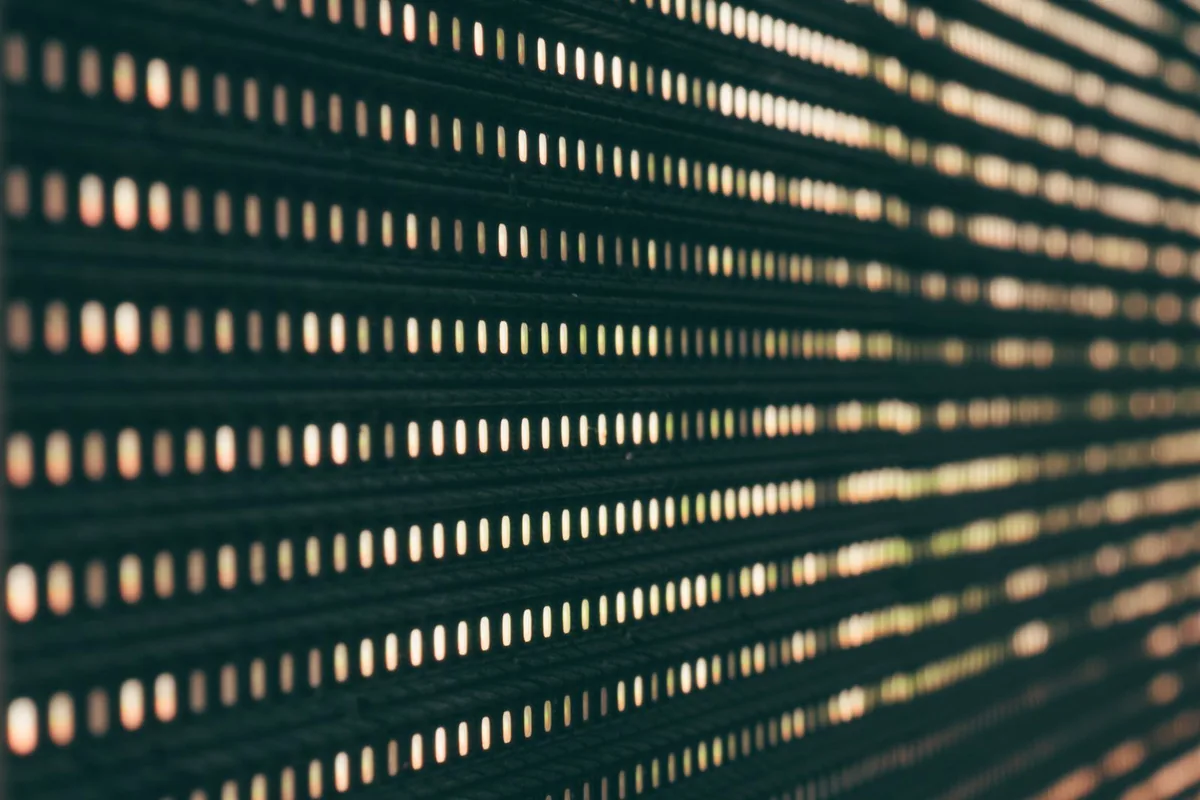
New OLED monitor, and every line of black text has faint red/green/blue halos? That is text fringing, and it comes from the sub-pixel layout, not a fault. Desktop font renderers assume a vertical Red-Green-Blue stripe (standard LCD). OLED panels usually are not built that way.
QD-OLED (Samsung-made panels) uses a triangular red/green/blue arrangement; WOLED (LG-made) adds a white sub-pixel in an RGBW layout. Neither is the clean RGB stripe that ClearType and macOS sub-pixel anti-aliasing were tuned for, so the color channels of anti-aliased text do not land where the renderer expects - you see thin colored edges.
Run the sub-pixel ruler to see it directly: a standard LCD shows a clean Red-Green-Blue-black stripe, a BGR panel reverses the order, and an OLED PenTile-style arrangement looks mottled instead of striped. That mottling is exactly why the halos appear.
Mitigate it: on Windows, re-run the ClearType Text Tuner (search "ClearType") and pick the samples that look cleanest on your panel; some users turn ClearType off entirely on OLED so text falls back to grayscale anti-aliasing with no color. On macOS, sub-pixel smoothing was removed years ago, so Apple systems already render grayscale text with no color fringe - increasing the display scale (larger text) also hides it.
Is OLED Text Fringing a Defect or Can I Fix It?
It is not a defect and it cannot be fully eliminated - it is inherent to the non-RGB-stripe sub-pixel layout. You can only mitigate it: re-tune or disable ClearType, use grayscale font smoothing, raise the display scale so each glyph spans more sub-pixels, and keep the GPU driver current. Firmware and OS updates have reduced fringing on many QD-OLED panels over time. One thing that is a defect: a single colored line or dot that never changes with content - that is more likely a stuck sub-pixel, so run a dead-pixel check to rule it out.
Verify Your Fix by Eye
You do not need a number to know it is fixed - you need the patterns to look right. Run this short loop after each change, because the whole point of the test is confirmation by eye.
The fix-and-verify workflow
- Set native resolution
In Windows Display settings or macOS Displays, choose the (Recommended) / native resolution, then re-open the grid - a soft grid that snaps to flat grey means you were interpolating.
- Set a recommended scale
Pick the recommended scale and, on Windows, enable "let Windows fix blurry apps." Re-check the grid for regular banding.
- Set Sharpness to neutral
In the monitor OSD, move Sharpness to its middle / no-processing value and disable extra clarity modes. Watch the fringing panel for halos vanishing.
- Force RGB / 4:4:4 color
Use an adequately rated cable and set the GPU output to RGB or 4:4:4 so colored text stops smearing.
- Re-run ClearType / font smoothing
Especially on OLED, re-tune ClearType (Windows) or lean on grayscale smoothing (macOS) to reduce color fringing.
- Verify on the sharpness test
Re-open the grid, fringing, and text-clarity panels. Clean means a flat grey grid, no colored halos on the letters, and small text staying crisp.

What "clean" looks like: the 1 px grid is a flat, even grey with no crawling pattern; the fringing blocks show black-and-white letters with no colored outline (or clearly reduced on OLED); and the 12 px text sample is still readable and sharp, not smeared.
Tools to Diagnose and Verify
See the 1px grid, color fringing, and sub-pixel ruler to spot and verify blur by eye - no score, just patterns.
Dead Pixel TestRule out a hardware fault: a fixed colored dot is a stuck sub-pixel, not a rendering problem.
Monitor Ghosting TestSeparate motion blur from static blur - if only moving objects smear, it is overdrive, not sharpness.
Color TestCheck solid colors and range while you are chasing chroma-subsampling and cable issues.
Related Guides
The other signal-path culprit: Full vs Limited RGB range that washes out dark tones.
Dead Pixel Test: Check Your MonitorConfirm whether a spot is a real hardware defect before blaming the rendering path.
144Hz Monitor Stuck at 60Hz? Fix and VerifyAnother wrong-display-setting fix - the refresh-rate version of a soft-looking screen.
Monitor Ghosting: Overdrive and Inverse GhostingWhen only motion looks blurry, this is the guide - static sharpness is a different problem.
OLED Burn-in vs Temporary Image RetentionThe other big OLED question, with a test to tell retention from permanent burn-in.
PWM Flicker Test and Eye StrainIf your OLED also causes eye strain, flicker - not sharpness - may be the cause.
Sources and References
This guide pairs KeyboardTester.click first-party tool behavior with stable vendor and reference documentation. The practical rule stays the same: change one setting, then verify by eye on the grid before moving on.
- Microsoft Support: Fix apps that appear blurry in Windows
Official steps for the "let Windows fix blurry apps" override and per-app high-DPI scaling.
- Apple Support: Change your display's resolution on Mac
Where to set native resolution and "Looks like" scaling on macOS.
- RTINGS: Chroma subsampling explained
Why 4:2:2 / 4:2:0 color makes thin colored text fuzzy while photos look fine.
- Wikipedia: Subpixel rendering
How ClearType-style sub-pixel anti-aliasing assumes an RGB stripe layout.
- Wikipedia: PenTile matrix family
Background on non-RGB-stripe sub-pixel arrangements used by many OLED panels.
FAQ
- Why is my text blurry but images and videos look fine?
Text is thin, high-contrast, high-frequency detail, so it exposes scaling, sub-pixel, and sharpness problems that photos hide. Check that you are on native resolution, that display scaling is set to the recommended value, and re-run ClearType or font smoothing.
- Why did my monitor get blurry only after a Windows update?
Updates can reset display scaling, re-detect a monitor at a different scale, or clear ClearType settings. Re-open Display settings, set the recommended scale, sign out and back in, and re-tune ClearType if text still looks soft.
- Is 1440p blurry on a 4K monitor?
Yes. 2560x1440 does not divide evenly into a 3840x2160 panel, so it is interpolated and looks soft. 1080p on a 4K panel scales as a clean 2:1 and is a bit cleaner, but native 4K is always sharpest. Run the panel at its native resolution.
- Does the monitor Sharpness setting fix blur?
No. The Sharpness control is edge enhancement, not focus. It can hide softness with halos or make things worse, but it cannot restore detail that the resolution, scaling, or signal already lost. Set it to neutral and fix the real cause.
- Can this sharpness test measure how sharp my monitor is?
No - it is a look-and-verify tool with no score, no number, and no resolution readout. It renders a 1px grid, a color-fringing panel, a sub-pixel ruler, and multi-size text so you can see banding, halos, and your panel layout by eye. You confirm resolution and scaling in your OS Display settings.
- Is OLED text fringing normal or a defect?
On QD-OLED and WOLED panels it is a normal result of the non-RGB-stripe sub-pixel layout and is mitigated - not eliminated - by ClearType tuning, grayscale smoothing, and higher scaling. A colored line or dot that never changes with content is more likely a stuck sub-pixel, so run a dead-pixel test to rule it out.
Diagnose with your eyes, not a guess. Open the live sharpness test, change one setting - resolution, scale, sharpness, cable, or ClearType - then re-check the grid until it is flat grey and the text edges are clean. If the text is sharp but the whole image still looks washed out or too dark, move to the monitor gamma test workflow before changing unrelated display settings.




Reader discussion
Comments
Share what worked, what did not, or what you would test next. Every comment is reviewed before it appears.
Loading approved comments…
Leave a comment
No account or sign-in is required. Links and HTML are not accepted.