










You open a forum thread because you cannot be the only one. Someone has written “severe migraine and dizziness for me in 5 minutes,” another says letters seem to jump on the page, and a third just asks, plainly, “is it just me?” That Apple Support thread alone has more than 750 people clicking “Me too.” If your new phone or OLED laptop leaves your eyes aching while your old screen never did, you are not imagining it — and you do not have to take it on faith. You can prove it.
The likely culprit is PWM (pulse-width modulation): the way most modern screens dim by switching the backlight on and off hundreds or thousands of times a second. About 70% of people cannot consciously see this flicker, which is exactly why sensitive users end up doubting themselves. This guide fuses four things most pages keep separate: a 60-second symptom self-check, a reproducible phone-camera test with exact settings, a live flicker test you can run right on this page, and a frequency safety table covering both monitors and phones.
The fast answer: If your eye strain shows up on an OLED phone or laptop at low brightness and eases at maximum brightness or on an older LCD, suspect PWM. Confirm it in 60 seconds by filming the lit screen with a second phone’s camera (Pro mode, fast shutter): dark rolling bands = PWM flicker. Thick, slow bands mean a low, eye-straining frequency (around 240–480Hz); thin fast lines mean a safer high frequency. A clean, band-free image means DC dimming or a flicker-free panel. Use the live PWM Flicker Test below as a known-flickering reference to calibrate your eye and your camera.
First: Is It PWM, or Just General Screen Fatigue?
Not every tired eye is a flicker problem. Plain digital eye strain — from long hours, low blink rate, glare, and dry air — produces grittiness and a dull ache that builds slowly and fades with rest. PWM sensitivity behaves differently. The tell is that it tracks the screen, not the hours: a specific display hurts fast, even briefly, while another feels fine for a full day.
Run this quick self-check. The more boxes you tick, the more likely PWM is involved.
PWM-pattern symptoms (screen-specific, fast onset):
- One specific phone, laptop, or monitor gives you a headache or dizziness within minutes, sometimes in under 5.
- Symptoms get worse at low brightness and ease when you crank the screen bright.
- Your old LCD phone or monitor never did this; the trouble started with a newer OLED device.
- Text feels like it shimmers, vibrates, or is oddly hard to lock focus on.
- A nagging ache behind the eyes or temples, nausea, or a “seasick” feeling, not just dryness.
- Other people’s same-model device bothers you too — it follows the screen, not your day.
General-fatigue pattern (hours-specific, slow onset): dryness and grittiness that build over a long day on any screen, ease with breaks and eye drops, and are not tied to brightness or a single device.
This is the same diagnose-then-decide mindset behind checking a monitor for dead and stuck pixels or testing your ears with a 17 kHz hearing-age tone: you confirm the hardware behavior objectively before you spend money or worry. A symptom pattern points the finger; the camera test that follows supplies the proof. The same logic applies when an OLED shows a lingering ghost of a previous image: the OLED image retention vs permanent burn-in test separates a temporary artifact from lasting panel damage before you file a warranty claim.
Why This Is Suddenly Everyone’s Problem
PWM is not new, so why the flood of complaints in 2025–2026? Because the comfortable screens quietly disappeared. The phone and laptop market moved to OLED almost everywhere, and good LCD phones — the kind that used steady DC dimming or high-frequency flicker many sensitive people never reacted to — are now nearly gone from the shelves.
OLED pixels do not dim cleanly by simply lowering current the way an LCD backlight does, so manufacturers reach for PWM, and historically at low frequencies. Apple, Google, and Samsung flagships have used rates around 240Hz and 480Hz, frequencies that Android Central notes can cause discomfort in up to 20% of the population. Combine “OLED is now the only choice” with “a meaningful slice of people are sensitive” and “most of them cannot see the flicker so they assume the problem is their own eyes,” and you get exactly the wave of forum threads you have been reading.
If you have used phones happily for a decade and only struggle now, your eyes did not change — the dimming technology did. That single reframing is what most sufferers are missing.
The 10-Second Stroboscope Check (No Gear Needed)
Before you touch a camera, here is the fastest sniff test, used for spotting flickering light for decades. It works because a moving object under a flickering light is lit only at the instants the light is “on,” so instead of a smooth blur you see a series of frozen, stuttering copies.
- Set the screen you want to test to a low-to-mid brightness and put up a bright, plain background (a white webpage or note works).
- Hold a pencil or your spread fingers a few inches in front of the screen and wave them quickly side to side.
- Watch the trail. Under a steady (non-flickering) screen you see a smooth, continuous blur. Under PWM you see multiple distinct, ghosted copies — a stroboscopic stutter, like a strobe light froze the motion into steps.
The more separated and stepped the copies look, the lower the flicker frequency, and the more likely it is to bother sensitive eyes. This is a great quick yes/no, but it does not give you a number or a clean record. For that, reach for the camera.
The Phone-Camera Test, Step by Step
This is the most reliable home test, because the camera captures actual photons from the panel. A phone sensor reads the image line by line (a “rolling shutter”), so when the screen blinks off during part of that scan, those lines come out dark — producing the tell-tale rolling bands. Here is the exact routine.
1. Set the right brightness
PWM dimming is usually only active below maximum brightness; at 100% most screens switch to a steady output and hide the flicker. So set the device under test to:
- Phones: about 20–30% brightness (low brightness is where OLED PWM is most aggressive).
- Monitors / laptops: about 50–75% brightness.
2. Lock your camera’s exposure and pick a fast shutter
Use a second phone’s standard camera app, not portrait mode. You need to stop the camera from auto-brightening, and you need a fast shutter so each frame catches a single slice of the on/off cycle:
- iPhone: tap the screen, then press and hold until AE/AF Lock appears, and drag the exposure slider down. iPhones do not expose a manual shutter in the stock app, but locked exposure plus a bright target usually reveals banding.
- Android: switch to Pro / Manual mode and set the shutter speed anywhere from 1/120s to 1/4000s. Faster shutters sharpen the bands; 1/1000s is a great starting point.
3. Film the screen and read the bands
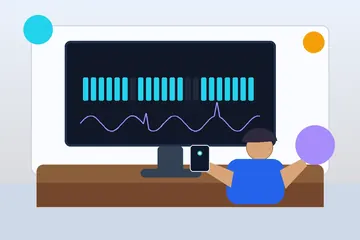
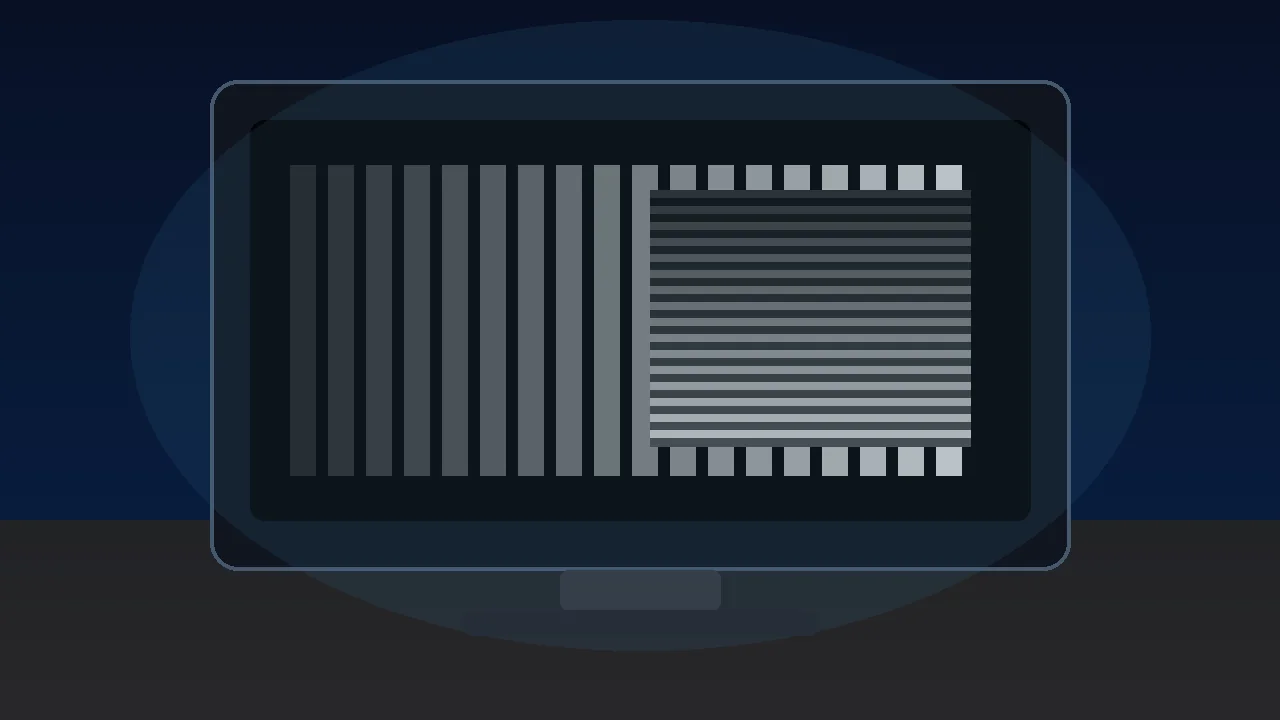
Point the camera at the lit screen from roughly 30 cm and watch the live preview (you do not even need to record). Then interpret what you see using the figure below.
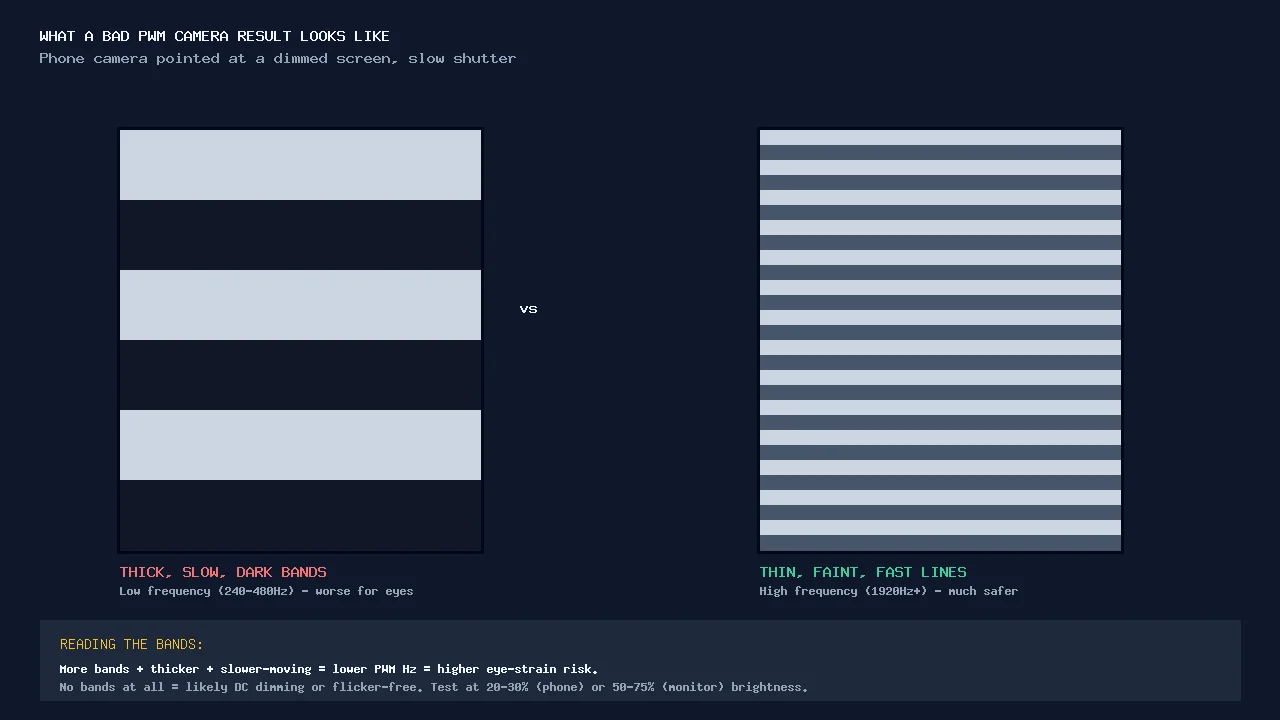
How to read your bands:
- Thick, slow-moving, very dark bands → low frequency, deep modulation → worst for sensitive eyes.
- Thin, faint, fast-shimmering lines → high frequency → usually comfortable.
- No bands, a steady even image → likely DC dimming or flicker-free.
- Rough math: count the bands across the frame at a known shutter. Two bands at 1/200s is roughly 400Hz; more bands at the same shutter means a higher frequency.
If the camera test shows clean bands but you want a second opinion on the panel itself, the same diagnose-by-eye approach helps with related screen faults — for example, checking uniformity and stuck pixels with a dead pixel test or judging shadow detail with a black level test.
Test It Right Now: Live PWM Flicker Test
It helps to have a screen you know is flickering, so you can calibrate your eye and your camera before judging your real device. The free PWM Flicker Test drives a controlled, selectable flicker right in your browser. Pick a frequency, go fullscreen, then film the result with your second phone — you will see exactly the kind of banding to hunt for on the device you actually care about.
How to read the live test
- Select a frequency in the tool (it offers several from low to high). Start low so the flicker is obvious.
- Go fullscreen and film it with your second phone using the camera settings above. Lower frequencies should show fat, slow bands; higher ones show thin, fast lines.
- Switch to your real device and film it the same way. Compare the band thickness and speed against what you just saw at known frequencies. That comparison is your read on roughly where your screen sits.
- Test at different brightness levels. If bands appear at low brightness but vanish near maximum, your screen uses PWM only when dimmed — useful, because it means raising brightness can be part of your fix.
Seeing it in motion makes the concept click. This short comparison films real flagship phones at very different PWM frequencies — from a punishing ~246Hz up to a smooth 4320Hz — so you can watch how dramatically band thickness shrinks as frequency climbs.

The Frequency Safety Table (Monitors and Phones)
Once you suspect PWM, the next question is whether your screen’s frequency is in the danger zone. There is no single hard line, but the IEEE 1789-2015 flicker guidance and display reviewers agree that risk falls steeply as frequency rises. Below roughly 1250Hz is a higher-risk region, 1000–3000Hz is low risk, and above about 3000Hz there is effectively no risk for normal dimming. The practical bands look like this.
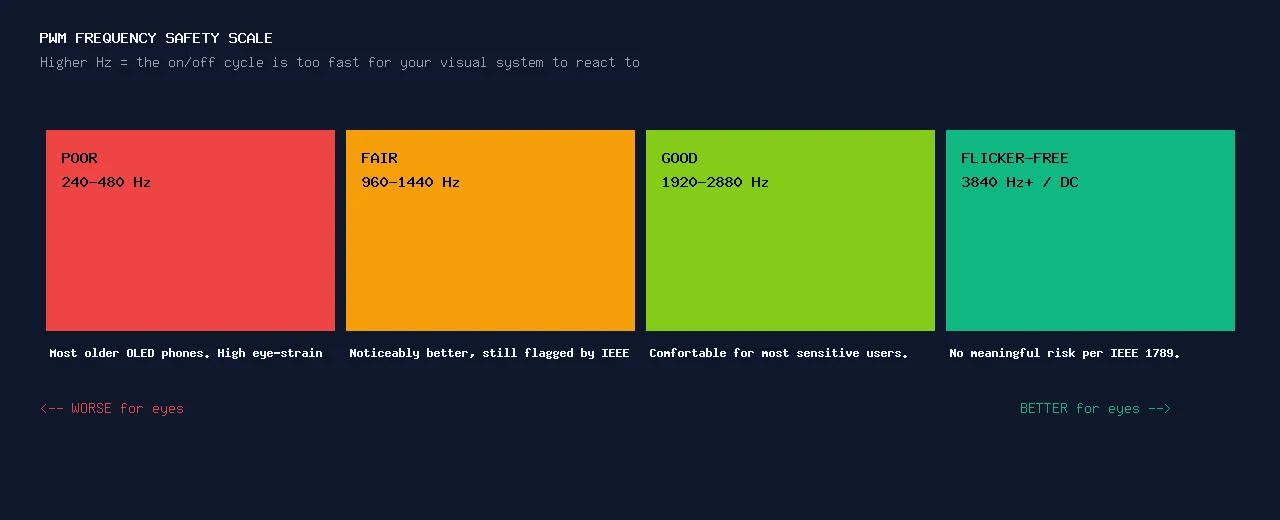
| PWM frequency | Rating | What it means for sensitive eyes | Typical devices |
|---|---|---|---|
| 240–480Hz | Poor | High eye-strain risk. Most likely to cause headaches, dizziness, and focus trouble in long sessions. | Many older and budget OLED phones; some OLED laptops at low brightness. |
| 960–1440Hz | Fair | Noticeably better, but still inside the higher-risk zone IEEE 1789 flags. Some sensitive users still react. | Mid-tier 2024–25 OLED phones marketed as “eye care.” |
| 1920–2880Hz | Good | Comfortable for most sensitive people. A solid target when phone-shopping. | OnePlus 15 (~2160Hz at low brightness) and similar recent flagships. |
| 3840Hz+ or DC dimming | Flicker-free | No meaningful risk per IEEE 1789. The safe destination for the very sensitive. | Honor Magic series (~3840–4320Hz, some over 5000Hz); TUV-certified flicker-free monitors. |
Modulation depth matters too. Frequency is only half the story: a screen that dims by going fully dark each cycle (100% modulation depth) is harsher than one that only dips part-way. That is why two phones quoting the same Hz can feel different, and why a deep, dark band in your camera test is a worse sign than a faint one at the same speed.
Finding your exact Hz
Your camera test gives you a rough zone; for a precise number, look up your model. The most thorough public database is Notebookcheck’s PWM Ranking, which lists measured PWM frequency and amplitude for phones, tablets, and laptops. For monitors, a TUV Rheinland Flicker-Free / Eye Comfort certification is a reliable shortcut: it means the panel passed instrumented flicker testing rather than relying on marketing copy.
What to Do About It Now
Confirmed PWM? You have a ladder of fixes, from free settings to a hardware change.
Free fixes to try first
- Raise brightness above the PWM threshold. Many screens stop using PWM near maximum brightness. Push brightness up, then tame the harsh bright screen by darkening the room, using a dark theme, or warming the color temperature — you get a steady light without a blinding panel.
- Enable any DC dimming / anti-flicker toggle. Several phone brands include a “DC dimming,” “flicker reduction,” or “anti-flicker” option in display or accessibility settings. Turning it on is the single biggest comfort win available without new hardware.
- Reduce load. Increase viewing distance, take regular breaks (the 20-20-20 rule: every 20 minutes, look 20 feet away for 20 seconds), and cut total low-brightness OLED time, especially at night.
If settings are not enough: hardware that fixes it
- High-frequency-PWM phones (2025–26). If you are buying, start with the 2026 phone PWM buyer guide, then target high PWM. Honor’s Magic line runs very high — around 3840–4320Hz, with some recent Honor devices deploying rates over 5000Hz — and the OnePlus 15 uses about 2160Hz at low brightness. Verify the exact figure on Notebookcheck before you buy, because numbers vary by model and even by software update.
- Flicker-free monitors. For desktop work, choose a monitor with a TUV Rheinland Flicker-Free certification, which indicates DC dimming or very high-frequency PWM across the brightness range. This is the most dependable comfort upgrade for anyone who stares at a screen all day.
- LCD as a deliberate choice. Where it still exists, a quality IPS LCD with DC dimming remains a genuinely flicker-free option for the most sensitive users.
Your PWM decision checklist:
- Match your symptoms to the screen, not the hours — fast onset, worse at low brightness, tied to one OLED device.
- Confirm objectively: stroboscope pencil wave, then the phone-camera band test, calibrated against the live flicker tool.
- Place your screen on the safety scale: 240–480Hz poor, 960–1440Hz fair, 1920–2880Hz good, 3840Hz+ or DC flicker-free.
- Try free fixes: higher brightness, DC dimming toggle, breaks and distance.
- If needed, move to a high-frequency-PWM phone or a TUV Flicker-Free monitor — and check the exact Hz on Notebookcheck first.
FAQ: PWM Flicker and Eye Strain
Is PWM flicker actually bad for your eyes?
For most people it causes no harm, but a sizeable minority — roughly 10 to 20 percent by common estimates — feels real symptoms. Even when you cannot consciously see the flicker, your iris and visual system still react to the rapid on-off cycling, and that subconscious workload can produce eye strain, headaches, dizziness, or trouble focusing on text during long sessions. Lower PWM frequencies are the problem; high-frequency or DC-dimmed screens remove it almost entirely.
What PWM frequency is safe for sensitive eyes?
There is no single magic number, but IEEE 1789-2015 and display reviewers agree risk drops sharply with frequency. Below roughly 1250Hz is higher-risk, 1000–3000Hz is low risk, and above about 3000Hz there is effectively no risk for normal dimming. Practically: 240–480Hz is poor, 960–1440Hz is fair, 1920–2880Hz is good, and 3840Hz or higher (or true DC dimming) is flicker-free. Modulation depth matters too — a shallow dim is gentler than one that goes fully dark each cycle.
What is the difference between DC dimming and PWM?
PWM keeps the light at full power but switches it on and off very fast; the more time it spends off, the dimmer it looks — so the light literally flickers. DC dimming instead lowers the actual current so the light stays continuously on at a lower level, with no flicker. LCD backlights can use true DC dimming; OLED panels usually rely on PWM or a DC-like approximation. If your phone has a DC dimming toggle, turning it on is the biggest comfort win you can make.
Why do OLED screens hurt my eyes when LCD never did?
OLED phones and laptops overwhelmingly use PWM to dim, historically at low frequencies (often 240–480Hz), because OLED pixels do not dim smoothly with reduced current the way an LCD backlight does. Many older LCD phones used DC dimming or high-frequency PWM, so they never flickered in a way your eyes noticed. As the market shifted to OLED almost everywhere between 2024 and 2026, sensitive people lost their comfortable options — the screen technology changed, not your eyes.
How do I know if PWM affects me specifically?
Run an A/B test. Use an OLED phone at low brightness for 20 to 30 minutes and note any headache, dizziness, aching eyes, or trouble focusing. Then repeat on a known DC-dimmed or high-frequency screen, or on the same phone at maximum brightness where PWM usually switches off. If symptoms appear with low-brightness OLED and clear up on the comfortable screen, PWM is a strong suspect — and the phone-camera test confirms the screen really is flickering.
Can I fix PWM eye strain without buying a new device?
Sometimes. Raising brightness above the PWM threshold (while dimming the room or using a dark theme) often helps, because many screens stop using PWM near maximum brightness. Enabling any DC dimming or anti-flicker setting is the next step, and breaks plus more viewing distance reduce overall load. If that is not enough, the durable fix is a high-frequency-PWM phone (some 2025–26 models run 1920Hz to over 4000Hz) or a TUV Rheinland Flicker-Free certified monitor.
Sources and Further Reading
- Apple Discussions — “Severe Eye Strain due to OLED PWM Dimming” (750+ “Me too”)
- Android Central — What is PWM dimming, and what are the alternatives? (updated Mar 9, 2026)
- DIAL — IEEE 1789: a standard for evaluating flickering LEDs
- Notebookcheck — PWM Ranking: measured PWM frequencies for phones, tablets, and laptops
- TUV Rheinland — Eye Comfort / Flicker-Free display certification
Ready to settle it? Open the live PWM Flicker Test, pick a frequency, go fullscreen, and film it — then film your own screen and compare. The bands do not lie.



Reader discussion
Comments
Share what worked, what did not, or what you would test next. Every comment is reviewed before it appears.
Loading approved comments…
Leave a comment
No account or sign-in is required. Links and HTML are not accepted.