

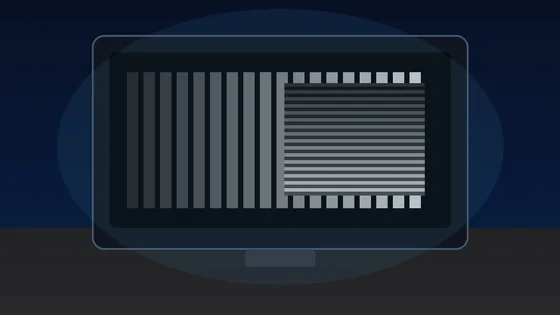





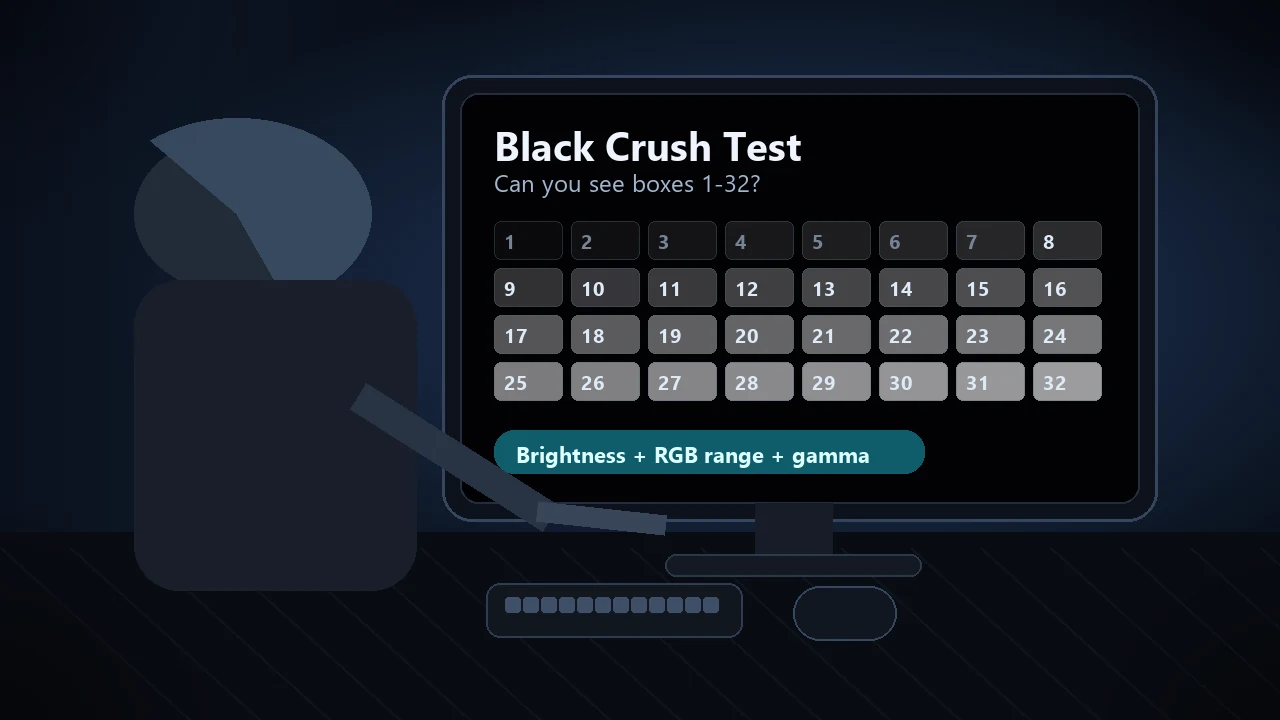


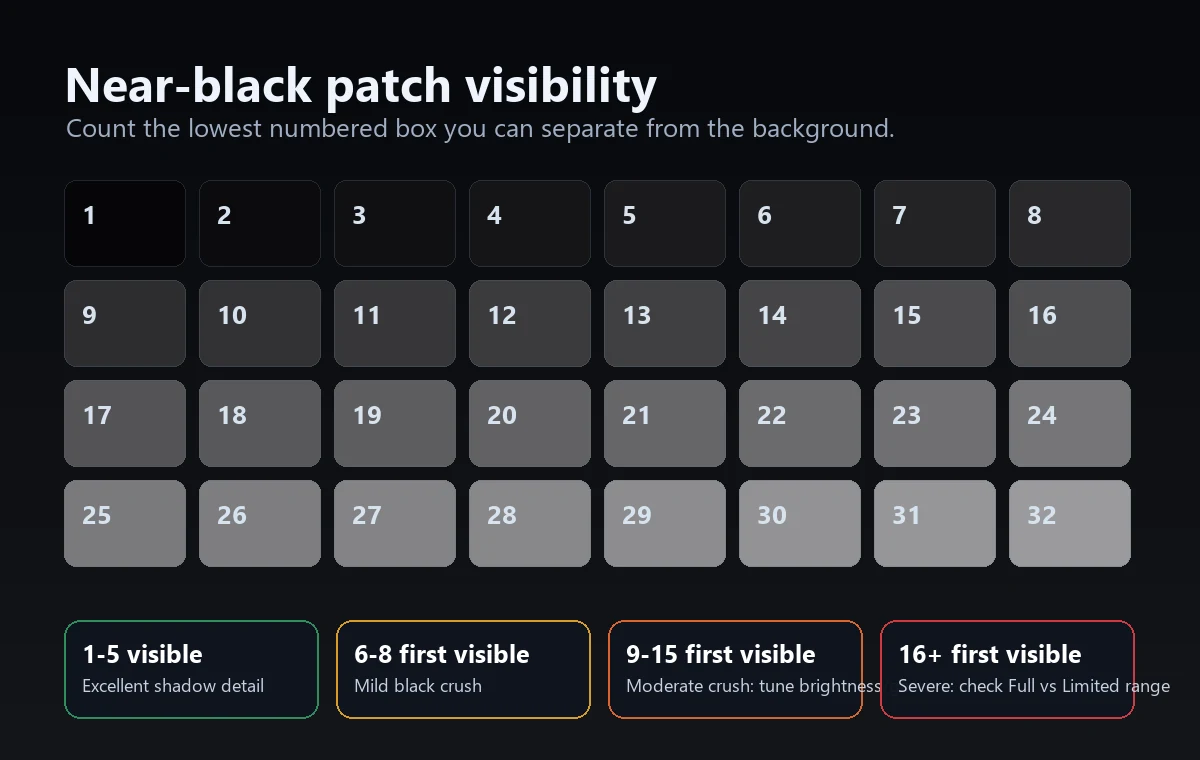
Fast answer: Run the black level test in a dim room and look for the first near-black box you can separate from the background. If boxes 1-5 disappear but 6-8 are visible, you have mild black crush. If the first visible box is 9-15, tune brightness, HDMI black level, RGB range, and gamma. If only 16+ is visible, suspect a severe Full vs Limited range mismatch or an aggressive OLED/HDR shadow setting.
Black crush means dark detail is being clipped into the same flat black. You may notice it in night scenes, horror games, shadowed hair, dark clothing, caves, or OLED HDR content where everything below a certain brightness vanishes. This guide shows you how to run a quick black crush test, read the result, and fix the settings in the right order before assuming the monitor is defective. If what you see is a lingering ghost of an earlier image rather than missing shadow detail, run the image retention vs permanent burn-in check instead.
How to Run the Black Crush Test
Use one controlled test first. Do not chase game-specific shadow sliders until the monitor can show the near-black patches correctly in SDR.
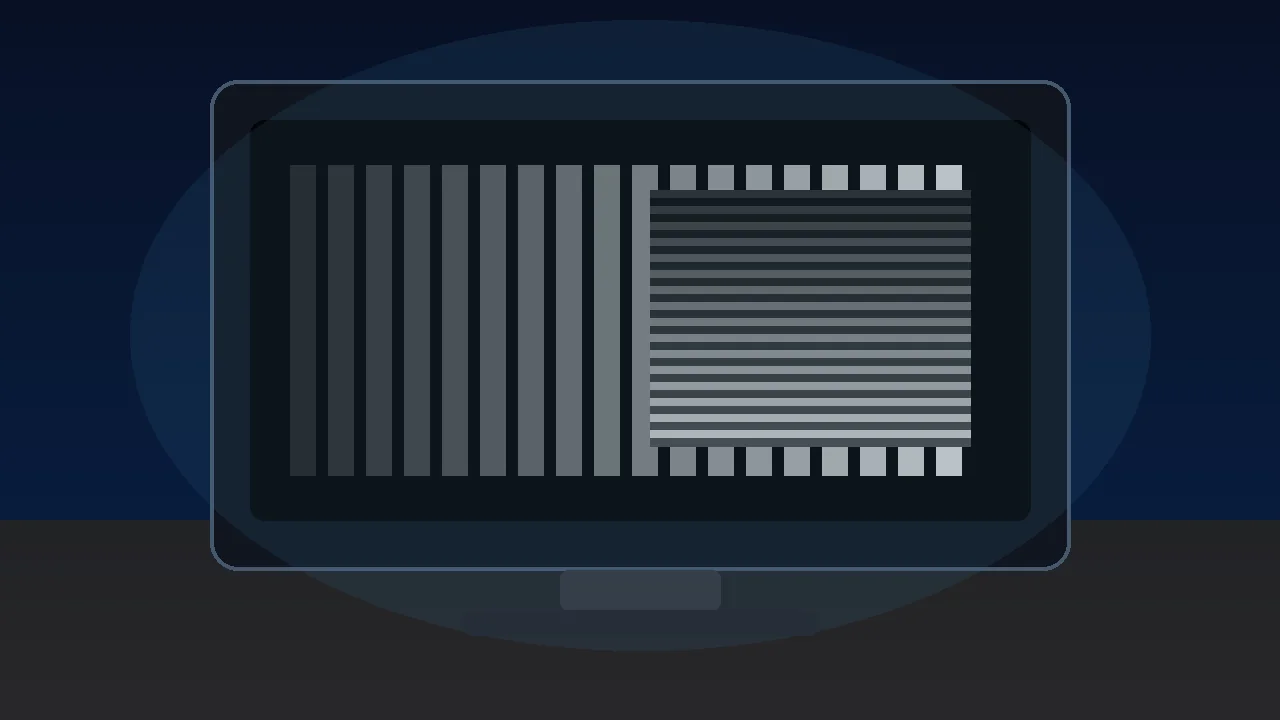
- Open the black level test: Use the full-screen black level checker and let your eyes adapt for 30-60 seconds. Keep the room dim but not pitch black.
- Set normal viewing settings: Use your normal brightness, SDR mode, and the input you actually use for games or movies. Turn off dynamic contrast and extreme black stabilizer modes for the first pass.
- Count the first visible patch: Look for the lowest numbered box that is just separable from the background. Squinting, moving off-axis, or cranking room brightness makes the result less useful.
- Change one setting at a time: Adjust brightness, HDMI black level, GPU output range, or gamma, then re-run the same test. Stop when patches 2-5 are subtle but not completely missing.
How to Read the Result
Near-black visibility is not supposed to be bright. The lowest boxes should be barely visible, not glowing. You are looking for separation from the background, not for a washed-out gray screen.
| First visible box | What it usually means | Next action |
|---|---|---|
| 1-3 | Excellent shadow detail, or brightness may be slightly high if black looks gray. | Compare with the Color Range Test so you do not over-lift blacks. |
| 4-5 | Normal to mild crush on many monitors, especially in a bright room. | Fine for most use if dark scenes still show texture. |
| 6-8 | Mild black crush. The deepest shadow steps are being hidden. | Raise brightness one or two clicks, check gamma, and retest. |
| 9-15 | Moderate black crush. Games and movies will lose shadow detail. | Check HDMI black level and GPU Full/Limited RGB first. |
| 16+ | Severe crush or a range mismatch. Many dark details are clipped. | Reset display picture mode, match RGB range, then retest SDR before HDR. |
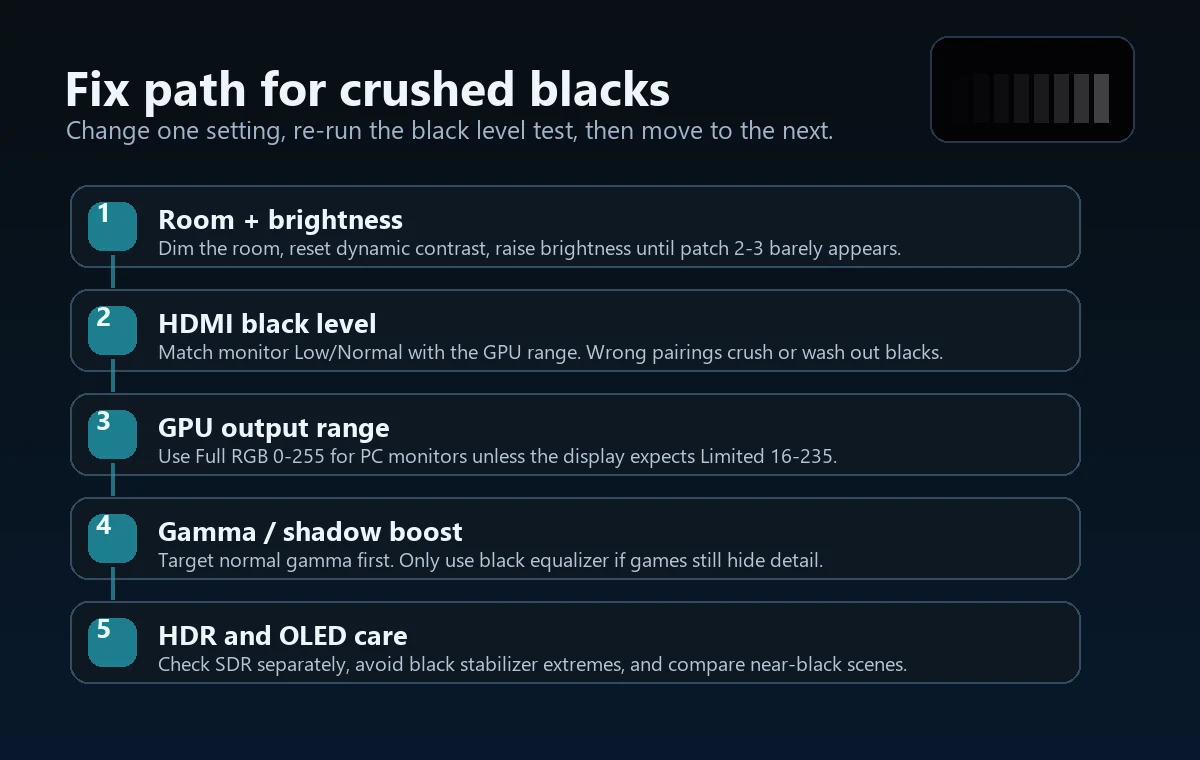
Fix Path for Crushed Blacks
Move through these checks in order. Change one setting, re-run the black level test, then continue only if the low-numbered patches are still missing.
Raise brightness until patch 2 or 3 barely separates from black, then stop. If black becomes gray, brightness is too high or RGB range is wrong.
Monitor settings often call this Low, Normal, Limited, Full, or Black Level. Match it with the GPU setting instead of guessing.
For a PC monitor, Full RGB 0-255 usually matches best. Limited 16-235 on one side and Full on the other can either crush shadows or wash out blacks.
Use a standard gamma target first. High gamma darkens midtones and shadows; low gamma can reveal detail but make the image flat.
Calibrate SDR first. Then set HDR black point and in-game brightness with the game logo barely visible, not comfortably bright.
If nothing helps, test Standard or sRGB mode with local dimming, dynamic contrast, AI contrast, and black stabilizer disabled.
OLED, HDR, VRR, and Game Black Stabilizer Settings
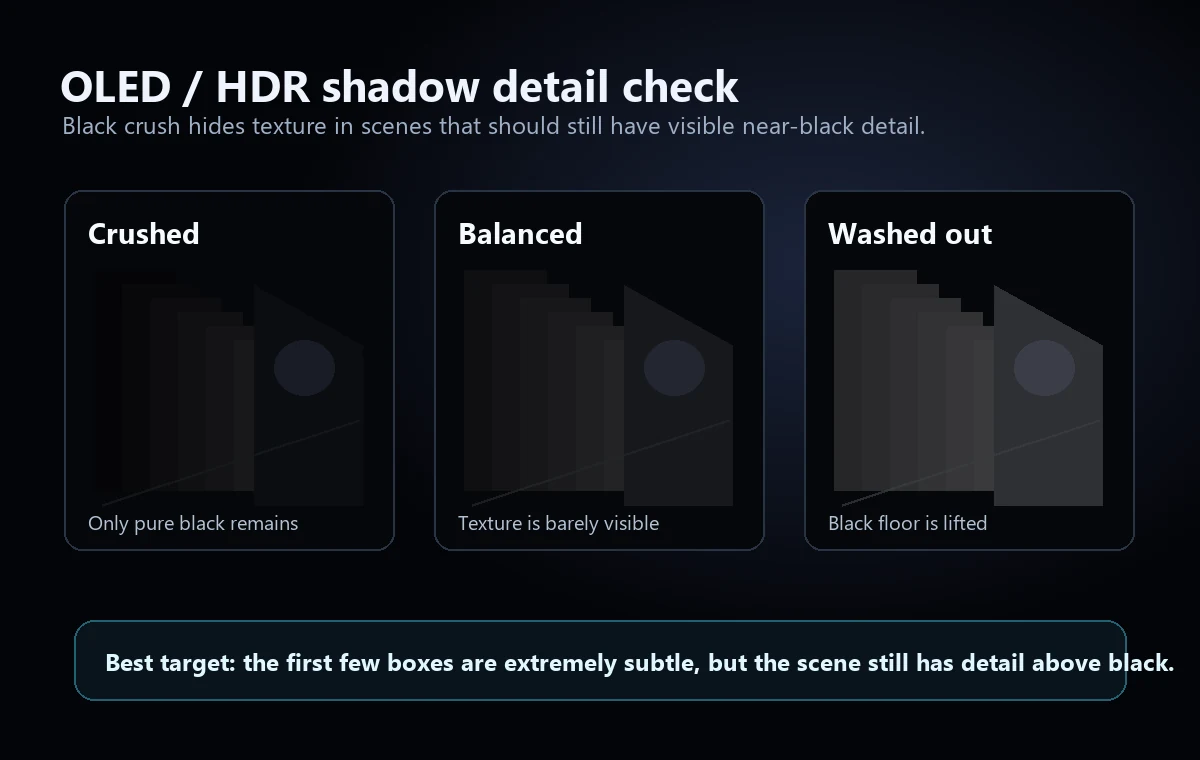
OLED panels can make black crush more obvious because true black is extremely deep. HDR tone mapping, near-black gamma, VRR flicker compensation, and black stabilizer features can all hide shadow detail if they are pushed too far.
On OLED, true black is off, so the jump from black to the first visible step can be abrupt. That makes poor near-black calibration easy to spot.
HDR can compress dark detail when Windows HDR, console HDR, and the game slider disagree. Verify SDR first, then adjust HDR.
Some monitors change near-black behavior with VRR or black equalizer modes. Retest with the mode on and off.
If only one area loses shadow detail, also run a screen uniformity test. If the whole image clips evenly, settings are more likely.
Black Crush vs Blacks That Look Gray
Black crush and washed-out blacks are opposite problems. One clips detail into black; the other lifts black into gray. The fastest way to avoid wrong fixes is to test black level and color range separately.
| Symptom | What you see | Likely fix |
|---|---|---|
| Crushed blacks | Low patches disappear into black. | Raise brightness, fix Full/Limited range, lower aggressive gamma, reset black stabilizer. |
| Washed-out blacks | Black background looks gray or foggy. | Fix Full/Limited mismatch, lower brightness, check HDR, local dimming, and room reflections. |
| Backlight bleed / glow | Corners or edges look brighter than the center. | Use the screen uniformity or backlight bleed guide; settings cannot fully remove panel bleed. |
Start with the Black Level Test. If the patch test passes but blacks still look wrong, run the Color Range Test and Monitor Gamma Test before changing every game setting. For the full 2.2 reading workflow, use the monitor gamma test guide and change one display layer at a time.
Watch: OLED Black Crush and How to Fix It
This video explains why OLED near-black handling can hide shadow detail and shows the kind of visual symptoms this guide is targeting.
Sources and Research Notes
These references support the test method, the near-black patch interpretation, and the practical settings path. Exact results vary by panel type, calibration, GPU driver, and room lighting.
- TFTCentral - OLED black crush and shadow detailExplains why OLED near-black handling can hide shadow detail and how to test it.
- EIZO Monitor TestSecure browser test suite with grayscale, black-level, gamma, and other display patterns.
- Blur Busters TestUFO Black LevelsBrowser-based black level reference for checking dark patch visibility.
- KTC - what causes black crushPractical monitor-setting overview covering black level, brightness, and gamma causes.
- Reddit OLED Gaming black crush discussionReal user examples of interpreting near-black patch tests on modern OLED gaming displays.
- KeyboardTester.click Black Level TestThe on-site test used in this guide.
Related Tools
Count near-black patches and prove whether shadow detail is clipped.
Color Range TestFind Full vs Limited RGB mismatches that crush or wash out black.
Monitor Gamma TestCheck whether gamma is making shadows too dark or too flat.
Screen Uniformity TestSeparate panel uniformity issues from global black-level settings.
Related Guides
Use this if your problem is lifted black, foggy contrast, or a washed image.
OLED Burn-In TestCheck image retention and permanent burn-in separately from near-black crush.
Backlight Bleed GuideDiagnose corner glow, IPS glow, and return-worthy bleed.
Monitor Ghosting TestTune overdrive after black levels are correct.
Frequently Asked Questions
- What is black crush?Black crush is when near-black detail is clipped into pure black. Instead of seeing separate shadow tones, dark clothing, caves, hair, or night scenes collapse into one flat dark area.
- How do I know if my monitor has black crush?Run a black level test and count the first near-black patch you can see. If boxes 1-5 are invisible but 6-8 are visible, it is mild. If the first visible box is 9 or higher, the screen is hiding useful shadow detail.
- Should I raise brightness to fix black crush?Raise brightness only until the lowest patches are barely visible. If black turns gray, stop and check HDMI black level and GPU Full/Limited RGB, because range mismatch often looks like a brightness problem.
- Is black crush normal on OLED?Some OLED panels show more near-black difficulty than LCDs because true black is very deep, but severe black crush is not something you should ignore. Test SDR first, then adjust HDR and game black point settings.
- Can a browser test replace professional calibration?No. A browser test is a practical diagnostic, not a colorimeter. It is still useful because it quickly shows whether your current setup clips shadow detail before you spend time on advanced calibration.
- What is the difference between black crush and washed-out blacks?Black crush hides dark detail by making many shadow tones pure black. Washed-out blacks lift the whole black floor so black looks gray. The fixes are different, so run both black level and color range checks.
Start with the Black Level Test. If the patch test passes but blacks still look wrong, run the Color Range Test and Monitor Gamma Test before changing every game setting. For the full 2.2 reading workflow, use the monitor gamma test guide and change one display layer at a time.



Reader discussion
Comments
Share what worked, what did not, or what you would test next. Every comment is reviewed before it appears.
Loading approved comments…
Leave a comment
No account or sign-in is required. Links and HTML are not accepted.