Free screen uniformity test. Fullscreen gray, red, green, blue, or white for spotting LCD clouding, IPS glow, backlight bleed, and dark-corner uniformity issues across the panel.
Pick a color and brightness level, enter fullscreen, and look for dark corners, brighter edges, clouds, or IPS glow on your monitor. Different colors reveal different uniformity issues.
Pick a color and brightness, then Fullscreen. Good panels show perfectly even color edge-to-edge. Uneven brightness, tinted corners, or cloudy patches reveal uniformity issues.
Tip: check at 20%, 50%, and 80% brightness — uniformity issues often appear only in a specific brightness band. Step 2-3 feet back for a less-biased look. Dim your room for clouding tests.
Was this tool helpful?Rate Screen Uniformity Test:5.0(2 ratings)Thanks for rating!
Screen Uniformity Test is a free, browser-based screen testing tool that runs the full check instantly in your web browser.
Cost: Free, no signup
Install: None — runs in the browser
Privacy: Runs locally, no uploads
Platforms: Windows, macOS, Linux, Android, iOS
Time: Under a minute
What Is Screen Uniformity?
A "uniform" display shows the exact same color and brightness across every region of the panel. Real-world LCD and OLED monitors are never perfectly uniform — the backlight (LCD) or pixel-aging pattern (OLED) inevitably introduces small variations. The question for buyers and QC is how big those variations are. Professional color-critical work (photo editing, video grading) demands tight uniformity; gaming and general use tolerates more.
Clouding (VA Panels)
Clouding looks exactly like its name — milky, cloud-shaped patches of brighter or slightly tinted gray visible when displaying a solid mid-gray or dark color. It's most common on VA panels, where slight LCD alignment variations across the panel area produce uneven light transmission. Minor clouding is considered normal; severe clouding is usually a warranty-able defect.
IPS Glow vs Backlight Bleed
These are different, despite being often confused:
IPS glow: a characteristic cool/blue glow visible at oblique viewing angles, most obvious in dark scenes. It shifts as you change position — move your head left and the glow shifts right. Normal for IPS panel tech. Not a defect.
Backlight bleed: harsh white or yellowish light leaking from along the edges, behind the bezel. Stays fixed regardless of viewing angle. Usually a QC defect.
Testing Methodology
Set a uniform fullscreen color and look carefully. Mid-gray reveals clouding best because grays show the slightest luminance shifts. Near-black reveals bleed and glow because any stray light stands out. Solid primary colors (red, green, blue) reveal subpixel-level issues — a weak blue subpixel cluster, for example, will show as a purple patch on a solid blue field. Testing at multiple brightness levels is important since some issues only appear in specific bands.
IPS glow is a cool blue / purple glow visible at oblique viewing angles in dark content. It shifts as you move. All IPS panels have some — it is not a defect.
What is backlight bleed?
Backlight bleed is harsh white or yellow light leaking along the panel edges on dark content. Unlike IPS glow, it stays fixed regardless of viewing angle. Severe bleed is usually covered by warranty.
What is clouding?
Clouding is milky, cloud-shaped patches of uneven brightness visible at mid-gray. Most common on VA panels. Minor clouding is normal; severe clouding is a QC defect.
Why test at multiple brightness levels?
Some uniformity issues only appear in a specific brightness band. A panel clean at 80 percent may show clouding at 40 percent. Test at 20, 50, and 80 percent.
01 / 10Monitor reality check1000Hz Is Real. Worth $999?LG's UltraGear 25G590B is the first native 1000Hz 1080p monitor. Check the fine print first.02 / 10The price$999.99 for 1080pThat is the LG.com launch price, confirmed Sept 10. A 24.5-inch IPS esports panel.03 / 10The 1 ms mathOne Frame Lasts 1 msAt 1000 Hz a frame is on screen for 1 ms—the same figure as LG's own 1 ms GtG response spec.04 / 10LG's own footnoteMBR Pro Turns Off VRRFreeSync Premium and G-SYNC Compatible are disabled while MBR Pro runs. The 1100Hz overclock drops FreeSync.05 / 10Feeding itCan Your PC Push 1000 fps?LG lists Windows 11, RTX 50 / RX 9070-class GPUs and DisplayPort 2.1. 1000 Hz does not promise 1000 fps.06 / 10Reality check1080p Is Still the Majority50.52% of Steam players ran 1080p in August 2026. LG is selling speed to the biggest resolution group.07 / 10Same moneyWhat $999 Buys InsteadA 480Hz QHD OLED tracked at $547.54 on Jul 30. LG's own 480Hz dual-mode 27G850A: about $699.99.08 / 10Verdict splitBuilt for One Kind of PlayerSerious FPS competitors with GPUs to match may justify it. Everyone else buys sharper pixels for less.09 / 10Delivery dayTest Before You TrustVerify the refresh rate your system actually reports, frame skipping, dead pixels and motion clarity.10 / 10Your turnCheck Your Refresh RateSee what your browser reports right now. A browser check reads reported rate, not certified panel speed.
01 / 10Phone buying guidePWM-sensitive? Test the phone, not the promiseDisplay specs narrow the shortlist, but no OLED is comfortable for everyone.02 / 10Build the shortlistStart with the display strategyCompare LCD, DC-dimming and high-frequency PWM options. Each still needs a real-use check.03 / 10Read the evidenceSpecifications are only a filterFrequency, modulation, brightness and firmware can all change how a screen behaves.04 / 10Before testingEnable the documented display settingToggle names and effects vary by model. Confirm the current manual before testing.05 / 10First passTest at your normal brightness firstUse the reading, video and scrolling tasks you actually do each day.06 / 10Low-light passRepeat at a lower brightnessOLED dimming behavior may change as brightness falls. Keep the same room and screen content.07 / 10Store checkCompare camera bands, not just one photoUse the same camera, exposure and distance on each phone for a fair comparison.08 / 10Read cautiouslyBanding is a clue, not a lab resultCamera bands can reveal pulsing, but not exact PWM, modulation or medical conclusions.09 / 10Final decisionLet the return window settle the choiceTry normal use briefly. Stop if discomfort occurs; return it before the seller's deadline.10 / 10One last checkRun one controlled flicker comparisonUse the same brightness and camera setup, then save the result with your buying notes.
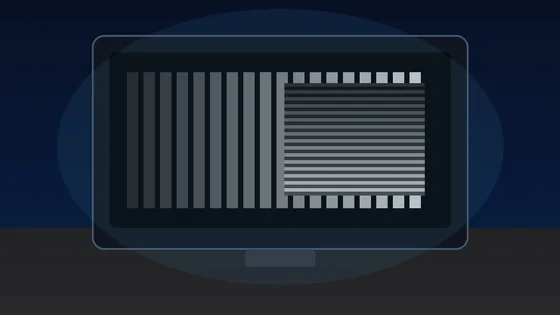
01 / 10Screen flicker testYour screen may be flickeringMany displays dim by switching the backlight on and off hundreds of times a second.02 / 10The symptomSore eyes and evening headachesStrain that gets worse at night, on one device but not another, is the clue.03 / 10What PWM meansDimming by blinking, not fadingInstead of lowering brightness, the backlight pulses. Faster pulsing is easier to tolerate.04 / 10Why night is worseLower brightness, deeper flickerThe dimmer you set the screen, the longer the backlight stays off between pulses.05 / 10Run the testWatch the moving patternA flickering backlight breaks the motion into separate copies instead of a smooth trail.06 / 10What to look forBands mean pulsingClear repeated edges suggest PWM. A smooth blur suggests steady, flicker-free dimming.07 / 10Not everyoneSome people never noticeSensitivity varies widely. Migraine and dry eyes can make the same screen unbearable.08 / 10What helpsRaise brightness, lower contrastHigher brightness usually shortens the off phase. Warm light and screen breaks help too.09 / 10One honest limitA browser cannot measure hertzThis shows whether flicker is visible to you, not the exact PWM frequency.10 / 10Your turnSee how your screen dimsRun the pattern at full and low brightness, then compare your devices.
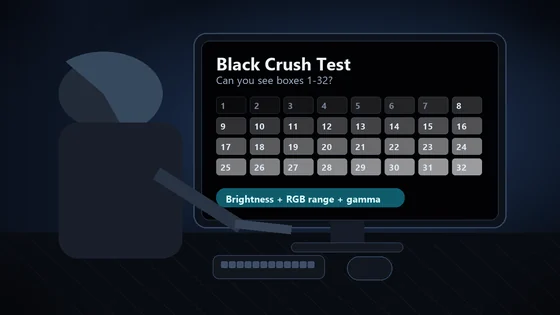
01 / 10Monitor checkDark scenes losing detail?Your monitor may be turning several near-black shades into one flat black.02 / 10The symptomShadow texture disappearsHair, clothing, caves and night scenes merge into featureless black. That is black crush.03 / 10Before you testUse normal SDR settingsDim the room, avoid glare and let your eyes adapt for 30 to 60 seconds.04 / 10The testLook for 32 near-black stepsPatch 1 is darkest. Patch 32 is easiest. Use fullscreen and do not expect the low steps to glow.05 / 10Read the resultFind the first visible patchIt should be barely separate from the black background. Note its number.06 / 10ExcellentYou can see 1 through 32Your display is preserving very dark shadow steps. Subtle is correct.07 / 10Mild crushingVisibility starts near 4Brightness may be too low, or gamma may be hiding the first few steps.08 / 10Moderate to severeVisibility starts at 8 or 16Check the monitor black-level setting and whether the GPU is sending Full or Limited RGB.09 / 10Fix one variable at a timeBrightness. Range. Gamma.Retest after each change. Establish a clean SDR result before troubleshooting HDR.10 / 10See what your display keepsRun all 32 shadow stepsThe live tool is the proper diagnostic surface; compressed story images are only a guide.