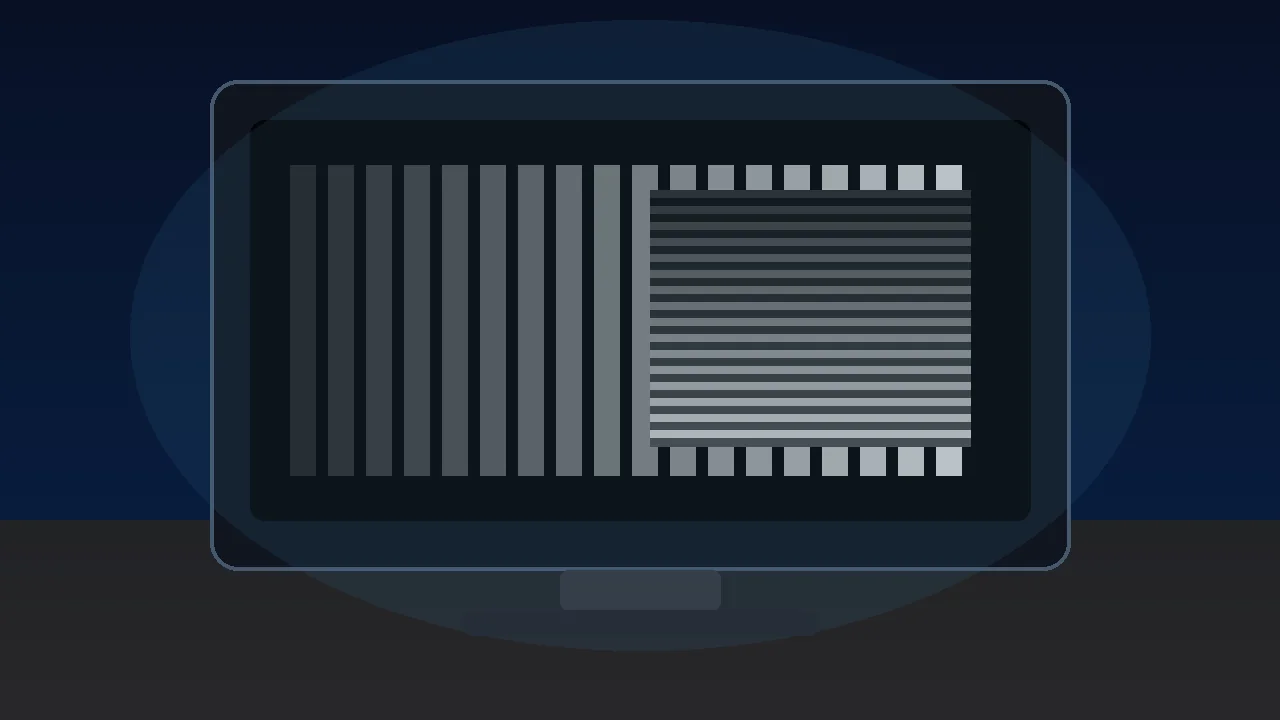

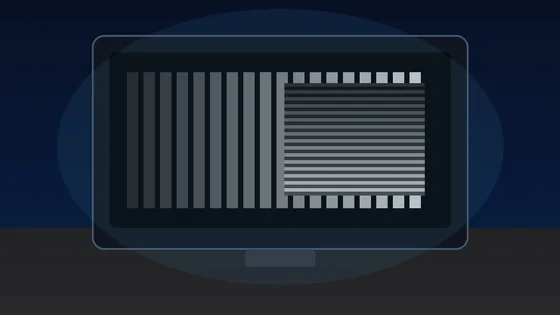





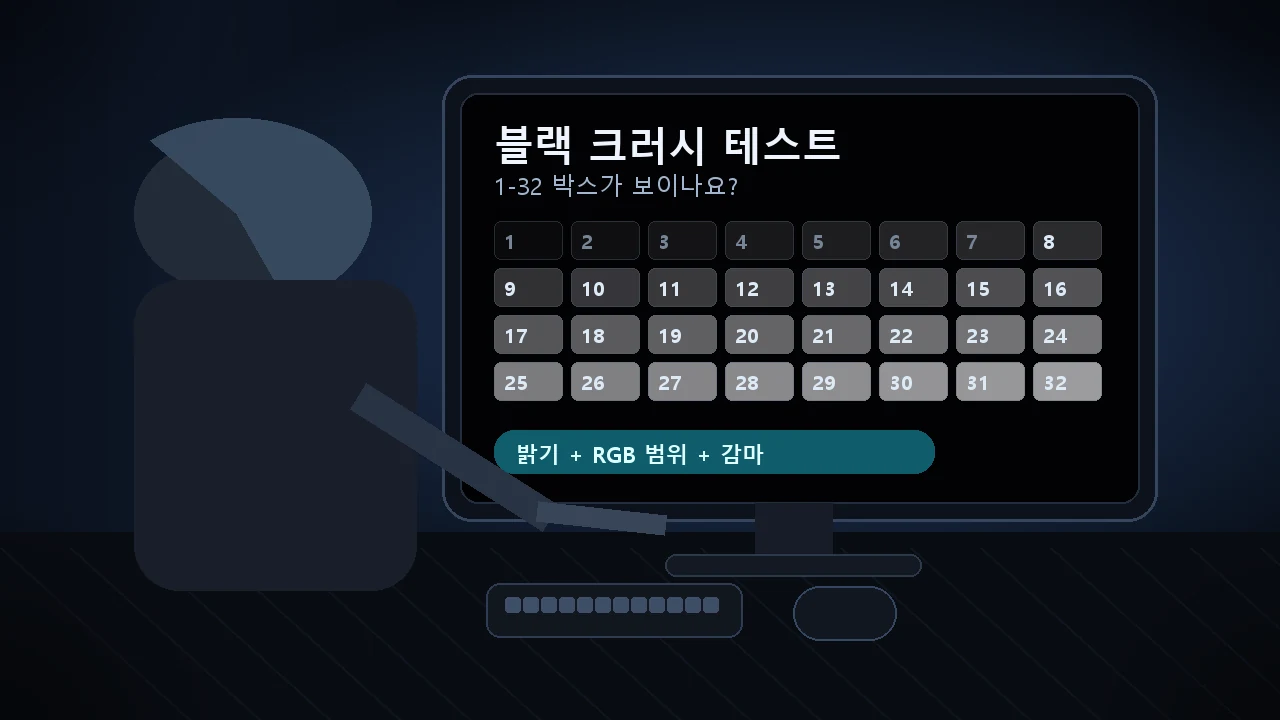
빠른 답: 블랙 레벨 테스트를 어두운 방에서 열고 배경과 구분되는 가장 낮은 번호의 박스를 찾으세요. 1-5가 사라지고 6-8부터 보이면 약한 블랙 크러시입니다. 9-15부터 보이면 밝기, HDMI 블랙 레벨, RGB 범위, 감마를 조정하세요. 16 이상만 보이면 Full/Limited 범위 불일치나 과한 OLED/HDR 암부 설정을 의심해야 합니다.
블랙 크러시는 어두운 디테일이 모두 같은 검정으로 뭉개지는 현상입니다. 밤 장면, 공포 게임, 어두운 옷, 동굴, OLED HDR 콘텐츠에서 그림자가 통째로 사라져 보일 수 있습니다. 이 가이드는 테스트를 실행하고 결과를 읽은 뒤 모니터 불량으로 판단하기 전에 설정을 순서대로 고치는 방법을 설명합니다.
블랙 크러시 테스트 실행 방법
먼저 하나의 기준 테스트로 확인하세요. SDR에서 근접 검정 패치가 제대로 보이기 전에는 게임별 그림자 슬라이더를 건드리지 않는 편이 좋습니다.
- 블랙 레벨 테스트 열기: 전체 화면 블랙 레벨 검사기를 열고 눈이 어둠에 적응하도록 30~60초 기다리세요. 방은 어둡게 하되 완전히 깜깜하게 만들지는 마세요.
- 평소 시청 설정 사용: 평소 밝기와 SDR 모드, 게임이나 영화에 실제로 쓰는 입력을 선택하세요. 첫 검사에서는 동적 명암비와 과도한 블랙 스태빌라이저 모드를 끄세요.
- 처음 보이는 패치 확인: 배경과 아주 희미하게 구분되는 가장 낮은 번호의 박스를 찾으세요. 눈을 찡그리거나 비스듬히 보거나 방을 지나치게 밝히면 결과의 신뢰도가 떨어집니다.
- 한 번에 한 설정만 변경: 밝기, HDMI 블랙 레벨, GPU 출력 범위 또는 감마를 하나씩 조정한 뒤 같은 테스트를 다시 실행하세요. 2~5번 패치가 희미하지만 사라지지 않는 지점에서 멈추세요.
결과 읽는 방법
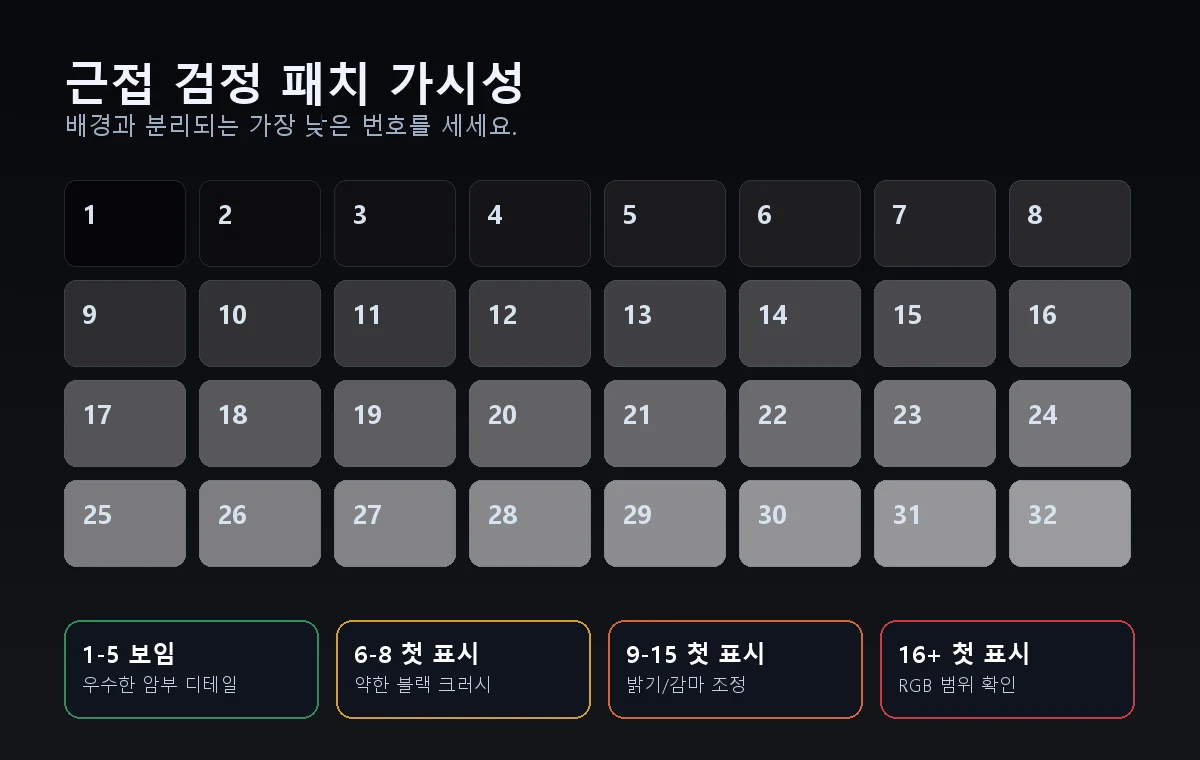
근접 검정 패치는 밝게 보여야 하는 것이 아니라 겨우 구분되어야 합니다. 화면 전체가 회색으로 뜨는 것이 아니라 배경과 분리되는지를 보세요.
| 처음 보이는 박스 | 일반적인 의미 | 다음 조치 |
|---|---|---|
| 1-3 | 암부 디테일이 매우 좋습니다. 다만 검정이 회색으로 보이면 밝기가 조금 높을 수 있습니다. | 검정을 과도하게 띄우지 않도록 색상 범위 테스트와 비교하세요. |
| 4-5 | 많은 모니터에서 정상 또는 가벼운 블랙 크러시 수준이며, 밝은 방에서는 더 흔합니다. | 어두운 장면의 질감이 남아 있다면 대부분의 용도에서 괜찮습니다. |
| 6-8 | 가벼운 블랙 크러시로 가장 어두운 암부 단계가 숨겨지고 있습니다. | 밝기를 한두 단계 올리고 감마를 확인한 뒤 다시 테스트하세요. |
| 9-15 | 중간 정도의 블랙 크러시로 게임과 영화에서 암부 디테일이 손실됩니다. | HDMI 블랙 레벨과 GPU의 Full/Limited RGB부터 확인하세요. |
| 16+ | 심한 블랙 크러시 또는 범위 불일치로 많은 어두운 디테일이 잘리고 있습니다. | 화면 모드를 초기화하고 RGB 범위를 맞춘 뒤 HDR보다 SDR을 먼저 다시 테스트하세요. |
블랙 크러시 수정 순서
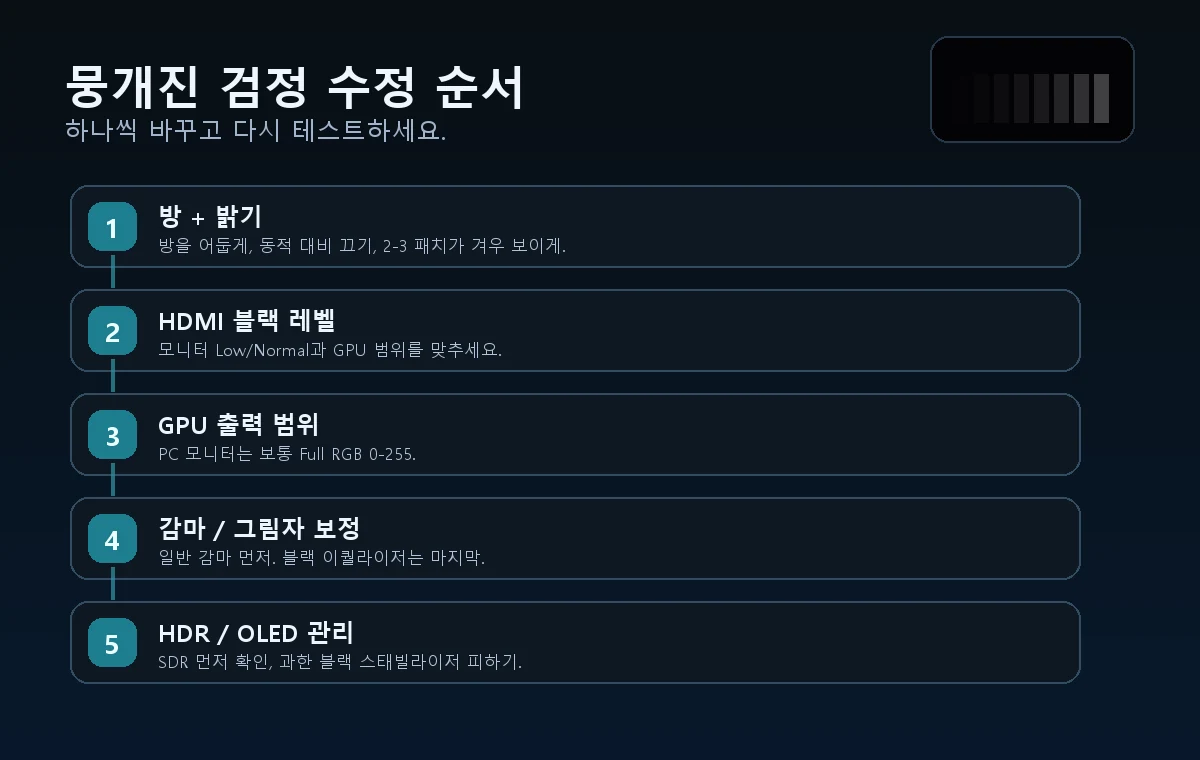
아래 순서대로 하나씩 바꾸고 다시 테스트하세요. 낮은 번호 패치가 계속 사라질 때만 다음 단계로 이동합니다.
2번이나 3번 패치가 검정과 겨우 구분될 때까지 밝기를 올린 뒤 멈추세요. 검정이 회색이 되면 밝기가 너무 높거나 RGB 범위가 맞지 않는 것입니다.
모니터 메뉴에서는 낮음, 보통, Limited, Full 또는 블랙 레벨로 표시될 수 있습니다. 추측하지 말고 GPU 설정과 일치시키세요.
PC 모니터에는 보통 Full RGB 0-255가 적합합니다. 한쪽이 Limited 16-235이고 다른 쪽이 Full이면 암부가 뭉개지거나 검정이 회색으로 뜰 수 있습니다.
먼저 표준 감마 목표를 사용하세요. 높은 감마는 중간톤과 그림자를 어둡게 하고, 낮은 감마는 디테일을 드러내지만 화면을 밋밋하게 만들 수 있습니다.
SDR을 먼저 맞춘 뒤 HDR 블랙 포인트와 게임 밝기를 조정하세요. 게임 로고는 편하게 보일 정도가 아니라 겨우 보일 정도가 적절합니다.
효과가 없다면 표준 또는 sRGB 모드에서 로컬 디밍, 동적 명암비, AI 명암비, 블랙 스태빌라이저를 끄고 테스트하세요.
OLED, HDR, VRR, 블랙 스태빌라이저 설정
OLED는 진짜 검정이 매우 깊기 때문에 블랙 크러시가 더 쉽게 눈에 띕니다. HDR 톤매핑, 근접 검정 감마, VRR 보정, 블랙 스태빌라이저가 과하면 암부 디테일이 숨겨집니다.
OLED는 진짜 검정에서 픽셀이 꺼지므로 검정과 첫 번째 가시 단계 사이의 변화가 갑작스러울 수 있습니다. 이 때문에 근접 검정 보정 문제가 쉽게 드러납니다.
Windows HDR, 콘솔 HDR, 게임 슬라이더가 서로 맞지 않으면 HDR이 어두운 디테일을 압축할 수 있습니다. SDR을 먼저 확인한 뒤 HDR을 조정하세요.
일부 모니터는 VRR이나 블랙 이퀄라이저 모드에 따라 근접 검정 표현이 달라집니다. 해당 모드를 켠 상태와 끈 상태를 모두 테스트하세요.
한쪽 영역에서만 암부 디테일이 사라진다면 화면 균일도 테스트도 실행하세요. 화면 전체가 고르게 잘리면 설정 문제일 가능성이 큽니다.
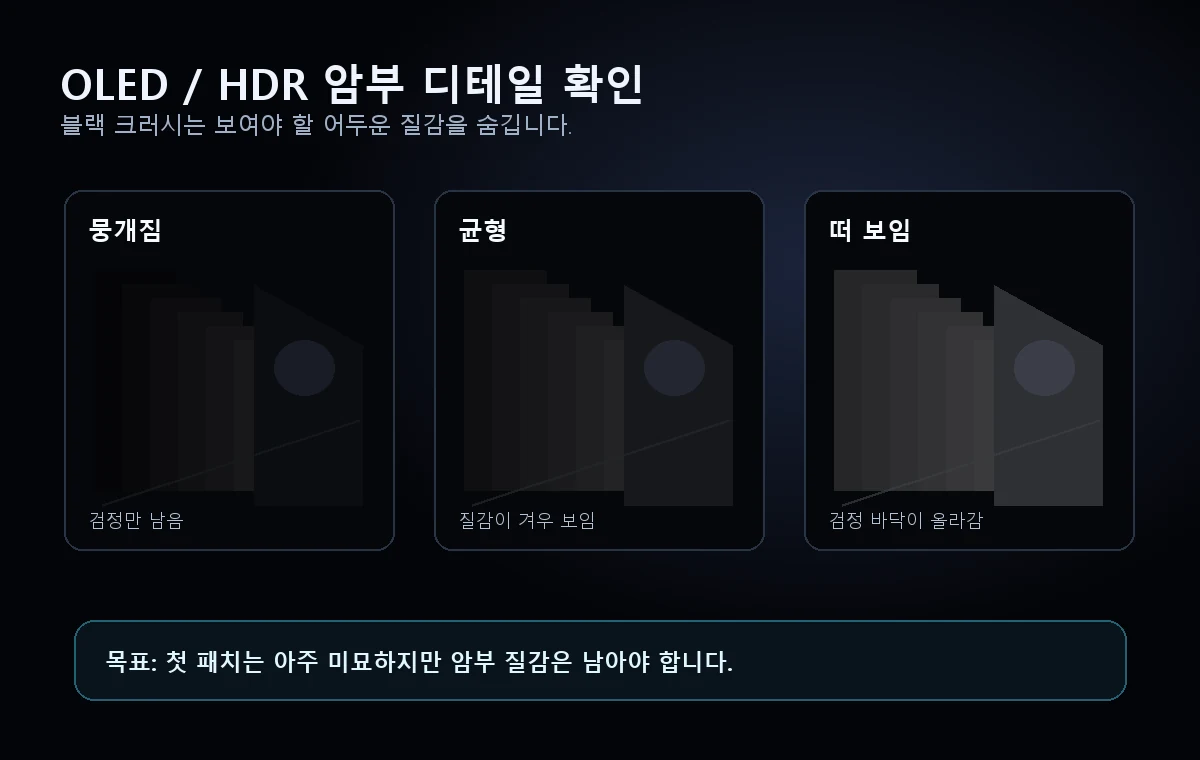
블랙 크러시와 회색으로 뜬 검정의 차이
블랙 크러시와 회색으로 뜬 검정은 서로 반대되는 문제입니다. 하나는 암부 단계를 검정으로 잘라 내고, 다른 하나는 검정 레벨을 회색으로 들어 올립니다. 잘못된 설정을 건드리지 않으려면 블랙 레벨과 색상 범위를 따로 테스트하세요.
| 증상 | 보이는 모습 | 가능한 해결 방법 |
|---|---|---|
| 블랙 크러시 | 낮은 번호의 패치가 검정 속으로 사라집니다. | 밝기를 조심스럽게 올리고 Full/Limited 범위를 맞추며 과한 감마와 블랙 스태빌라이저를 낮추세요. |
| 회색으로 뜬 검정 | 검정 배경이 회색이나 안개 낀 것처럼 보입니다. | Full/Limited 불일치를 해결하고 밝기를 낮춘 뒤 HDR, 로컬 디밍, 실내 반사를 확인하세요. |
| 백라이트 블리드 / 글로우 | 모서리나 가장자리가 중앙보다 밝아 보입니다. | 화면 균일도 테스트나 백라이트 블리드 가이드를 이용하세요. 설정만으로 패널 빛샘을 완전히 없앨 수는 없습니다. |
블랙 레벨 테스트부터 시작하세요. 패치 테스트는 통과하는데 검정이 이상하면 모든 게임 설정을 바꾸기 전에 색상 범위 테스트와 모니터 감마 테스트를 실행하세요. 감마 2.2를 판독하는 전체 절차는 모니터 감마 테스트 가이드를 참고하고, 디스플레이 경로의 설정을 한 번에 하나씩 바꾸세요.
동영상: OLED 블랙 크러시와 수정 방법
이 영상은 OLED의 근접 검정 처리에서 암부 디테일이 사라지는 이유와 이 가이드에서 확인하려는 대표 증상을 설명합니다.
출처와 조사 참고 사항
아래 자료는 테스트 방법, 근접 검정 패치 판독, 실용적인 설정 순서를 뒷받침합니다. 실제 결과는 패널 종류, 보정 상태, GPU 드라이버, 실내 조명에 따라 달라질 수 있습니다.
- TFTCentral - OLED 블랙 크러시와 암부 디테일OLED의 근접 검정 처리에서 암부 디테일이 숨겨지는 이유와 테스트 방법을 설명합니다.
- EIZO 모니터 테스트감마, 그레이스케일, 블랙 레벨 패턴으로 어두운 색조가 구분되는지 확인합니다.
- Blur Busters TestUFO 블랙 레벨어두운 패치의 가시성을 확인하는 브라우저 기반 블랙 레벨 참고 자료입니다.
- KTC - 블랙 크러시가 생기는 원인블랙 레벨, 밝기, 감마 등 원인별 모니터 설정을 실용적으로 설명합니다.
- Reddit OLED Gaming 블랙 크러시 토론최신 OLED 게이밍 디스플레이에서 근접 검정 패치 테스트를 해석한 실제 사용자 사례입니다.
- KeyboardTester.click 블랙 레벨 테스트이 가이드에서 사용하는 사이트 내 테스트입니다.
관련 도구
근접 검정 패치를 세어 암부 디테일이 실제로 잘리는지 확인합니다.
색상 범위 테스트검정을 뭉개거나 회색으로 띄우는 Full/Limited RGB 불일치를 찾습니다.
모니터 감마 테스트감마 때문에 그림자가 너무 어둡거나 평평해지는지 확인합니다.
화면 균일도 테스트패널 균일도 문제와 전체 블랙 레벨 설정 문제를 구분합니다.
관련 가이드
검정이 들뜨거나 명암이 흐리고 화면이 물 빠져 보일 때 이 가이드를 사용하세요.
OLED 번인 테스트근접 검정 뭉개짐과 별개로 일시적 잔상과 영구 번인을 확인합니다.
백라이트 블리드 가이드모서리 빛샘, IPS 글로우, 교환이 필요한 수준의 빛샘을 진단합니다.
모니터 고스팅 테스트블랙 레벨을 맞춘 뒤 오버드라이브를 조정합니다.
자주 묻는 질문
- 블랙 크러시는 무엇인가요?근접 검정 디테일이 순수 검정으로 잘려 나가 어두운 옷, 동굴, 밤 장면의 단계가 하나의 검은 영역으로 뭉개지는 현상입니다.
- 모니터에 블랙 크러시가 있는지 어떻게 확인하나요?블랙 레벨 테스트에서 처음 보이는 패치 번호를 확인하세요. 1-5가 안 보이고 6-8부터 보이면 약한 수준이며, 9 이상부터 보이면 유용한 암부 디테일이 숨겨지고 있습니다.
- 밝기를 올리면 해결되나요?낮은 패치가 겨우 보일 정도까지만 올리세요. 검정이 회색으로 뜨면 밝기 문제가 아니라 HDMI 블랙 레벨이나 GPU Full/Limited RGB 불일치일 수 있습니다.
- OLED에서 블랙 크러시는 정상인가요?OLED는 진짜 검정이 깊어 근접 검정 처리가 더 까다로울 수 있지만 심한 블랙 크러시는 무시할 문제가 아닙니다. SDR을 먼저 확인하고 HDR 및 게임 블랙 포인트를 조정하세요.
- 브라우저 테스트가 전문 캘리브레이션을 대체하나요?대체하지 않습니다. 하지만 현재 설정이 암부 디테일을 자르는지 빠르게 확인하는 실용적인 진단으로는 충분히 유용합니다.
- 블랙 크러시와 회색으로 뜬 검정은 어떻게 다른가요?블랙 크러시는 여러 어두운 단계를 순수 검정으로 만들어 디테일을 숨깁니다. 회색으로 뜬 검정은 블랙 레벨 전체를 올려 검정을 회색처럼 보이게 합니다. 해결 방법이 다르므로 블랙 레벨과 색상 범위를 모두 확인하세요.
블랙 레벨 테스트부터 시작하세요. 패치 테스트는 통과하는데 검정이 이상하면 모든 게임 설정을 바꾸기 전에 색상 범위 테스트와 모니터 감마 테스트를 실행하세요. 감마 2.2를 판독하는 전체 절차는 모니터 감마 테스트 가이드를 참고하고, 디스플레이 경로의 설정을 한 번에 하나씩 바꾸세요.