














Quick answer
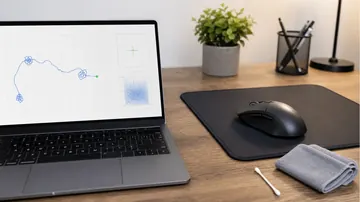
Mouse Button Lock lets you drag and select without keeping the button pressed, and CursorHide makes the pointer disappear while you type. Both shipped in PowerToys 0.102, Microsoft's free open-source toolkit, on October 21, 2026. Press and hold an enabled mouse button for a moment, let go, and Windows keeps treating it as held until your next click.
One honest warning before you touch any setting: if your drags keep dropping on their own, that is usually a worn switch, not a missing feature. My rule is to run the mouse drag test first, so I know whether I am fixing a workflow or hiding a hardware fault.
Some Windows updates are cosmetic. PowerToys 0.102 is the other kind: it changes how your hand interacts with the mouse a hundred times a day. Long drag-and-drop moves, giant text selections, and the pointer that squats in the middle of every paragraph you type all get an answer in this release.
I spend most of my day between a code editor and a browser, and the two complaints I hear most from readers are "my drag keeps dropping" and "the cursor is in the way while I write." This guide covers what the new utilities actually do, the official defaults and limits, and the part most coverage skips: how to check your mouse's buttons and wheel first, so a failing switch does not masquerade as a settings problem.
What PowerToys 0.102 adds to your mouse and keyboard
Microsoft published the PowerToys 0.102 release post on October 21, 2026. The headline additions are two mouse utilities: Mouse Button Lock, which keeps a briefly held button registered as pressed, and CursorHide, which hides the pointer while you type or after a period of inactivity. PowerToys remains free and open source; you can update from inside the app or grab the installer from the official GitHub releases page.
The same release also upgrades Keyboard Manager with tap-alone remaps and a searchable key picker, adds a quick-access shelf to Command Palette (Alt+1 through Alt+9 launch pinned commands in compact mode), brings command-line control to more utilities, and teaches ZoomIt to attach dictated text to a screenshot snip. If you only install one Microsoft add-on on a new PC, in my experience this toolkit earns the slot.
Mouse Button Lock: drag and select without holding the button
The mechanics are simple. With the utility enabled, press and hold an enabled mouse button without moving the pointer, and after the hold duration you can let go: Windows keeps treating the button as held. Move the mouse to drag or extend a selection, then press any mouse button to release the lock. According to the official PowerToys documentation, moving farther than the drag threshold during the hold cancels the lock and your press behaves like a normal drag, so everyday clicking is unaffected.
The defaults are sensible and worth knowing before you change them. Out of the box the utility is off; once enabled, it locks the right button by default, because Windows has shipped its own left-button equivalent for decades: ClickLock, under Control Panel > Mouse > Buttons. Microsoft points left-button users there instead of duplicating it. I enabled the middle button too, since middle-drag panning in long documents and design canvases is the grip that tires my hand fastest.
| Setting | Default | Range |
|---|---|---|
| Mouse Button Lock | Off | — |
| Lock the right button | On (once enabled) | — |
| Lock the left button | Off — Windows ClickLock covers it | — |
| Lock the middle button | Off | — |
| Hold duration | 1,200 ms | 200–2,200 ms |
| Drag threshold | 5 px | 0–100 px |
| CursorHide: hide after keyboard input | On (once enabled) | — |
| CursorHide: hide after pointer inactivity | Off | Idle delay 1–60 s, default 5 s |
Two documented limits matter. Button Lock may not work in games that use raw or exclusive mouse input, so do not count on it as a gaming macro. And like other PowerToys features, it cannot act on windows running as administrator unless PowerToys itself runs elevated. Neither is a bug; both are worth knowing before you blame your setup.
Dropped drags? Test the mouse before you blame your grip
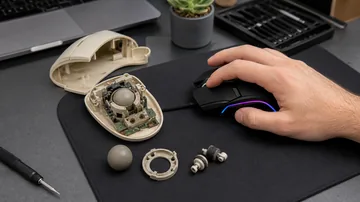
Here is the diagnostic trap I want you to avoid. A mouse whose left switch is wearing out drops drags mid-move and fires double clicks on single presses, and Button Lock can partially paper over that for weeks. You end up adapting your workflow to a dying switch. Whenever a reader reports dropped drags, the first thing I have them do is open our drag and hold check: hold the button, draw a long continuous stroke, and watch whether the line breaks without you releasing. A healthy switch survives slow, fast and shaky drags; a worn one betrays itself within a minute.
Then close the loop with two more checks. The single-click vs double-click check catches switch bounce, where one press registers as two, and the phantom click detector catches clicks you never made. Our guides to diagnosing double-click switch bounce and fixing a mouse that clicks on its own walk through both failure modes in detail.
The results decide your next move. Clean tests mean your hardware is fine and Button Lock is a pure comfort upgrade. Failed tests mean you have evidence for a warranty claim or a reason to budget for a replacement, and no PowerToys setting changes that. I have retired two mice this way over the years, and both times the drag test made the decision obvious long before the mouse died completely.

CursorHide: the pointer disappears while you type
The second new utility attacks a smaller but constant irritation: the pointer parked in the middle of the sentence you are writing. The release post calls it CursorHide; in the settings documentation it appears as Auto Hide Cursor. Enable it and the pointer hides after keyboard input, after a period of pointer inactivity, or both, and reappears the instant you move the mouse, press a mouse button or touch the scroll wheel.
The details are more considered than I expected from a first release. Modifier keys such as Ctrl and Shift do not hide the cursor, so keyboard-and-mouse combos keep working. Tiny accidental movements below a threshold are ignored, so a bumped desk does not flash the pointer back. The inactivity timer is off by default; turn it on and the idle delay runs from 1 to 60 seconds, with 5 as the default. One documented caveat: apps that draw their own custom cursor may keep showing it.
If you write, edit video with keyboard shortcuts, or present from your laptop, this is the one I would enable first. Anyone whose typing itself misbehaves should start elsewhere: our guide to keyboard shortcuts across Windows, macOS and Linux covers the combos worth keeping, and the online keyboard checker confirms every key actually registers before you blame a utility.

Keyboard Manager: tap-alone remaps and a searchable key picker
The keyboard side of 0.102 is quieter but, for remappers, bigger. Tap-alone remaps let a key do one thing when tapped by itself and keep its normal role inside shortcuts and mouse combinations. The classic example finally works cleanly: a modifier can open something when tapped alone while still behaving as a modifier when chorded. Per the release notes, the remap editor also gains search, modifier and app filters, bulk deletion, and a searchable key picker that lists every key, including media keys your physical keyboard does not have, so you can assemble a full shortcut with the mouse alone.
Recording behavior got safer too: the editor only listens while it has focus, and Tab moves you out of the recording field instead of being swallowed. For managed fleets, remapping profiles can now be deployed and exported with DSC v3, which Microsoft aims at IT administrators.
My standing advice after any remapping session: verify the physical layer before trusting the logical one. Open the keyboard tester and press every remapped key once, alone and inside its shortcuts. A remap that "does not work" is often a key that never registered in the first place, and thirty seconds of testing separates the two cleanly.
Free fix, Windows built-in, or a new mouse?
Turn on Button Lock
Your mouse passes the drag and double-click checks, but long selections and drag-heavy work tire your hand, or holding a button is physically difficult. The fix costs nothing and takes two minutes.
Use the Windows built-in
You only need the left button held: ClickLock has been in Windows for years under Control Panel > Mouse > Buttons, with a configurable hold time, and needs no extra software at all.
Replace the mouse
The drag stroke breaks on its own or single clicks register twice. That is a worn switch; a reproducible failed test is exactly the evidence a warranty claim needs. No setting repairs failing hardware.
The money math is lopsided in your favor. PowerToys is free, and ClickLock already ships with Windows, so the only scenario that should cost you anything is genuine switch wear. If the tests do fail inside your warranty window, record the failing behavior with its settings before contacting the seller; if the mouse is old enough that a claim is off the table, treat the failure pattern as your shopping checklist and make the replacement pass the same hold-and-drag check on delivery day. If the pointer also wanders or stutters on its own, rule out the surface and sensor with our mouse drift diagnosis guide before spending money.
Set it up and verify everything in five minutes
- Update to 0.102. Open PowerToys, check for updates, or install from the GitHub releases page. The two utilities only exist from version 0.102 onward.
- Enable Mouse Button Lock and pick buttons. I lock right and middle and leave the left button to ClickLock, so an accidental long press on my primary button never locks by surprise.
- Tune the hold duration. Start at the default 1,200 ms. If the lock keeps engaging during slow, deliberate clicks, lengthen the duration toward 2,200 ms; if you keep letting go before it engages, shorten it toward 200 ms instead.
- Verify with a real drag. In the drag and hold test, hold until the lock engages, release, and keep drawing: the stroke should continue without your finger on the button, then end the moment you click. That single pass confirms the whole feature.
- Enable CursorHide and type. Turn on hide-after-keyboard-input, type a sentence, and confirm the pointer vanishes and returns on the first mouse movement. Add the inactivity timer only if you also want the pointer gone while reading.
- If drags still drop with the lock off, run the switch bounce check and the unintended click detector, and save the results. That is your repair-or-replace evidence, not a reason to add more utilities.
Total time, including the tests: about five minutes. That is shorter than one support-forum thread about "my mouse keeps dropping files," and you end up knowing instead of guessing.
Mouse Button Lock and CursorHide questions
What is the shortcut for Mouse Button Lock?
There is no keyboard shortcut. You activate it with the mouse itself: press and hold an enabled button without moving, wait out the hold duration (1,200 ms by default), and release. The button stays logically held until you press any mouse button again.
Will Mouse Button Lock fix a mouse that double-clicks or drops drags?
No. Those symptoms usually mean a worn micro-switch. Run a drag test and a double-click test: if either fails with Button Lock disabled, the hardware is at fault, and the honest fixes are a warranty claim or a replacement, not a utility.
Does Mouse Button Lock work in games?
Not reliably. Microsoft documents that it may not work in games using raw or exclusive mouse input, which covers most competitive titles. It also cannot act on windows running as administrator unless PowerToys runs elevated.
Is PowerToys free and safe to install?
Yes. PowerToys is a free, open-source Microsoft project; the source code and installers are published on the official microsoft/PowerToys GitHub repository, and it updates from inside the app. Download it only from Microsoft's official pages.
Why did my mouse pointer disappear while typing?
If this started after a PowerToys update, CursorHide (shown as Auto Hide Cursor in settings) is likely enabled: it hides the pointer on keyboard input and restores it when you move the mouse, click, or scroll. Disable it in PowerToys settings if you prefer the pointer always visible.
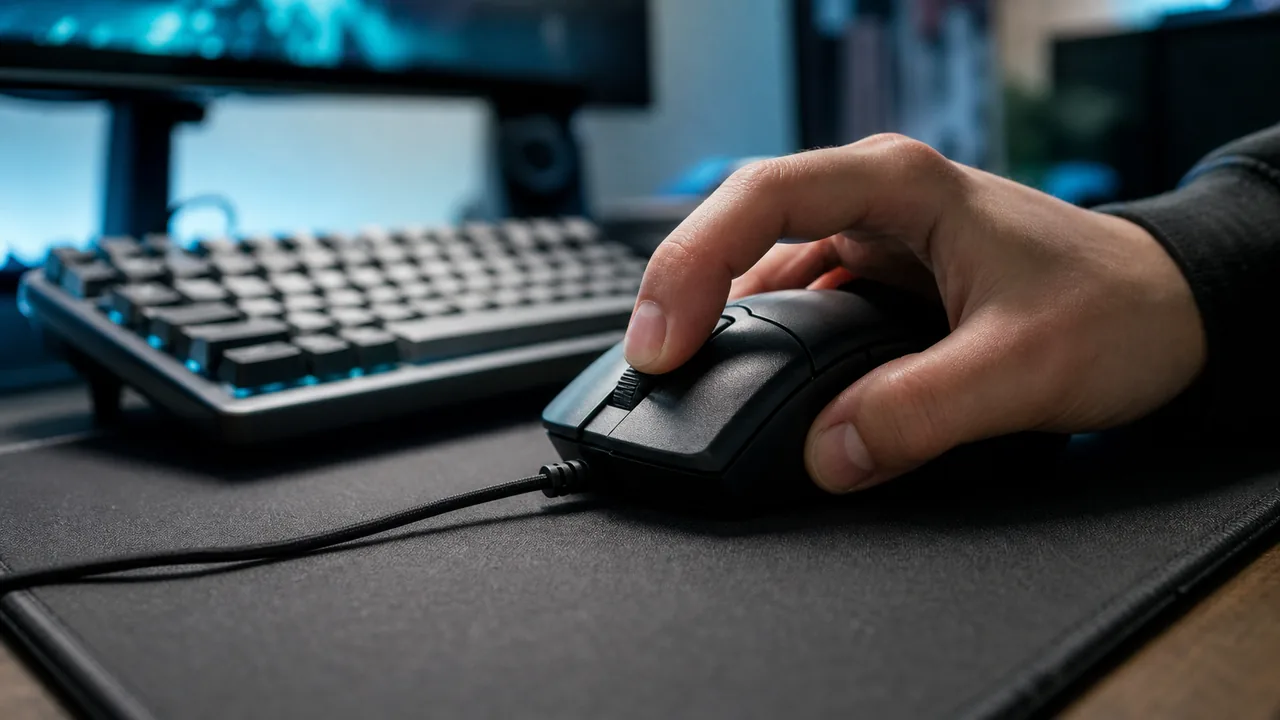
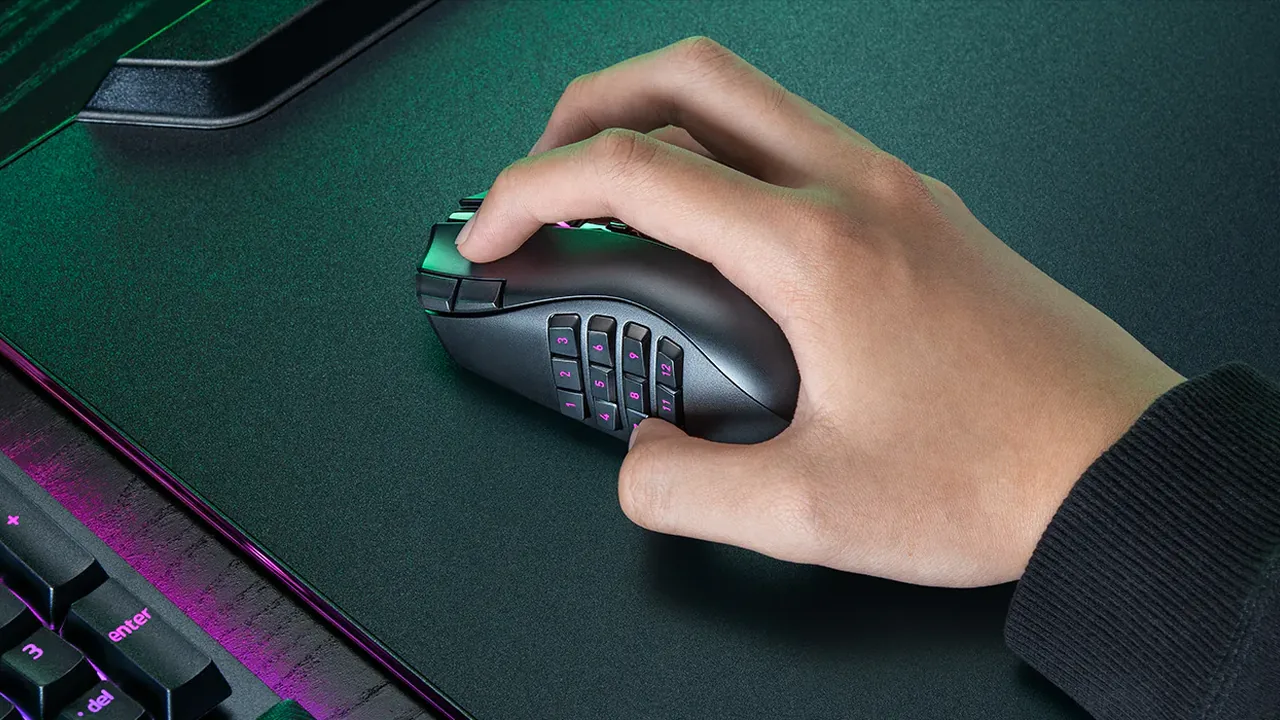
Research basis: Microsoft's PowerToys 0.102 release post (October 21, 2026) and the official PowerToys documentation, checked October 24, 2026. Feature behavior, defaults and limitations are Microsoft's statements; the setup workflow, test sequence and buying guidance are editorial, based on the browser checks linked in this article. Browser-based tests observe delivered input events and cannot certify hardware, drivers or the full input pipeline. Photos are free-license Pexels images credited in their captions. Software details may change in future PowerToys releases.
Sources and verification
More input guides
Test your mouse before you blame the software
Button Lock can mask a worn-out switch for a while. Run a quick drag check first, so you know whether you need a free setting or a replacement mouse.
Open the Mouse Drag Test


Reader discussion
Comments
Share what worked, what did not, or what you would test next. Every comment is reviewed before it appears.
Loading approved comments…
Leave a comment
No account or sign-in is required. Links and HTML are not accepted.