










Fast answer
The LG UltraGear 25G590B is worth $999.99 only for a narrow buyer: a competitive FPS player whose PC already pushes several hundred frames per second at 1080p and who values motion clarity over resolution, contrast, and screen size. Two catches decide it (specs below are LG's manufacturer statements): at 1000 Hz a frame lasts exactly 1 ms — the same figure as LG's quoted 1 ms response time — so pixels are still transitioning as the next frame arrives; and LG's own footnote confirms that FreeSync Premium and G-SYNC Compatible are disabled while the headline Motion Blur Reduction Pro feature is on. For most gamers, a 480Hz QHD OLED that has sold for roughly half this price is the stronger buy.
A four-digit refresh rate on a consumer monitor is a genuine first: LG shipped the 25G590B as the world's first native 1000 Hz Full HD display, and the launch coverage mostly stopped at the spec sheet. What buyers actually need to know is different — whether 1000 Hz survives contact with a 1 ms LCD panel, what you silently give up to use its marquee feature, and whether any real PC can feed it.
This guide separates LG's verified claims from what independent testing exists, prices the honest alternatives, and ends with a delivery-day plan: five browser checks, starting with a test of the refresh rate your system actually reports, so a $999 purchase gets verified during the return window instead of trusted on faith.
LG UltraGear 25G590B confirmed specifications
The table below uses LG's own product pages and launch press release for the fixed hardware claims. Response time, brightness, and maximum refresh behavior are manufacturer ratings, not measurements made by KeyboardTester.click.
| Feature | LG's stated specification | What it means before you buy |
|---|---|---|
| Panel | 24.5-inch IPS with ATW polarizer and low-reflection coating | The esports-standard size. IPS at 1000 Hz is the engineering story here — earlier four-digit demos used far lower resolutions. |
| Resolution | 1920 x 1080 (FHD) | Deliberate: 1080p keeps both the panel scan-out and your frame rate achievable. This is not a monitor for desktop sharpness. |
| Refresh rate | Native 1000 Hz; up to 1100 Hz overclocked | Native means no dual-mode resolution trick. The overclock carries its own VRR restrictions (covered below). |
| Response time | 1 ms | At 1000 Hz, one frame also lasts 1 ms — the core tension of this product, explained in the next section. |
| Inputs | DisplayPort 2.1 (UHBR20) x1, HDMI 2.1 x2, USB-C, headphone jack | 1000 Hz requires the DisplayPort 2.1 connection; HDMI tops out lower. |
| HDR and color | VESA DisplayHDR 400, sRGB 99% (typical), 1,000:1 contrast | Entry-level HDR and standard-gamut color. An OLED at this price is dramatically better for HDR and contrast. |
| Sync | NVIDIA G-SYNC Compatible, AMD FreeSync Premium | Both work in normal operation — but not while Motion Blur Reduction Pro is active, per LG's own footnote. |
| 1000 Hz requirements | Windows 11, GeForce RTX 50 series or Radeon RX 9070 / 9060 / 7900 series (or newer), DisplayPort 2.1 | The $999.99 price does not include the GPU class LG says the top rate needs. |
One naming trap: 25G590B versus "25G950B"
The 1 ms problem: a full frame period of pixel transition
Here is the arithmetic every launch article skipped. At 1000 Hz, a new frame arrives every 1.000 millisecond. LG's specification sheet quotes a 1 ms response time for this panel. Put those two numbers together: in the worst case, a pixel spends the entire frame period still changing color, which means the next frame begins before the last transition has finished. Motion can therefore still show trailing and smear that a spec-sheet reader would never expect from "1 ms at 1000 Hz."
This is why display researchers treat GtG (transition time) and visible motion blur as different things. The distinction comes from Blur Busters founder Mark Rejhon, whose testing methodology much of the high-refresh industry references:
GtG represents how long it takes for a pixel to change between two colors. MPRT represents how long a pixel is continuously visible.
Rejhon's FAQ adds that it is "important for GtG to be a tiny fraction of a refresh cycle" for a display to reach its theoretical motion clarity. On the 25G590B, GtG is not a tiny fraction of the refresh cycle — by LG's own numbers it can be roughly equal to it. That does not make the monitor fake or slow: even partial transitions at 1000 Hz produce lower persistence than a fully settled 240 Hz frame, and TFTCentral's hands-on video review — the first independent test published — is the right place to see measured behavior rather than marketing claims. It does mean the honest mental model is "1000 refreshes of an LCD still in motion," not the crystalline zero-blur image the number suggests. A multi-page Blur Busters community thread debates exactly this gap between the spec and the physics.
Motion Blur Reduction Pro turns off FreeSync and G-SYNC
LG's answer to residual blur is Motion Blur Reduction Pro (MBR Pro), a backlight-strobing mode that shortens how long each frame stays visible. Strobing genuinely sharpens motion — and it carries a trade-off that LG documents only in a footnote on the product page, quoted here exactly: "AMD FreeSync™ Premium and NVIDIA G-SYNC® Compatible, are disabled when MBR Pro is enabled." (LG UK product page, checked September 10, 2026.)
The physics are unavoidable: a strobing backlight needs a fixed, predictable refresh interval, while variable refresh rate exists to make the interval unpredictable. You pick one. With MBR Pro on and VRR off, any gap between your frame rate and the refresh rate can appear as tearing or stutter — at exactly the moments a competitive player cares most about. The 1100 Hz overclock stacks a second restriction on top: LG's overclock footnote states FreeSync Premium is not supported at 1100 Hz and G-SYNC compatibility is certified only at 1000 Hz.
| Setting combination | What you get | Who should choose it |
|---|---|---|
| 1000 Hz + VRR on, MBR Pro off | Tear-free motion that tracks your real frame rate; sample-and-hold blur remains | The default for almost everyone, especially with fluctuating fps |
| 1000 Hz + MBR Pro on, VRR off | Visibly sharper motion via strobing; possible tearing/stutter when fps and Hz diverge; strobing dims the image | Players with very high, very stable frame rates in one esports title |
| 1100 Hz overclock | Slightly shorter frame period; FreeSync unsupported, G-SYNC certified only at 1000 Hz per LG | Almost nobody — the VRR cost outweighs a 9% refresh gain |
None of this is disclosed in the headline marketing — it lives in footnotes. Before buying, decide which column you would actually run, because "1000 Hz + MBR Pro + G-SYNC all at once" is not an available combination. If you are unsure how strobing artifacts and overdrive trails look in practice, our monitor ghosting and overdrive guide shows the patterns with test imagery. Update, September 17, 2026: PC Gamer's hands-on review (85/100, Jeremy Laird) reaches the same place independently — it calls MBR "basically a backlight strobing solution" that dims the image and "doesn't give much visible benefit at higher refresh rates", and judges the motion-clarity gain over a 500 Hz IPS panel "questionable" while crediting the monitor with the lowest esports latency currently available.
Can your PC even feed 1000 frames per second?
A 1000 Hz panel only shows a new image when your PC delivers one. LG's own fine print is unusually direct here — the product page footnote states that support for a 1000 Hz refresh rate "does not imply or guarantee the achievement of frame rates of 1000 FPS or higher in any particular game," and lists Windows 11, a DisplayPort 2.1 connection, and a GeForce RTX 50-series or Radeon RX 9070 / 9060 / 7900-series (or newer) GPU just to run the mode at all.
Reaching four-digit frame rates at 1080p is a CPU problem more than a GPU problem: esports engines bottleneck on simulation and draw-call work long before a flagship GPU runs out of pixels to shade. Even top gaming CPUs sustain hundreds — not a locked thousand — frames per second in real Counter-Strike 2 or Valorant matches, and utility-heavy team fights pull the lows far below the average. In practice the 25G590B spends most of its time displaying repeated or VRR-paced frames well under its ceiling. Before spending $999.99, run our PC bottleneck calculator with your actual CPU and GPU: if your setup is CPU-limited at 300 fps, a 1000 Hz panel is mostly headroom you cannot use yet.
One thing LG did get right for this market: resolution. 1920x1080 is still the mainstream PC gaming standard — Valve's Steam Hardware Survey for August 2026 puts 1080p at 50.52% of primary displays — so an FHD-only esports panel is a defensible choice, not a compromise nobody wants.
What $999 buys instead: the honest alternatives
The 25G590B launched in the US at $999.99 on LG.com — LG's August 24, 2026 press release confirms the price, with the pre-order window closing August 31 and shipping starting in early September. International rollout followed: Notebookcheck reported UK availability at £899.98 and Eurozone pricing at €999 on September 1, with Canada and France announced as coming soon.
At that money, LG competes with itself. The two most relevant in-house alternatives — both current, both faster than anything most buyers own — undercut it badly on price per feature:
| Monitor | Core specs | Price evidence (dated) |
|---|---|---|
| LG UltraGear 25G590B | 24.5" FHD IPS, native 1000 Hz (1100 Hz OC), DisplayHDR 400 | $999.99 at LG.com (LG press release, Aug 24; US page checked Sep 10, 2026) |
| LG UltraGear 27GX790A | 27" QHD OLED, 480 Hz, 0.03 ms response | Listed around $999.99; tracked at $547.54 on Amazon on July 30, 2026 (9to5toys) |
| LG UltraGear 27G850A | 27" 4K IPS Black dual-mode: 4K at 240 Hz or FHD at 480 Hz, DisplayHDR 600 | Typically $600–900 retail (DisplayNinja, June 2026), with deeper sale prices tracked |
The comparison sharpens the buyer question. The 480 Hz QHD OLED has sold for roughly 45% off list, delivers near-instant 0.03 ms pixel response — a genuinely tiny fraction of its refresh cycle — and adds real HDR contrast. The dual-mode 27G850A covers both sharp desktop work and 480 Hz competitive play. The 25G590B's single advantage is the shortest frame period ever shipped: roughly 1 ms of latency saved per frame versus 480 Hz, and lower persistence, for buyers whose systems can exploit it.
Who should buy, wait, or skip the 25G590B?
This is specialist hardware with a first-adopter premium. The decision is less about whether 1000 Hz is impressive — it is — and more about whether your games, your PC, and your priorities can cash the check.
- You play CS2, Valorant, or similar esports titles at hundreds of fps on a current flagship CPU and GPU.
- You already own or budgeted a DisplayPort 2.1 GPU from LG's supported list, plus Windows 11.
- Motion clarity genuinely outranks resolution, HDR, and size for you.
- You accept testing MBR Pro and VRR as either/or modes, not a combination.
- You want independent measurements first — early lab and enthusiast coverage exists, but more full reviews are coming.
- You expect a price drop; first-of-kind monitors rarely hold list price once successors are announced.
- Your next CPU/GPU upgrade is planned within a year — buy the panel when the frames exist.
- You are tempted but cannot articulate what 1000 Hz fixes that 480 Hz does not, for your games.
- You play a mix of single-player and competitive games — the OLED alternatives are better everywhere except peak Hz.
- Your PC is CPU-bound near 200–300 fps; the panel would idle far below its ceiling.
- You need HDR, contrast, or a larger screen more than the last milliseconds of persistence.
- $999.99 is stretch money — this is the definition of a luxury margin purchase.
Before checkout: a 60-second reality check
- Confirm the exact model string (25G590B-B) and the current price on the regional LG page — not a months-old news figure.
- Verify your GPU appears in LG's supported list for 1000 Hz and that you will use the DisplayPort 2.1 input.
- Read the seller's return window; motion-clarity satisfaction cannot be judged from a spec sheet.
- Decide your default mode now: VRR for fluctuating fps, or MBR Pro for locked-fps strobing.
- Plan the five delivery-day browser tests below before installing any game.

Five delivery-day tests before the return window closes
None of these certify LG's lab numbers — browsers report what the operating system and graphics stack deliver, which is exactly what you need to verify: that your particular PC, cable, and settings produce the refresh rate you paid for. Run them on delivery day, in order, before installing games.

Watch for: a reading stuck at 60 or 144 Hz — that means a settings, cable, or GPU-support problem, not a defective panel.
Watch for: repeated blank gaps in the photographed sequence, especially in 1100 Hz overclock mode.
Watch for: an average far below the set rate or heavy jitter — evidence your system, not the monitor, is the limit.
Watch for: same-color smears (response too slow) or bright halos (overdrive too aggressive) — pick the cleanest middle setting.
Watch for: any fixed bright or dark dot — document it with a photo the same day for the seller.
What a browser test cannot prove about this monitor
That limitation is also the point: most "my new monitor is stuck at 60 Hz" complaints are settings and cable problems, which browser tests catch immediately. If your reading is stuck low, work through the refresh-rate troubleshooting guide step by step, and use the frame-skipping camera method when you need physical evidence of missing refreshes.
The first independent hands-on test
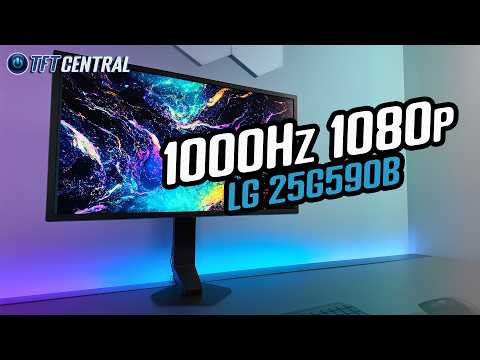
TFTCentral — one of the longest-running display labs — published the first independent review of the 25G590B. The measurements, motion photography, and conclusions in the video belong to them; it is exactly the hands-on evidence a $999 decision should include.
Sources and evidence
Fixed specifications, footnotes, and US pricing come from official LG pages and LG's press release, checked September 10, 2026. Independent sources are used for hands-on findings, international prices, and market data. All snapshots should be re-verified at purchase time.
- LG UltraGear 25G590B-B official product page (US)
Primary source for the product name, panel, native 1000 Hz / 1100 Hz overclock, MBR Pro description, sync support, and the Windows 11 / RTX 50-class / DisplayPort 2.1 requirements for the top refresh rate.
- LG UltraGear 25G590B-B official product page (UK)
Primary source for the spec table (1 ms response, sRGB 99%, DisplayHDR 400, DP 2.1 UHBR20, dual HDMI 2.1) and the verbatim footnote confirming FreeSync Premium and G-SYNC Compatible are disabled while MBR Pro is enabled.
- LG Electronics US pricing and availability press release (August 24, 2026)
Primary source for the $999.99 US price, LG.com availability, and the August 31, 2026 pre-order close.
- LG Global Newsroom launch announcement (May 19, 2026)
LG's May 19, 2026 launch announcement establishing the world's-first native 1000 Hz FHD claim and the esports positioning.
- Notebookcheck — international release and UK/EU pricing (September 1, 2026)
Independent source for the international rollout: UK £899.98, Eurozone €999, Canada and France announced as coming soon (September 1, 2026).
- Notebookcheck — US preorder coverage and full spec list (July 31, 2026)
Independent source for the full launch spec list, including the ATW polarizer panel and the September 1 US shipping start.
- TFTCentral launch news (May 19, 2026)
Launch news whose headline used the 25G950B spelling — the naming-confusion evidence discussed above.
- TFTCentral video review (August 13, 2026)
First independent hands-on review of the 25G590B; the embedded video above. All measured findings belong to TFTCentral.
- Blur Busters — GtG versus MPRT pixel-response FAQ (Mark Rejhon)
The GtG versus MPRT definitions quoted in this article, and the principle that GtG must be a tiny fraction of a refresh cycle for maximum motion clarity.
- Blur Busters Forums — LG UltraGear 25G590B owner and enthusiast thread
Community discussion thread on the 25G590B, including the spec-versus-physics debate referenced above.
- Steam Hardware & Software Survey (August 2026)
The 50.52% share for 1920x1080 primary displays, read directly from Valve's August 2026 survey data on September 10, 2026.
- 9to5toys — LG 27-inch QHD 480Hz UltraGear OLED price tracking (July 30, 2026)
Price-tracking evidence for the 27-inch QHD 480 Hz UltraGear OLED: $547.54 on July 30, 2026 against a roughly $1,000 list price.
- DisplayNinja — LG 27G850A dual-mode review and price range (June 2026)
Independent review establishing the 27G850A dual-mode specs and its typical $600–900 retail range (June 2026).
- PC Gamer — LG UltraGear 25G590B review, 85/100 (Jeremy Laird, September 17, 2026)
Independent hands-on review published September 17, 2026 (85/100): corroborates the MBR strobing trade-off and the diminishing motion-clarity returns discussed above; all measurements and the verdict belong to PC Gamer.
Test the monitor you actually receive
These free browser tools verify your real refresh delivery, frame integrity, and panel condition while a return is still possible.
See the refresh rate your OS and browser actually deliver — the first check for any high-Hz purchase.
Frame Skipping TestUse the phone-camera method to catch dropped refreshes at extreme rates.
FPS TestSeparate browser frame delivery from panel refresh when motion looks wrong.
Monitor Ghosting TestCompare overdrive settings and spot trails or inverse-ghosting halos.
PC Bottleneck CalculatorEstimate whether your CPU/GPU pairing can realistically feed a 1000 Hz panel.
Dead Pixel TestFull-screen color sweeps to document panel defects inside the return window.
Related display guides
The settings, cable, and driver checklist that fixes most refresh-rate problems.
Frame skipping test guideWhen a browser result needs phone-camera confirmation, and how to read the photo.
Monitor ghosting and overdriveHow to find the cleanest overdrive setting without inverse-ghosting halos.
LG UltraGear 25G590B FAQ
- Is the LG UltraGear 25G590B worth $999?
Only for competitive FPS players whose systems already sustain several hundred fps at 1080p and who prioritize motion clarity above everything else. For mixed use, LG's own 480 Hz QHD OLED and dual-mode 4K alternatives deliver more image quality for the same or less money.
- What does 1000 Hz actually change for motion clarity?
It shortens each frame's visible persistence to about 1 ms, which reduces sample-and-hold blur. The catch: LG quotes a 1 ms response time, so pixel transitions can span an entire frame period — motion improves substantially, but not to the theoretical zero-blur ideal, which assumes GtG is a tiny fraction of the refresh cycle.
- Does Motion Blur Reduction Pro work with G-SYNC or FreeSync?
No. LG's product-page footnote states that AMD FreeSync Premium and NVIDIA G-SYNC Compatible are disabled when MBR Pro is enabled. Strobing needs a fixed refresh interval, VRR needs a variable one — you choose one mode per session.
- What PC do you need to run this monitor at 1000 Hz?
LG lists Windows 11, a DisplayPort 2.1 connection, and a GeForce RTX 50-series or Radeon RX 9070 / 9060 / 7900-series (or newer) GPU. Reaching anywhere near 1000 fps additionally demands a flagship gaming CPU, and LG's own footnote says the refresh rate does not guarantee those frame rates in any game.
- Are the 25G590B and the "25G950B" different monitors?
No — the second string is a widely copied typo from a launch headline. LG's official model is the UltraGear 25G590B (SKU 25G590B-B); search both spellings if you want complete coverage.
- Can a browser test verify 1000 Hz?
A browser test verifies what your OS, GPU, and browser actually deliver — which catches wrong settings, wrong cables, and unsupported GPUs immediately. It cannot certify the panel's internal scan-out or LG's lab numbers; many systems cap browser frame callbacks below 1000 per second even when the hardware runs correctly.
If you buy it: before installing a single game, verify the refresh rate your system really delivers over the DisplayPort 2.1 input. A $999 monitor that silently runs at 144 Hz is the most preventable disappointment in PC hardware.



Reader discussion
Comments
Share what worked, what did not, or what you would test next. Every comment is reviewed before it appears.
Loading approved comments…
Leave a comment
No account or sign-in is required. Links and HTML are not accepted.