










Fast answer: Use this guide as a practical checklist for free ocr tool: extract text from images and screenshots online. Start with the main browser tool, confirm the result with one focused follow-up test, then change only one device, browser, or setting at a time so you know what actually fixed the issue.

Need to copy text from an image, screenshot, or photo? OCR (Optical Character Recognition) converts images of text into editable, copyable text. Our free OCR tool runs entirely in your browser using Tesseract.js — your images never leave your device.
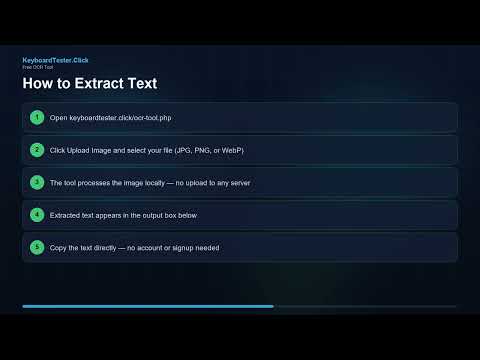
How to Extract Text from an Image
- Open the OCR tool
- Upload your image (PNG, JPG, screenshot, or photo)
- The OCR engine processes the image locally in your browser
- Extracted text appears in an editable text box for you to copy
What Can You OCR?
- Screenshots: Extract text from error messages, chat conversations, or web pages — screenshot to text tool
- Photos: Digitize printed documents, receipts, or business cards — photo to text tool
- Scanned documents: Convert scanned PDFs and paper documents into editable text
- Handwritten notes: Works with clear handwriting (printed fonts work best)
Tips for Better OCR Results
- Use high-resolution images (300 DPI or higher for printed documents)
- Ensure good lighting and contrast
- Straighten tilted images before scanning
- Dark text on light backgrounds works best
Privacy
All OCR processing happens locally in your browser using Tesseract.js. Your images are never uploaded to any server. This makes it safe for processing sensitive documents.
Related Tools
Extract text now: Open the OCR tool.
Quick Action Checklist
- Clean the display first so dust is not mistaken for a pixel issue.
- Use full-screen mode where possible.
- Test several solid colors, not only black or white.
- Compare screenshots only after checking the screen directly.
FAQ
Do I need to install anything for this guide?
No. The recommended checks run in a modern browser unless the article specifically points you to an operating-system or device setting.
Is the browser test private?
The KeyboardTester.click tools are designed to run the test interaction in your browser. Do not type passwords, private messages, or sensitive account data into any testing page.
What should I do if the result looks wrong?
Repeat the test in a clean browser tab, then change one variable at a time such as device, cable, USB port, permission, wireless mode, or browser profile.
When should I use a related tool?
Use a related tool when the first result points to a narrower issue, such as latency, ghosting, stuck input, camera permission, audio routing, or QR/OCR decoding quality.





Reader discussion
Comments
Share what worked, what did not, or what you would test next. Every comment is reviewed before it appears.
Loading approved comments…
Leave a comment
No account or sign-in is required. Links and HTML are not accepted.