


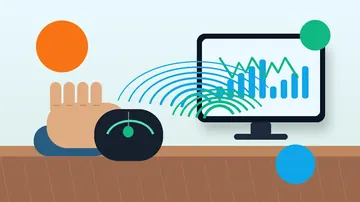
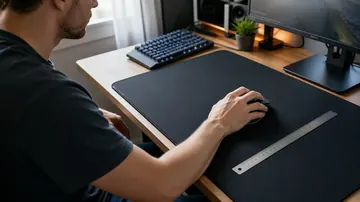
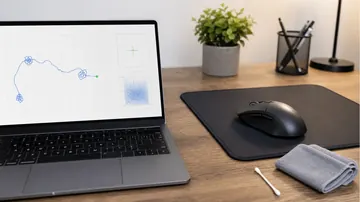





Fast answer: Use this guide as a practical checklist for click speed test: how to measure your cps (clicks per second). Start with the main browser tool, confirm the result with one focused follow-up test, then change only one device, browser, or setting at a time so you know what actually fixed the issue.

Click speed matters more than you think. In games like Minecraft PvP, competitive FPS titles, and even productivity apps with rapid UI interactions, your clicks per second (CPS) can make a real difference. (Minecraft rewards the two skills separately, though: PvP favors fast clicks, while building favors geometry — if a round tower is next on your list, follow the block-by-block circle building guide before you start placing.) But how fast do you actually click?
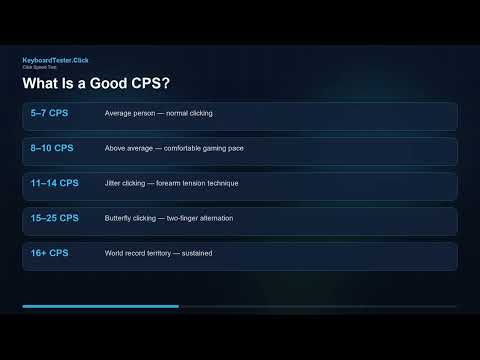
What Is a Good CPS?
- Average person: 5-7 CPS
- Above average: 8-10 CPS
- Fast clicker: 11-14 CPS
- Jitter clicking: 10-14 CPS
- Butterfly clicking: 15-25 CPS
- World record: 16+ CPS sustained
How to Take a Click Speed Test
- Open the click speed test
- Click the Start button to begin the timer
- Click as fast as you can within the time limit
- Your CPS, total clicks, and time are displayed instantly
Clicking Techniques to Increase CPS
Regular Clicking
Using your index finger in a natural clicking motion. Most people achieve 5-8 CPS this way. This is the baseline technique.
Jitter Clicking
Tensing your forearm muscles to create rapid vibrations in your finger. This technique can achieve 10-14 CPS but causes hand fatigue quickly. Not recommended for extended use.
Butterfly Clicking
Alternating between two fingers (usually index and middle) on the same mouse button. Advanced users can reach 15-25 CPS, but many games and servers consider this an unfair advantage. Trying to decide between this and jitter clicking? Our jitter click vs butterfly click comparison breaks down which is faster, which is easier on your aim and hand, and which is more likely to trip anti-cheat.
Drag Clicking
Dragging your finger across the mouse button to generate friction-based clicks. Can produce extremely high CPS but only works on certain mouse surfaces and is banned in most competitive settings. To measure drag-click CPS and peak burst specifically, and to learn the technique, which mice work, and whether it is bannable or damages your switches, see our full drag click test guide.
Does Your Mouse Affect Click Speed?
Absolutely. Key factors include:
- Microswitch type: Omron, Kailh, and Huano switches have different actuation forces and debounce times
- Debounce time: Lower debounce = faster click registration, but too low causes double clicks
- Button shape: Wider, flatter buttons are easier to butterfly click on
- Mouse weight: Lighter mice move less when clicking aggressively
If your mouse is double-clicking or not registering fast clicks, use the ghost click detector to check for hardware issues.
Related Tools
- Mouse Button Tester — Test all mouse buttons
- Keyboard Keys-Per-Second Test — Measure intentional presses on any key, one key, two keys, or a custom set
- Mouse Drag Click Test — Measure drag-click CPS, peak burst, and timeline
- Double Click Test — Check for unintended double clicks
- Ghost Click Detector — Detect phantom clicks
- Latency Checker — Measure input delay
- TTK Calculator — compute time-to-kill given your CPS
Related reading: Jitter Click vs Butterfly Click: which is faster and which gets you banned, the drag click test guide for the third high-CPS technique, the right click CPS guide if your right button is slower than your left, and the keyboard CPS test for the spacebar if you want a keyboard speed score instead of a mouse one.
Find out your CPS: Take the click speed test now.
Quick Action Checklist
- Test left, right, middle, scroll, and side-button behavior separately.
- Compare wired, receiver, and Bluetooth modes if available.
- Use the same browser and surface when comparing results.
- Retest after changing drivers, polling rate, or game settings.
FAQ
Do I need to install anything for this guide?
No. The recommended checks run in a modern browser unless the article specifically points you to an operating-system or device setting.
Is the browser test private?
The KeyboardTester.click tools are designed to run the test interaction in your browser. Do not type passwords, private messages, or sensitive account data into any testing page.
What should I do if the result looks wrong?
Repeat the test in a clean browser tab, then change one variable at a time such as device, cable, USB port, permission, wireless mode, or browser profile.
When should I use a related tool?
Use a related tool when the first result points to a narrower issue, such as latency, ghosting, stuck input, camera permission, audio routing, or QR/OCR decoding quality.




Reader discussion
Comments
Share what worked, what did not, or what you would test next. Every comment is reviewed before it appears.
Loading approved comments…
Leave a comment
No account or sign-in is required. Links and HTML are not accepted.