











Fast Answer
Mouse spinning out means the sensor stops tracking reliably during very fast swipes, so the crosshair whips to the ceiling or the view spins instead of landing on target. It is a hardware tracking-speed limit (rated in IPS, inches per second), not your aim and not cursor drift. You can watch it happen in about a minute: hold the button and spin fast, small circles in the 360° spin counter and keep your eyes on the live count. If the count freezes mid-spin while your hand keeps circling, the sensor just gave up. Most cases are fixed cheaply with a proper cloth pad, a clean lens, or a firmware update.
Every FPS player knows the moment: someone pushes from behind, you rip a fast 180, and instead of landing on the enemy your view snaps to the sky or spins past them. Teammates call it bad aim. Steam and Tom's Hardware threads are full of people describing the same thing in CS2, Valorant, and Apex, usually with no idea that it has a name and a hardware cause.
This guide explains what sensor spin-out actually is, how to tell it apart from drift and jitter, how to watch your own sensor fail in a live browser check, and every fix in order of cost, from a mousepad swap to reading IPS ratings when the sensor itself is the ceiling.
What "mouse spinning out" actually is
An optical mouse sensor is a tiny high-speed camera. It photographs the surface thousands of times per second and compares each frame with the last one to work out how far you moved; the full pipeline is explained in our guide to how a mouse sensor works. That comparison only succeeds while consecutive frames still overlap. Move the mouse faster than the sensor can keep frames overlapping and the chip briefly loses the plot: it stops reporting motion for an instant, or emits movement data that has nothing to do with what your hand did.
That failure is sensor spin-out. The ceiling it crashes into is the sensor's maximum tracking speed, rated in IPS (inches per second) of physical mouse travel. The cruel part is timing: the only moments you exceed the ceiling are hard flicks and panic 180s, which is exactly when you most need tracking to be correct. In a shooter, one burst of garbage movement data gets interpreted as an enormous view swing, which is why players describe the crosshair "flying to the ceiling" or the view spinning half a turn.
Spin-out is a speed problem, so it is consistent in a specific way: slow and medium swipes feel perfect, and only fast motion breaks. If your cursor also misbehaves while the mouse is sitting still or during slow movement, you are probably looking at a different fault, which the next section separates.
- Spin-out: the sensor exceeds its maximum tracking speed during a fast swipe and reports nothing or garbage for a moment.
- IPS rating: the manufacturer-published speed ceiling, in inches of mouse travel per second, that the sensor can track reliably.
- When it triggers: hard flicks, fast 180s, and panic swipes, almost never during slow tracking or desktop use.
- What it is not: aim skill, mouse acceleration, cursor drift, or shaky-hand jitter.
Spin-out vs cursor drift vs jitter: which problem do you actually have?
These three faults get mixed together in forum threads, and the wrong diagnosis wastes money. The speed of the motion when the problem appears is the cleanest separator. Spin-out needs fast motion. Drift is the opposite: the cursor creeps or hops while the mouse is untouched; if that is your symptom, run the 30-second idle drift check with your hand off the mouse and follow the cursor-moving-by-itself troubleshooting guide instead of this one.
Jitter sits in the middle: a shaky, vibrating cursor during slow or normal movement, usually caused by a dirty lens, a bad surface, an unstable wireless link, or an extreme DPI setting. Use the table to place your symptom, then keep reading only if fast flicks are the trigger.
Spin-out, drift, and jitter at a glance
Match your symptom to a row before changing any settings. Each problem has a different first test and a different fix path.
| Problem | What you see | When it happens | Quick check |
|---|---|---|---|
| Spin-out | View whips to ceiling/floor or spins past the target; cursor teleports | Only during very fast flicks and 180s | Spin fast circles in the rotation counter and watch for a mid-spin count freeze |
| Cursor drift | Cursor creeps, slides, or hops on its own | While the mouse is untouched | Hands-off run in the idle drift test; any steady movement is drift |
| Jitter | Shaky, vibrating, or wavy cursor path | During slow and normal movement | Draw slow straight lines; wobble at low speed points to lens, surface, DPI, or wireless issues |
Test it in 60 seconds: watch your sensor fail in the spin counter
The fastest way to see spin-out at home is a rotation counter. The 360° spin counter tracks your cursor circling a center dot and shows four live numbers: full spins completed, peak spins per second, total degrees of rotation, and current direction (clockwise or counter-clockwise). Spinning the mouse in small, fast circles is the easiest way to keep physical speed high for several seconds straight, which is precisely the condition that triggers spin-out.
One honest limitation before you start: this is a verify-by-eye check. The counter counts rotations; it does not measure your sensor's IPS and it cannot flag spin-out with a number. You are the detector, and the live spin count is what you watch.
- 1. Use your real pad. Run the check on the mousepad you actually play on. The surface is half of the tracking equation, so testing on a different desk hides the real behavior.
- 2. Set a moderate DPI (roughly 800-1600). The goal is for the on-screen cursor to stay inside the pad area while you circle; you can measure your real DPI first if you are unsure what the mouse is set to.
- 3. Start a 15 or 30 second run. Press Start, put the cursor on the pad, hold the left button, and circle around the center dot.
- 4. Build up speed. Begin with smooth, deliberate circles, then tighten them and speed up until you are circling as fast as your wrist allows.
- 5. Watch the live spin count, not your hand. Keep your eyes locked on the count while you spin at maximum speed.
The primary signal is a mid-spin plateau. A healthy sensor keeps the count climbing smoothly for as long as you circle. If the count freezes for a beat while your hand is still making fast circles, then jumps or resumes, the sensor momentarily stopped reporting motion: that freeze is the spin-out moment, and it usually repeats at the same speed on every attempt.
Two false positives to rule out before you blame the sensor. Direction flicking between clockwise and counter-clockwise, or a slightly stuttery count, can simply mean your circles were sloppy and crossed the center dot; flicker alone proves nothing. And if the on-screen cursor slams into the edge of the display, the angle sweep stalls and the count stalls with it even though the sensor is fine. Keep circles small and centered, keep the browser window large, and repeat the run a few times: a real plateau is consistent, false positives are not.
Confirm it in-game and in vendor software
A browser check is evidence, not a verdict, so confirm the pattern where it hurts: in-game. Load a private match or practice range (the Range in Valorant, an empty map in CS2, the firing range in Apex) and do controlled fast 180s toward a fixed landmark, then the same turn at half speed. Spin-out has a signature: the slow turn lands where you expect every time, while the hard flick overshoots wildly, snaps the view up or down, or lands somewhere random. If both speeds land consistently, your problem is more likely sensitivity, acceleration, or technique than tracking speed.
Next, open your vendor suite: Logitech G HUB, Razer Synapse, or the equivalent for your brand. You are looking for two things. First, a pending firmware update for the mouse or its wireless dongle, because sensor and dongle firmware fixes have shipped for exactly this class of tracking bug. Second, any sensor-related toggles, such as surface calibration or lift-off distance settings, that may be tuned for a different pad than the one on your desk.
While you are at it, rule out the boring failures: run a quick button and scroll sanity check to confirm nothing else is broken, and if movement feels inconsistent at all speeds rather than only on flicks, check whether mouse acceleration is enabled in Windows before blaming the sensor.

Every fix, easiest first
Work down this ladder in order and repeat the spin check after each step. Most spin-out reports are fixed in the first three steps without spending more than the price of a mousepad.
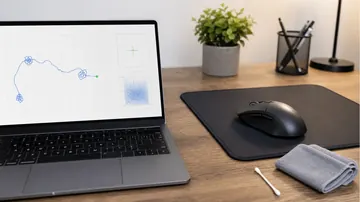
- 1. Fix the surface. A worn, shiny-spotted cloth pad, a glossy desk, or glass starves the sensor of trackable texture and lowers the speed where it gives up. A plain, clean cloth pad in good condition is the reference surface; if your pad has years of polish in the center, replace it first.
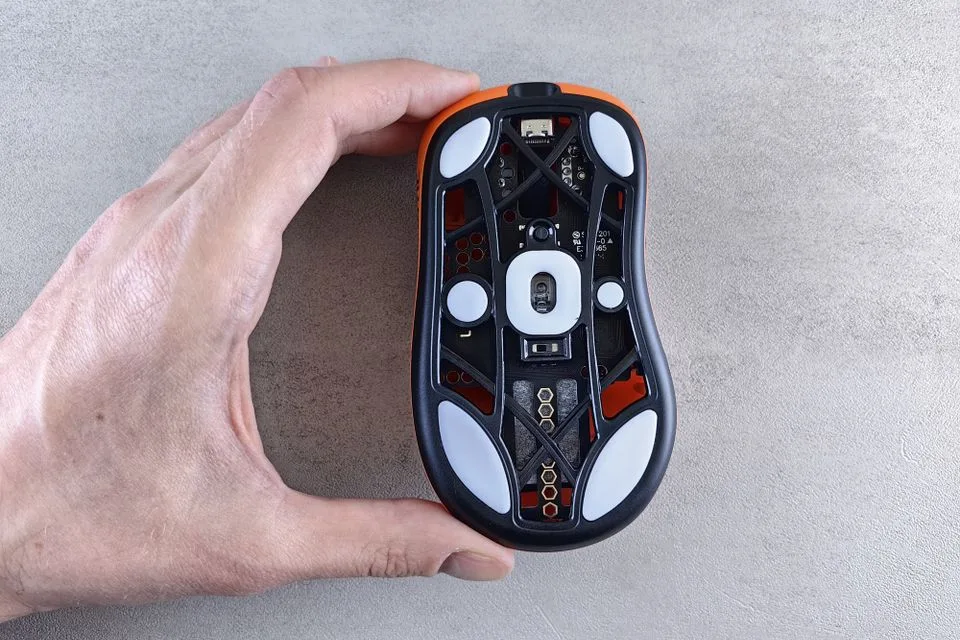
- 2. Clean the lens. Flip the mouse and inspect the sensor opening. A hair or dust flake partially blocking the aperture corrupts frames at high speed long before it bothers slow tracking. Blow it out with air and wipe around the opening gently; never scratch the lens itself.
- 3. Update firmware. Check G HUB, Synapse, or your brand's utility for mouse and dongle firmware updates, then retest. Tracking-speed misbehavior that appears after a mouse launches is sometimes fixed in firmware.
- 4. Change the connection. Plug into a different USB port directly on the motherboard, try another cable on wired mice, and move a wireless dongle closer to the pad with an extender. A flaky link produces stutters that stack on top of any real sensor limit.
- 5. Lower the polling rate temporarily. If the mouse runs at 4000 or 8000 Hz, drop it to 1000 Hz and retest; you can confirm the active rate with the polling rate check. Some mice have shipped firmware bugs specific to high polling modes, and this isolates the report path from the sensor.
- 6. Disable "corrective" features. Turn off angle snapping / straight-line correction in the vendor suite, and make sure Enhance Pointer Precision is off for gaming. These filters do not cause true spin-out, but they distort fast motion and make diagnosis harder.
If the count still plateaus on a clean pad, with a clean lens, current firmware, a solid connection, and standard polling, you have run out of cheap causes: the sensor itself is the bottleneck, and the next section is about reading the spec that tells you so.
When it is the sensor itself: IPS ratings and what to buy instead
Every mouse sensor has a published maximum tracking speed, and manufacturers print it on the spec sheet as IPS. The numbers below are taken directly from the manufacturers' own current spec pages (checked July 2026), and they show how wide the range is between an entry-level office-grade sensor and a current esports flagship.
The practical read: 220 IPS is about 5.6 meters of pad travel per second, which an aggressive low-sensitivity flick on a big pad can genuinely approach, especially on a degraded surface that lowers the real-world ceiling. A 650-750 IPS flagship rating is roughly 16-19 meters per second, far beyond any human flick, which is why reproducible spin-out on a healthy modern flagship almost always traces back to surface, dirt, firmware, or connection, not the chip. If your mouse is an older or budget model and the plateau survives the whole fix ladder, replacement is the honest fix: check the "max speed (IPS)" line on the maker's spec page before buying, and start with the sensor-focused picks in our gaming mouse buying guide.
Manufacturer-published maximum tracking speeds, from the vendors' own spec pages:
| Mouse (sensor) | Published max tracking speed | Class |
|---|---|---|
| Razer DeathAdder Essential (6,400 DPI optical) | Up to 220 IPS, 30 G acceleration (Razer spec sheet) | Budget wired |
| Razer Basilisk V3 (26K optical) | 650 IPS max speed (Razer spec page) | Mid-range |
| Razer Viper V3 Pro (Focus Pro 35K Gen-2) | 750 IPS max speed (Razer spec page) | Esports flagship |
IPS specs are measured by the manufacturer under its own test conditions, so treat them as tier markers rather than lab-grade guarantees. The conversions are plain arithmetic: 220 IPS ≈ 5.6 m/s and 750 IPS ≈ 19 m/s of physical mouse travel. All three figures are linked in the Sources section.
Test the whole mouse, not just the sensor
Each tool below runs free in the browser. Together they cover tracking speed, idle stability, buttons, real DPI, and the USB report path.
Live spin count, peak spins per second, total degrees, and direction. Watch the count for the mid-spin freeze.
Mouse drift testHands-off idle check that reports drift distance and event count while the mouse sits still.
Mouse testerButtons, scroll wheel, and basic pointer response, so a broken switch does not confuse a sensor diagnosis.
Mouse DPI testerMeasure the DPI your mouse actually reports before setting up the spin check.
Polling rate checkConfirm the real report rate, useful when testing whether a high polling mode is the troublemaker.
Related mouse guides
The idle-drift diagnostic workflow, for movement that happens when you are not touching the mouse.
How a computer mouse worksBall, optical, and laser tracking explained, including why sensors need surface texture at all.
Best gaming mouse picksResearched buying guide with sensor specs, grip, weight, and polling covered together.
Video: what methodical in-game sensor testing looks like
This reference video from mouse reviewer Rocket Jump Ninja shows the in-game side of sensor evaluation: controlled fast movements repeated until tracking faults reveal themselves. Use the same discipline when you confirm your own spin-out in the practice range.

A mouse reviewer demonstrates the repeatable in-game movement patterns used to evaluate sensor tracking behavior.
Sources and research notes
IPS figures come straight from manufacturer spec pages, browser-behavior claims from MDN, and symptom wording from the long-running community threads where players describe spin-out. All were checked in July 2026.
- Razer Viper V3 Pro official product page
Razer's spec sheet for the Focus Pro 35K Optical Sensor Gen-2, listing "Max Speed (IPS): 750".
- Razer Basilisk V3 tech specs
Razer's official spec page listing a 650 IPS maximum speed for the Basilisk V3 optical sensor.
- Razer DeathAdder Essential support specs
Razer support page listing the true 6,400 DPI optical sensor at up to 220 IPS with 30 G acceleration.
- MDN: Pointer events
Browser API documentation for the pointer movement events the browser-based checks listen to.
- Tom's Hardware forum: "Every mouse I use is spinning out"
Long-running community thread used for the real-world symptom wording players use when describing spin-out.
- Rocket Jump Ninja: In Game Mouse Sensor Testing - Reference Video
The embedded reference video showing methodical in-game sensor testing movements.
FAQ
- Why does my mouse only spin out on fast flicks?
Because spin-out is a tracking-speed failure. The sensor compares rapid surface snapshots, and only very fast physical movement pushes it past the speed where consecutive frames still overlap. Slow and medium movement stays far below the ceiling, so it always feels fine.
- Is high DPI causing my mouse to spin out?
No. DPI is resolution (counts per inch), while spin-out is about tracking speed (IPS). A very high DPI makes every glitch look bigger on screen, and extreme interpolated DPI settings can add jitter, but lowering DPI does not raise the speed ceiling of the sensor.
- Can a mousepad really fix mouse spin-out?
Often, yes. Published IPS ratings assume a good tracking surface. A worn, shiny, or glossy surface gives the sensor less texture to compare, which lowers the real-world speed where tracking fails. A clean cloth pad is the cheapest fix and the first thing to try.
- Does the browser spin counter measure my sensor's IPS?
No. It counts full 360-degree rotations and shows spins, peak spins per second, total degrees, and direction. It cannot measure IPS or detect spin-out numerically. The diagnosis is visual: you watch for the live count freezing while your hand is still circling fast.
- Is spin-out the same as cursor drift?
No. Drift is movement while the mouse is untouched, and it has its own idle test and fix path. Spin-out only appears during very fast movement. If your cursor moves on its own at rest, follow the drift guide instead.
- Do wireless mice spin out more than wired ones?
Not because of the sensor: modern wireless flagships use the same or better sensors than wired mice. A weak or interfered wireless link can add stutters that look similar, which is why moving the dongle closer and retesting is part of the fix ladder before blaming the sensor.
Stop guessing whether it was your aim. Run the 60-second spin check on your real pad, watch the live count for a mid-spin freeze, then walk the fix ladder from mousepad to firmware before spending money on a new mouse.



Reader discussion
Comments
Share what worked, what did not, or what you would test next. Every comment is reviewed before it appears.
Loading approved comments…
Leave a comment
No account or sign-in is required. Links and HTML are not accepted.