









Fast answer: Use this guide as a practical checklist for mouse dpi test: measure actual vs advertised sensitivity (2026 guide). Start with the main browser tool, confirm the result with one focused follow-up test, then change only one device, browser, or setting at a time so you know what actually fixed the issue.
Your mouse says 1600 DPI on the box. Your game is calibrated on that assumption. Your aim has been drifting for weeks. So you plug it into a mouse DPI test and find out it is actually doing 1580 — or 1820, or something nowhere near the label.
This guide covers what a DPI test actually measures, why the number on your mouse often lies a little, the real DPI that professional Valorant and CS2 players use in 2026, and how polling rate and eDPI fit together to produce the feel most people are actually trying to tune.
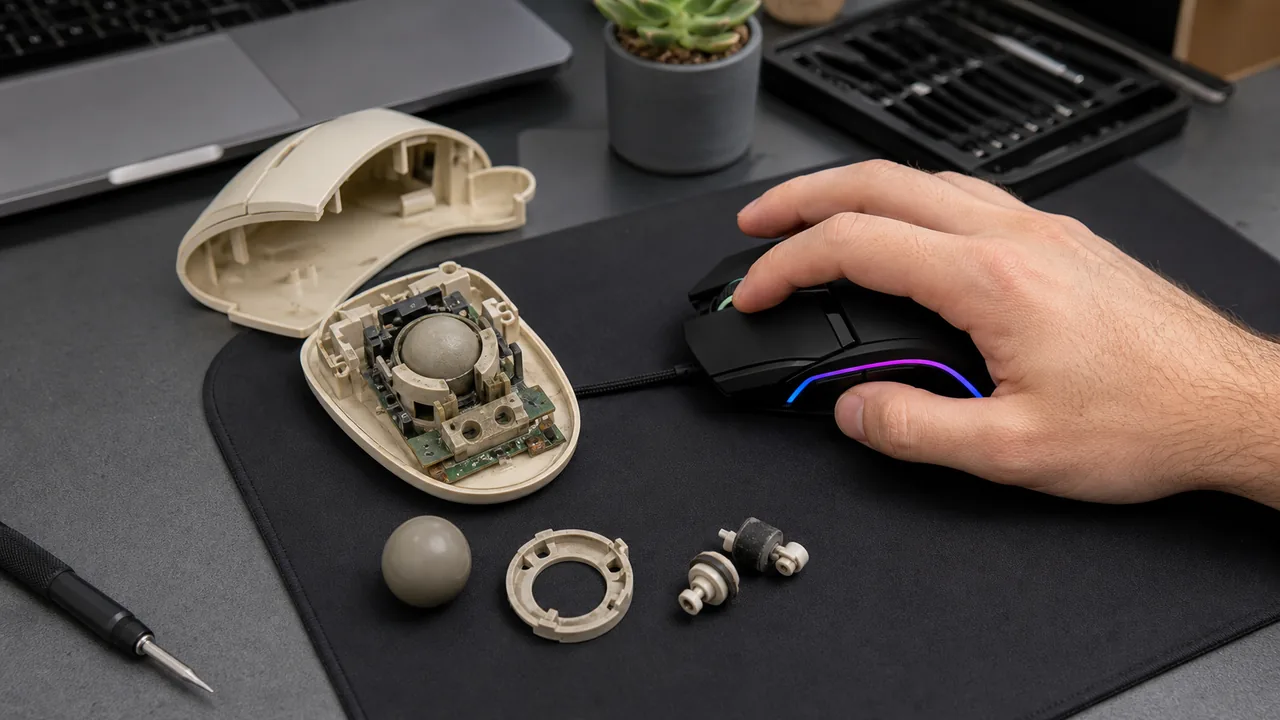
For the sensor-level explanation, see how ball, optical, and laser mice convert hand movement into cursor reports. This DPI guide focuses on measuring the output from that sensor path.

What DPI Actually Measures
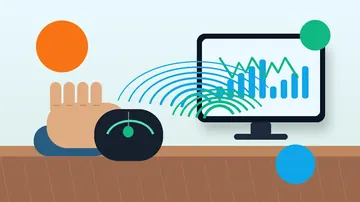
DPI is how many pixels your cursor moves when you move the mouse exactly one inch on the pad. A 1600 DPI mouse should move the cursor 1600 pixels for 1 inch of travel. A DPI test simply checks that promise by recording cursor displacement while you move the mouse a measured distance.
Run the mouse DPI tester, set the target DPI to what your mouse claims, move the mouse exactly 1 inch (or 10 cm — the tool supports both), and the tool tells you the real DPI. Anything within about 3% is normal sensor variance. Anything further off is real drift worth caring about.
Calibrate twice, shoot once. The DPI label is a manufacturer claim, not a measurement.
DPI vs CPI: The Same Thing With Different Names
Technically the mouse sensor counts movement increments, not dots, so CPI (counts per inch) is the more correct term. Logitech uses CPI. Razer, SteelSeries, and most gamers use DPI. The gaming community decided decades ago that they are interchangeable, and they are: 800 CPI on a Logitech G Pro X Superlight is the same number as 800 DPI on a Razer Viper.
If a product page uses one term and your game uses the other, do not worry about it. They are identical.
Why Advertised DPI Is Not Always Real DPI
Every mouse has a sensor (PixArt PAW3395, PAW3950, Logitech HERO 2, Razer Focus Pro 30K, etc.), and the sensor is calibrated at the factory. Calibration drifts for a few reasons:
- Surface dependence: a sensor calibrated on a specific mousepad often reports slightly different DPI on glass, cloth, or hard plastic.
- Cheap sensors: budget mice under $25 routinely deviate 10–20% from advertised specs. This is the single biggest reason a DPI test saves you aim frustration.
- DPI-stage rounding: mice with software cycle DPI in steps of 50 or 100. Your "1600" stage may actually be 1600, 1580, or 1625 after the rounding and internal math.
- Sensor age: older optical sensors drift slightly over years of use. Hall-effect and newer optical sensors do not have this problem.
Premium sensors track well: SteelSeries TrueMove, Logitech HERO 2, and Razer Focus Pro measure within a couple of percent in independent testing. Budget and unbranded mice are where the surprises live.
How to Measure Your Real DPI Online
Under a minute, no install, no driver software required:
- Open the mouse DPI tester.
- Enter the DPI your mouse claims (check the label or driver software).
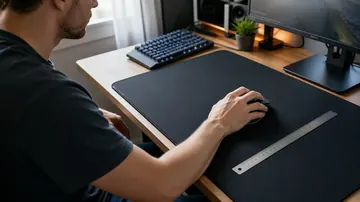
- Place a ruler next to your mousepad. Choose a test distance — 1 inch (25 mm) or 4 inches (100 mm). Longer distance = lower % error.
- Click Start, move the mouse that exact distance in one smooth motion, then release.
- The tool shows your real DPI and the delta from advertised. Repeat 3–4 times and take the average.
Tip: disable Windows Enhance pointer precision (mouse acceleration) before testing. Acceleration multiplies cursor distance based on speed and produces misleading readings.
What DPI Should You Use in 2026?
There is no universal correct DPI. The right one depends on what you play, what you do, and your monitor.
| Use case | Recommended DPI | Why |
|---|---|---|
| Tactical FPS (CS2, Valorant) | 400–800 | Low DPI + low in-game sens = max micro-adjustment control for head shots |
| Battle royale (Apex, Fortnite) | 800–1600 | Mid DPI supports fast flicks at mid range and quick build navigation |
| MOBA / RTS (LoL, Dota 2, SC2) | 1200–2000 | Fast cursor travel across the map is more important than pixel precision |
| General productivity | 1000–1600 | Comfortable for windows and browsing at 1080p/1440p |
| 4K / ultrawide monitors | 1600–3200 | More pixels to cover = more cursor travel per inch |
| Design / precision work | 800–1200 | Low DPI with a large mousepad gives fine nudges in Figma, Photoshop, CAD |
Anything advertised above 16,000 DPI is marketing. At 30,000 DPI a 1 mm movement would fling the cursor across a 4K display multiple times. Sensors support it because it costs nothing to specify; nobody uses it.
What Pro Players Actually Use
If you cluster the top 100 players in the major FPS titles by DPI:
- CS2: median 400 DPI. Overall eDPI (DPI × in-game sensitivity) averages around 280.
- Valorant: median 800 DPI. eDPI average around 260.
- Apex Legends: median 800 DPI, eDPI roughly 1100–1400.
- Overwatch 2: median 800 DPI, eDPI roughly 3600 (hero swapping rewards faster turns).
Why 400 and 800 keep dominating: muscle memory is anchored to centimeters-per-360-degree, and low DPI gives you more physical space to make small corrections. Raising the DPI doesn't make you faster — it just scales everything, and your hand has less room to aim small.
eDPI: The Number That Actually Matters
eDPI = DPI × in-game sensitivity. It is the unit that makes sensitivities comparable across games. 800 DPI at 0.4 in Valorant is the same physical feel as 400 DPI at 0.8. Both are 320 eDPI.
When you hear a pro say "my sens is 300 eDPI", they mean the physical cm/360 they require to turn the camera 360 degrees. That number does not change when they change DPI, as long as they rescale the in-game sensitivity to compensate.
If you decide you want your DPI to actually match the label after running the test, you may need to re-run your aim training — your real eDPI just changed.
Polling Rate: DPI's Partner
DPI controls how far the cursor moves. Polling rate controls how often the mouse tells the PC about that movement:
- 125 Hz: 8 ms update interval. Only office mice still do this. Noticeably laggy in games.
- 500 Hz: 2 ms. Fine for casual play.
- 1000 Hz: 1 ms. Universal standard for gaming in 2026. 95% of FPS pros use this.
- 4000–8000 Hz: 0.25–0.125 ms. Measurable improvement in cursor smoothness but burns CPU and offers marginal real-world benefit.
If your DPI test comes back correct but your aim feels floaty or stuttery, check the polling rate in your mouse driver software before blaming the sensor. Low polling rate feels like lag even with a high DPI.
Mouse DPI Settings in Windows 11
Windows adds its own sensitivity layer on top of the mouse's hardware DPI. Two settings matter:
Pointer speed slider
Win + I → Bluetooth & devices → Mouse → Additional mouse settings → Pointer Options. Set Pointer speed to the 6th notch (middle). Any other position multiplies your DPI in software and ruins 1:1 tracking.
Enhance pointer precision
Uncheck this. It is Windows-branded mouse acceleration. On, your cursor covers more distance when you move fast — great for desktop use, terrible for aim consistency. Turning it off is the single most common "gaming sensitivity fix" you will see recommended on every pro setup guide.
Hall-Effect and Optical Switches: The 2026 Update
Sensor accuracy has quietly become a solved problem on premium gaming mice. What is changing in 2026 is:
- Hall-effect sensors on mice like the NuPhy and Wooting lineups promise drift-free tracking for the lifetime of the mouse.
- Optical microswitches (Razer Gen-3, Huano optical) eliminate the click chatter that drove people to our ghost click detector.
- Wireless latency parity — high-end wireless mice are now indistinguishable from wired at 1000 Hz in blind tests, per independent measurements.
None of these affect DPI accuracy directly, but they mean if your DPI test is off by a meaningful amount, it is much less likely to be a sensor issue on a current-gen flagship and much more likely to be a surface, driver, or acceleration issue worth fixing first.
Related Tools
- Mouse DPI Tester — the tool this guide is about
- Click Speed Test — measure your CPS once your DPI is honest
- Mouse Button Tester — check every button and scroll wheel event
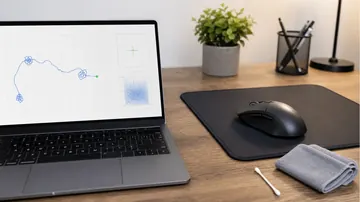
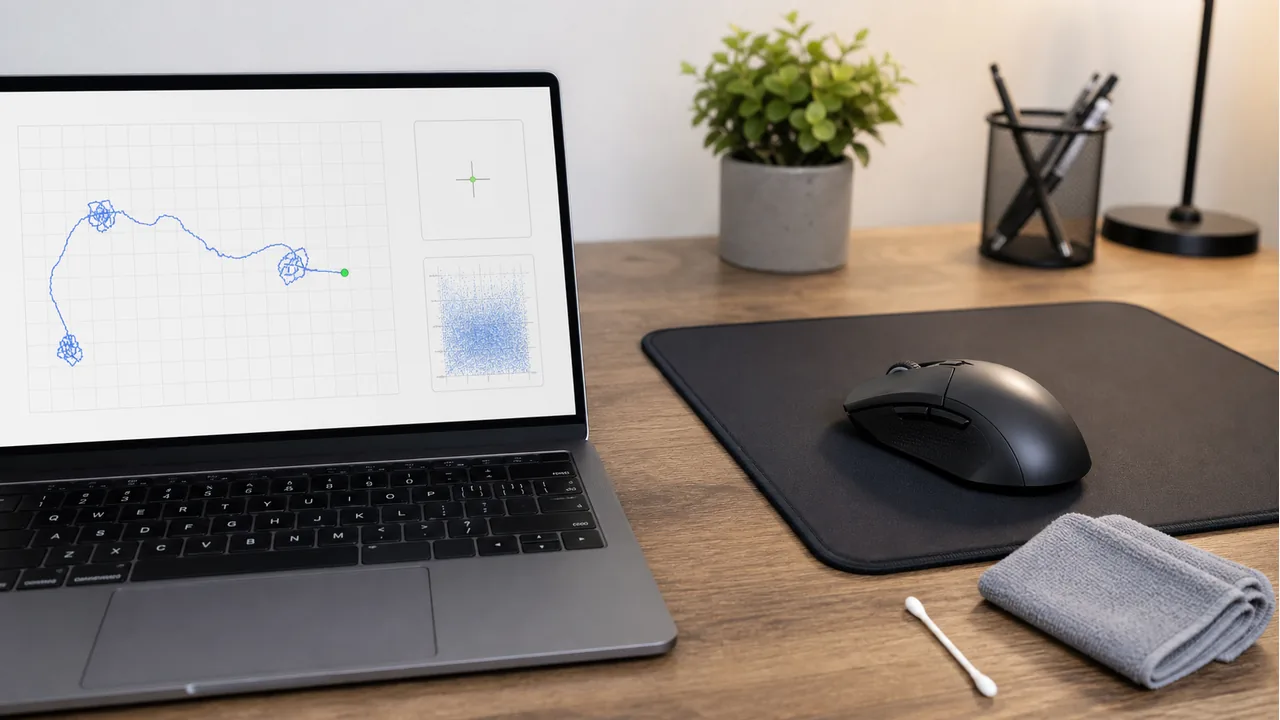
- Mouse Trail Visualizer — watch the sensor track in real time
- Input Latency Checker — measure the 1 ms-to-2 ms that polling rate actually buys you
- Ghost Click Detector — if the sensor is fine but clicks are doubling
- Click Speed Test blog — companion guide
- Ghost Click Detector blog — the fix guide for doubled clicks
- Mouse Acceleration on Windows 11 guide — disable Enhance Pointer Precision before tuning DPI
- Online Ruler — measure on-screen distances accurately for DPI tests
Verify your DPI now: Open the free mouse DPI test, grab a ruler, and find out whether the number on your mouse is the number you are actually playing on.
FAQ
What is a mouse DPI test?
A mouse DPI test measures how many pixels your cursor travels when you physically move the mouse one inch. You move the mouse a known distance on a ruler, the tool records the cursor movement, and it calculates the real DPI so you can compare it to the value your mouse claims.
Is my mouse really the DPI it says on the box?
Usually close, rarely exact. Premium sensors like Logitech HERO and SteelSeries TrueMove track within a few percent of their advertised DPI. Budget mice can drift 10-20% from their stated value, which is a real problem if you calibrate your aim to the label. Testing is the only way to know.
What is the difference between DPI and CPI?
Nothing meaningful. CPI (counts per inch) is the technically correct term because mouse sensors report movement counts, not dots. DPI (dots per inch) is a leftover from the printing world. Every mouse manufacturer uses them interchangeably, and 800 DPI is identical to 800 CPI.
What DPI do pro Valorant and CS2 players use?
Overwhelmingly 400 or 800 DPI. Valorant pros average around 260 eDPI (DPI times in-game sensitivity). CS2 pros sit around 280 eDPI, with 400 DPI still dominant thanks to muscle memory from CS 1.6 and early CS:GO. Higher DPI is not a competitive advantage at this level — it is just a preference.
Does polling rate matter more than DPI?
They do different things. DPI controls how far the cursor moves per inch. Polling rate (Hz) controls how often the mouse tells the PC where it is. 1000 Hz is the modern standard and is what 95% of FPS pros use. 8000 Hz exists but the real-world benefit over 1000 Hz is small, and it costs CPU.
Quick Action Checklist
- Test left, right, middle, scroll, and side-button behavior separately.
- Compare wired, receiver, and Bluetooth modes if available.
- Use the same browser and surface when comparing results.
- Retest after changing drivers, polling rate, or game settings.



Reader discussion
Comments
Share what worked, what did not, or what you would test next. Every comment is reviewed before it appears.
Loading approved comments…
Leave a comment
No account or sign-in is required. Links and HTML are not accepted.