How An Online Ruler Reaches Real-World Size
Every screen draws content using pixels, but a pixel's physical size depends on the display's pixel density. A 96 DPI office monitor and a 264 DPI iPad both have pixels — but the iPad's pixels are roughly a third as wide. That is why an "online ruler" rendered at a fixed pixel width will look correct on one device and wildly wrong on another. This tool solves the problem with calibration: it builds the ruler from a pixelsPerMm value rather than a fixed pixel count, and lets you set that value either by dragging a credit-card overlay (using the ISO/IEC 7810 ID-1 standard of 85.6 mm x 54 mm) or by entering your monitor's DPI directly. Once calibrated, every centimeter mark and every inch mark is the same physical length as a paper ruler.
Why Credit-Card Calibration Is The Most Reliable Method
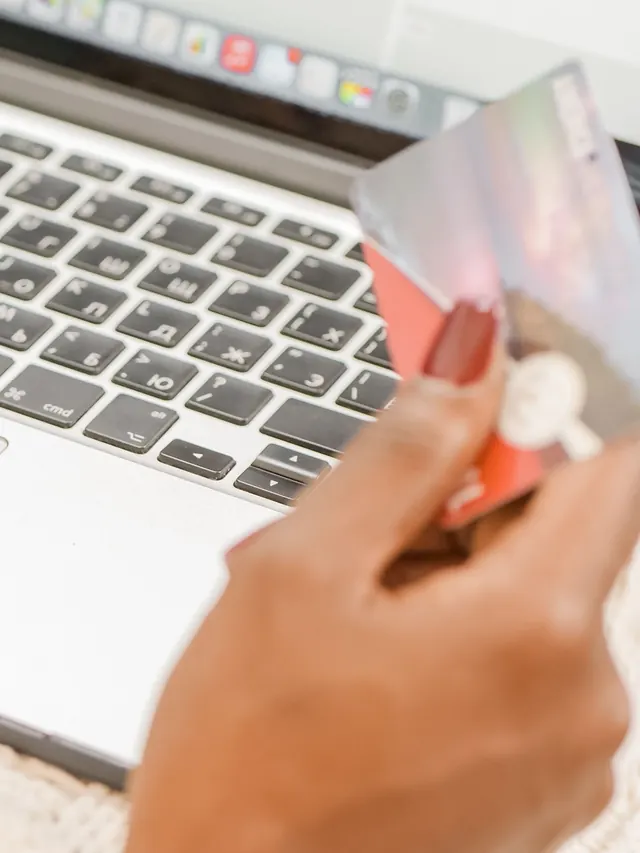
Credit cards, debit cards, and government IDs are manufactured to ISO/IEC 7810 ID-1, which fixes their dimensions at 85.60 mm x 53.98 mm with a tolerance under 0.1 mm. That means a card pulled from any wallet anywhere in the world is the same physical size as the one you might use to calibrate at the next computer. By contrast, "Enter your DPI" calibration depends on you knowing your screen's true pixel density — which Windows scaling, macOS "More Space" mode, and browser zoom can all silently change. After calibration, the on-screen ruler stays accurate to within roughly 0.5 mm, which is good enough for sewing, woodworking layout, model-making, school assignments, and verifying that a printable PDF rendered at 1:1 scale.
The same 85.6 mm card unlocks a whole toolbox of no-ruler references — coins with exact minted diameters, standard paper sizes, and phone AR apps. Our walkthrough on how to measure without a ruler compares all eight methods and shows exactly how to calibrate this screen ruler with a bank card in about ten seconds.
Browser Zoom, OS Scaling, And Why You Might Need To Recalibrate
Three settings can throw an on-screen ruler off, and they all live below the page itself. Browser zoom (Ctrl/Cmd + and -) directly multiplies the rendered size of every pixel. Windows "Display scale" and macOS Retina-mode density change the relationship between CSS pixels and physical pixels. And switching from a laptop's built-in panel to an external monitor moves you to a totally different DPI. The fix is to recalibrate with the credit card after any of those changes. We store your pixelsPerMm in localStorage per browser, so as long as you keep the same display and the same zoom level, the ruler stays accurate between sessions.
When To Use The Ruler On A Phone Versus A Desktop
On a desktop or laptop, a credit-card-calibrated ruler is good for measuring small physical objects you can press flat against the screen: jewelry, screws and bolts, ribbon, pill capsules, photo prints. Anything that doesn't fit flat (a coffee mug, a book) should still get measured with a real ruler. Phones excel as portable rulers for situations where you forgot a tape measure: checking that a backpack pocket is wide enough for a notebook, or verifying that a piece of furniture matches its listing. Phone DPIs are very high (300-500+) and vary by model, so always credit-card calibrate on phones — the DPI presets are almost certainly wrong for your specific device.
Related Tools
To practise reading the markings, try our tape measure test for inch fractions and metric units, with reading and placement exercises that explain each answer.