





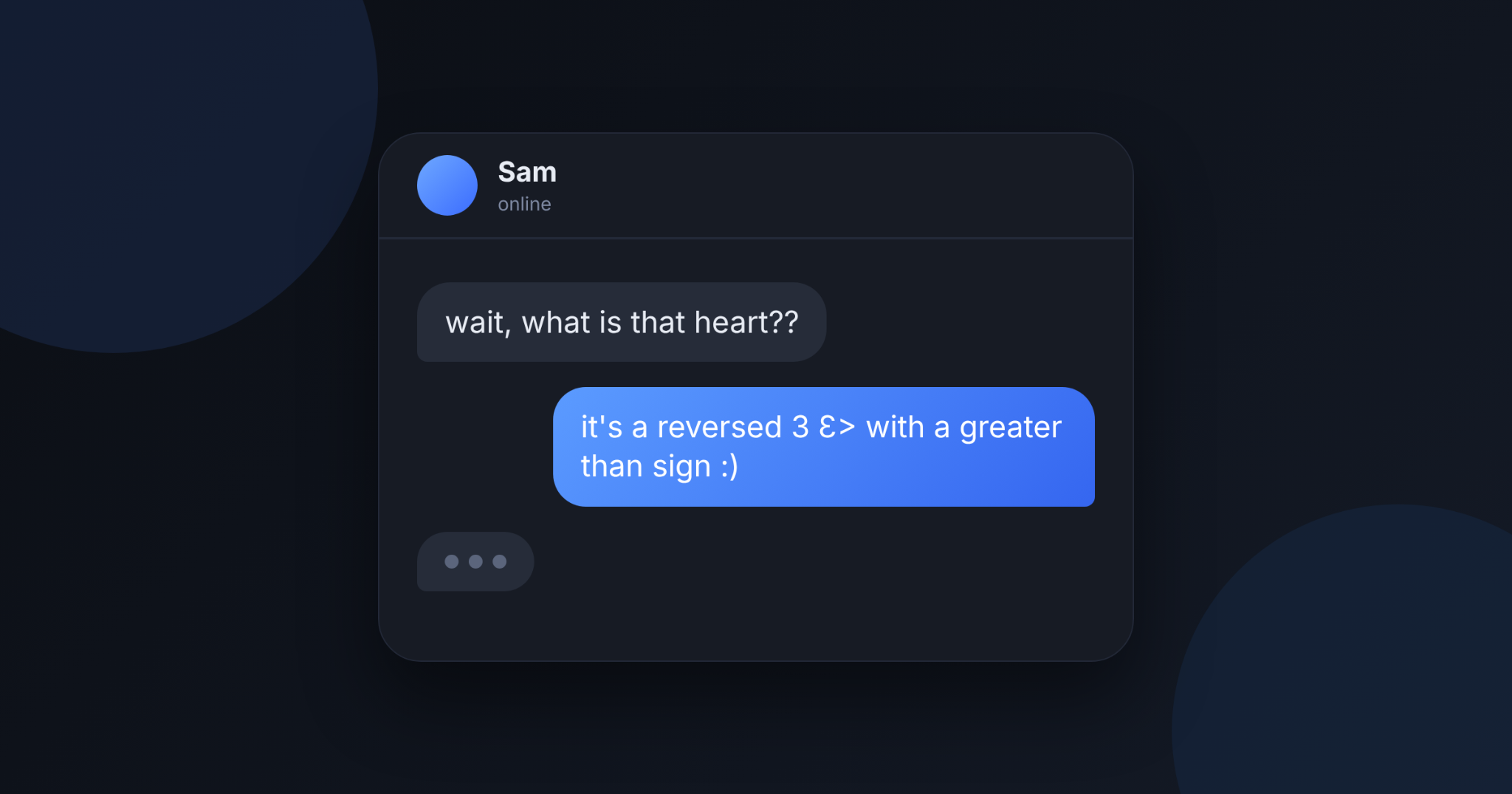

You are scrolling through a chat and spot a tiny heart that looks a little off. Instead of <3, it reads Ɛ>, as if someone held the classic text heart up to a mirror. That is exactly what it is: the same heart, flipped.
The catch is typing it. The > is easy, but the backwards 3 is not printed on your keyboard. This guide shows you how to type it on Windows, Mac, iPhone, and Android, and what to check when it refuses to appear.
The Heart Built From Keyboard Keys
The <3 heart is made from two ordinary keys. A Washington Square News editorial, from NYU's student newspaper, called it "humanity's first attempt to translate a heart into textable pixels." It is a small idea that stuck around because anyone can type it.
The mirrored version plays the same trick. Flip <3 and the < becomes >, while the 3 turns into a backwards 3. Put them together and you get Ɛ>, the same heart facing the other way.
Two Lookalikes, One Heart
You can build the backwards 3 from either of two characters. The first is ε, the Greek small letter epsilon. The second is Ɛ, the Latin capital open E, which Codepoints lists as U+0190 in the Latin Extended-B block. The same page shows its lowercase twin, ɛ.
Both look like a mirrored 3, so both make a fine heart. Try each in your chat app and keep the one that looks best in its font.
How to Type It on a Computer
Windows
For the Greek ε, turn on Num Lock, hold the left Alt key, type 238 on the number pad, and let go. Then press Shift and the period key to add the >. You now have ε>.
For the capital Ɛ in Microsoft Word, type 0190 and press Alt and X together. Word swaps the code for the symbol. Outside Word, open the Character Map app from the Start menu, find the symbol, click Select, then Copy, and paste it into your chat.
Mac
Press Control, Command, and Space to open the Character Viewer. Search for "epsilon" to find ε, or "open E" to find Ɛ. Double-click the one you want, then type > with Shift and the period key.
The Short Version
Here is every method side by side:
Where you type | For ε | For Ɛ |
Windows | Hold Alt and type 238 | Use Character Map |
Microsoft Word | Type 03B5, then Alt and X | Type 0190, then Alt and X |
Mac | Character Viewer, search "epsilon" | Character Viewer, search "open E" |
Google Docs | Insert, Special characters, search "epsilon" | Insert, Special characters, search "open E" |
iPhone and Android | Add a Greek keyboard | Copy it once from backwards3.com and save it in a note |
How to Type It on Your Phone
Phones do not have Alt codes, so the easiest route is a second keyboard. You add Greek once, then switch to it whenever you need ε.
- On iPhone: open Settings, tap General, then Keyboard, then Keyboards, and choose Add New Keyboard. Pick Greek. While typing, tap or hold the globe icon to switch layouts.
- On Android: open Settings, go to System, then Languages and input, then On-screen keyboard. Choose your keyboard app, tap Languages, and add Greek. Switch layouts with the globe key or by holding the space bar.
On the Greek layout, ε sits on the same key as E on an English keyboard. Type it, switch back to your normal keyboard, and add the >. If you want screenshots for every device, this guide to the backwards 3 walks you through Android, iPhone, Windows, and Mac.
If you prefer the capital Ɛ, copy it once from backwards3.com, which lists the backwards 3 variants, and save it in your notes app. Save the finished heart there too, and it is one tap away every time.
When the Heart Won't Type
Sometimes you follow every step and nothing shows up. Check this list first:
- Num Lock is off. Alt codes only work when it is on.
- You used the top row of numbers. Alt codes need the number pad on the right side of a full-size keyboard.
- Your laptop has no number pad. Use the Word trick, Character Map, or the Mac Character Viewer instead.
- The > is missing. On a US layout it sits on the period key with Shift. Other layouts may put it somewhere else.
- A key is not registering. Dirt, wear, or a loose connection can make a key skip presses.
That last one is easy to rule out. Open a keyboard tester, press each key you used, and see whether it lights up. A dark key means the keyboard is the problem, not your method.
Final Thoughts
A text heart is a good reminder that your keyboard can say more than its keys show. One flipped <3, one extra keyboard layout, and a few seconds of setup, and you can type Ɛ> anywhere. If you want a symbol to practice on, backwards3.com has a full walkthrough. The next time a chat sends you a mirrored heart, you will know exactly how to send one back.






Reader discussion
Comments
Share what worked, what did not, or what you would test next. Every comment is reviewed before it appears.
Loading approved comments…
Leave a comment
No account or sign-in is required. Links and HTML are not accepted.