















Fast answer: You can usually tell what switches are in your keyboard without opening it. Listen and feel for three patterns: a sharp click means clicky (like Cherry MX Blue or Box Jade), a felt bump with no click means tactile (like Brown), and a smooth, click-free press means linear (like Red or Black). Run the Keyboard Sound Test to record a keypress and read a linear, tactile, or clicky badge from its live FFT analysis. To confirm the exact family, pull one keycap and match the stem color to the chart below.
You bought a prebuilt, inherited a keyboard, or simply forgot what you ordered, and now you want to know: what switches do I have? This is a diagnostic guide, not a buying guide. The fastest answer comes from sound and feel, the next-best answer comes from the live sound test, and the most certain answer comes from pulling a single keycap and reading the stem color. Work top to bottom and stop as soon as you are sure.
The 3 Switch Types by Sound and Feel
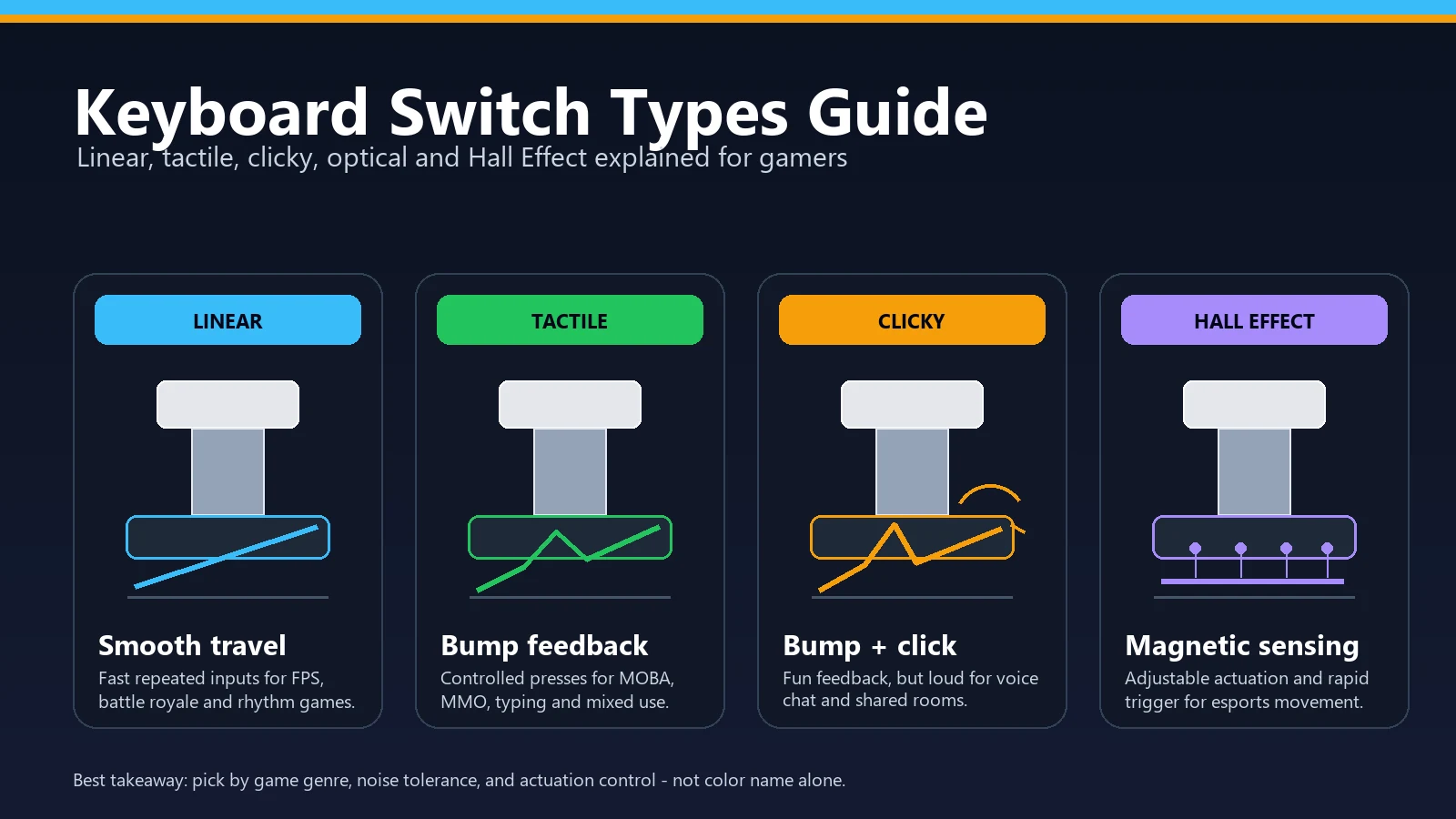
Almost every mechanical keyboard switch falls into one of three families. You do not need to open anything to place yours in a category. Press a few keys slowly, then quickly, and compare against this table.
| Switch type | How it sounds | How it feels | Common examples |
|---|---|---|---|
| Linear | Smooth and quiet; a soft "thock" or "clack" only at bottom-out, no click. | One even, uninterrupted press from top to bottom; no bump. | Cherry MX Red, MX Black, Gateron Yellow, Speed Silver |
| Tactile | A muted "thock" with no sharp click; slightly louder than linear at the bump. | A clear bump partway down that tells you the key registered. | Cherry MX Brown, MX Clear, Gateron Brown, Boba U4T |
| Clicky | A sharp, high-pitched click on every press; the loudest of the three. | A bump plus a distinct click you both feel and hear. | Cherry MX Blue, MX Green, Box White, Box Jade |
Sound-First Method: Let the Microphone Decide
Sound alone reliably separates clicky from non-clicky. Splitting tactile from linear by ear is harder, so this is where a frequency analyzer helps. The Keyboard Sound Test listens through your microphone, runs a real-time FFT, and prints a linear, tactile, or clicky badge with a confidence reading.
- Open the sound test and allow the microphone: The analyzer needs mic access to read your keystrokes. All processing stays in your browser; no audio leaves the device.
- Calibrate against room noise: Let it sample silence for a moment so background hum is filtered out before you start tapping.
- Press a key near the center of the board: Avoid the spacebar and big keys at first; their stabilizers add rattle that can fool the reading.
- Watch the badge and confidence: A clear "clicky" badge is highly reliable. A "linear" or "tactile" call is the analyzer reading low click energy; confirm tactile vs linear with the feel test.
- Repeat on a few keys: Tap several keys to average out one-off noises like a stabilizer ping or a hollow corner of the case.
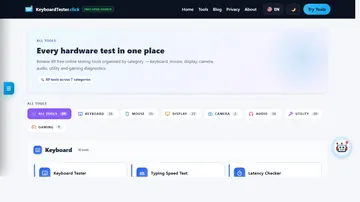
Keyboard Sound Test: Record a keypress and read a live linear, tactile, or clicky badge from real-time FFT analysis, plus a decibel meter.
Feel Test: One Finger, Three Questions
Your fingertip is a surprisingly good sensor. Rest one finger on a key, press very slowly, and ask three questions in order. This works even on a silent keyboard where sound gives you nothing.
If yes, you have clicky switches. Stop here; nothing else sounds like a click jacket firing.
That is a tactile switch. The bump is the actuation point you can feel without bottoming out.
No bump and no click means linear. The only sound is the bottom-out, not the keystroke itself.
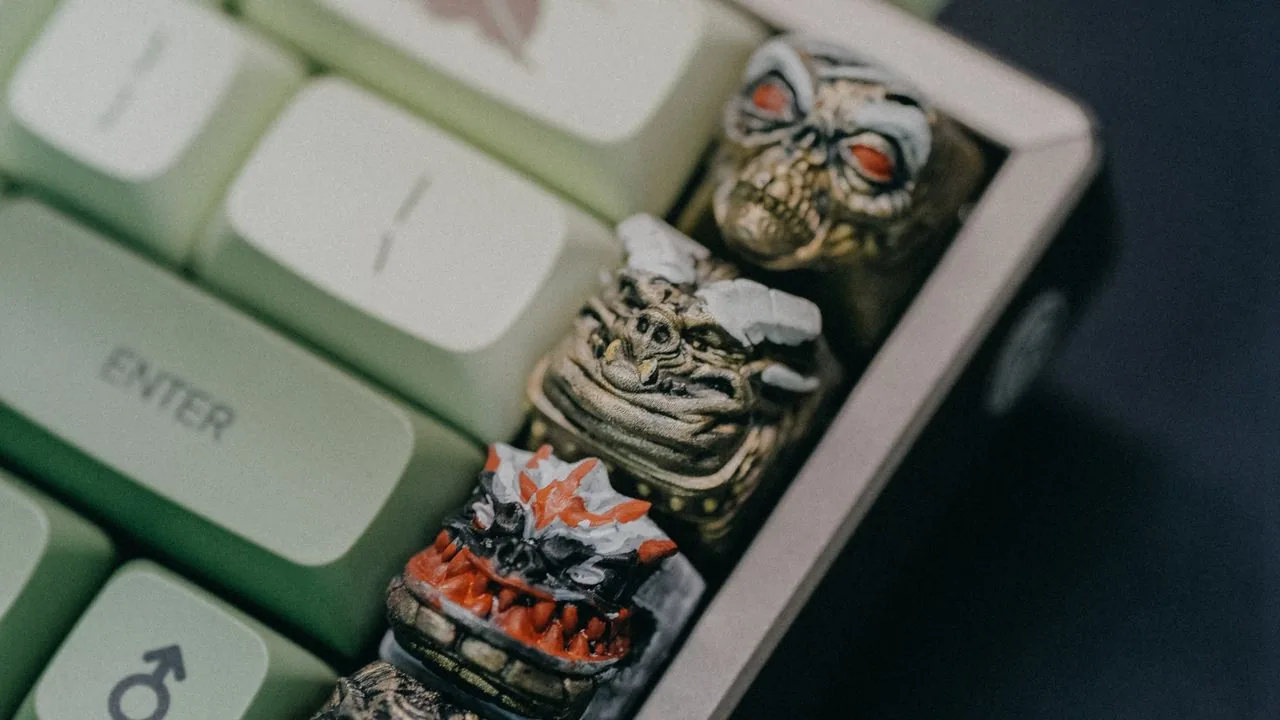
Confirm by Pulling One Keycap: Stem Color Chart
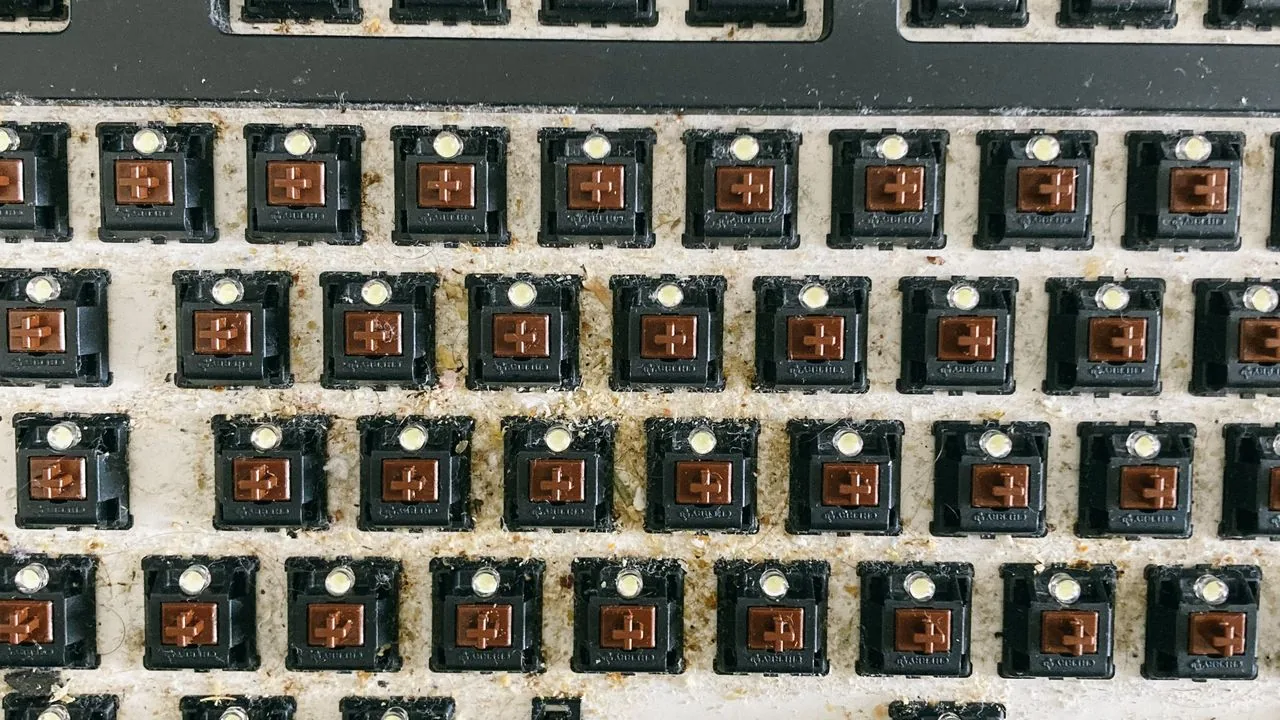
When you want certainty about the exact family, pull a single keycap and look at the colored stem in the center of the switch. The classic Cherry MX color code is copied by most clone brands such as Gateron and Kailh, so the color is a strong hint even on non-Cherry boards.
| Stem color | Switch type | Typical feel and sound |
|---|---|---|
| Red | Linear | Light, smooth, quiet; popular for fast gaming presses. |
| Black | Linear | Heavier linear; smooth but needs more force. |
| Brown | Tactile | Soft bump, no click; a common all-rounder. |
| Clear | Tactile | Stronger, heavier bump than Brown. |
| Blue | Clicky | Bump plus a loud, sharp click on each press. |
| Green | Clicky | Like Blue but heavier; very tactile and loud. |
| Silver / white (Speed) | Linear | Linear with a short travel and early actuation. |
Is My Keyboard Too Loud?
"Too loud" is mostly about your room and the people in it, not a hard number. As rough guidance, a quiet typing session sits around 40-50 dB, a normal mechanical board lands near 50-60 dB, and clicky switches with a hollow case can spike higher on each keystroke. The Keyboard Sound Test includes a decibel meter, so you can compare your board before and after a change instead of guessing.
If the noise is the problem, the order of impact is usually: switch type first, then the case and mounting, then small mods. Clicky switches will always be the loudest by design. Swapping to silent linear or silent tactile switches helps the most. Cheaper wins include adding O-rings under the keycaps to soften bottom-out, lubing the switches and stabilizers, and adding case foam to kill the hollow "ping." Test, change one thing, and test again so you know what actually helped.
Hot-Swap vs Soldered: What Changes Once You Know
Knowing your switch type is only step one. What you can do next depends on whether the keyboard is hot-swap or soldered. On a hot-swap board, the switches sit in sockets and pull straight out with a switch puller, so you can change to quieter, smoother, or faster switches in minutes with no tools beyond a puller. On a soldered board, the switches are fixed to the PCB, and changing them means desoldering and resoldering every switch.
To check quickly, pull one keycap and look at the base of the switch. A small plastic socket around the metal pins usually means hot-swap; pins disappearing straight into the green PCB usually means soldered. If you are not comfortable with a soldering iron, a soldered board effectively locks you into its current switch, so dampening mods like O-rings and foam matter more.
Press lightly to feel the actuation bump before the key hits the bottom. Mashing keys hides the difference between tactile and linear.
Background noise lowers the sound test confidence and makes clicky switches harder to confirm by ear.
Spacebar, Enter, and Shift have stabilizers that rattle. Start on letter keys for a cleaner read.
Most clones copy the Cherry color code, but a few brands reuse colors differently. Treat color as a strong hint, then double-check the printed switch name on the housing if any.
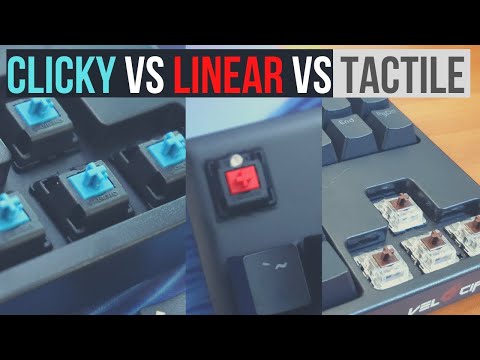
Watch: Clicky vs Tactile vs Linear With Sound Tests
Switch and Click demonstrates the three switch families side by side with real sound tests. Use it to train your ear, then record your own board in the sound test above.
Sources and Research Notes
Switch families and the stem-color code come from the official Cherry MX reference and established keyboard resources. The sound-classification angle is grounded in how the live FFT analyzer reads click energy. The demand for this exact question comes from first-party KeyboardTester.click Search Console rows around switch-sound queries.
- Cherry: MX switches at a glanceOfficial reference for MX Red and Black (linear), MX Brown (tactile), and MX Blue (clicky) behavior.
- Switch and Click: Cherry MX guideMaps stem colors to linear, tactile, and clicky families and how each one sounds and feels.
- Deskthority wiki: Cherry MXCommunity technical reference covering the full Cherry MX color range and clone equivalents.
- MDN: Web Audio APIDocuments the browser audio and analyser nodes the sound test uses for real-time FFT.
Related Tools
Record a keypress and read a live linear, tactile, or clicky badge from real-time FFT analysis, plus a decibel meter.
Keyboard TesterConfirm every key registers cleanly after you pull and reseat a keycap or swap a switch.
Keyboard Polling Rate TestCheck your keyboard Hz once you know the switch type and want to verify performance.
Typing TestFeel the difference a switch type makes to your real typing speed and accuracy.
Related Guides
Once you know what you have, decide whether to keep or swap with this buying-focused guide.
Keyboard Typing Double Letters FixIf a switch double-types or chatters, this guide covers the fix from software tweak to switch replacement.
What Is Keyboard Ghosting?A related diagnostic if multiple keys fail together rather than sounding wrong.
V4N4G0N 45% Custom Keyboard GuideIdentified your switches and want more? See what a compact custom mechanical build really involves.
Most Expensive Luxury KeyboardsIdentified premium switches? Tour the collector tier, seven of the priciest boards ever sold.
FAQ
- Can I tell what switches I have without opening the keyboard?Usually yes. A sharp click means clicky, a felt bump with no click means tactile, and a smooth press with no bump means linear. The Keyboard Sound Test confirms clicky vs non-clicky from your microphone, and the feel test separates tactile from linear without removing a keycap.
- What is the quietest type of keyboard switch?Silent linear switches are the quietest, followed by silent tactile. Standard linear switches are next, tactile switches are slightly louder at the bump, and clicky switches are the loudest by design because the click is intentional.
- How do I know if my switches are Cherry MX or clones?You cannot tell from sound and feel alone, because clones like Gateron and Kailh copy the Cherry color code and behavior closely. Pull a keycap and read any text on the switch housing. If it says Cherry, it is Cherry; otherwise the brand is usually printed on the top housing.
- Do membrane keyboards have switches?Not in the mechanical sense. Membrane and most laptop keyboards use rubber domes or scissor mechanisms over a printed circuit sheet, so there is no individual switch to classify as linear, tactile, or clicky. The sound and feel tests only apply to mechanical and optical switches.
- Why does the sound test say clicky when I have linear switches?Plate resonance, stabilizer rattle, or a hollow case can add high-frequency click-like energy to a linear keystroke. Press a key in the center of the board away from large stabilizers, calibrate against room noise, and test a few keys to get a steadier read.
- Is it safe to pull a keycap to check the switch?Yes, if you pull straight up with a wire or plastic keycap puller and avoid rocking it. Start with a letter key rather than a stabilized key like the spacebar. Press the keycap firmly back on afterward until it clicks into place.
Start with the Keyboard Sound Test: record one keypress and read the linear, tactile, or clicky badge. If you want the exact family, pull a single keycap and match the stem color, then use the switch types guide to decide whether to keep or swap them.




Reader discussion
Comments
Share what worked, what did not, or what you would test next. Every comment is reviewed before it appears.
Loading approved comments…
Leave a comment
No account or sign-in is required. Links and HTML are not accepted.