Use the live mouse panel below to verify wheel input, direction, and middle-click response.
Mouse button and scroll wheel diagnostics
Test left, right, middle, side buttons, wheel movement, horizontal scroll, browser delta values, and one-direction scroll consistency in one live panel.
Button input
Mouse click test
Ready
Left0Released
Middle0Released
Right0Released
Side0Waiting
Wheel0No input
Double clicks0No bounce
CPS0.0
Peak CPS0.0
Pointer distance0 px
Polling estimateMove inside canvas
Pointer gaps0
Last movement0 px
Wheel input
Scroll test area
Not started
Keep scrolling in one direction inside the test area. Reverse events are counted because they can point to wheel bounce, touchpad inertia, or inconsistent hand movement.
Scroll here
Mouse wheel, trackpad, or horizontal wheel input
Direction: noneSamples: 0Quality: waiting
Was this tool helpful?Rate Scroll Wheel Test Tool:4.5(6 ratings)Thanks for rating!
Mouse Tester is a free, browser-based mouse testing tool that lets you verify mouse wheel direction, wheel clicks, and inconsistent scrolling.
Cost: Free, no signup
Install: None — runs in the browser
Privacy: Runs locally, no uploads
Platforms: Windows, macOS, Linux, Android, iOS
Time: Under a minute
What a Scroll Wheel Test Checks
A scroll wheel test helps you confirm whether your browser is receiving clean directional wheel events and whether the middle button still registers when you press the wheel. It is useful when scrolling feels jumpy, reversed, delayed, or produces inconsistent step counts that do not match the physical movement of the wheel.
If your main issue is suspicious extra clicks from the left or right button rather than the wheel, jump to the double click test instead. For a full check of all mouse buttons alongside the scroll wheel, the main mouse tester covers everything in one page.
How Mouse Scroll Wheels Work — Why They Fail
Most mouse scroll wheels use a mechanical rotary encoder. As the wheel turns, it moves past a series of notches or contacts, producing electrical pulses that the mouse firmware converts into scroll event data. Each click of the wheel represents one encoder pulse, which the firmware reports to the operating system as a wheel delta value (typically +1 or -1 for each step).
Over time, the encoder contacts wear and become less reliable. Carbon buildup on the contact tracks reduces signal fidelity, and the firmware may interpret a single mechanical step as two events, or miss a step entirely. This is why old mice often develop "scroll bounce" — you scroll down one notch and the page jumps up briefly before continuing down. The encoder is generating a false reverse pulse between real forward pulses.
Common causes of scroll wheel problems:
Worn encoder contacts: The most frequent cause of erratic scrolling on mice older than two years. The carbon tracks on the encoder wheel accumulate wear and produce phantom pulses.
Dust in the encoder housing: Fine debris between the encoder teeth disrupts contact timing and can cause missed steps or direction errors.
Weak middle-click spring: The wheel also acts as a button using a separate tactile switch beneath the encoder. This switch often wears out at a different rate than the encoder itself. A mouse where scrolling works fine but middle click feels mushy has a failing wheel-click switch, not an encoder problem.
Firmware debounce settings: Some gaming mice allow firmware adjustment of the wheel debounce threshold. A threshold set too low produces scroll bounce; a threshold set too high causes missed steps at fast scroll speeds.
How to Diagnose Scroll-Wheel Problems
Roll upward several times and confirm the scroll counter rises steadily by one per physical detent.
Roll downward and confirm the status flips direction correctly and the counter increases.
Scroll slowly and then quickly to see whether the problem occurs at a specific speed threshold.
Press the wheel once or twice to confirm middle click still registers as a distinct event.
If the direction appears reversed only in one application but not in this browser test, the issue is a software setting rather than hardware — check your operating system scroll direction preferences or the application's own scroll inversion option.
Common Problems and Solutions
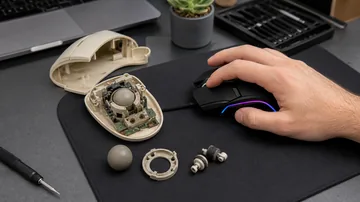
Scroll bounces — page jumps backward on downward scrolls: Classic encoder wear. The fix on disassemblable mice is to open the mouse, locate the scroll encoder, and clean the contacts with 90% or higher isopropyl alcohol applied with a soft brush. Let dry completely before reassembly. If cleaning does not resolve it, the encoder can be replaced for a few dollars (most mice use standard 5-pin or 7-pin wheel encoders).
Scrolling skips steps at high speed: This can indicate encoder contacts that are failing to produce clean signals at fast rotation speeds. Alternatively, the mouse firmware may have a high-speed scroll limiter. Test at moderate speed first. If moderate speed is fine but fast speed skips, it is firmware behavior rather than hardware failure.
Middle click stopped working but scrolling is fine: The wheel-click tactile switch failed while the rotary encoder remains functional. On most mice these are separate components, so replacing the tactile switch alone (with a solder iron) restores middle click without affecting scrolling.
Scroll direction reversed in specific browser but correct in this test: The browser or a browser extension has inverted scroll direction. Check your browser's flags or accessibility settings. Some touchpad gesture extensions can also intercept mouse wheel events.
Scroll Wheel Test FAQ
How do I know if my scroll wheel is failing?
Skipped step counts, scroll-bounce (brief direction reversal during a scroll), and inconsistent middle-click registration are the most common signs of encoder wear or a failing wheel-click switch. If you see these in the browser tester, the hardware is at fault rather than a software setting.
Why does my mouse scroll the wrong way?
On Windows and Linux, scroll direction matches the physical wheel movement by default. On macOS, "natural scrolling" reverses the default and is on by default for trackpads. Some users accidentally apply the same setting to mice. Compare the behavior in this browser test — if the direction here matches your physical scroll, any wrong-direction issues in specific apps are software settings, not hardware.
Can this page test middle click too?
Yes. The same mouse panel registers middle-click presses when you push the wheel button down. If scrolling works but wheel-press events do not appear in the tester, the wheel-click switch inside the mouse has failed independently of the scroll encoder.
Does scroll speed affect the test results?
The test counts raw wheel events as reported by the browser. Most operating systems apply an acceleration multiplier to fast scrolling for the UI, but this tester shows the underlying per-step count. If you see different counts at different scroll speeds, it may indicate encoder timing issues at high RPM.
Can cleaning fix a bouncy scroll wheel?
Yes, in many cases. Isopropyl alcohol (90% or higher) applied carefully to the encoder contacts dissolves the carbon residue that causes false pulses. Allow the encoder to dry completely before use. This fix is effective for 70-80% of scroll-bounce cases, and the materials cost almost nothing. If cleaning does not resolve the issue after two attempts, encoder replacement is the next step.
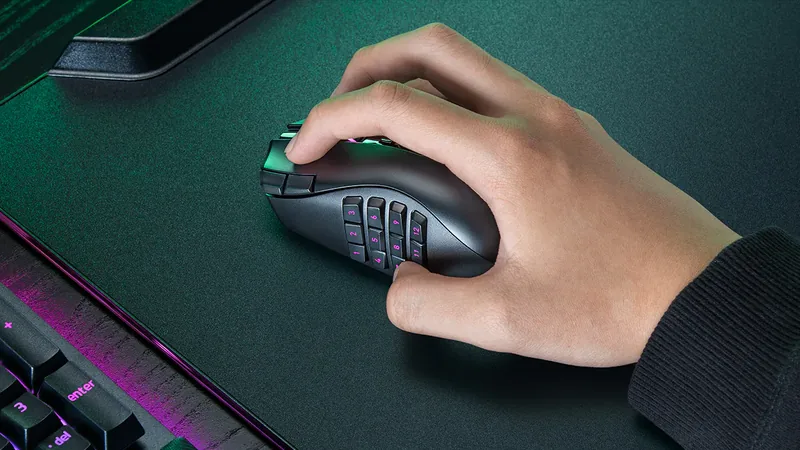
01 / 10MMO mouse decisionIs Razer's $180 Naga V3 Pro worth it?The answer depends on your binds, grip and tolerance for a heavier mouse.02 / 10The main reasonThree plates. Up to 23 controls.Choose 12 buttons for MMOs, 6 for mixed games or 2 for a simpler layout.03 / 10Learning curveMore buttons are not instant speedMap only awkward keyboard reaches first, then add commands as muscle memory settles.04 / 10Fit checkExpect about 112–117 g with a plateThat is feature-dense, not ultralight. Test grip comfort inside the return window.05 / 10Wireless and battery155 hours HyperSpeed; 280 BluetoothThose are Razer claims. Lighting, polling and use can shorten real runtime.06 / 1050K sensorShape matters more than maximum DPIFocus Pro 50K is flagship hardware, but normal play uses a fraction of its ceiling.07 / 10Clicks and scrollGen-4 optical switches; three wheel modesThe 100-million-click figure is a rating, not a promise for every unit.08 / 10Delivery dayTest every plate before building profilesCheck all buttons, wheel tilt, double inputs, DPI stages and wireless consistency.09 / 10The price tradeoff$179.99, while 8K needs an extra accessoryNative polling is 1,000 Hz. Do not buy a dongle unless you know why you need 8K.10 / 10VerdictBuy for many binds; skip for simple FPSIf you buy it, test every physical input before trusting a complex profile.
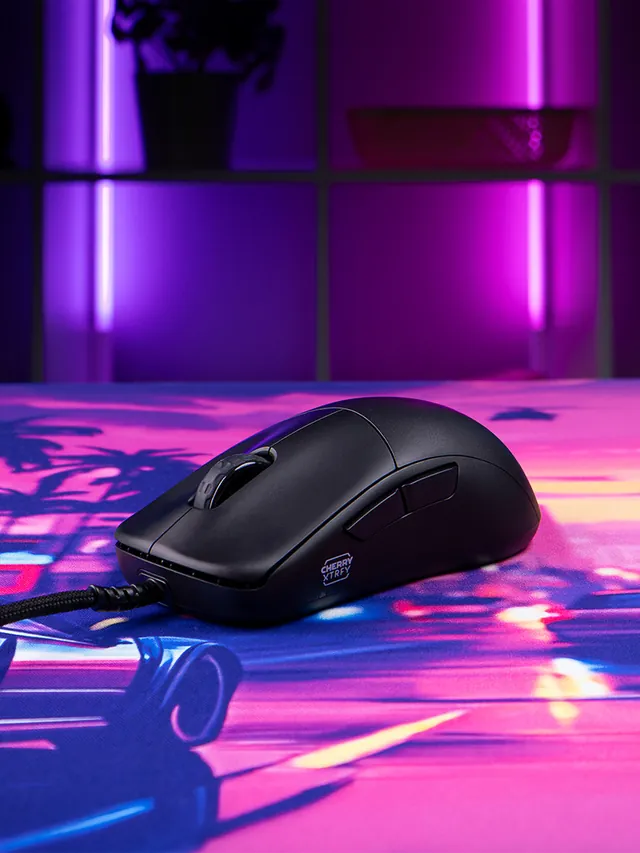
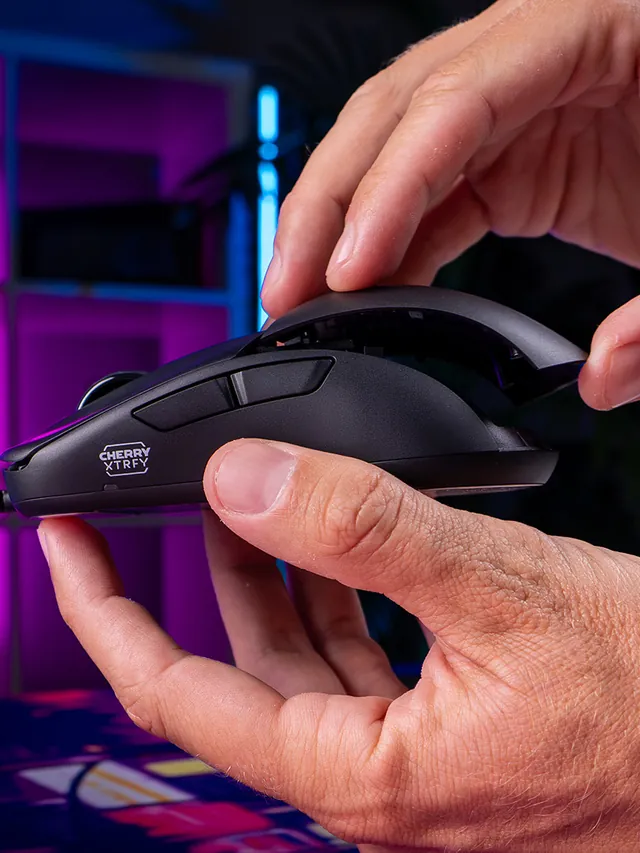
01 / 10Mouse showdownM42V2 vs M42The new mouse drops 14 g and seals the shell—but also moves from a PixArt 3389 to a 3327.02 / 10Weight45 g, Cable ExcludedCHERRY lists 45 g versus 59 g for the original M42. The V2 is solid, not perforated.03 / 10Modular shellTwo Shells Are Not NewBoth mice include two rear shapes. V2’s real shell change is a hole-free body with tool-free swaps.04 / 10SensorThe Sensor Trade-OffM42V2: 6,200 CPI, 220 IPS, 30 G. Original M42: 16,000 CPI, 400 IPS, 50 G.05 / 10InterpretationA Downgrade on PaperThose limits are lower. They do not prove bad tracking; independent instrumented tests still matter.06 / 10PollingSame 1,000 Hz CeilingBoth wired mice top out at 1,000 Hz. The V2 also offers 125, 250, and 500 Hz modes.07 / 10Price$39.99 US LaunchThe V2 launched at $39.99. The older M42 also showed $39.99 on sale when checked Sept. 4.08 / 10Other changesWhat Else Changed?Huano 80M-rated switches, no RGB, PTFE-free UHMW-PE glides, and no software requirement.09 / 10Buyer cautionWho Should Wait?Low-sensitivity players focused on fast-swipe tracking should wait for lab data or test within a return window.10 / 10Your turnTest Your M42V2Compare browser-observed pointer-event consistency at 1,000 Hz. A browser cannot certify raw USB polling.