



Fast answer
The same FOV number can produce a different view because the number is incomplete without three details: which axis is measured (horizontal or vertical), which aspect ratio is the reference, and how the game scales its camera. For example, 90° horizontal on a 4:3 reference is 73.74° vertical and 106.26° horizontal on a 16:9 display. That is why copying “90” from one game into another can look zoomed in or stretched. Confirm the source convention, then open the FOV calculator in Custom mode instead of matching bare numbers.
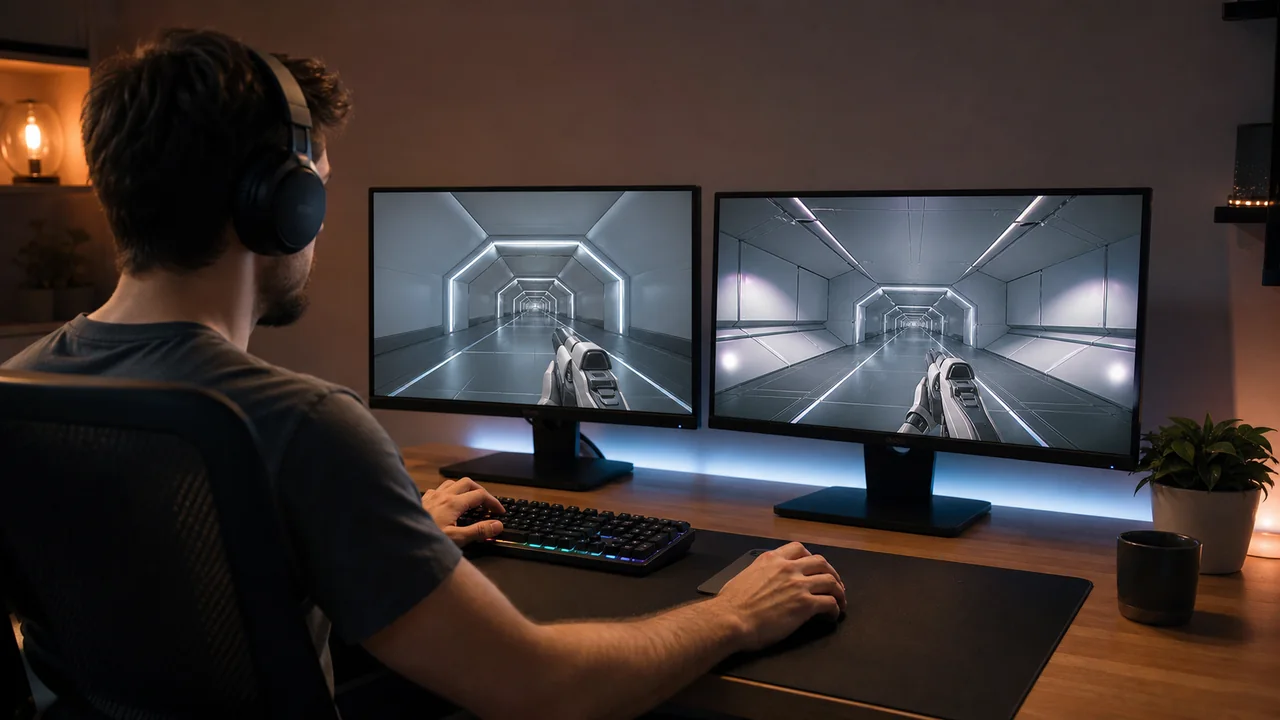
You set the same field-of-view value in two shooters, stand in roughly the same spot, and one game still looks faster, wider, or more cramped. It is tempting to blame the monitor or assume one slider is wrong. Usually, neither is true. The two games are describing different camera angles with the same-looking number.
FOV is an angle, but a rectangular screen has more than one useful angle. A game may expose horizontal FOV, vertical FOV, horizontal FOV measured against an old 4:3 reference, or a fixed camera that changes differently when the display becomes wider. Viewmodels, aiming-down-sights behavior, camera height, motion blur and sensitivity scaling then change perception even after the world-camera math is matched.
This guide separates exact projection math from “it feels close” tuning. You will get a reliable 4:3-to-16:9 example, a current game-convention table, a repeatable matching workflow and the checks to run when two mathematically equivalent views still do not feel identical.
HFOV, VFOV and diagonal FOV are different angles
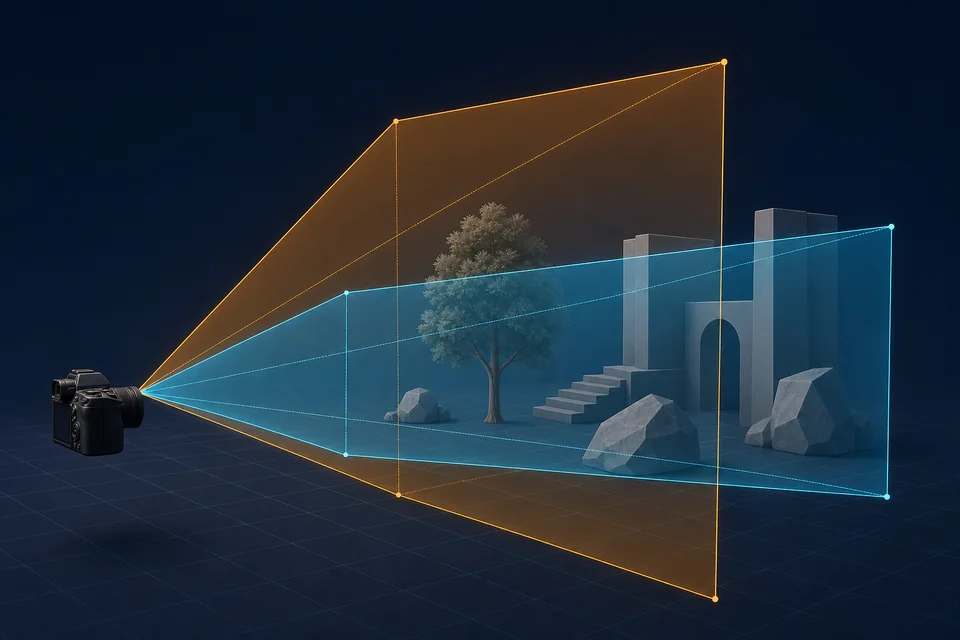
HFOV is the left-to-right angle of the world visible through the camera. VFOV is the top-to-bottom angle. Diagonal FOV runs from one screen corner to the opposite corner. All three describe the same viewing frustum, but their degree values are different because a typical monitor is wider than it is tall.
At 16:9, a 103° horizontal view is about 70.53° vertically. Entering 103 into a game that expects vertical FOV does not preserve the view; it asks for an enormous vertical angle. The reverse mistake makes a camera feel heavily zoomed. The letters H or V therefore matter as much as the number.
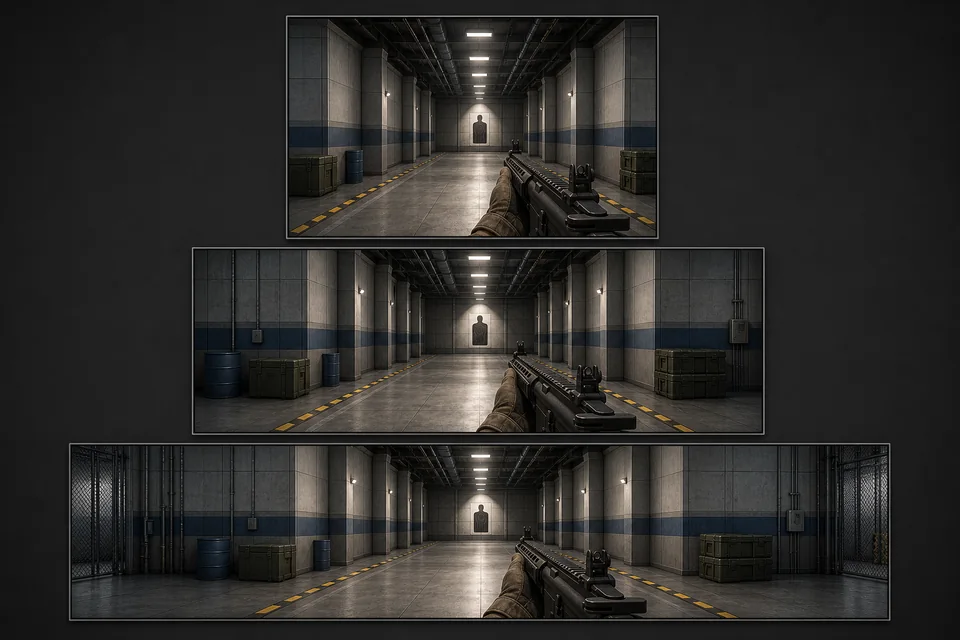
A second label is often hidden: the reference aspect ratio. Source-family games commonly express horizontal FOV as though the image were still 4:3, then expand horizontally on wider displays. A slider showing 90 can therefore render about 106.26° of actual horizontal world view at 16:9. This behavior is often called Hor+ or a 4:3 horizontal base.
- Horizontal FOV: the angle across the width of the image.
- Vertical FOV: the angle across its height and the most stable value when moving between aspect ratios in a Hor+ camera.
- Diagonal FOV: useful in optics, but uncommon in PC game settings.
- Reference base: the aspect ratio against which a displayed horizontal number is defined; it may not match your current monitor.
Why 90 at 4:3 becomes 106.26 at 16:9
For a standard centered rectilinear camera, aspect ratio A is width divided by height. Convert degrees to radians before using trigonometric functions. The relationship is HFOV = 2 × atan(tan(VFOV / 2) × A). Reversing it gives VFOV = 2 × atan(tan(HFOV / 2) / A).
Worked example: start with 90° horizontal at 4:3. Converting that angle to vertical gives 2 × atan(tan(45°) / (4/3)) = 73.7398°. Preserve that 73.7398° vertical view at 16:9 and the new horizontal value is 2 × atan(tan(73.7398° / 2) × (16/9)) = 106.2602°. So 90 H at 4:3 = 73.74 V = 106.26 H at 16:9.
This is an exact projection conversion, not a preference or an average-player statistic. It preserves the camera framing through the center. Use the aspect-ratio calculator if you are unsure whether your current resolution is 4:3, 16:9, 16:10 or 21:9, then run the 4:3-to-16:9 calculation with the confirmed axis and ratio.
- Preserve vertical view: convert the source value to VFOV first, then convert that VFOV to the target ratio.
- Do not scale degrees linearly: multiplying 90 by 16/9 is wrong because perspective uses the tangent of half the angle.
- Keep enough precision: calculate with decimals, then round only to what the game’s slider or config accepts.
Why game FOV sliders do not speak one language
There is no universal FOV-slider standard. The table below distinguishes the displayed setting from the approximate view it produces. These are current PC behaviors verified on 11 July 2026; patches, platforms and camera modes can change them, so recheck a game after a major update.
The safest habit is to write down four items together: game, camera mode, FOV type, and reference aspect ratio. “Apex 110, hip-fire, 4:3 horizontal base” is actionable. “FOV 110” is not. Likewise, a weapon-viewmodel command changes the gun model without necessarily changing the world camera, so screenshots can look different even when the environment framing matches.
Current PC FOV conventions at a glance
| Game | Setting convention | What the number means | Practical warning |
|---|---|---|---|
| Counter-Strike 2 | Source-style 4:3 horizontal base; normal world view is effectively fixed at 90. | 90 H at 4:3 = 73.74 V = 106.26 H at 16:9. | viewmodel_fov changes the weapon model, not the competitive world camera. |
| Valorant | Fixed 103° horizontal on a 16:9 base; no normal PC FOV slider. | 103 H at 16:9 is about 70.53 V. | Changing aspect ratio does not behave like Source Hor+; stretched output is not extra world view. |
| Apex Legends | 70–110 slider using a Source-style 4:3 horizontal base documented in KovaaK’s FILM reference. | 110 on the slider is approximately 124.59 H at 16:9. | UI/config rounding can create small differences; do not label the slider as vertical FOV. |
| Battlefield 6 | 85–120 first-person slider. Current in-game PC labeling reports horizontal; EA confirms the range but does not state the axis on its web page. | Treat the displayed value as current-game specific and verify the label after patches. | Do not transfer the number directly to older Battlefield titles that expose vertical FOV. |
| Battlefield 2042 | Explicit vertical slider, 50–105; default 55. | A 90 here means 90 V, not Battlefield 6’s 90 H. | ADS FOV and vehicle cameras can follow separate behavior. |
| Overwatch 2 (PC) | 80–103 horizontal on a 16:9 reference. | 103 H at 16:9 is about 70.53 V. | Do not use old original-Overwatch ultrawide crop descriptions as current OW2 behavior. |
| Fortnite | Current FOV Minimum/Maximum controls are camera-state dependent. | They are not a universal base-camera FOV slider. | Sprint, vehicle, mode and patch behavior must be checked separately. |
A diagnostic workflow when two games still look different
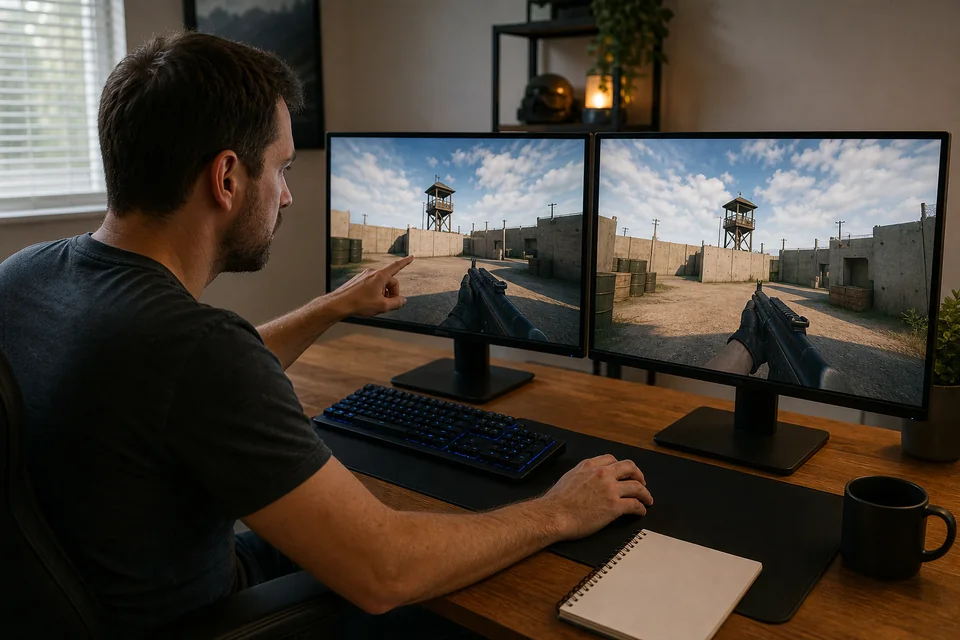
Use this workflow for hip-fire cameras first. Scopes, vehicles, sprint cameras and cut-scenes often have their own multipliers or dynamic FOV. Choose one reproducible training area in each game and disable camera shake, motion blur and dynamic resolution while comparing.
- Record the source exactly. Note the game, hip-fire or ADS state, slider value, resolution, aspect ratio and whether the setting is horizontal, vertical or a 4:3 horizontal base.
- Find a trusted convention source. Prefer first-party settings documentation or an actively maintained technical reference. Do not infer the axis from the size of the number.
- Normalize to vertical FOV. VFOV is a convenient bridge because Hor+ systems normally preserve vertical framing as the display becomes wider.
- Convert to the target convention. Convert the confirmed HFOV or VFOV by entering the source axis and reference ratio, then use the axis and reference expected by the target game.
- Match the real display state. Enter the active fullscreen width and height in the screen-ratio tool to calculate the ratio. Stretched 4:3, letterboxing and ultrawide crop behavior can invalidate the expected result.
- Validate with landmarks. Stand at a repeatable spot, center the same kind of object, and compare how much environment is visible at the edges. Match the world, not the weapon model.
- Save the result with labels. Keep “73.74 V / 106.26 H at 16:9,” not just “106,” so the conversion can be audited later.
If the target only accepts whole numbers, test the two nearest settings and choose the one whose environment framing is closest. That is a rounding limit, not evidence that the formula failed.
Why equal camera math can still feel different
FOV controls projection, not the complete aiming experience. A wider view makes the same angular turn cover fewer screen pixels, so motion can look slower near the center even though the mouse still rotates the player through the same number of degrees. Conversely, strong head bob, sprint shake or peripheral distortion can make a matched camera feel faster. A wider view also draws more of the scene each frame, which can lower the frame rate on a loaded GPU - and inconsistent frame delivery changes motion feel more than projection math does. Before blaming the camera, run a quick online FPS test to confirm your display pipeline holds its refresh rate outside the game.
Mouse sensitivity can also be equal in centimeters per 360° while target movement across the monitor feels different. DICE’s Uniform Soldier Aiming note explicitly separates consistent screen-space movement from a simple physical turn-distance match. That distinction is why one “perfect” sensitivity ratio does not suit every player or every scope.
First verify hardware with the mouse DPI test or DPI calculation check. Then compare effective sensitivity with the eDPI calculator. If the numbers match but aim still feels wrong, the guide to why the same DPI can feel different covers Windows scaling, acceleration, polling rate and game input paths.
- Viewmodel FOV: changes the apparent size and position of hands or weapons; it may leave the world camera untouched.
- ADS and scope scaling: games use different zoom ratios and monitor-distance rules.
- Dynamic FOV: sprinting, vehicles, abilities or speed effects may widen the camera temporarily.
- Camera height and animation: bob, roll, recoil and shake change perceived speed.
- Lens effects: distortion, vignette, motion blur and ultrawide edge stretching alter how wide the scene feels.
- Crosshair and HUD: size and placement affect scale perception; use the crosshair generator to keep a controlled reference.
“It calculates the amount of input it takes for your aim to move across screen space to be consistent regardless of field of view changes.”
DICE — Uniform Soldier Aiming developer note
KovaaK and Aimlabs: match the profile, not only the number
An aim trainer cannot reproduce a game camera from one bare number. Select the target game profile or FOV scale, enter the same aspect ratio and resolution, choose the same hip-fire or scoped state, and then copy the value. KovaaK supports named game scales plus custom FILM notation; Aimlabs likewise tells players to select the game profile and exact in-game FOV.
Recheck profiles after a game update. A trainer preset is a convenience layer, not proof that the underlying game still uses the same convention. When a profile and a current first-party setting disagree, preserve your confirmed vertical view in Custom conversion and validate against landmarks.
- Match resolution and aspect ratio before comparing target size.
- Use the same camera state: hip-fire to hip-fire, scope to the equivalent scope.
- Keep sensitivity scale separate from FOV scale; both must be correct.
- Record the profile name and update date with your settings.
Quick diagnosis when the same FOV still looks wrong
Run these checks in order. The first mismatch you find usually explains the problem; changing several settings at once makes the result harder to diagnose.
- Is one value horizontal and the other vertical?
- Does one horizontal value use a 4:3 reference while the other uses your actual 16:9 or 21:9 ratio?
- Are both games running at the resolution and display mode you recorded?
- Are you comparing world-camera FOV rather than viewmodel FOV?
- Are both screenshots hip-fire, with the same sprint/vehicle/ability state?
- Does one game crop, stretch or letterbox the scene instead of using Hor+?
- Are motion blur, camera shake, head bob or lens distortion changing perception?
- Did you round too early or copy a preset whose game behavior changed after a patch?
Tools for a controlled FOV and sensitivity check
Use the localized version of each tool. Start with camera geometry, then verify the input variables that can make an exact view feel different.
Convert horizontal and vertical angles between confirmed aspect ratios.
Aspect-ratio calculatorEnter the active width and height to calculate whether the resolution is 4:3, 16:9, 16:10 or ultrawide.
eDPI calculatorCompare base sensitivity after the camera geometry is correct.
Mouse DPI testVerify that the hardware DPI matches the value used in your sensitivity notes.
Related aiming guides
Diagnose scaling, acceleration, polling and input-path differences.
Change DPI without losing your aimPreserve effective sensitivity while moving to a new DPI step.
Controller deadzone explainedSeparate camera/FOV problems from stick drift and response-curve problems.
Copy a pro crosshair correctlyKeep crosshair scale and visual reference controlled across games.
Video: FOV, aspect ratio and ultrawide in four minutes
GameSpot’s visual explainer is useful for seeing how wider and narrower camera framing changes what appears at the edges. Use it as a concept demonstration; use the sourced current-game table above for present-day settings.

A concise visual explanation of field of view, aspect ratio and ultrawide rendering in PC games.
Sources and verification notes
Camera formulas and current setting claims were checked on 11 July 2026. First-party documentation is preferred where it states the setting; specialist references are used for conventions that publishers do not document clearly.
- OpenCV camera calibration documentation
Rectilinear camera model and field-of-view relationship.
- Unity Camera.VerticalToHorizontalFieldOfView
Official horizontal/vertical conversion reference.
- Microsoft DirectX perspective matrix
Official perspective projection definition using vertical FOV and aspect ratio.
- KovaaK FILM notation
Game FOV scales, reference bases and aspect-ratio conversion conventions.
- Valve Developer Community — Source dimensions
Valve’s technical reference describes Source field of view as a horizontal angle.
- PCGamingWiki — Counter-Strike 2
Current world-camera, aspect-ratio and viewmodel behavior.
- PCGamingWiki — Valorant
Current fixed-FOV and aspect-ratio behavior.
- PCGamingWiki — Overwatch 2
Current PC FOV range and ultrawide behavior.
- EA Apex Legends PC requirements
Official 70–110 FOV setting range.
- EA Battlefield 6 accessibility settings
Official current first-person FOV range.
- EA Battlefield 2042 display settings
Official vertical 50–105 range and default.
- DICE Uniform Soldier Aiming note
First-party explanation of screen-space consistency across FOV changes.
- Epic Games Fortnite FOV support
Current FOV Minimum and Maximum control availability.
- Epic Games competitive development update
First-party historical reference for Fortnite’s standard camera and the competitive FOV decision.
- Esports.gg Fortnite FOV control explanation
Specialist testing of the current action-driven camera behavior.
- KovaaK FAQ and custom sensitivity scales
Official profile and custom-scale setup guidance.
- Aimlabs configuration guide
Official instructions to select a game profile and match in-game FOV.
Frequently asked questions
- Why does the same FOV number look different in two games?
The games may measure different axes, use different reference aspect ratios, or scale the camera differently. A number must be paired with horizontal or vertical, the reference ratio, and the camera mode before it can be compared.
- Is 90 horizontal FOV the same as 90 vertical FOV?
No. On a 16:9 display, 90 vertical is about 121.28 horizontal. Conversely, 90 horizontal at 16:9 is about 58.72 vertical.
- What is 90 FOV at 4:3 in 16:9?
If 90 is horizontal on a 4:3 reference and vertical view is preserved, it equals 73.74 vertical and 106.26 horizontal at 16:9.
- Should I match horizontal or vertical FOV between games?
Normalize both cameras to vertical FOV first, then convert that vertical angle into the convention expected by the target game. This avoids confusing 4:3 horizontal bases with actual display-horizontal angles.
- Does a higher FOV change mouse sensitivity?
It does not necessarily change physical centimeters per 360 degrees, but it changes how many screen pixels a target travels for the same angular turn. Games may also apply separate ADS or monitor-distance scaling.
- Why does my gun look different after matching FOV?
Weapon or viewmodel FOV can be separate from the world camera. Validate the edges and landmarks of the environment, not the size or position of the weapon model.
- Can I copy my game FOV directly into KovaaK or Aimlabs?
Only after selecting the correct game profile or FOV scale, aspect ratio, resolution and camera state. A bare number can represent a different projection convention.
Do not copy a bare slider number. Record its axis and reference ratio, convert it through Custom FOV mode, calculate the active resolution ratio from width and height with the aspect-ratio calculator, and validate with world landmarks. That turns “this feels wrong” into a camera setting you can reproduce and audit.



Reader discussion
Comments
Share what worked, what did not, or what you would test next. Every comment is reviewed before it appears.
Loading approved comments…
Leave a comment
No account or sign-in is required. Links and HTML are not accepted.