Blocked combinations
Find movement and modifier combos that fail under real gameplay conditions.
🖱️Mouse
🖥️Display
Gaming keyboard diagnostics
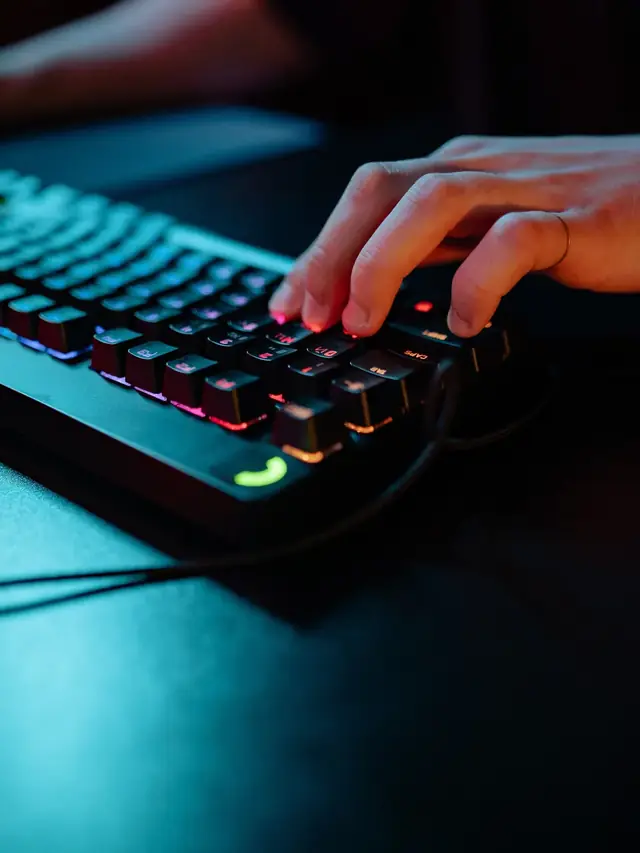
Press several keys together and see whether every combo registers. Use this live tester to find blocked combinations, phantom inputs, and weak anti-ghosting zones.
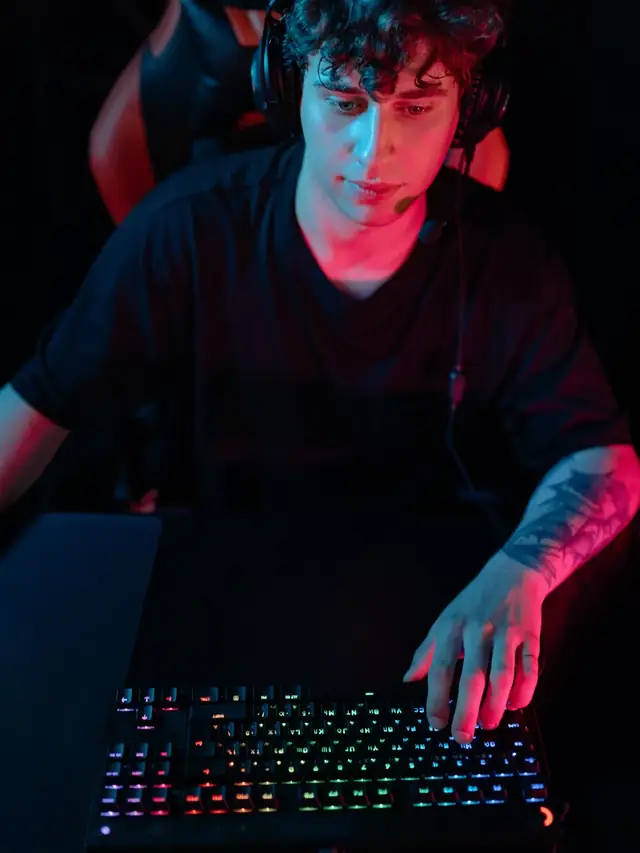
Check WASD, Shift, Ctrl, and Space combinations before competitive play.
Find weak zones on built-in keyboards where combos stop registering.
Live keyboard test
Use the full keyboard tester below, then hold multiple keys at the same time to see whether every press appears on screen.
Made for combo checks
Ghosting problems show up when some keys disappear from a combo or unexpected behavior appears under multi-key load.
Find movement and modifier combos that fail under real gameplay conditions.
Some keyboards fail only in specific rows or columns, not across the whole board.
Confirm whether the advertised gaming zones really support the combos you use.
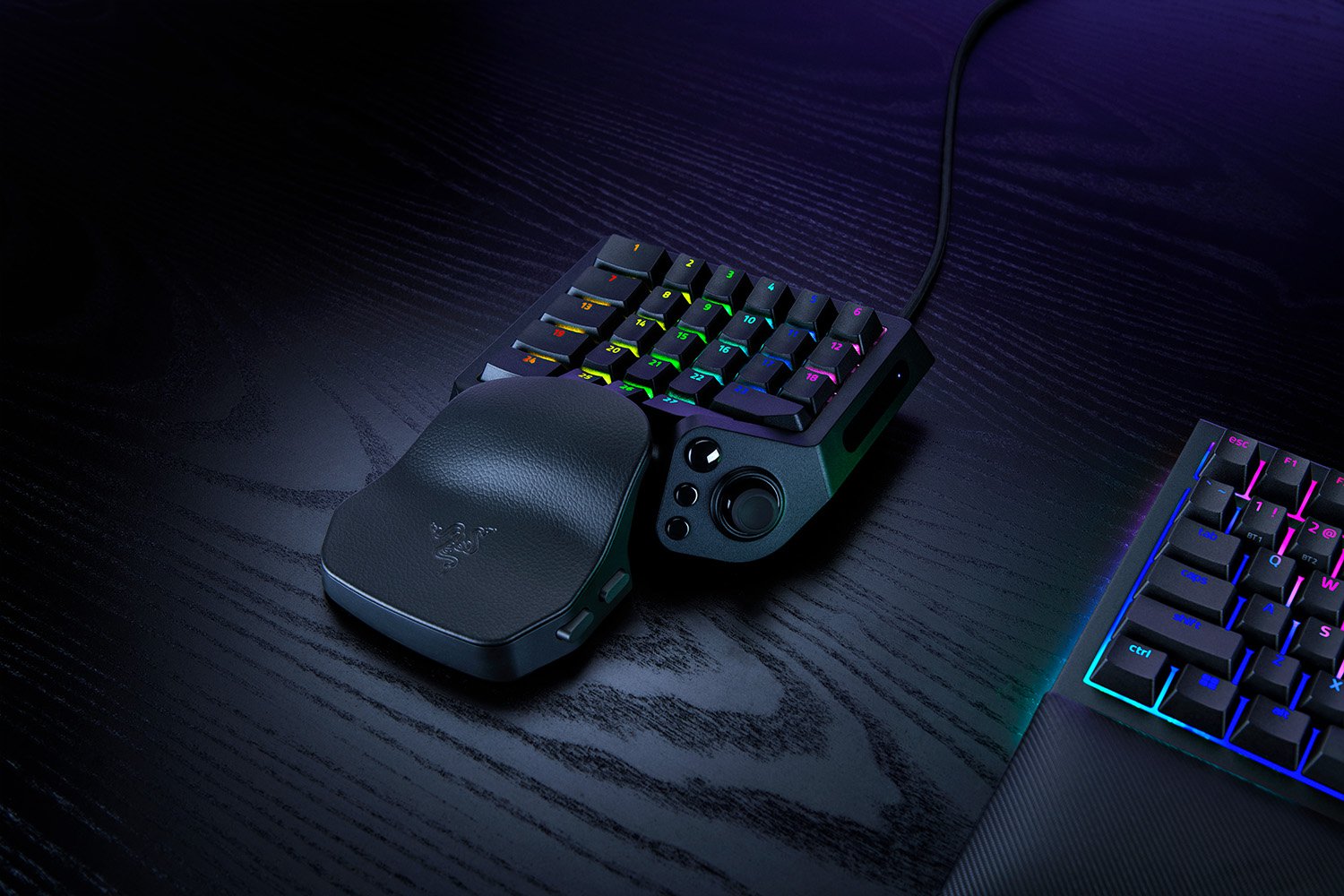
Compare a laptop keyboard with an external keyboard in the same browser.

Simple workflow
Use the live key map, then repeat the combos that usually fail in games or shortcuts.
Focus the tester and make sure single key presses register normally first.
Try WASD with Shift, Space, Ctrl, or the work shortcuts that often fail on your keyboard.
If a pressed key does not light up, you have found a blocked combo or ghosting limitation.
Search Intent Cluster
Use the same live keyboard tester for stuck keys, ghosting, and rollover checks.
Test every key, inspect layouts, and verify whether your keyboard responds at all.
Open pageCheck whether a repeating, jammed, or unresponsive keyboard key is actually registering correctly.
Open pageCheck how many simultaneous key presses your keyboard can register correctly.
Open pageExplore the full suite for keyboard, mouse, audio, and utilities.
Language support: All major tools are available in 8 languages - Arabic, Russian, Spanish, French, Portuguese, Japanese, German, and Korean. Select your language from the header menu to switch.
Test keyboard functionality, detect ghosting, measure latency, check for stuck keys
Test your keyboard Arabic Keyboard TesterTest Arabic keyboard layout and key response in an Arabic-first interface
Test Arabic layout Typing Speed TestMeasure WPM, accuracy, and typing consistency
Check typing speed Latency CheckerTest device and input latency in your browser
Measure latency Spacebar Speed TestCount how many spacebar presses you can make in 5, 10, or 30 seconds
Test your spacebar Key Repeat Rate TesterMeasure your keyboard key repeat rate (Hz) and initial delay (ms) in your browser
Test repeat rate Typing Rhythm FingerprintVisualize your inter-keystroke timing patterns and get a rhythm consistency score
Analyze rhythm Keyboard Switch Sound AnalyzerClassify your mechanical keyboard switches as linear, tactile, or clicky using mic FFT analysis
Analyze sound Mouse TesterCheck mouse buttons, scroll wheel, cursor movement, and responsiveness
Test your mouse Mouse Speed TesterMeasure your click speed (CPM or CPS) with timed tests
Check click speed Mouse Sensitivity / DPITest DPI, sensitivity, and tracking accuracy
Test DPI settings Mouse TrailVisualize mouse movement trails and precision
View mouse trails Ghost Click DetectorDetect unintended or phantom clicks
Detect ghost clicks Mouse Polling Rate TestCheck if your gaming mouse runs at 125Hz, 500Hz, 1000Hz or higher
Test polling rate Mouse LOD TesterMeasure your gaming mouse lift-off distance to optimize sensor performance
Test LOD Screen TesterDetect dead, stuck, or hot pixels on screens
Test your screen Monitor Refresh Rate TestDetect if your display runs at 60Hz, 144Hz, 240Hz or higher
Test refresh rate Monitor Color TestCheck color accuracy, gradient banding and backlight uniformity
Test colors Backlight Bleed TestCheck your LCD monitor for backlight bleed, IPS glow, and clouding
Test for bleed Touch Screen TestTest for dead zones, ghost touches and multi-touch on phone or tablet
Test touch screen PWM Flicker TestCheck if your monitor uses PWM backlight dimming that can cause eye strain
Test for flicker Webcam TesterCheck webcam quality, resolution, and snapshots
Test your webcam Mic TesterVerify microphone input and audio levels
Test your microphone Headphone / Speaker TesterTest stereo channels and sound output
Test audio output OCR ToolExtract text from images quickly
Extract text now QR Code ReaderScan QR codes with camera or image upload
Scan QR codes QR Code GeneratorCreate custom QR codes instantly
Create QR code Password GeneratorCreate strong, secure passwords instantly
Generate password WhatsApp Link GeneratorCreate clickable WhatsApp chat links
Generate chat link WhatsApp Brand LinksCreate branded WhatsApp links and QR codes
Create brand link WhatsApp Sentiment AnalyzerAnalyze chat sentiment and tone
Analyze sentiment All ToolsBrowse all hardware testing tools in one place
View all tools Gamepad TesterTest PS5, Xbox, Switch and PC controller buttons, stick drift and triggers
Test controller Reaction Time TestMeasure how fast you react with a browser-based millisecond reflex test
Test reaction timeNo tools match that category yet.
Keyboard ghosting is a hardware limitation that appears when several keys are pressed at the same time and the keyboard fails to report all of them correctly to the operating system. In practice, that means a combination you are physically holding may never fully reach the browser — some keys simply vanish from the input stream.
This matters most in fast-paced games, but it also affects programming shortcuts, accessibility inputs, and rapid professional typing. If your sprint key stops working mid-dash, or a three-finger chord refuses to fire in your text editor, ghosting is a likely culprit.
If you want to measure the maximum number of simultaneous key presses more precisely, use the related N-key rollover test. For checking single unresponsive or repeating keys, use the stuck key test.
Most keyboards use a grid of wires called a switch matrix. Rows and columns of keys intersect at each switch, and the firmware scans this grid repeatedly to detect which intersections are closed. When you press a single key, one row and one column intersect, giving a unique address. The firmware reports that address to the computer.
The problem starts with three or more simultaneous presses. If three keys share two rows and two columns, the matrix can produce a fourth phantom intersection — a ghost key that was never pressed, or worse, a combination that blocks the real inputs from appearing. This electrical ambiguity is why some combos trigger ghosting while others on the same keyboard work fine. It depends on the exact row-column layout the manufacturer chose.
Gaming keyboards address this by using diodes at each key switch. A diode blocks current from flowing in the wrong direction across the matrix, so every key press produces an unambiguous signal regardless of how many other keys are held. This is called anti-ghosting, and keyboards that support it for every key are described as having N-key rollover (NKRO).
Run the combinations you actually use most often. Ghosting is zone-specific — some keyboards only fail in specific row and column intersections, so a combo that passes in one area may fail in another.
Press three or more keys simultaneously using the live keyboard tester above. If every key you are holding lights up on the on-screen layout, the combination registers correctly. If one key fails to light up even though you are physically pressing it, that combination is ghosted on your keyboard.
Start with basic two-key presses to confirm the tool responds normally, then gradually increase the number of simultaneous presses. Try the combos you use in your actual games or software. Repeat each test a few times since ghosting can be intermittent depending on exact press timing.
If every key you are holding lights up, the combination is fully supported by your keyboard hardware. If one key disappears or never registers, you have found a blocked combination. If the problem only appears in certain areas of the keyboard — for example, the WASD cluster but not the arrow keys — that usually points to the matrix layout rather than a firmware or browser issue.
For a broader check of all keys and layouts, go back to the main keyboard tester. For a direct comparison of how many keys your keyboard can report at once, try the N-key rollover test.
Yes, especially if it affects your common movement or ability keys. Missed inputs can make a keyboard feel inconsistent even when individual keys work perfectly in isolation. Games that require sprint plus jump plus directional movement simultaneously are the most likely to expose ghosting issues.
Most keyboards have some rollover limit, but well-designed boards place the ghosting zones in areas that are rarely used simultaneously. Gaming keyboards with per-key diodes (anti-ghosting) eliminate the problem entirely for any number of simultaneous presses.
Yes. The browser receives key events from the operating system, which in turn receives them from the keyboard firmware. If the keyboard does not send a key to the OS, the OS does not send it to the browser, and the tester does not light it up. Missing highlights during a genuine multi-key press reflect real hardware behavior.
Ghosting is when a key press is lost or a phantom key appears because of matrix ambiguity. Anti-ghosting means the keyboard uses diodes at each switch to prevent that ambiguity, so every pressed key is reported correctly regardless of what other keys are held.
Remap your commonly ghosted combos to keys in a different matrix zone. Many games and operating systems allow key rebinding. If the problematic combo is essential and cannot be changed, a keyboard upgrade to one with full NKRO support is the reliable long-term fix.
Use our free online keyboard tester to test every key with real-time feedback. Verify your layout and spot issues like ghosting or stuck keys in just seconds.
Make sure the page is focused, press the key firmly, and confirm your OS language matches the selected layout.
Keys like Fn and some media controls are handled by hardware and may not send browser events.
The tool works best on desktop keyboards. Mobile and tablet virtual keyboards may not send full key events.
Yes. Press several keys together to see which keys register and identify ghosting issues.
Click Reset, then refresh the page to clear any saved preferences.
Tests run in your browser and are not uploaded to a server.