










Fast answer: KeyboardTester.click is now available on Microsoft Store for Windows users who want an installable app shortcut. The same free browser-based testing tools remain available at keyboardtester.click.
Install the Windows app from the official Microsoft Store listing, or keep using the web version directly in your browser.


What Changed
The Microsoft Store release gives Windows users a cleaner way to keep KeyboardTester.click available from the Start menu, taskbar, or app launcher. It is useful if you test hardware often, support other users, repair laptops, compare keyboards, or quickly verify devices before a meeting or game session.
The website is not going away. The Store app is an optional install path for people who prefer a desktop-style entry point instead of opening a browser bookmark every time.
What You Can Test
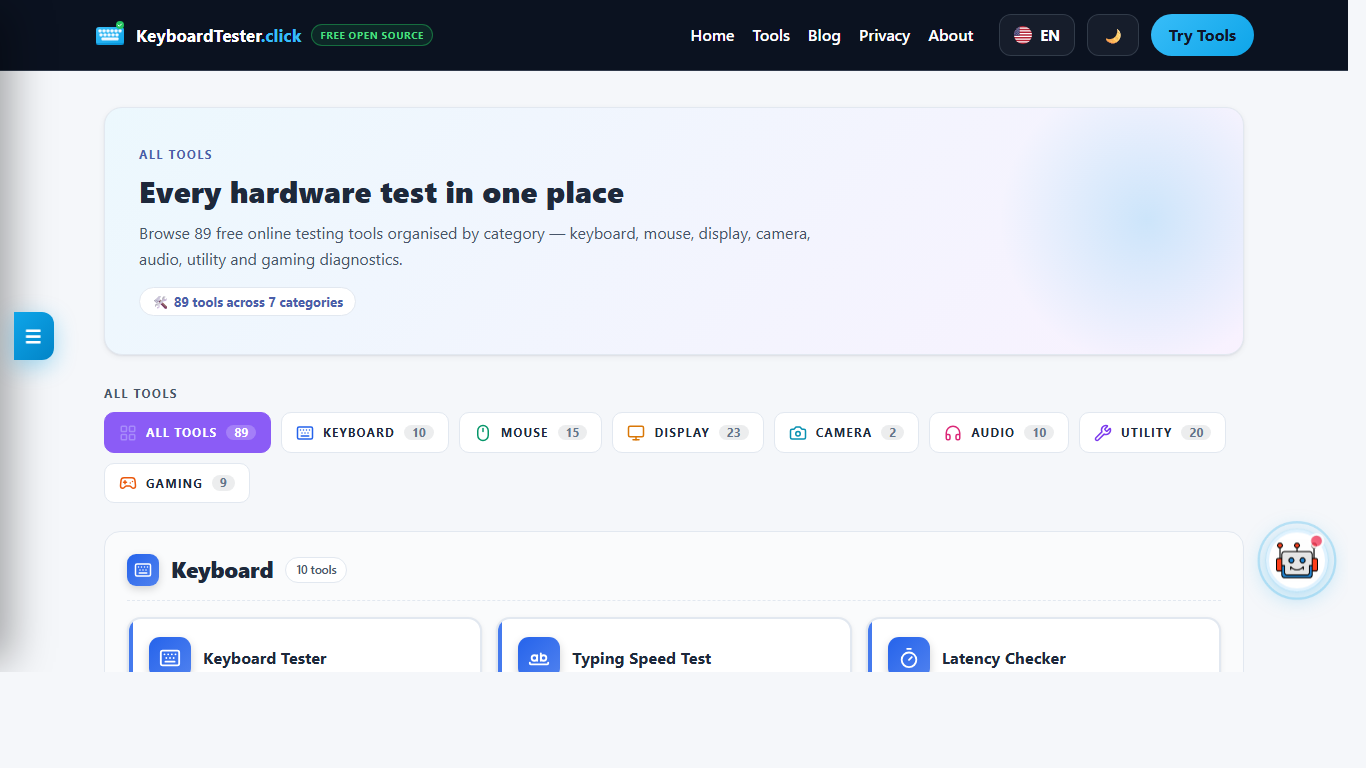
The app opens the KeyboardTester.click testing suite, including the core tools Windows users already use on the site.
- Keyboard keys, stuck keys, ghosting, rollover, typing speed, and input latency.
- Mouse buttons, scroll wheel, click speed, DPI checks, and pointer diagnostics.
- Screen colors, dead pixels, webcam access, microphone input, and speaker channels.
- QR code, OCR, password, WhatsApp link, and everyday utility tools.
- Multilingual keyboard tester pages for international layouts.
Website or Microsoft Store App?
Use the website when you need a quick one-time check from any browser. Use the Microsoft Store app when you want KeyboardTester.click to feel like a normal Windows utility that is easy to reopen.
For most troubleshooting, both paths lead to the same practical workflow: open the right tool, run the check, compare the result, then retest after changing one thing such as cable, USB port, browser, wireless mode, or device permission.
Quick Keyboard Test Demo
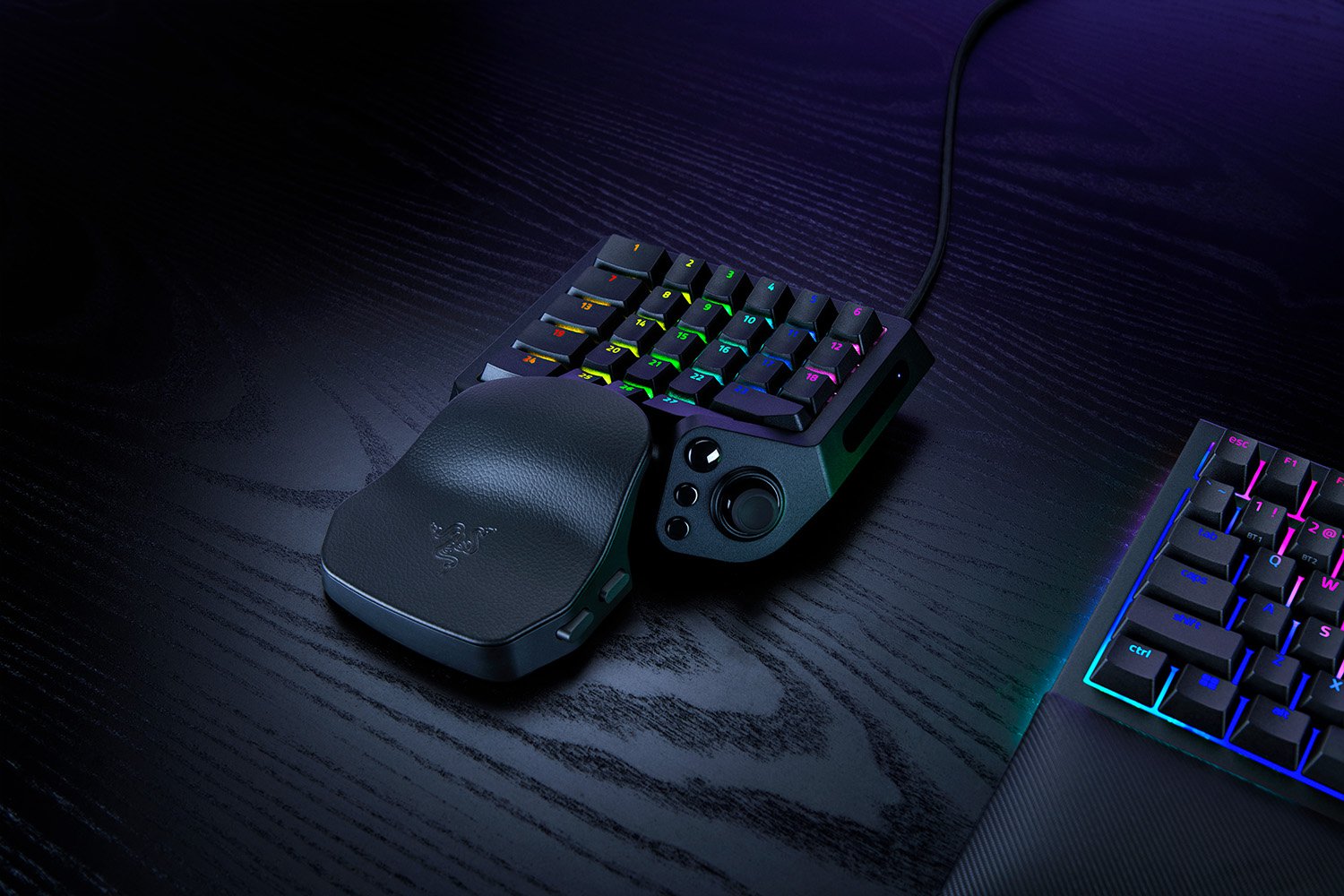
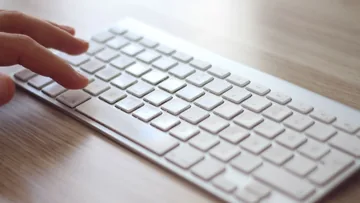
This short demo shows the kind of visual key feedback that makes a keyboard tester useful before you replace hardware.

Privacy and Permissions
Keyboard and mouse checks run from normal input events. Tools such as webcam, microphone, QR scanning, or OCR may ask for a browser permission because those features need device or file access to work. Do not type passwords or private messages into any tester, including ours.
For policy details, read the KeyboardTester.click privacy policy.
Related Tools
Keep Reading
- How to test a keyboard online for stuck keys, ghosting, NKRO, and latency.
- How to fix keyboard delay, input lag, and sticky keys in Windows 11.
- Stop your microphone picking up desktop audio on Windows 11.
FAQ
Is the Microsoft Store app free?
Yes. KeyboardTester.click remains free to use on the web and through the Microsoft Store listing.
Is the Windows app different from the website?
The Microsoft Store release is an installable PWA experience for the same KeyboardTester.click tool suite. The website remains the main browser-based version.
Should I use the website or the Microsoft Store app?
Use the website for quick one-time checks. Use the Microsoft Store app if you test keyboards, mice, screens, audio, QR codes, or OCR often and want a Windows app shortcut.
Does the app need device permissions?
Only tools that naturally need a permission will ask for one, such as webcam or microphone tests. Keyboard and mouse checks work without account login.



Reader discussion
Comments
Share what worked, what did not, or what you would test next. Every comment is reviewed before it appears.
Loading approved comments…
Leave a comment
No account or sign-in is required. Links and HTML are not accepted.